Campaigns: subscription and billing
Campaigns by Pipedrive is a powerful marketing tool that lets you manage your email communication, data and engagement with your customers from one place.
Before adding Campaigns by Pipedrive to your subscription, try it for free and boost your sales with custom newsletters sent directly from your Pipedrive account and account management software.
Trial
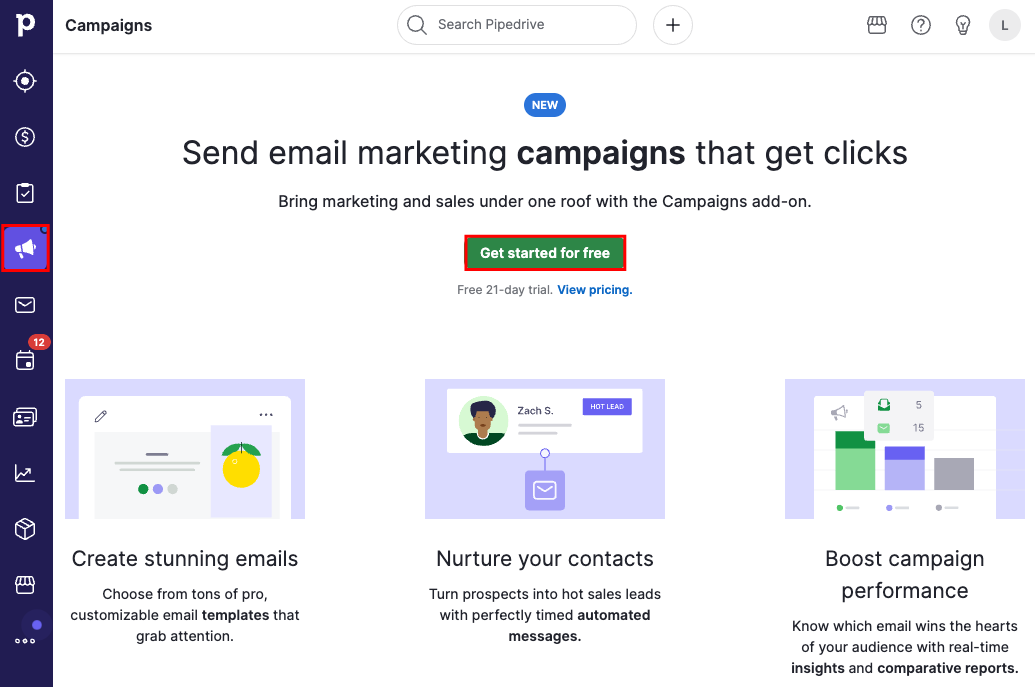
To activate your 21-day trial, go to the Campaigns page by clicking on the megaphone icon on the left-hand side of the primary navigation bar.
Then, click the trial button to try campaigns for free.
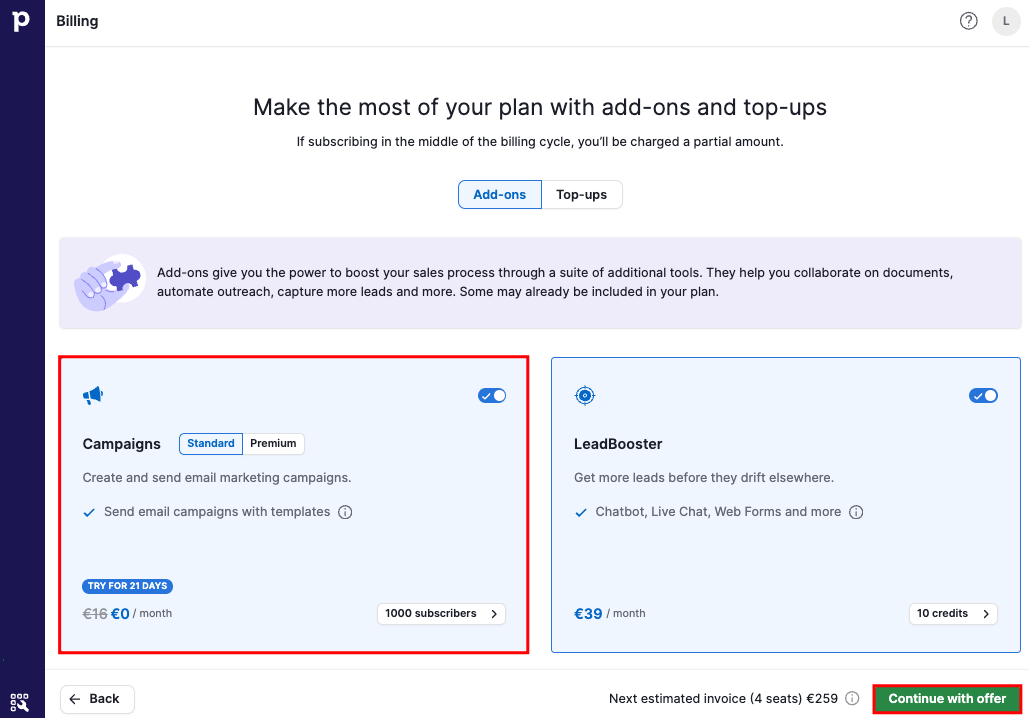
You’ll be redirected to the billing page, where you can add the Campaigns add-on to your subscription.
Once you’ve successfully activated the trial, you’ll see a blue banner at the top of your Campaigns page showing how many trial days you have left.
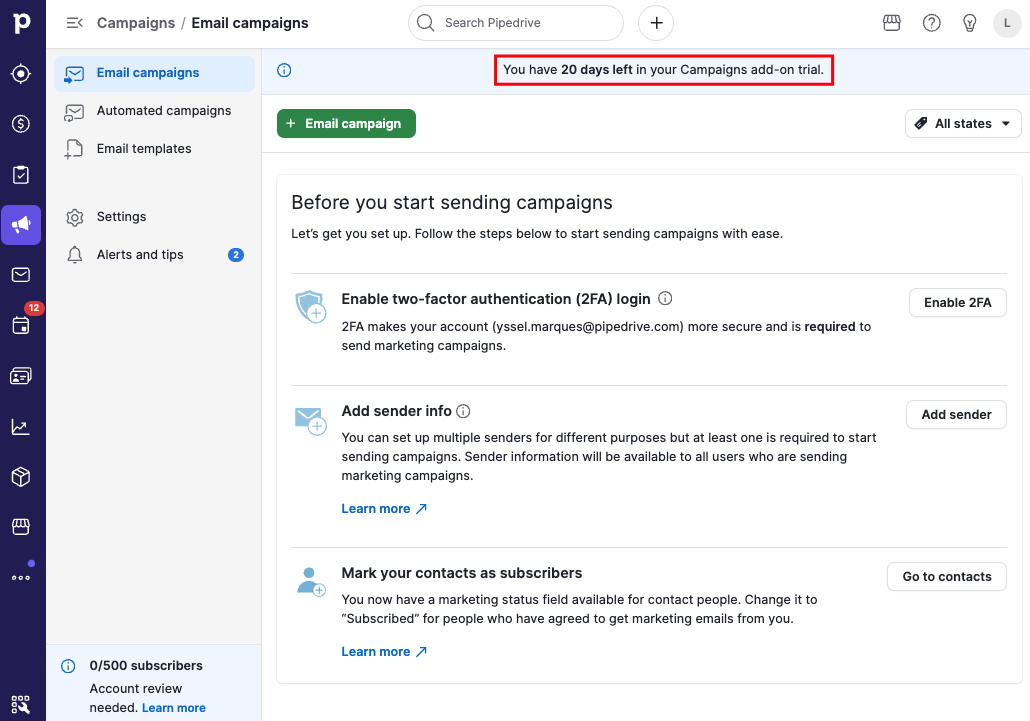
During the trial you can add up to 500 subscribers.
Account review
An account review is mandatory to purchase Campaigns after your Campaigns trial period.
If you wish to purchase Campaigns but your account hasn’t undergone an account review during the trial period, you can prompt a review from the Campaigns page.
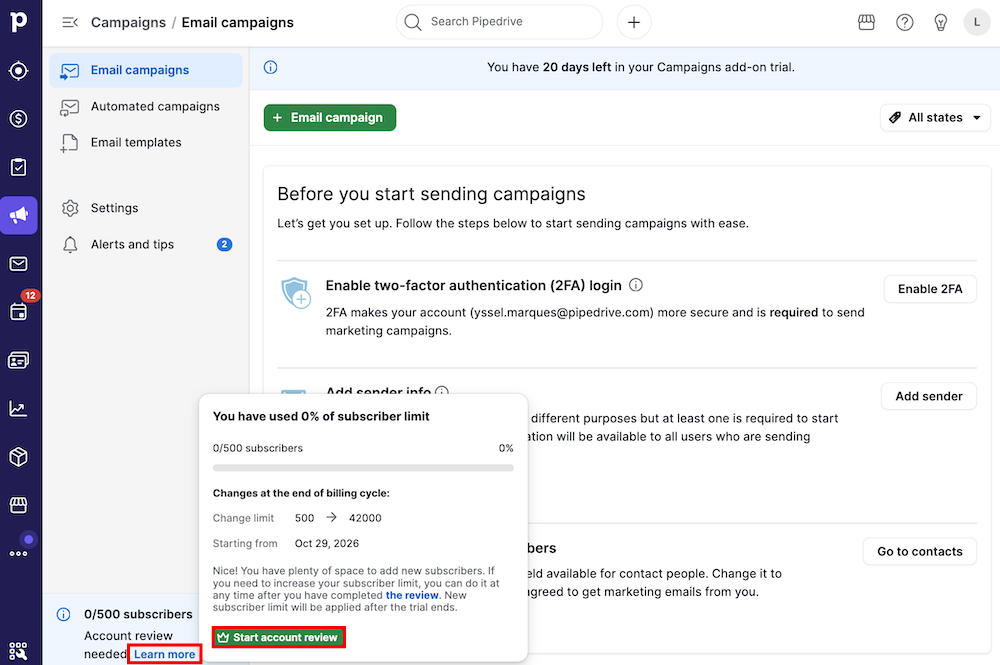
Learn more about account verification in this article.
Pricing
The pricing for campaigns depends on the tier and the subscriber limit you choose.
Add Campaigns to your subscription
To add Campaigns to your subscription, go to the billing page. Then, select the Campaigns tier (standard or premium) and enter the amount of contacts you need.
Use the slider to select your desired number of contacts between 1k and 100k subscriber spots (by 1k increments).
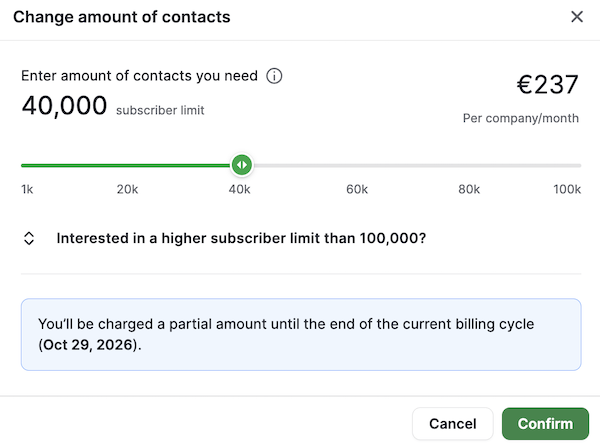
As you move the slider, the estimated cost will appear on the right-hand side based on the overall contacts’ number. The more contacts you choose, the less you pay per subscriber.
The new subscriber limit will be applied to your company account immediately. This means, you’ll be charged a prorated amount from that date until the end of your current billing cycle. From the next billing cycle, the new subscriber tier will already be effective and the full amount will be charged.
Downgrade to a lower subscriber tier
To downgrade to a lower subscriber tier, click the subscriber limit in the Campaigns add-on section on the billing page and choose a lower limit using the slider.
The new subscriber tier will be effective from the start date of the next billing cycle.
Cancel Campaigns
To cancel the subscription to Campaigns, follow the steps in this article.
Was this article helpful?
Yes
No