Sync LinkedIn Lead Forms to Pipedrive
LinkedIn Lead Gen Forms let you run lead generation campaigns on LinkedIn. By default, LinkedIn collects new leads on its platform and you can download them as a CSV file. Without an integration, you'd have to export the CSV and import it to Pipedrive.
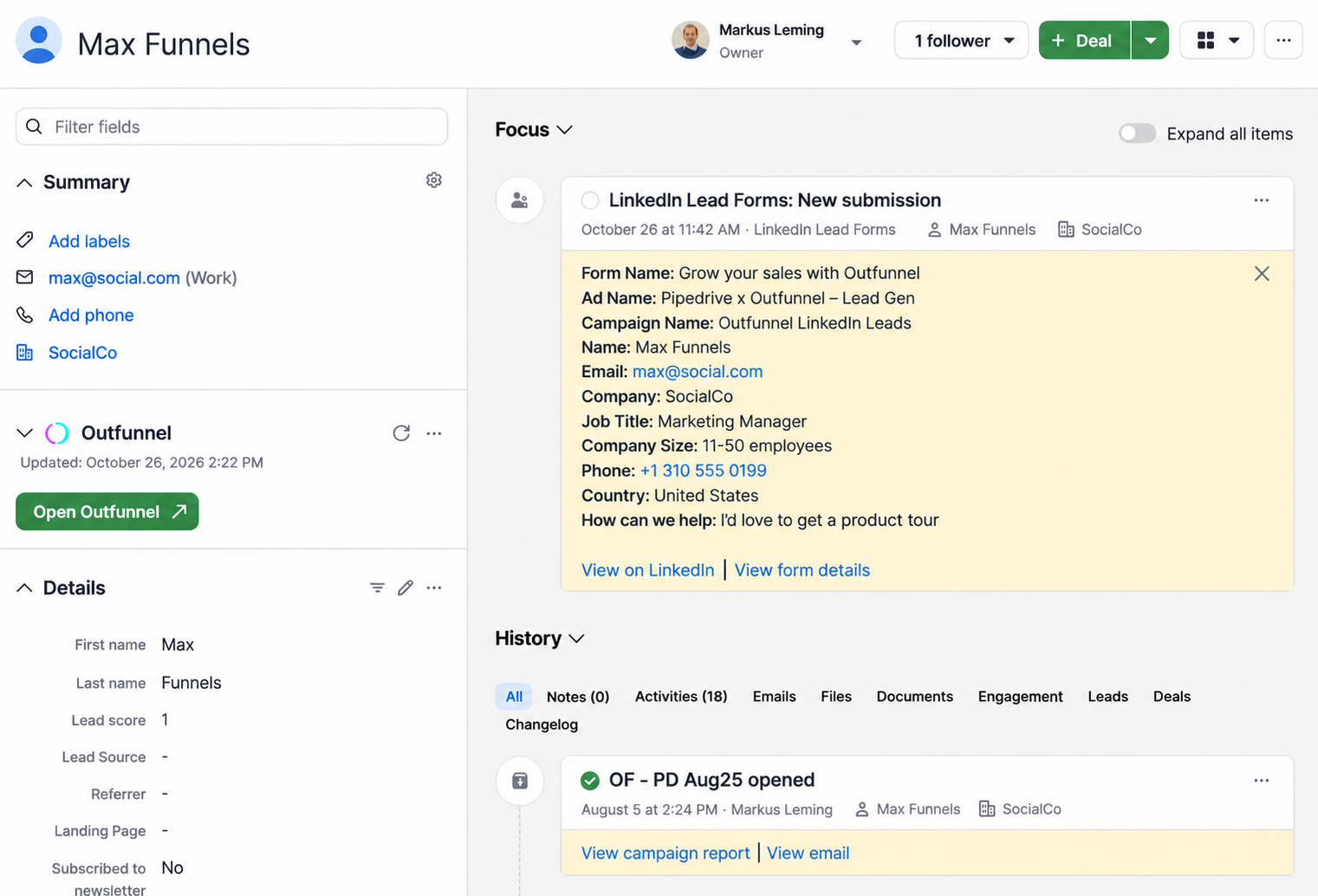
With Outfunnel by Pipedrive, all your new leads get added to Pipedrive automatically, saving you time and helping you drive more sales. Here's what it does:
- Automatically add new leads from LinkedIn Lead Gen Forms to Pipedrive, with no more manual exporting and importing of lists.
- Map custom fields, so all the necessary data is synced to Pipedrive and your sales team can easily create custom filters or lists to categorize incoming leads.
- Perform actions in Pipedrive, like creating an activity, note, lead or deal, or updating a field.
Before you start
- Pipedrive plan: Available on all Pipedrive plans from Lite onwards.
- No separate account needed: You sign in with your Pipedrive account. Your Outfunnel by Pipedrive account is created automatically when you activate the integration.
- Shared space: By default, you set up syncs in your company's shared space. Admins, and users with the relevant permission, can create connections there. A shared space can hold one LinkedIn account. To connect a second LinkedIn account, switch to your personal space.
- Fair use: A fair-use cap applies to the amount of data synced. See: How much data can I sync with Marketing sync by Outfunnel?
- Access to an Ad Account and Company Page on LinkedIn. The authenticated user must have one of the following ad account roles and one of the following company page roles (on the company page associated with the ad account in Campaign Manager):
- Ad Account roles:
ACCOUNT_BILLING_ADMINACCOUNT_MANAGERCAMPAIGN_MANAGERCREATIVE_MANAGERVIEWER
- Company Page (Organization) roles:
ADMINISTRATORLEAD_GEN_FORMS_MANAGERCURATORCONTENT_ADMINISTRATORANALYST
- Ad Account roles:
- At least one Lead Gen Form created in LinkedIn.
How to record LinkedIn Lead Gen Forms submissions in Pipedrive
1. Go to Settings > Tools & apps > Marketing sync
Go to Settings > Tools & apps > Marketing sync. This opens a new window where you can set up the integration.

2. Authenticate LinkedIn
Select LinkedIn Lead Forms if it's not pre-selected and authenticate it as instructed on screen, with a user that has the roles listed above. Then create the connection.
3. Choose the form
If your form is missing, click Refresh fields. The form should appear in a few moments. For troubleshooting, see: Common reasons data from connected apps is not syncing as expected.

4. Map the fields
Email, First name and Last name are required as a minimum. If a field you want to map to doesn't exist in Pipedrive, create it in Pipedrive and click Refresh list.
5. Define how you'd like form submissions to be recorded
- Base action: a contact is always created first.
- Additional actions: choose to create an activity, note, lead or deal, or update a field.
6. Activate the connection and submit a test lead
Activate the connection, then test how contacts will be created in Pipedrive by submitting a test lead. There are two ways to test. Depending on your LinkedIn permissions, one of them may not work. As long as one option works, the sync is operational.
Option 1
- Sign in to Campaign Manager. If you need to switch accounts, click the account name in the upper-left corner of the page and select the correct account from the dropdown.
- Go to Assets > Lead generation forms.
- Find the form and click the three-dot menu.
- Click Send test lead.
- Fill in the form and click Submit.
- The contact and form fill should appear in Pipedrive in a few moments. You can also see the form fill on the status page.
Option 2
- Sign in to Campaign Manager. If you need to switch accounts, click the account name in the upper-left corner of the page and select the correct account from the dropdown.
- Go to Advertise > Ad tab and click the linked text in the Ad name column to open a preview of the ad in a new browser tab.
- Click the call-to-action button in the preview.
- Fill in the form fields and click Submit.
- The contact and form fill should appear in Pipedrive in a few moments. You can also see the form fill on the status page.
If the sync isn't working, see: Common reasons data from connected apps is not syncing as expected for common issues and fixes.
Cet article a-t-il été utile ?
Oui
Non