Sync Facebook Lead Ads to Pipedrive
Facebook Lead Ads let you run lead generation campaigns on Facebook and Instagram. By default, Facebook stores new leads on its platform and you can download them as a CSV file. Without an integration, you'd have to export the CSV and import it into Pipedrive manually.
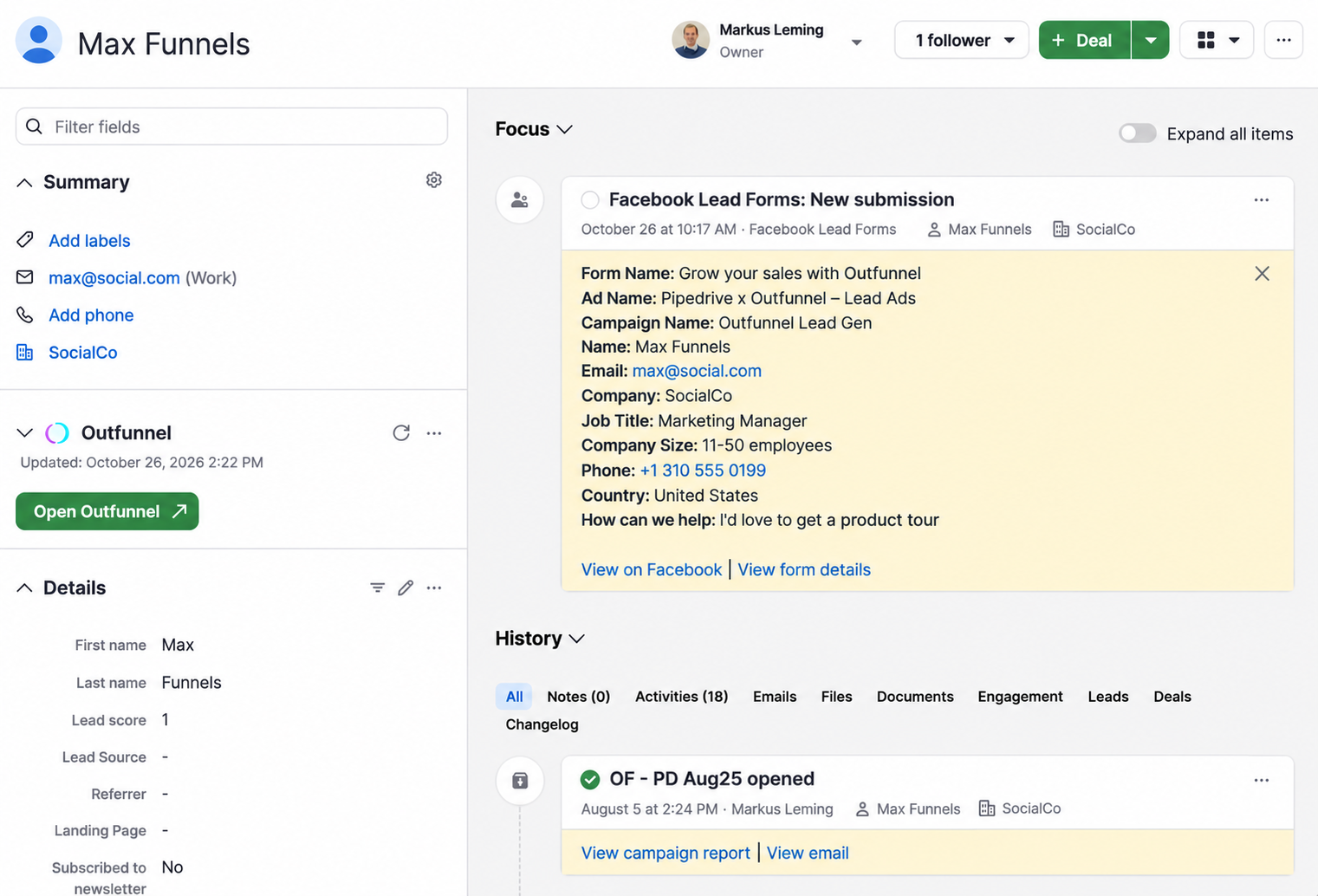
With the Facebook Lead Ads sync, new leads are added to Pipedrive automatically, saving you time. The sync lets you:
- Automatically add Facebook Lead Ads submissions to Pipedrive as contacts. No more manual exporting and importing.
- Map custom fields so all the data you need reaches Pipedrive, and your sales team can create filters to categorize incoming leads.
- Create leads, deals, activities or notes in Pipedrive for each submission.
Before you start
- Pipedrive plan: Available on all Pipedrive plans from Lite onwards.
- No separate account needed: You sign in with your Pipedrive account. Your Outfunnel by Pipedrive account is created automatically when you activate the integration.
- Shared space: By default, you set up syncs in your company's shared space. Admins, and users with the relevant permission, can create connections there. A shared space can hold one Facebook account. To connect a second Facebook account, switch to your personal space.
- Fair use: A fair-use cap applies to the amount of data synced. See: How much data can I sync with Marketing sync by Outfunnel?
In Facebook, you'll also need:
- Accepted terms of service. You can check this at https://www.facebook.com/ads/leadgen/tos.
- Admin access. You need admin permissions for the Facebook page and for the ad account.
- Leads access. Go to https://business.facebook.com > Business settings > Integrations > Lead Access > CRM. Add Outfunnel and enable permissions.
- At least one lead ad.
Record Facebook Lead Ads form submissions in Pipedrive
1. Go to Settings > Tools & apps > Marketing sync
Go to Settings > Tools & apps > Marketing sync. This opens a new window where you can set up the integration.
2. Authenticate Facebook
Select Facebook Lead Ads if it's not pre-selected and authenticate it as instructed on screen. Pipedrive is connected automatically, so you only need to authorize Facebook. Then create the connection.
3. Choose the form

Select the form from the dropdown. If your form is missing, click Refresh fields and it should appear in a few moments.
4. Map fields
Email, First name and Last name are required at a minimum. If a field you want to map to doesn't exist in Pipedrive, create it and click Refresh list.
Custom form fields
- Supported: Multiple Choice and Short Answer
- Not supported: Conditional and Appointment Request
5. Define how form submissions are recorded
- Base action: A contact (person) is always created first.
- Additional actions: Choose to create an activity, a note, a lead or a deal, or to update a field.
- Leads and deals: Choose to always create a new lead or deal, only when a new contact is also created, or only when no existing lead or deal exists.
6. Activate the connection and submit a test lead
Click Activate to put the connection live.
You can now test how contacts are created in Pipedrive by sending a test form submission:
- Go to Facebook developer tools.
- Click Preview form and use an email address that doesn't exist in Pipedrive yet. Do not click Create lead.
- Submit the form.
- The submission should appear in Pipedrive within 30 seconds.
For more detail on testing Facebook Lead Ads, watch this video.
For troubleshooting, see: Common reasons data from connected apps is not syncing as expected.
How to disconnect Facebook
- In Facebook: Follow these instructions.
- In Outfunnel by Pipedrive: Go to Integrations and click Disconnect next to Facebook.
If you run into issues or have questions about the sync, use the in-app support chat.
Apakah artikel ini berguna?
Ya
Tidak