How can I view or adjust email visibility?
After you set up email sync or Smart Bcc, your emails will appear in the Sales Inbox.
You can also link your conversation to items like deals, leads, projects, people or organizations, and control who can see them. Email visibility follows the rules of the linked item and depends on whether you’re using a personal account, team account or Smart Bcc.
Account type |
Sales Inbox visibility |
Email visibility options |
|---|---|---|
Private |
Shared or private |
|
Team only |
Shared or team only |
|
Smart Bcc |
Private |
Shared or private |
When others can see your conversation
A linked email conversation becomes visible to others in an item's detail view if all of the following apply.
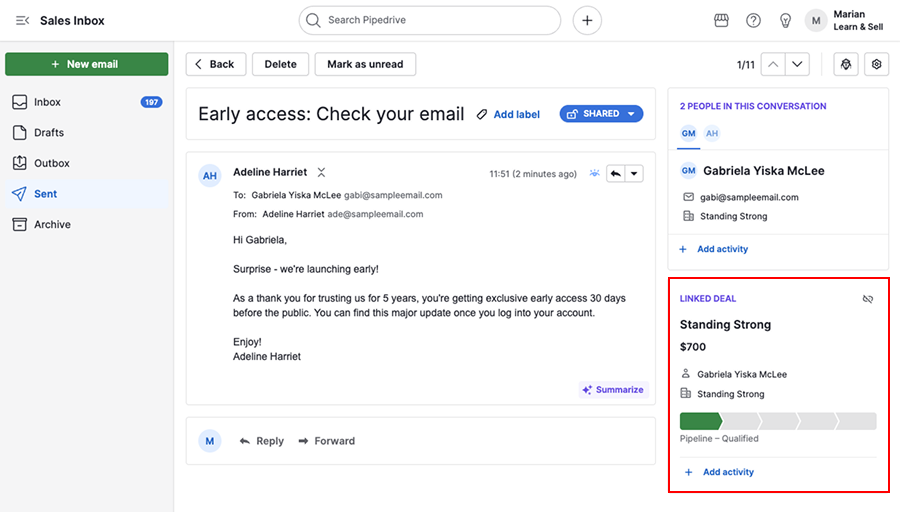
Conversation is linked
If the person you sent an email to is linked to an organization, the conversation appears under both the organization and the person detail views.
You can also link the same conversations to other items, such as a deal, lead or project.
Email visibility allows access
For personal accounts and Smart Bcc, the email visibility must be set to shared for others to see it.
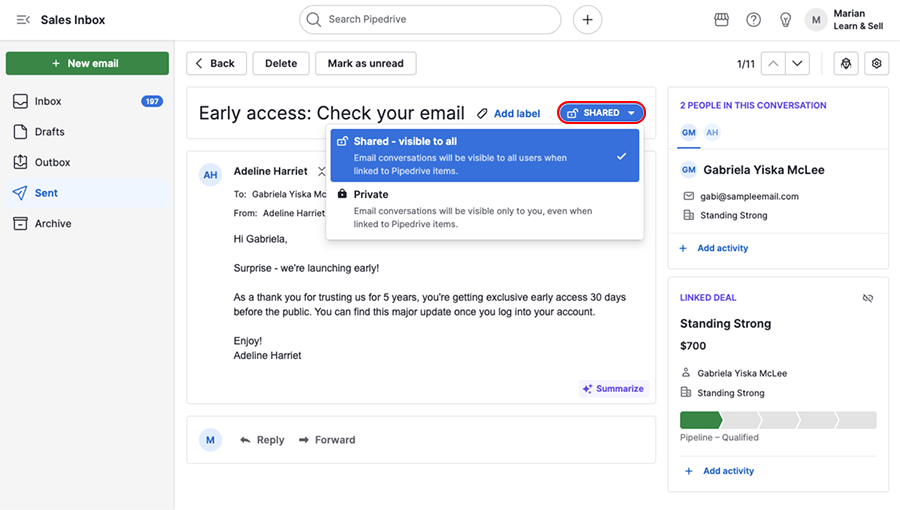
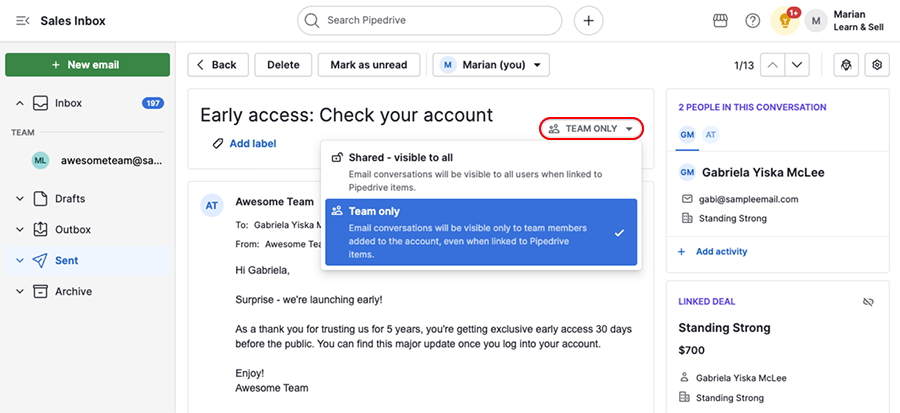
For team accounts, the conversation can be:
- Shared – visible to any user who has access to linked items
- Team only – visible only to the users who are part of the team
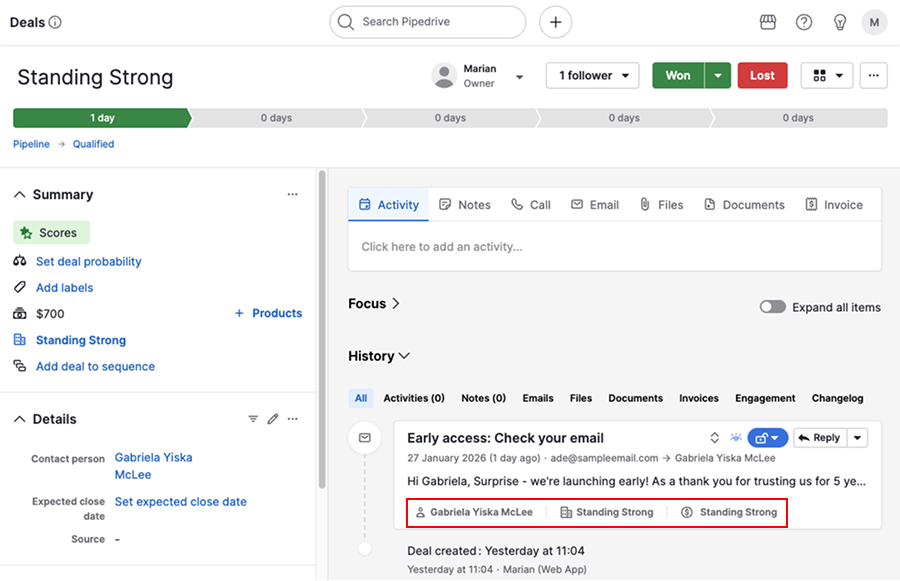
Viewer has access to linked items
Your colleagues will only see the conversation if they have access to linked items, for example, the contact person, organization and deal.
Set default email visibility
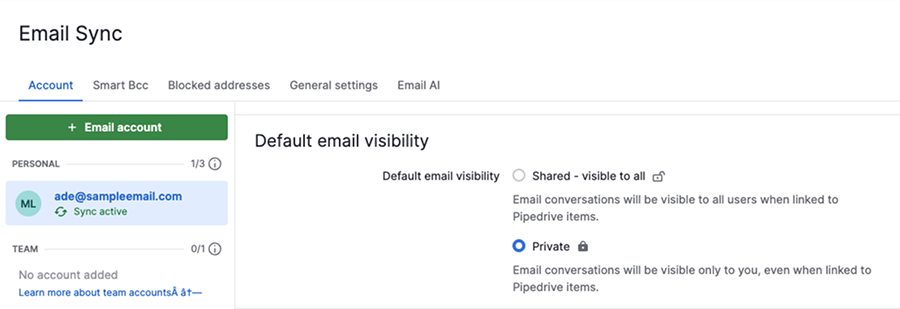
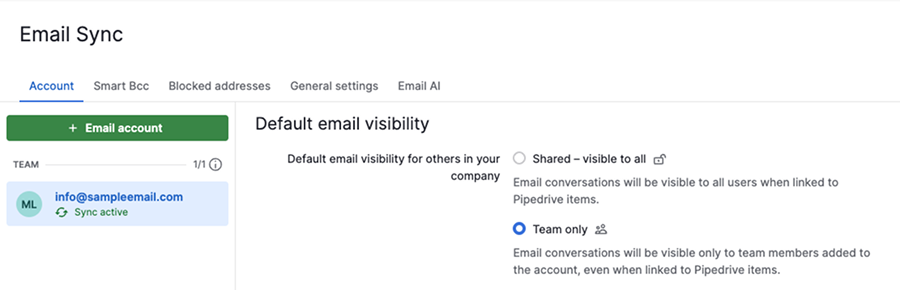
To adjust your default email visibility settings, open the account menu in the top right corner and go to Personal preferences > Email sync.
Personal account
Scroll to default email visibility and choose:
- Shared – visible to others when linked to items
- Private – visible only to you
Team account
Scroll to default email visibility and choose:
- Shared – visible to others when linked to items
- Team only – visible only to your team members
Smart Bcc
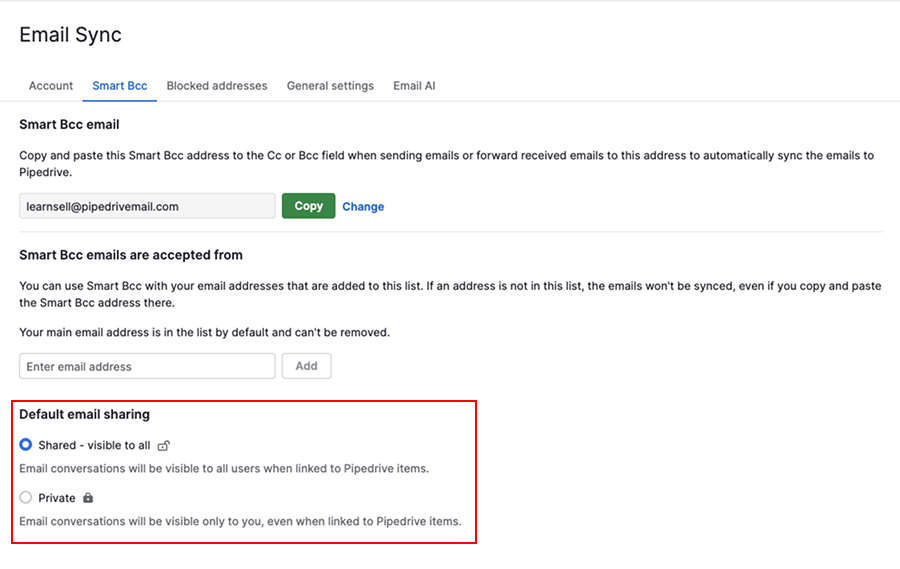
Open the Smart Bcc tab, then set your default email sharing preference to:
- Shared – visible to others when linked to items
- Private – visible only to you
Change visibility for a specific email
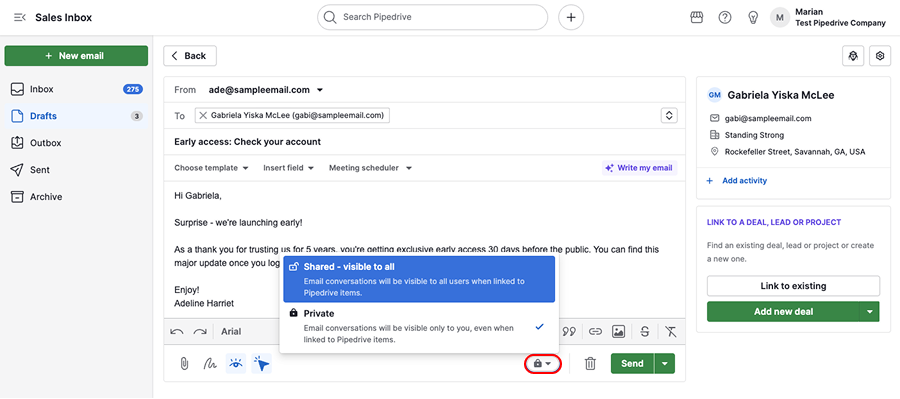
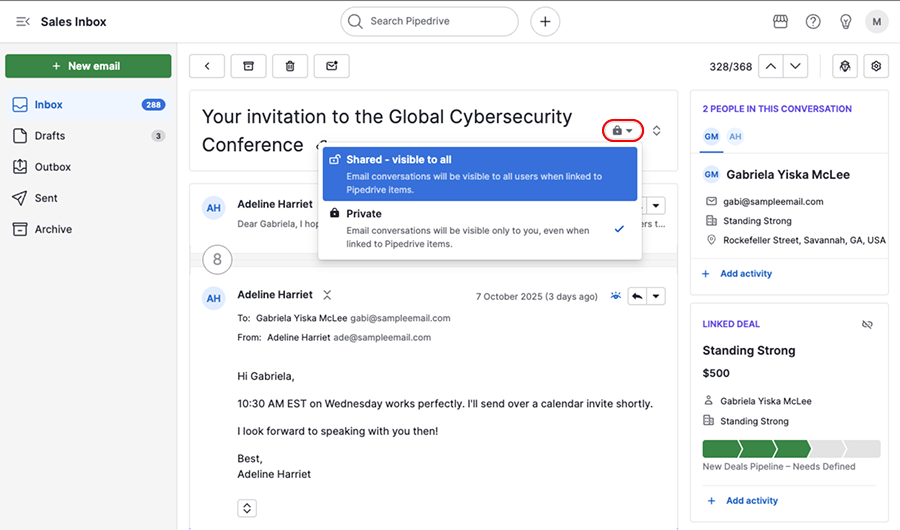
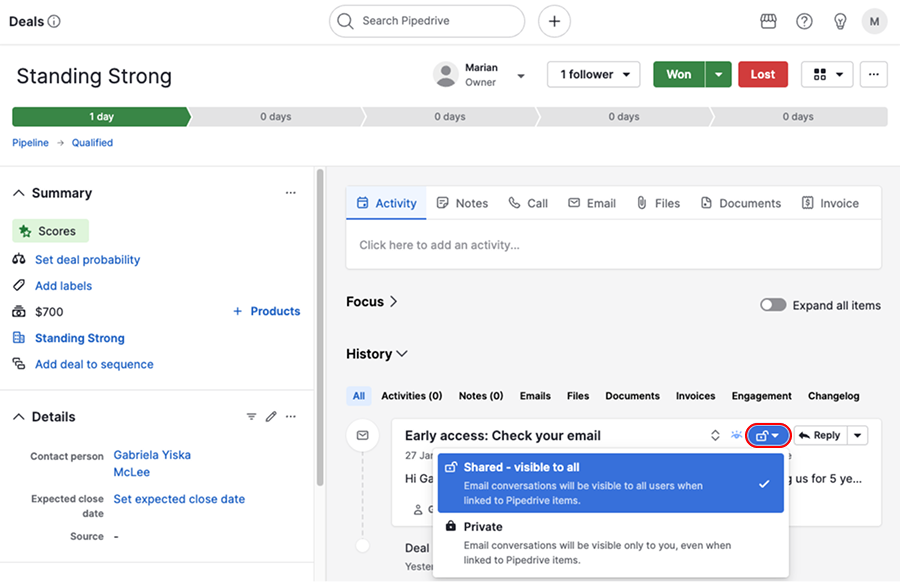
You can update the visibility of individual emails in the Sales Inbox or in the linked item’s detail view.
Sales Inbox
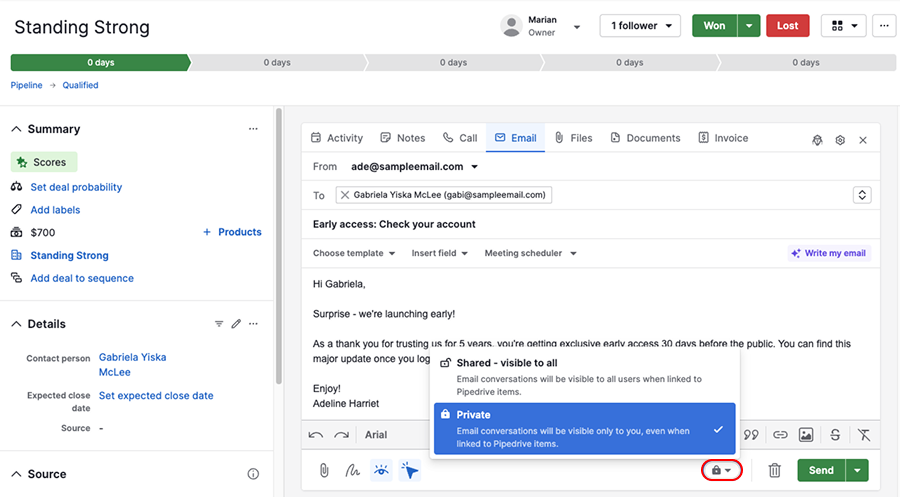
While composing a new email, use the visibility dropdown to choose who can see it.
In the conversation list view, click on the visibility icon next to the email.
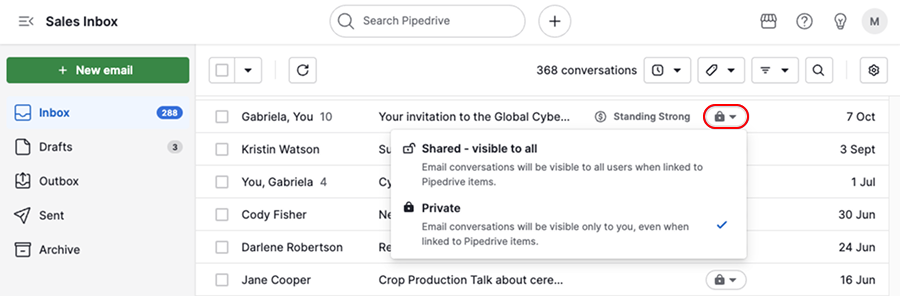
You can also open the conversation and update visibility there.
Detail view
When composing an email from the detail view, you can adjust visibility before sending.
To update the visibility of an existing conversation, find the email in the history section and click the visibility icon.
Was this article helpful?
Yes
No