Pipedrive Gmail add-on
The Pipedrive Gmail add-on lets you work with your CRM directly from Gmail, whether you’re browsing your inbox or actively reading an email.
From the Gmail side panel, you can add new contacts, deals and activities that automatically sync to Pipedrive.
Install the add-on
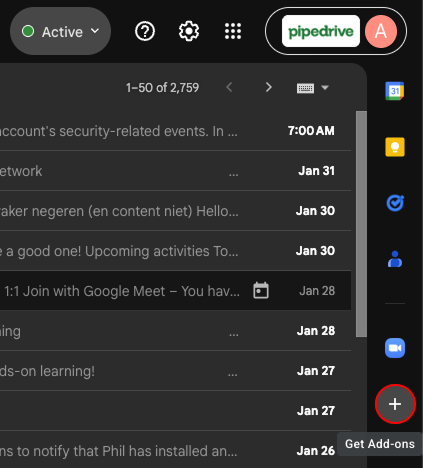
Open your Gmail, click ”+“ (Get Add-ons) or go directly to Google Workspace Marketplace.
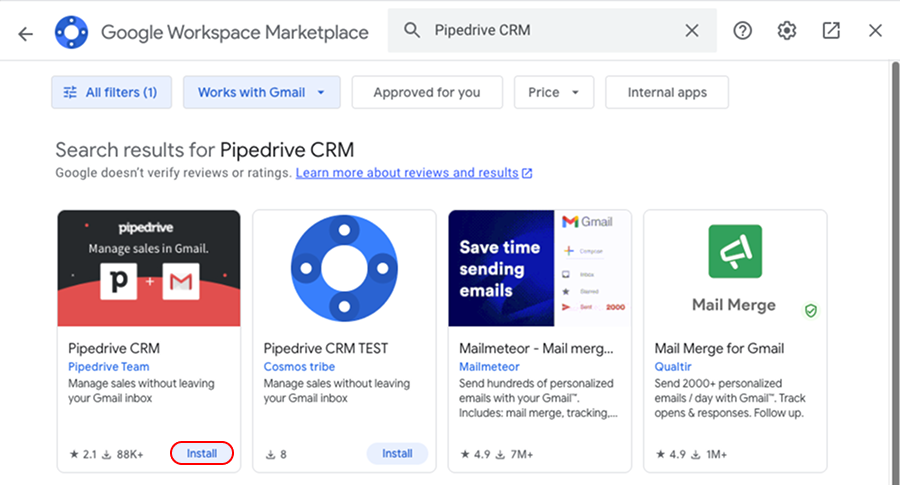
Search for Pipedrive CRM and click “Install”.
Go through the authorization process and grant Pipedrive all access to your Google account.
After installation
Once installed, you can see the add-on appear in your Gmail sidebar. Click “Log in” to connect your Pipedrive account.

Troubleshooting installation issues
This error is typically caused by having multiple Google accounts signed in to the same browser window. Google may attempt to authorize the add-on using the wrong account session, especially if you’re switching between personal and work accounts.
To resolve this:
Use an Incognito window
Open a private browser window, go to the Google Workspace Marketplace, and sign in only with the account you want to use. Then complete the installation.
Sign out and sign back in
Sign out of all Google accounts in your current browser. Then sign in only to the account where you want to install the add-on and try again.
Create a separate Chrome profile
To prevent this issue in the future, we recommend creating a dedicated Chrome profile for your work Google account. This avoids session conflicts between accounts.
How to use
The Gmail add-on works slightly differently depending on whether you have an email open:
Gmail state |
What you see in the add-on |
|---|---|
No email open |
An overview of your scheduled activities for today. |
Email open |
Pipedrive data related to the email sender or
the option to add the sender as a new contact. |
When no email is open
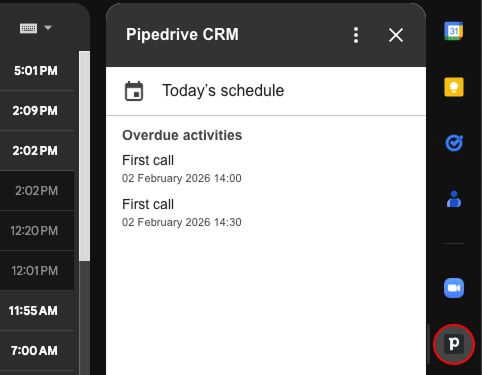
When no emails are open, the add-on displays an overview of your scheduled activities for today.
When an email is open
When you open an email in Gmail while the add-on is active, the side panel automatically checks whether the sender already exists in your Pipedrive account.
Sender doesn’t exist in Pipedrive
If an email address isn’t yet linked to a person in Pipedrive, you’ll see the option to add a new person.
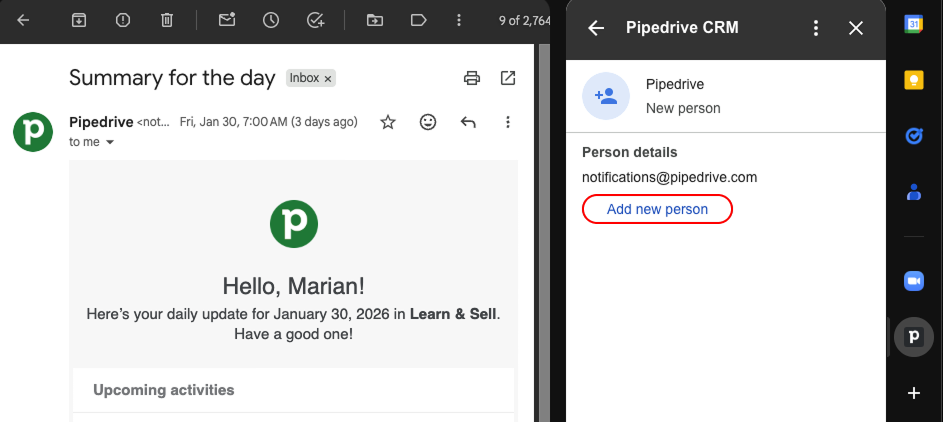
Click “Add new person”, enter the required details, and save. The person is immediately added to Pipedrive and linked to the email address, allowing you to start adding deals, activities, and notes right away.
Sender already exists in Pipedrive
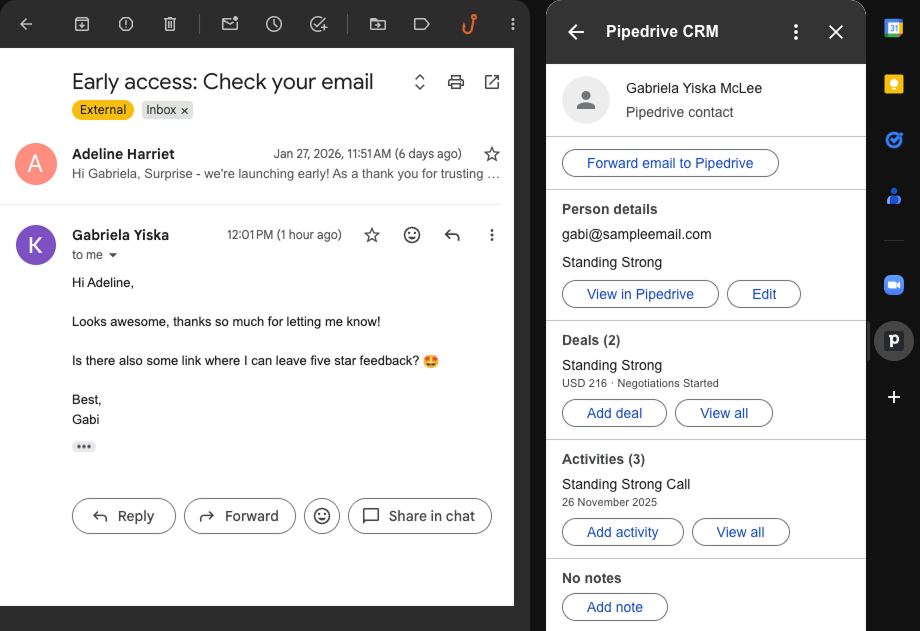
If the email address is already linked to a person in Pipedrive, their information is displayed in the Gmail side panel, including:
- Person details
- Deals
- Activities
- Notes
You can add, view and edit this information without leaving Gmail.
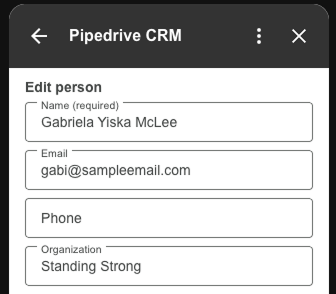
Edit person details
Click “Edit” to update the person's:
- Name
- Phone
- Organization
To save your changes to Pipedrive, click “Update”.
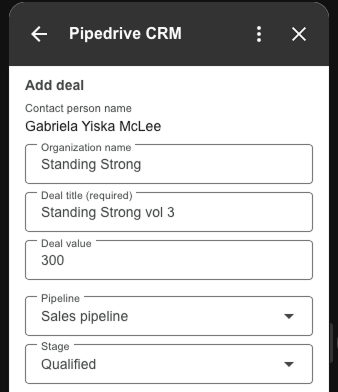
Add deals
To create a new deal for the contact, click “Add deal” in the Gmail sidebar.
Fill in the available details and click “Save”.
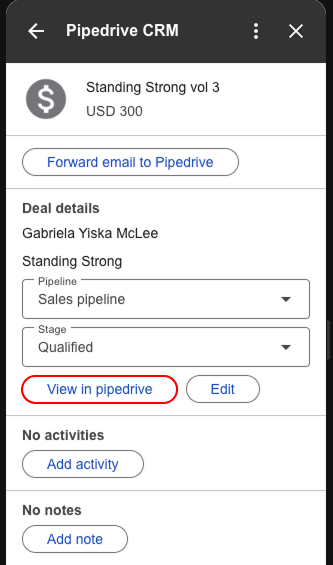
Once created, you can select the deal to view key information or click ”View in Pipedrive“ to open it in a new tab.
Add activities
Click “Add activity” and enter activity details. Click “Add” to save it.
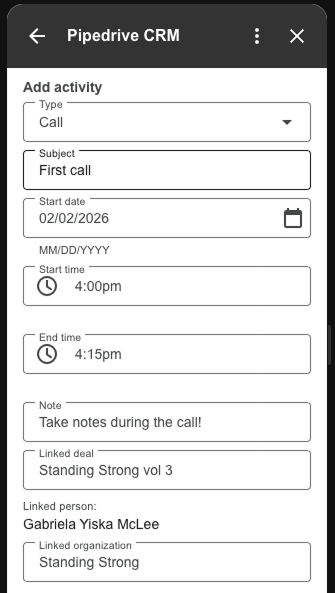
You can click an activity to view its details or mark it as done using the toggle at the top.
Add notes
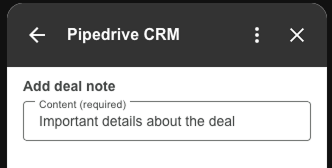
To add a note, open. a person or deal in the side panel and click “Add note”. Once you enter your content and click save, the note is instantly synced to Pipedrive.
Schedule meetings in Gmail
To add a scheduler link, start composing a new email and click the Pipedrive logo in the toolbar.
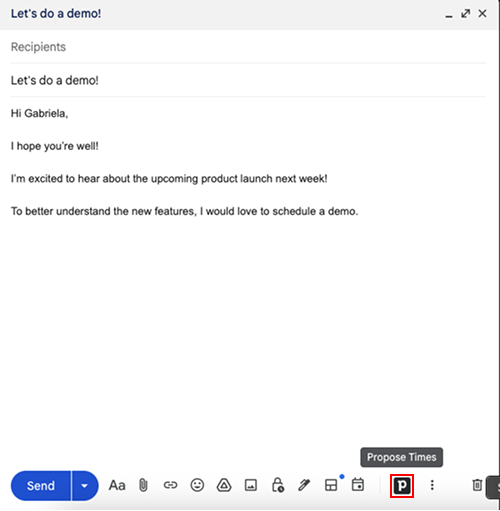
This opens a window where you can select one of your available time slots.
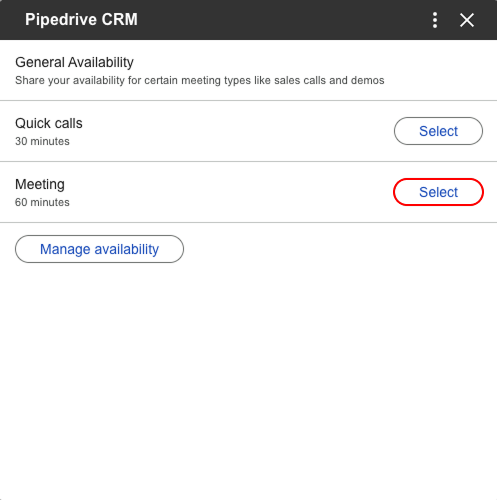
Once selected, the availability link is added to your email.
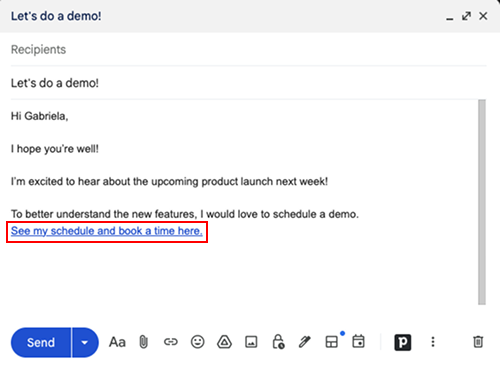
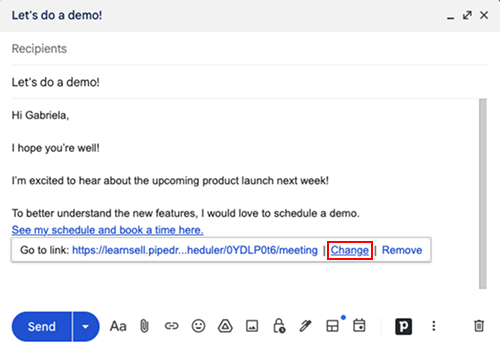
To change the hyperlink text, click the link and select “Change”.
After sending the email, the recipient can choose a time slot from your available times.
Was this article helpful?
Yes
No