Troubleshoot Single sign-on issues
If your team uses single sign-on (SSO) to log into Pipedrive and something isn’t working the way you expect, this article walks you through the most common causes and how to fix them. You’ll find help with:
- Login options that don't match what you expect
- Missing security rule options
- The SSO connection test failing during setup
- Certificate or identity provider errors
Learn more about setting SSO up in our article about single sign-on.
Understand SSO enabled vs. enforced
Most SSO issues come down to confusing these two states, so it helps to know the difference before you troubleshoot further.
- Enabled: Users can log in with any method, including:
Login with Google
A password
Login with SSO
Enabled and enforced: Users can only log in through their identity provider. When SSO is enforced, Pipedrive redirects login attempts to the SSO sign-in page, where users enter their work email or company domain to authenticate with their identity provider. Other login methods are blocked.
If SSO is enforced on your account, the two-factor authentication, password strength, and password expiration and reuse options won’t appear under Security rules. That’s expected: SSO is a more secure way to protect your data, so it takes over from these settings while it’s enforced.
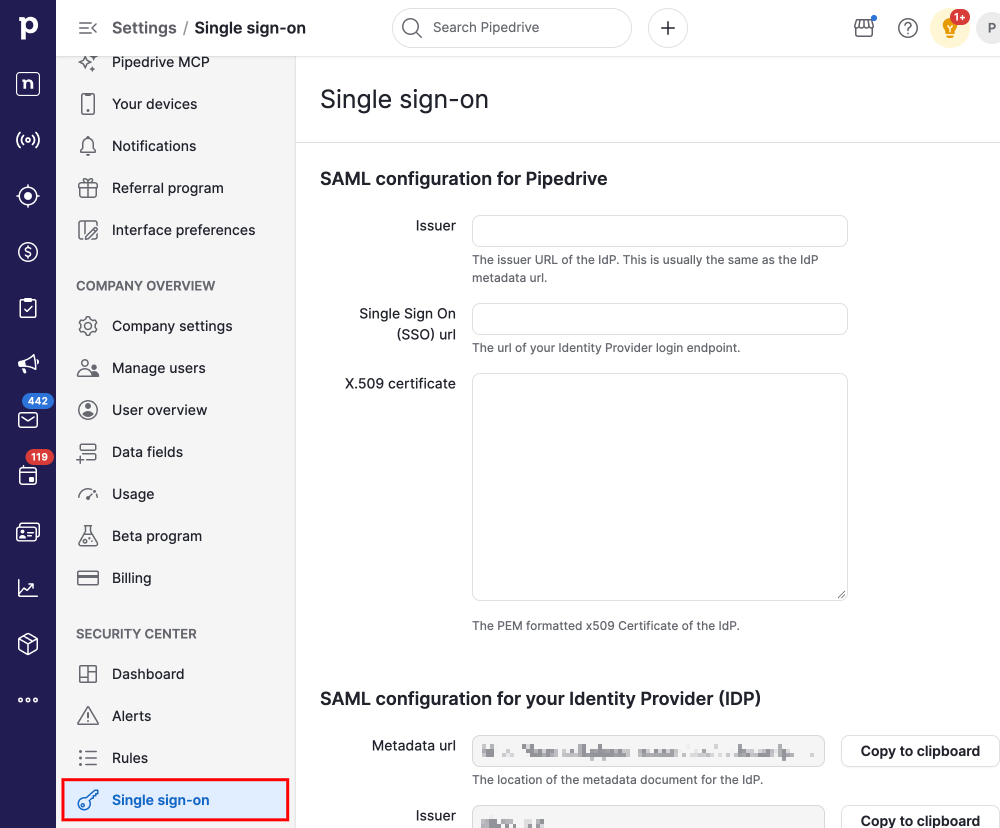
You can find your SSO settings at Settings > Security Center > Single sign-on.

Clear cache and cookies
If something isn’t displaying correctly (an option is missing, a page looks outdated or a recent change hasn’t shown up), a browser cache issue can be the cause.
Clear your cache and cookies for Pipedrive specifically, rather than clearing your whole browser history. This article about clearing your browser’s cache and cookies covers the most common browsers.
Check your identity provider settings
If clearing your cache doesn’t help, and especially if the connection test fails while you’re setting up SSO, the issue is usually on the identity provider side.
You’ll find the connection test on the Single sign-on setup page, after you’ve entered your identity provider’s details: use it to confirm Pipedrive and your identity provider can talk to each other before you enforce SSO for your whole team.
Confirm your email attribute is mapped correctly
Pipedrive matches users by email address, so your identity provider needs to send the same email address your team members use to log in to Pipedrive.
If your identity provider username is already the same as the Pipedrive login email, no changes are needed.
If it’s different, set up your identity provider to forward the Pipedrive login email as the response value instead.
The email must match character-for-character between your identity provider and Pipedrive.
Update your SSO certificate
Some actions on your identity provider’s side can cause your SSO certificate to regenerate. If your setup was working before and suddenly isn’t, grab a fresh certificate and update it in Pipedrive.
You’ll need admin access to your identity provider’s console to do this, not just Pipedrive’s Account Settings permission:
Microsoft Entra ID: follow the Microsoft Entra ID setup guide
Okta: follow the Okta setup guide
OneLogin: find your certificate under Single sign-on > SAML configuration for Pipedrive > X.509 certificate
Log out and back in
After making any changes to your identity provider settings or certificate, log all the way out of Pipedrive, then log back in. This refreshes your session and often clears up a failed connection test on its own.
Contact support if the issue continues
If you’ve checked your email mapping, updated your certificate, and logged out and back in, but the problem’s still there, reach out to Pipedrive support. It helps to have on hand:
The name of your identity provider (for example, Okta, Microsoft Entra ID or OneLogin)
Screenshots of any error messages
Confirmation of which steps you’ve already tried
Was this article helpful?
Yes
No