Automations: conditions
When building an automation, choosing the right conditions determines whether your automation triggers correctly. Conditions act as filters that must be met for the automation to continue.
To start building an automation, open the account menu and go to Tools and apps > Automations, then click “+ Automation”.
Choose the right condition type
After setting up your trigger and selecting an item, you can define the conditions that control when the automation runs.
Understand condition types
All automation conditions fall into two types:
| Condition type | What it means | Example |
|---|---|---|
| Passive | Describes a state. No change or action is required. | “Deal creator is me” |
| Active | Depends on a change or update to a field. | “Person label has changed to cold” |
In practice:
- Use passive conditions to narrow down which items qualify
- Use active conditions when your automation depends on a change
This distinction is important when setting up or troubleshooting automations.
Common conditions and how to use them
Once you understand the difference, the next step is choosing the right condition for your use case.
| Condition | Condition type | What it does | Example |
Has changed to | Active | Checks that a field has changed to a specific value | “Deal stage has changed to proposal” |
Has changed | Active | Checks if a field changed to any value | “Deal stage has changed.” |
| Was | Active | Checks the value a field had just before the update that triggered the automation | “Deal stage was qualified” |
| Was not | Active | Checks that a field didn’t have a specific value just before the update | “Deal owner was not user A” |
Is | Passive | Checks if a field currently has a specific value. If used with update triggers, it checks the field's new value. | “Deal stage is proposal” and “Deal owner has changed” |
Contains | Passive | Matches text within a field | “Person name contains business” |
Is not empty | Passive | Checks if a field has any value | “Organization address is not empty.” |
Owner/assigned to user is | Passive | Checks who an item is assigned to | “Activity assigned to user is user A” |
Creator is | Passive | Refers to the original creator, not the current owner | “Organization creator is user B” |
Filter matches | Active | Triggers when an item enters a filter's criteria | “Person filter matches person label is cold” |
Example: Deal moves to a stage
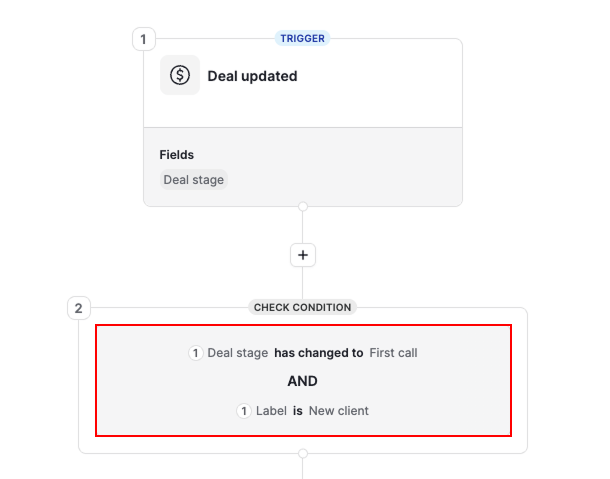
When you create an automation using a suggested trigger like deal moves to a stage, Pipedrive automatically adds the matching condition for you: “Deal stage has changed to X”.
You can add more conditions on top of it. For example, add “Label is New client” so the automation only runs when a deal moves into the first call stage and has the new client label.
Add branching with if/else conditions
In addition to standard conditions, you can use if/else conditions to create branching logic in your automation.
This allows the automation to follow different paths depending on whether a condition is met.
Example:
“If an email is replied to, add a follow-up activity – else, send a follow-up email”.
Add an if/else condition
Click “+” to add a step, select “Check a condition” and choose “If/else condition”.
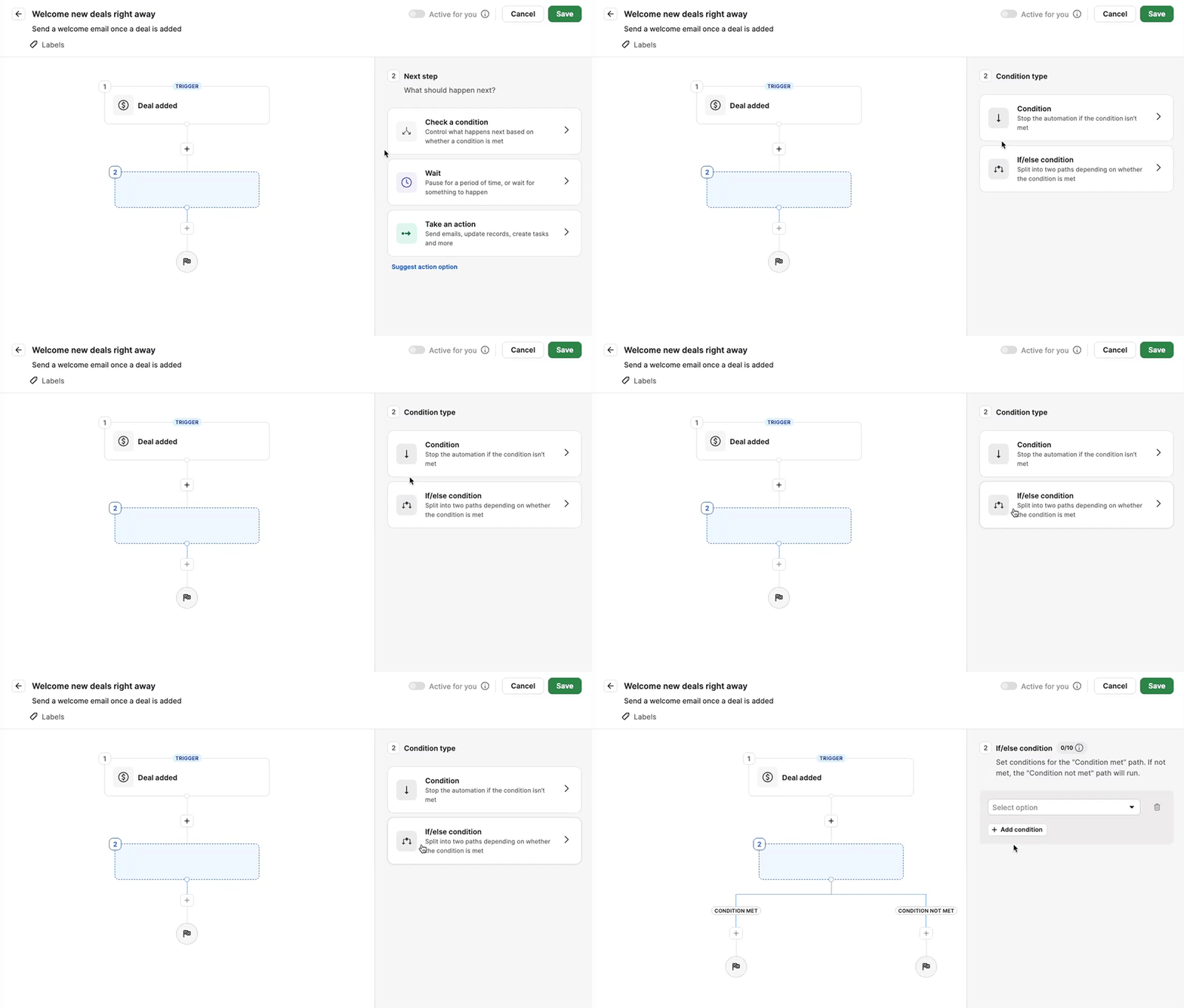
Then:
- Define the condition under the condition met (this path runs when the condition is
true) - Define the alternative under the condition not met (this path runs when the condition is
false) - Click ”Apply conditions”
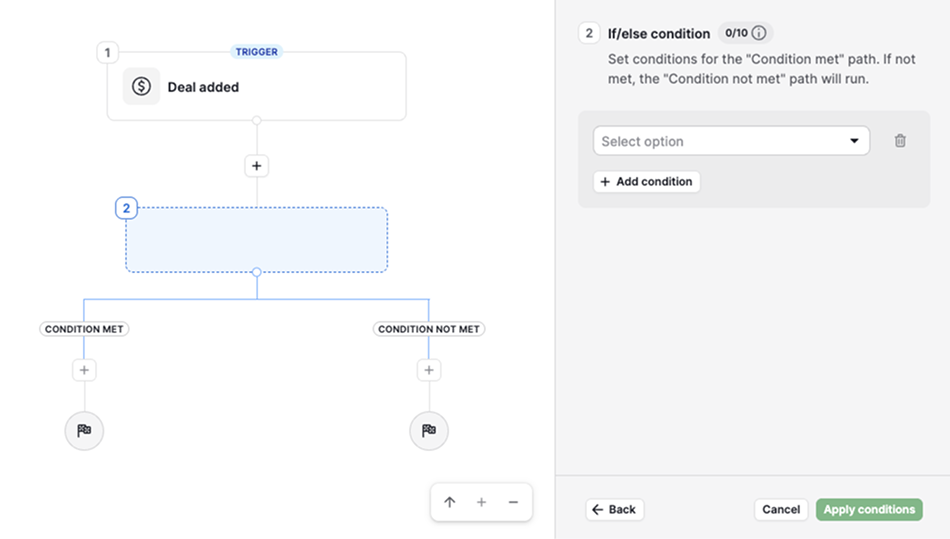
Once added, you can continue building the automation on either path.
Use if/else conditions in existing automations
You can also insert an if/else condition into an existing workflow.
When adding it:
-
Choose whether the existing steps should move to the condition met or condition not met path
-
After clicking “Apply conditions”, the steps will move automatically

Delete an if/else condition
To delete an if/else condition:
-
Hover over the condition and click the trash can icon
-
Select which path to delete – condition met or condition not met
-
All steps in that path will be deleted
-
The remaining steps will reconnect into a single linear path

Was this article helpful?
Yes
No