Ez a cikk gépi fordítás segítségével készült el.
Részletes nézet oldalsáv
A részletes nézet oldalsávja megjeleníti azokat az információkat, amelyeket az üzlethez, a személyhez vagy a szervezethez adtál hozzá. Lehetővé teszi az adatok megjelenítésének testreszabását és az adatok tömeges szerkesztését az egyes szakaszokban.
Ha több Alkalmazáspiac-alkalmazást használsz a munkafolyamatodban, az App Panels funkció lehetővé teszi, hogy meghatározott alkalmazásokat adj az oldalsávhoz.

Az oldalsáv szakaszainak testreszabása
Átrendezéssel vagy bizonyos oldalsáv-szakaszok elrejtésével testreszabhatod a részletes nézet oldalsávjának elrendezését.
Kezdd azzal, hogy belépsz egy elem részletes nézetébe (például egy üzlet, személy vagy szervezet esetén) a Pipedrive-ban. Ezután kattints a jobb felső sarokban található „...” gombra, és válaszd a „Oldalsáv-szakaszok kezelése” lehetőséget.
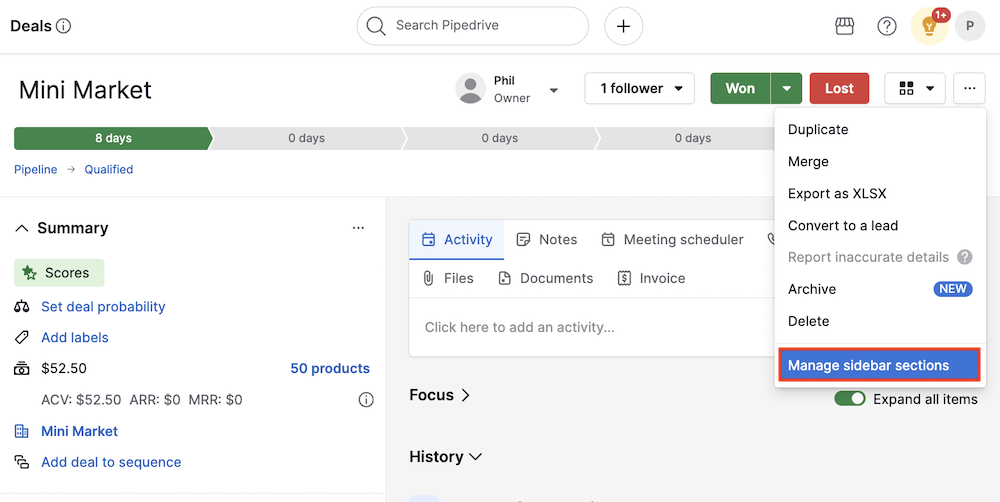
Itt testreszabhatod, hogy mit szeretnél látni az oldalsávodban:
-
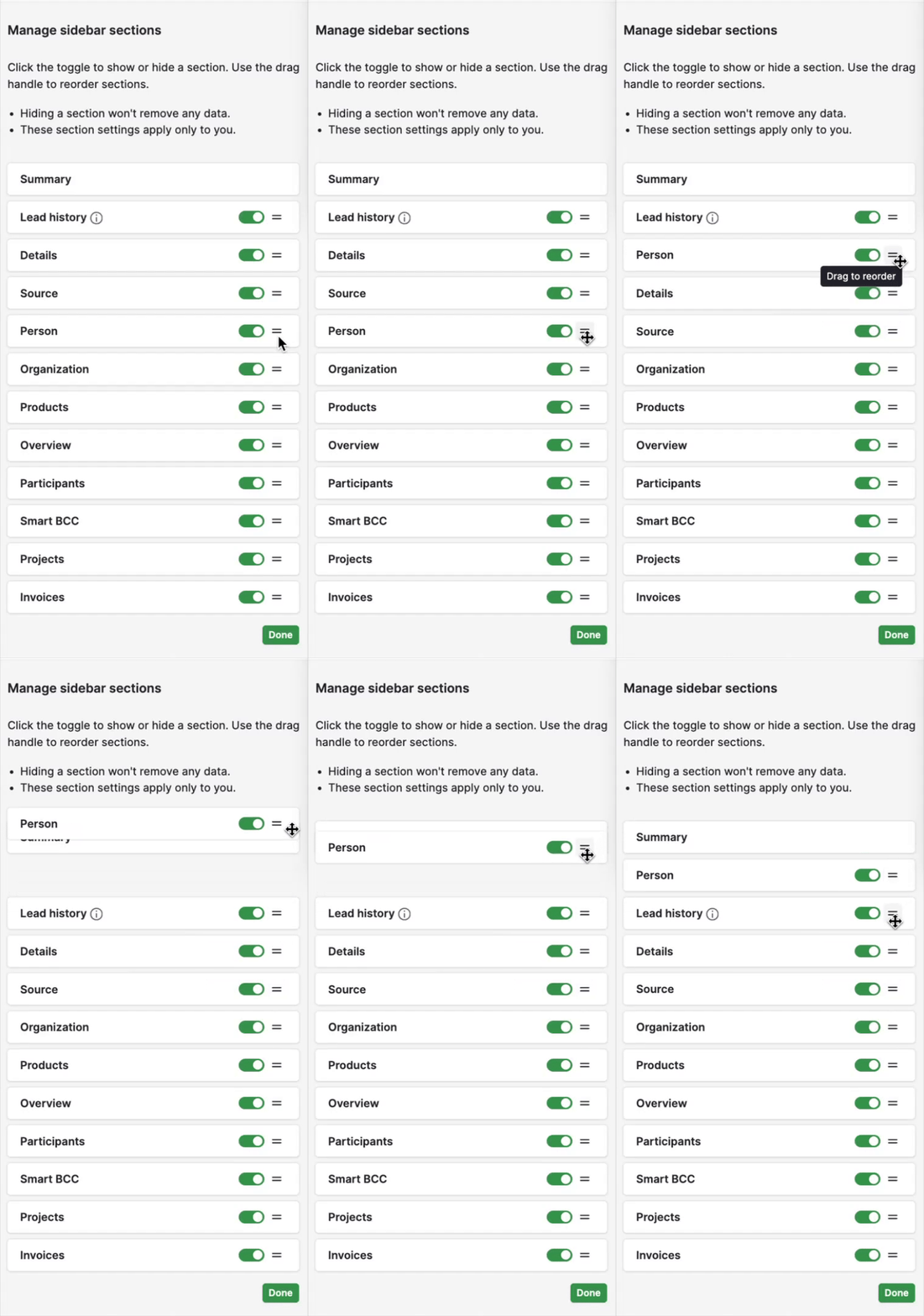
Egy szakasz elrejtéséhez vagy megjelenítéséhez kattints a szakasz neve mellett található váltógombra.
-
A szakaszok átrendezéséhez kattints és tartsd lenyomva a fogantyút (a kétvonalas ikont), majd húzd a szakaszt a kívánt helyre.
Oldalsáv-adatok szerkesztése
Több információ egyidejű frissítéséhez kattints a szakasz fejlécében található ceruzaikonra.
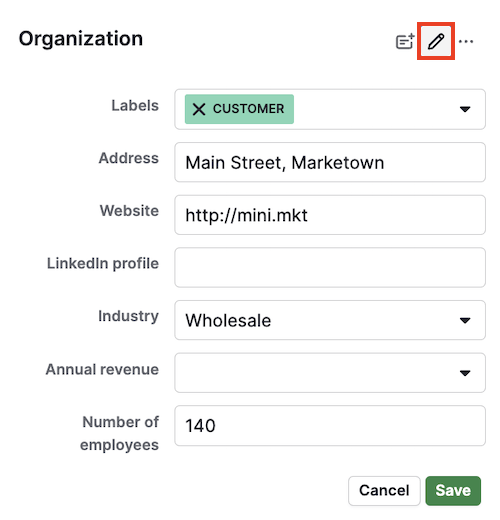
Ez lehetővé teszi az adott oldalsáv-szakaszban található összes mező értékének szerkesztését. Ha befejezted a módosításokat, kattints a „Mentés” gombra a szerkesztés véglegesítéséhez.
Az oldalsáv mezőinek testreszabása
A részletes nézetből közvetlenül kezelheted, mely adatmezők legyenek jelen az egyes oldalsáv-szakaszokban, beleértve az alapértelmezett és az egyéni mezőket is.
A szerkesztés megkezdéséhez kattints a „...” (további műveletek) gombra, és válaszd a szakasz fejlécének jobb oldalán a „Mezők testreszabása” lehetőséget.

Szerkesztési módban a következőket teheted:
-
Új egyéni mezők hozzáadása a „+ Egyéni mező” gombra kattintva
-
Meglévő szerkeszthető mezők tulajdonságainak szerkesztése a ceruzaikonra kattintva

Miután elvégezted a kívánt módosításokat, kattints a „Kész” gombra a szerkesztés véglegesítéséhez.
Nézetbeállítások módosítása
Az oldalsávot rendezetté és a napi munkádhoz relevánssá teheted azáltal, hogy gyorsan módosítod, hogyan jelenjenek meg a számodra fontos információk.
Szakaszok kibontása és összecsukása
Kibővíthetsz egy szakaszt az összes mező megjelenítéséhez, vagy összecsukhatod, hogy elrejtsd őket.
Ehhez kattints a szakaszcím mellett található nyíl ikonra vagy magára a címre a szakasz megjelenítésének/elrejtésének váltásához.
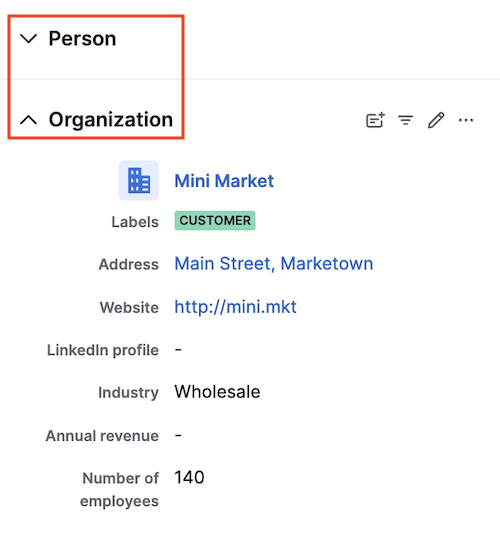
A lefelé mutató nyíl egy elrejtett szakaszt jelöl, amelyet ki tudsz bontani, míg a felfelé mutató nyíl egy kibontott szakaszt jelöl, amelyet el tudsz rejteni.
Üres mezők megjelenítése vagy elrejtése
Az oldalsáv jobb felső sarkában található „Csak a kitöltött mezők megjelenítése” ikonra (három vonalból álló, fordított háromszög) kattintva elrejtheted az adatokat nem tartalmazó mezőket.
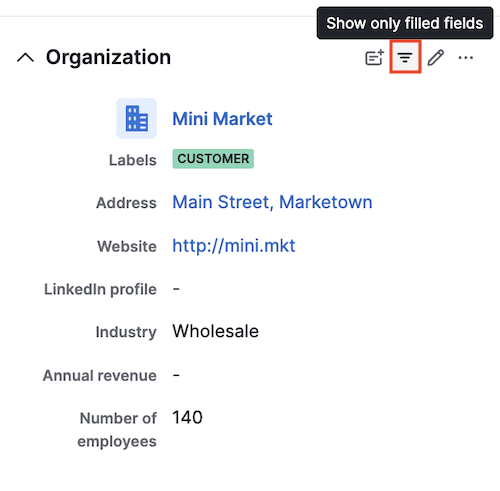
Ezt követően az összes használaton kívüli mező el lesz rejtve, és az ikon felirata „Összes mező megjelenítése” lesz.
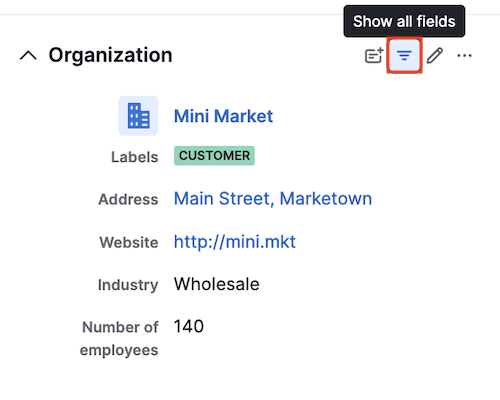
Bármikor ismét rákattinthatsz az ikonra az elrejtett mezők megjelenítéséhez.
Hasznos volt ez a cikk?
Igen
Nem