Pipedrive integration: Mailchimp sync
Mailchimp is an email marketing service provider used to design and distribute email marketing campaigns.
The Mailchimp sync integration lets you sync contacts between Pipedrive and Mailchimp. You can use it to keep contact data up to date and trigger email marketing actions based on activity in Pipedrive.
You can set up one-way or two-way syncs using automated flows, depending on how you want contacts to move between the two tools.
Connecting Mailchimp and Pipedrive
You can install the integration from the Pipedrive Marketplace or directly from your Pipedrive account.
To install the integration in Pipedrive:
Go to Tools and apps > Integrations > Mailchimp sync and click “Get started” at the top of the page.
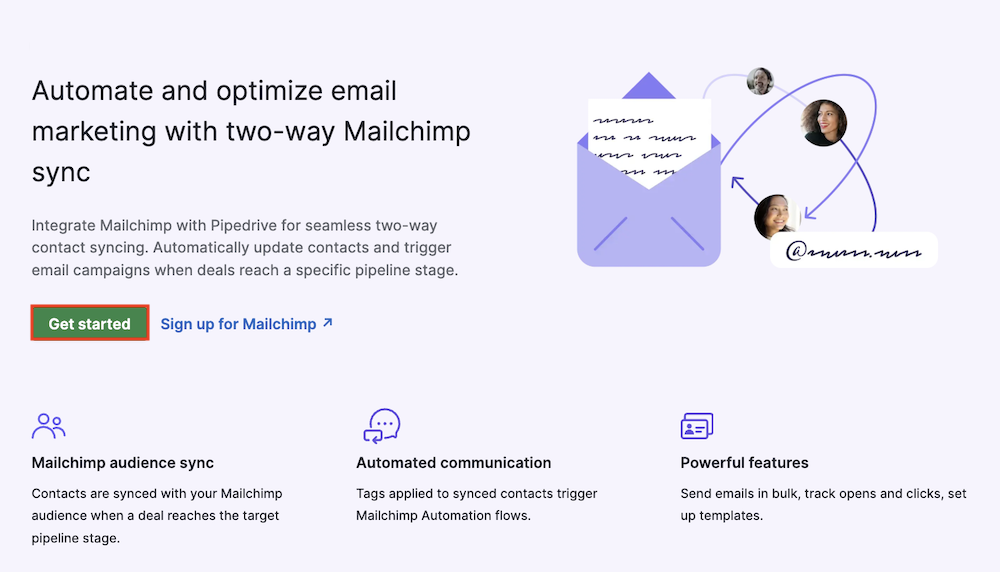
Or click “Install now” at the bottom of the page.
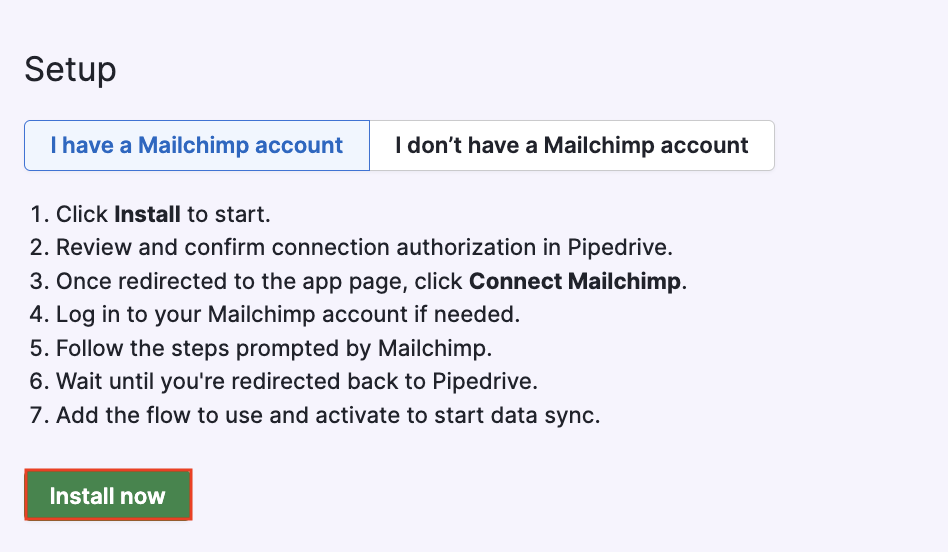
Review the requested permissions and confirm the installation by clicking “Allow and install”.
After installation, you’ll be redirected to the Mailchimp sync app page.
To connect your Mailchimp account, click “Connect Mailchimp”.

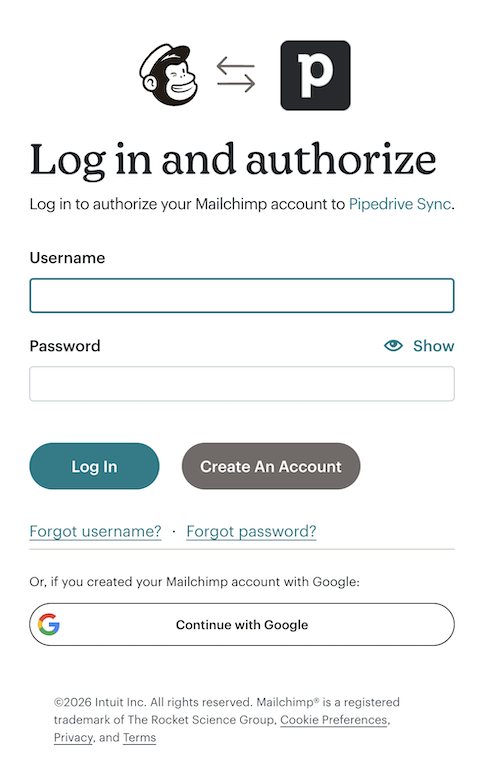
Then log in to Mailchimp in the pop-up window.
Click “Allow” to authorize access and continue.
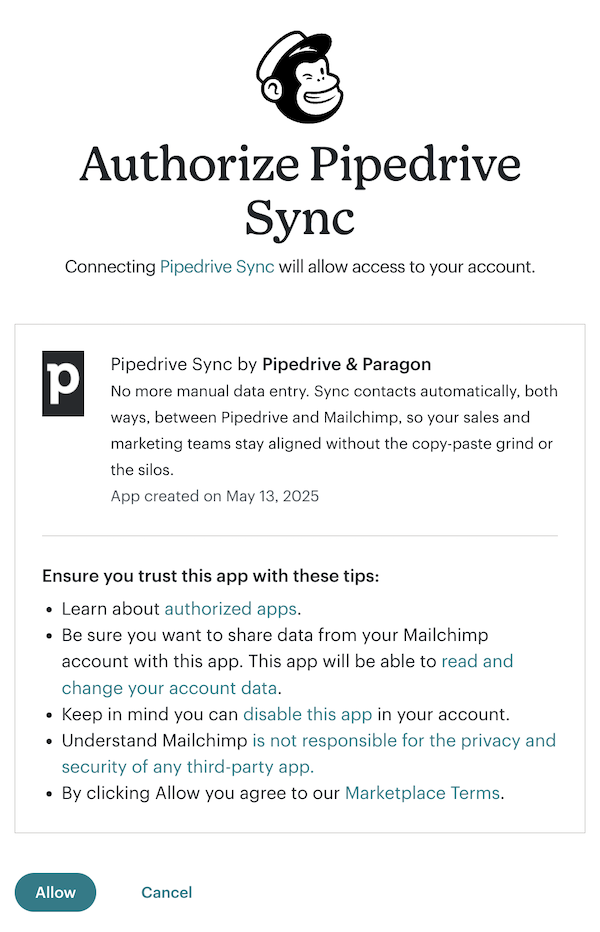
Once connected, you can start creating sync flows.
Mailchimp audiences
To sync contacts between Mailchimp and Pipedrive, you need at least one Mailchimp audience.
After you create a Mailchimp account, an audience is automatically generated for you with the details you provided during onboarding.
Mailchimp's best practices recommend having one primary audience. Then, you can use tags and segments to organize and target your contacts.
If you need to create another audience, refer to Mailchimp‘s article on creating a new audience.
What are flows and how they work
Flows define when and how contacts are synced between Pipedrive and Mailchimp.
Each flow:
Uses a specific trigger
Has its own field mapping
Syncs contacts in one direction only
Can be activated, paused, edited or deleted at any time
You can create multiple flows to cover different use cases, such as syncing new leads or syncing contacts when a deal reaches a specific stage.
Creating and managing flows
To create a new flow, open the account menu > Tools and apps > Mailchimp sync, and click “+ Flow”.
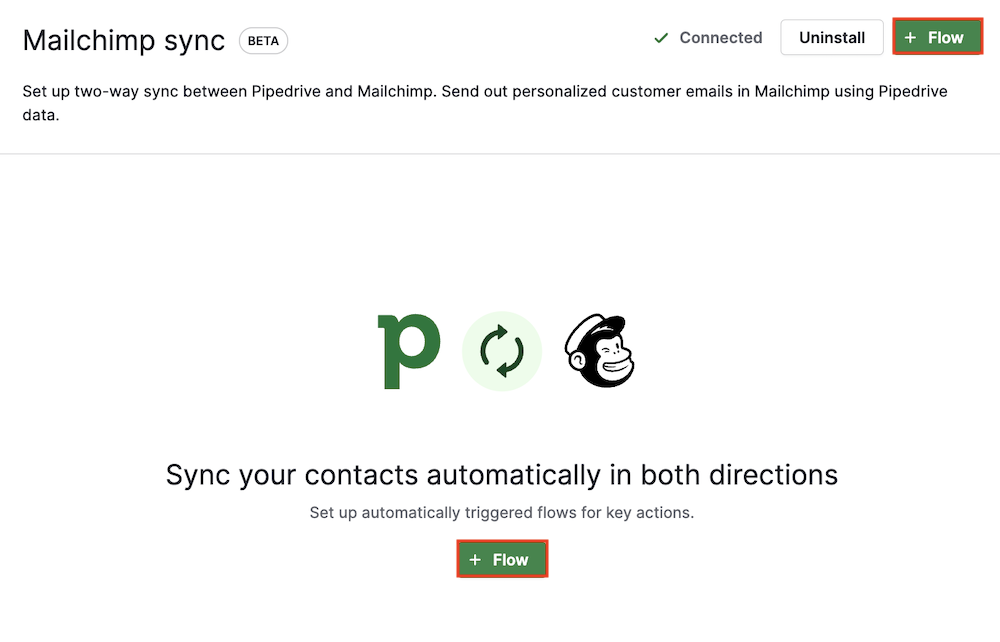
If you currently don’t have any flows, you‘ll also see the “+ Flow” button in the center of the page.
Start by selecting a trigger that will initiate the sync.
Each trigger has its own sync behavior, timing and limitations. Depending on the trigger selected, you‘ll have to fill out different fields.
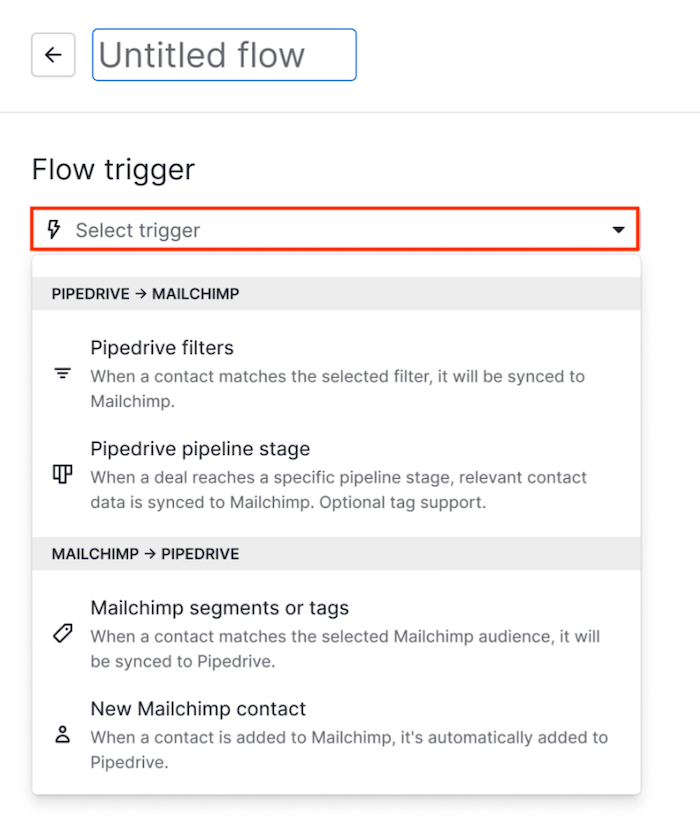
After setup, click “Save” and turn the Active toggle on to start syncing.
Available flow triggers
You can sync contacts in both directions using specific triggers:
Mailchimp to Pipedrive
Mailchimp segments or tags
New Mailchimp contact
Pipedrive to Mailchimp
Pipedrive filters
Pipedrive pipeline stage
Field mapping
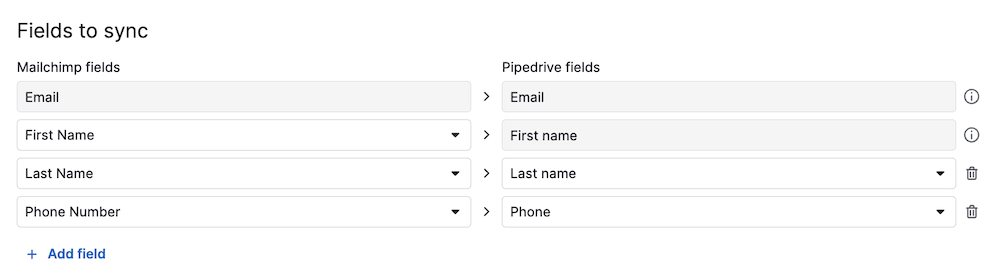
When setting up a flow, you choose which contact fields are synced between platforms.
How field mapping works
Required fields are preselected and can’t be removed
Each field can be mapped only once per flow
Only compatible field types can be mapped (for example, you can map a text field to another text field, but not to a numeric or a date field)
Unsupported field types
The following field types aren’t supported for mapping.
Pipedrive:
Single option
Multiple options
User
Organization
Person
Mailchimp:
Radio
Dropdown
Mailchimp to Pipedrive flows
Mailchimp to Pipedrive flows sync contacts from a Mailchimp audience into your Pipedrive contact list. You can choose between two triggers depending on how you want contacts to enter Pipedrive.
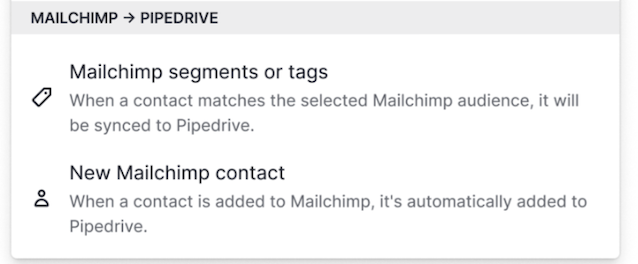
Trigger: Mailchimp segments or tags
This trigger periodically syncs new and existing Mailchimp contacts that match the selected segments or tags into Pipedrive, keeping them constantly up to date. Because syncing runs on a schedule, new matches may take some time to appear.
How it works
An initial sync starts within ten minutes after activation, but might take longer depending on contact volume
New contacts and updates to already synced contacts sync a few times per day
Field updates to already-synced contacts are processed almost instantly
Sync direction is from Mailchimp to Pipedrive only
Important limitations
If a contact no longer matches a segment or tag, the contact remains in Pipedrive, but field updates are stopped (until the contact matches the filter again)
Archiving or deleting a contact in Mailchimp doesn’t remove it from Pipedrive
If all selected segments or tags are deleted, the flow is automatically deactivated
How to set it up
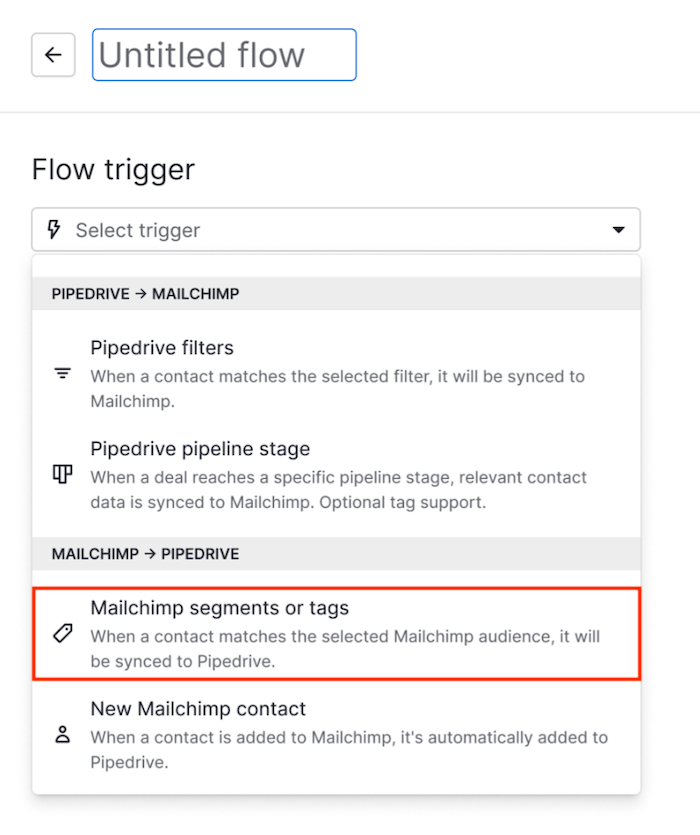
While creating a new flow, select Mailchimp segments or tags.
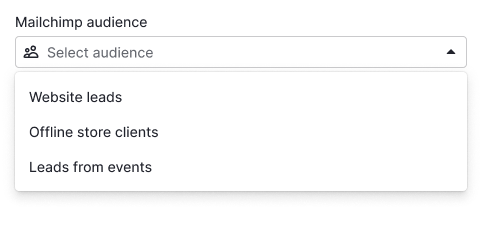
Choose a Mailchimp audience to sync from.
Select one or more segments or tags.
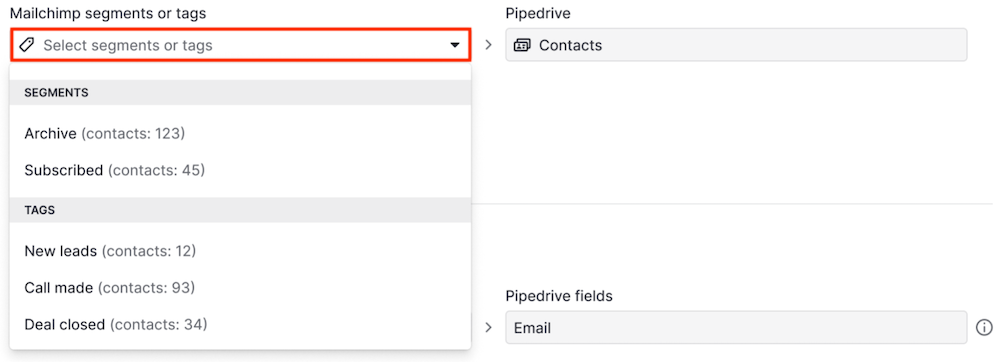
Map the Mailchimp fields to matching Pipedrive fields as described in Field mapping.
Click “Save” and remember to activate the flow.

Trigger: New Mailchimp contact
This trigger syncs contacts as they’re added to a Mailchimp audience.
How it works
Only contacts added after activation are synced
Contacts are created or updated in Pipedrive almost immediately
Existing Mailchimp contacts before activation aren’t synced
When to use this trigger
Use this trigger if you want to:
Only capture new leads as they enter Mailchimp
Avoid syncing existing Mailchimp contacts
How to set it up
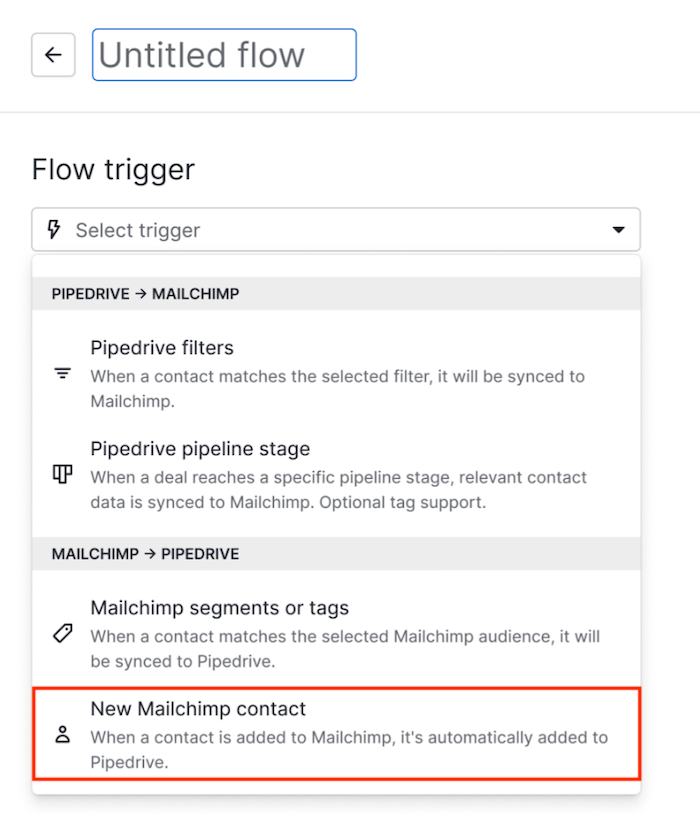
While creating a new flow, select New Mailchimp contact.
Choose a Mailchimp audience.
Map the Mailchimp fields to matching Pipedrive fields as described in Field mapping.
Click “Save” and remember to activate the flow.

Pipedrive to Mailchimp flows
Pipedrive to Mailchimp flows sync contacts from Pipedrive into a Mailchimp audience. Each flow starts with a trigger that determines which contacts are synced and how often.
This direction supports two triggers:
Pipedrive filters
Deal reaches a selected pipeline stage
Each trigger has different sync behavior and timing.
Trigger: Pipedrive filters
This trigger periodically syncs new and existing Pipedrive contacts that match the selected filters into Mailchimp, keeping them up to date. Because syncing runs on a schedule, new matches may take some time to appear.
How it works
An initial sync starts within ten minutes after activation and can take longer, depending on contact volume
Syncs run a few times per day for new contacts
Field updates are processed almost instantly
Sync direction is from Pipedrive to Mailchimp only
Important limitations
Contacts remain in Mailchimp even if they no longer match the filter, and updates continue syncing for that contact
Deleting a contact in Pipedrive doesn’t remove it from Mailchimp, and no further updates are synced
If all selected filters are deleted, the flow is automatically deactivated
How to set it up
While creating a new flow, select Pipedrive filters
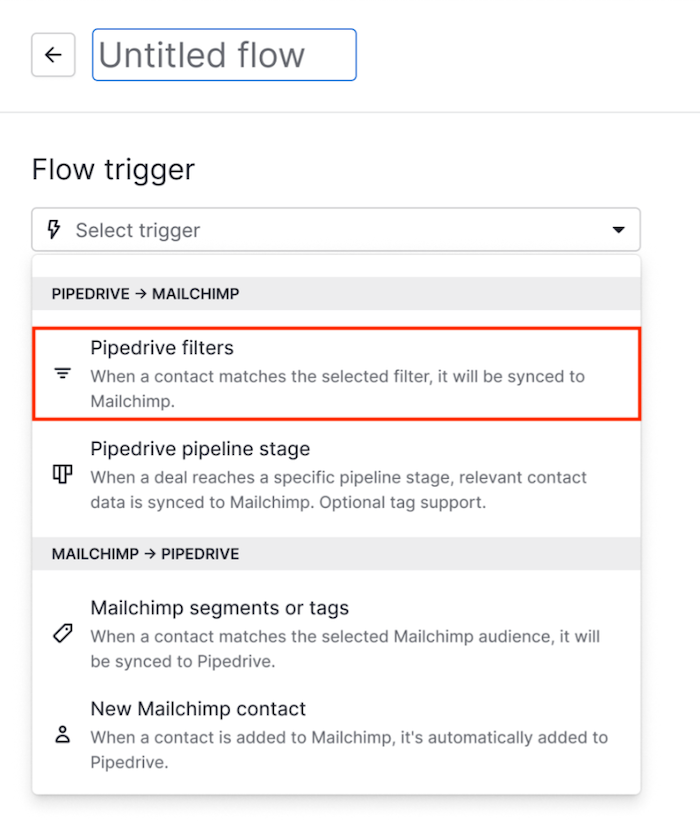
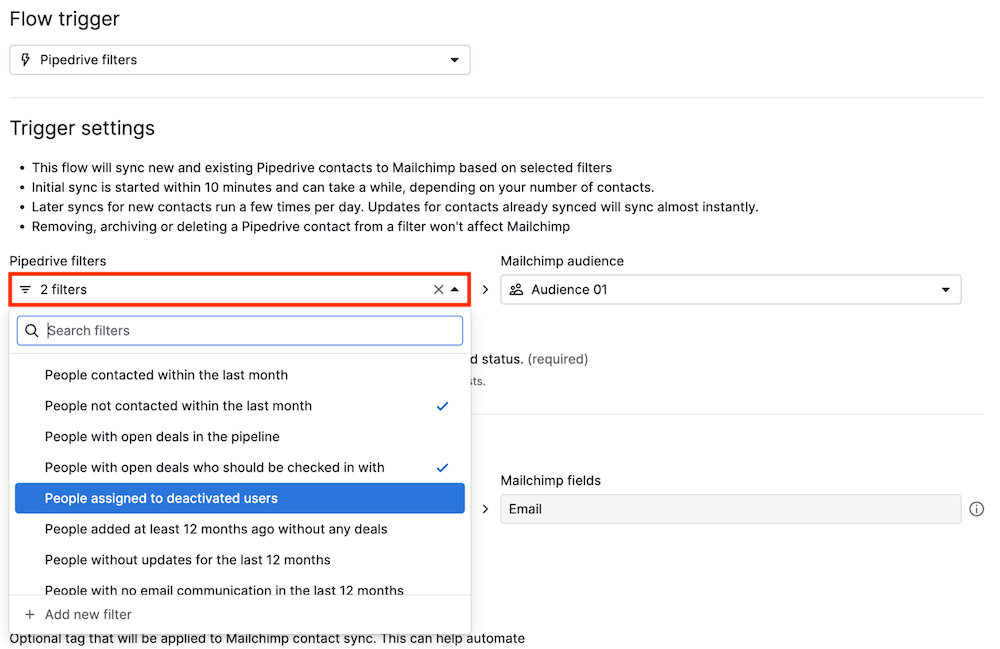
Choose one or more existing filters
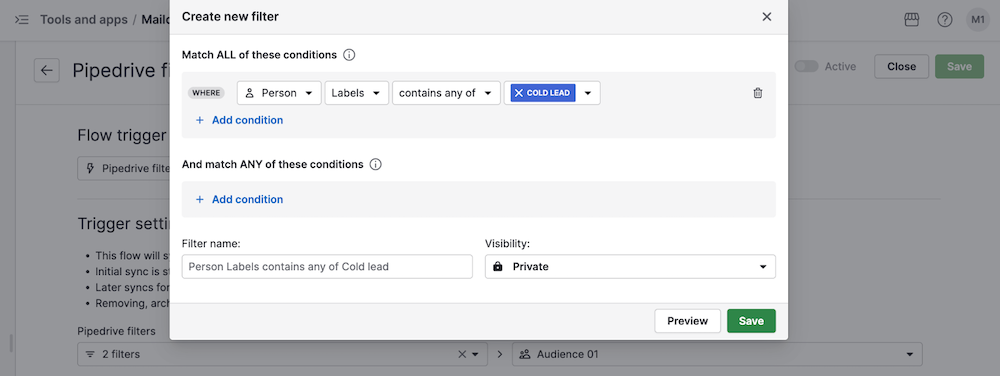
You can also create a new filter directly from the flow setup
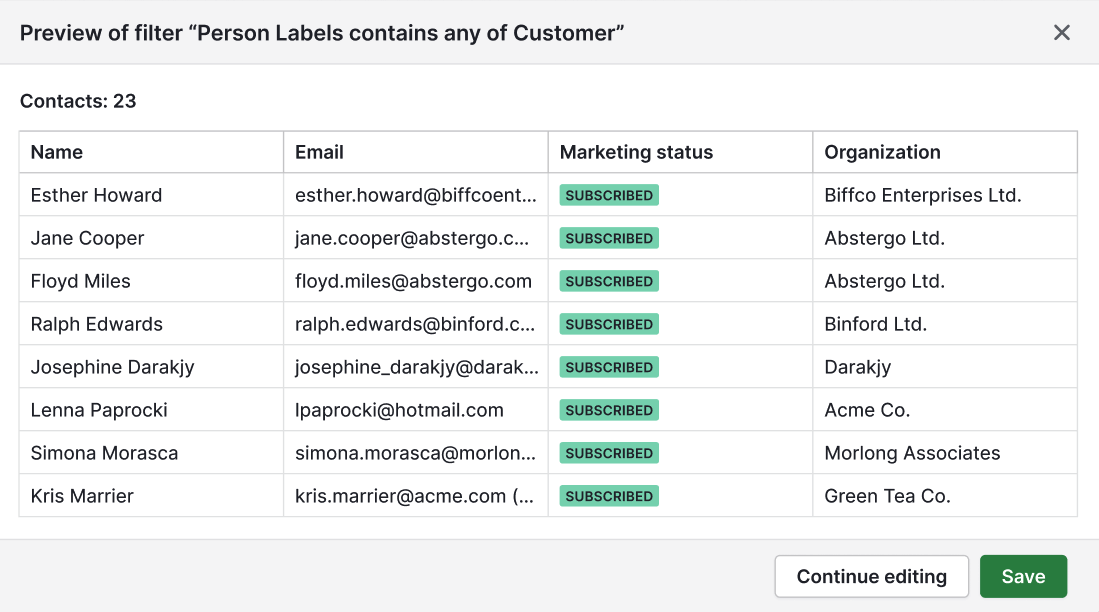
Preview matching contacts before saving.
Select the Mailchimp audience that you want to sync to.

Confirm that contacts are created with a subscribed status

Map the Pipedrive fields to matching Mailchimp fields as described in Field mapping.
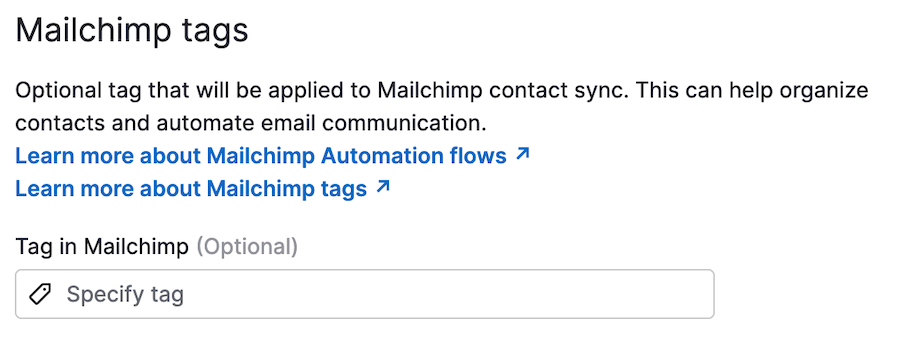
Optionally, you can add a Mailchimp tag to synced contacts. This can be useful for segmentation or automation in Mailchimp.
Click “Save” and remember to activate the flow.

Trigger: Pipedrive pipeline stage
This trigger syncs a contact when a deal enters a specific pipeline stage.
How it works
The person associated with the deal is synced to the selected Mailchimp audience when the deal enters the selected stage
The sync is event-based and happens almost immediately
Existing Mailchimp contacts are updated
Sync direction is from Pipedrive to Mailchimp only
Important considerations
Further contact updates aren’t synced
Moving a deal out of the stage doesn’t affect the Mailchimp contact
Archiving or deleting the deal or contact doesn’t remove the associated contact from Mailchimp
How to set it up
While creating a new flow, select the Pipedrive pipeline stage.
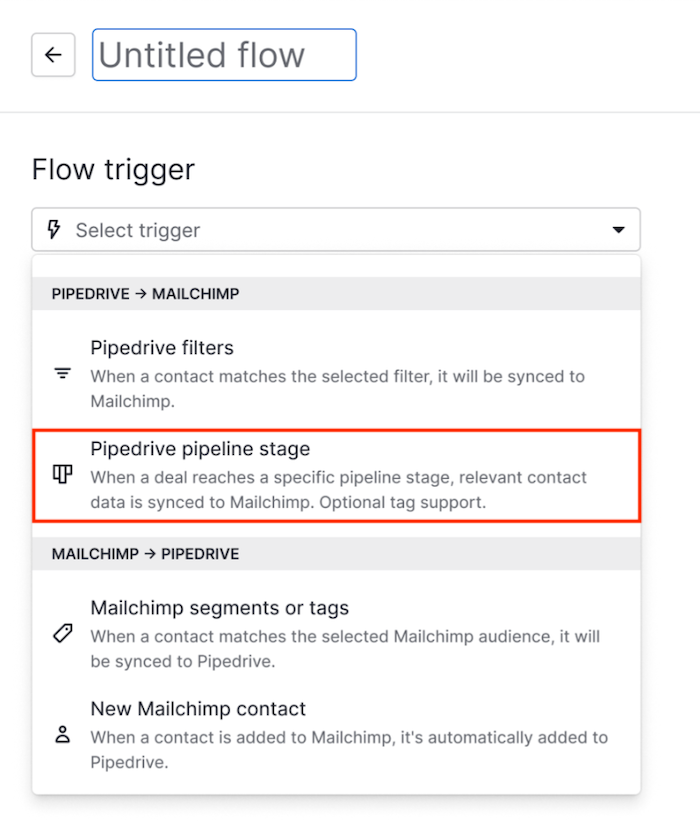
Choose the pipeline and stage that‘ll trigger the sync.
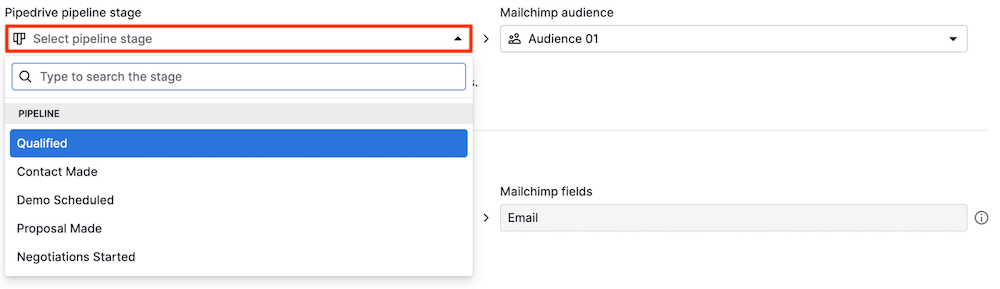
Select a Mailchimp audience.
Map the Pipedrive fields to matching Mailchimp fields as described in Field mapping.
Confirm that new Mailchimp contacts will be created with the subscribed status.
Optionally, you can add a Mailchimp tag to the synced contact. This can be useful for segmentation or to automate communication through Mailchimp Automation flows.
Click “Save” and remember to activate the flow.

Managing your saved flows
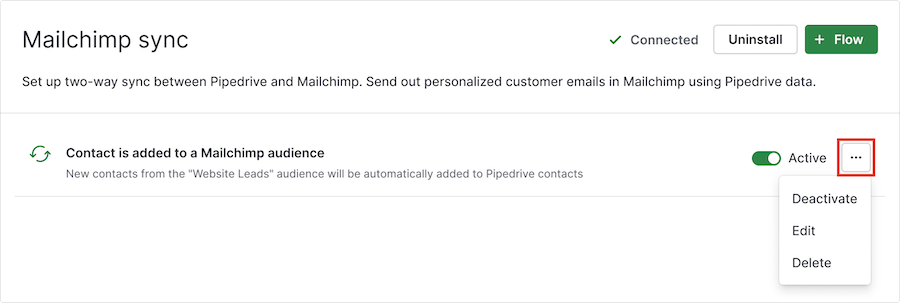
Your saved flows are located on the Mailchimp sync integration page, where you can activate or deactivate them at any time.
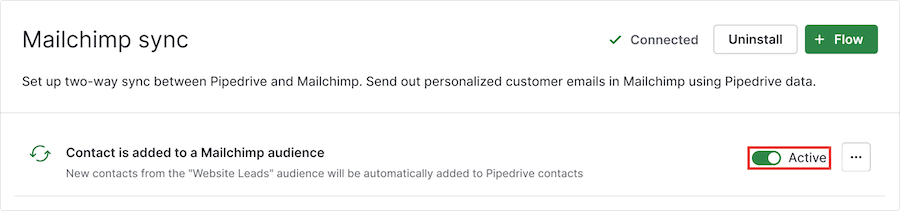
By clicking on the “...”, you can edit or delete the flow.
Was this article helpful?
Yes
No