Pipeline view: manage deals lifecycle
The pipeline view is where you manage your deals from start to finish. It gives you a clear overview of your sales process so you can quickly see what’s in progress, what needs attention and what’s close to closing.
Understanding deals and pipelines
In Pipedrive, deals represent your sales opportunities. As a deal progresses, it moves through the pipeline stages, from initial contact to a final outcome.
A deal can only exist in one pipeline at a time. Its progress is shown visually across the stages in that pipeline.
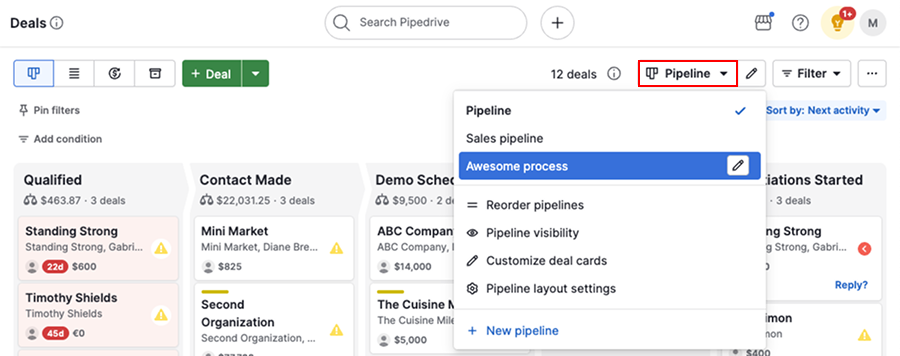
You can create multiple pipelines to reflect different processes in your business. To switch pipelines, click the pipeline selection dropdown at the top of the view and select the pipeline you want to work with.
Deal lifecycle in the pipeline view
You can manage the entire deal lifecycle directly in the pipeline view, from creating deals to closing or deleting them.
Add deals
To create a new deal, click “+ Deal” in your pipeline view.
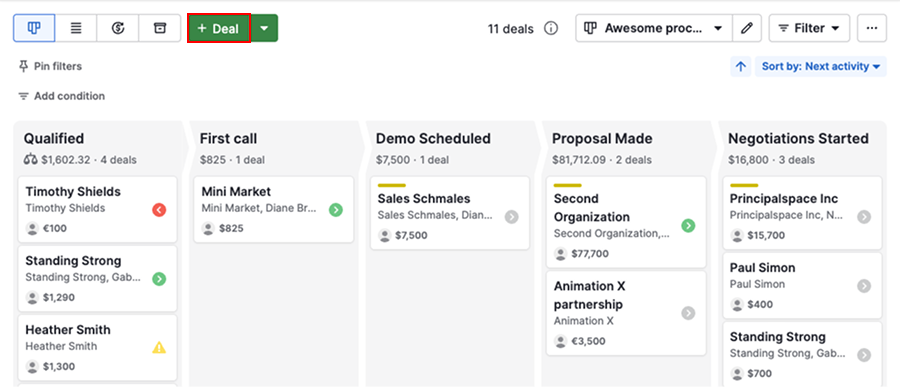
Then enter the necessary details such as the deal value, pipeline and related contact.
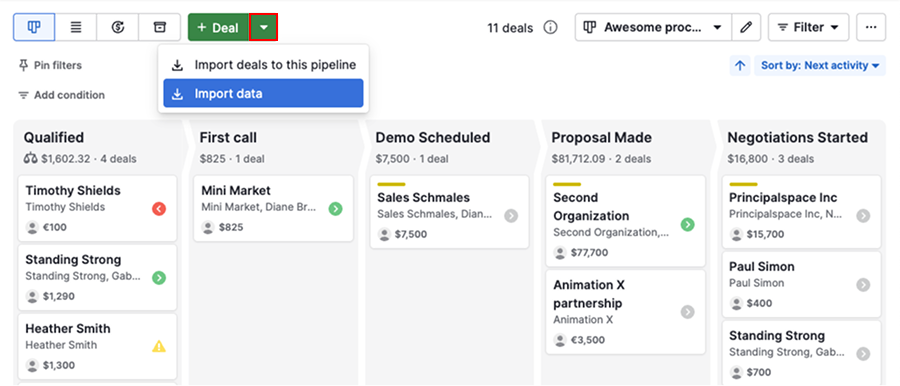
If you want to add multiple deals at once, use the dropdown next to the add button to import your data.
View deals
By default, each deal card shows key information such as the title, contact, value, label and owner.
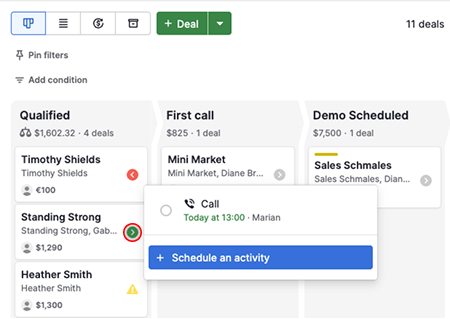
To check upcoming activities, click the activity icon on the card. From there, you can mark activities as done or schedule new ones.
To see full details, click the deal card.
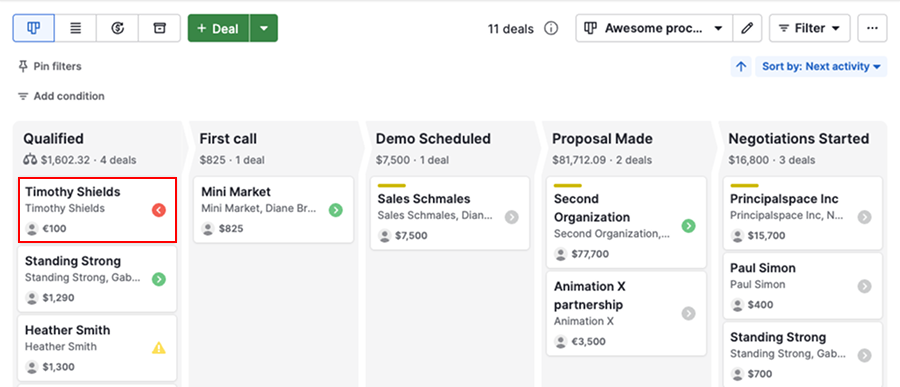
This opens the deal detail view, where you can review activities, notes, email conversations, files and documents.
Progress deals
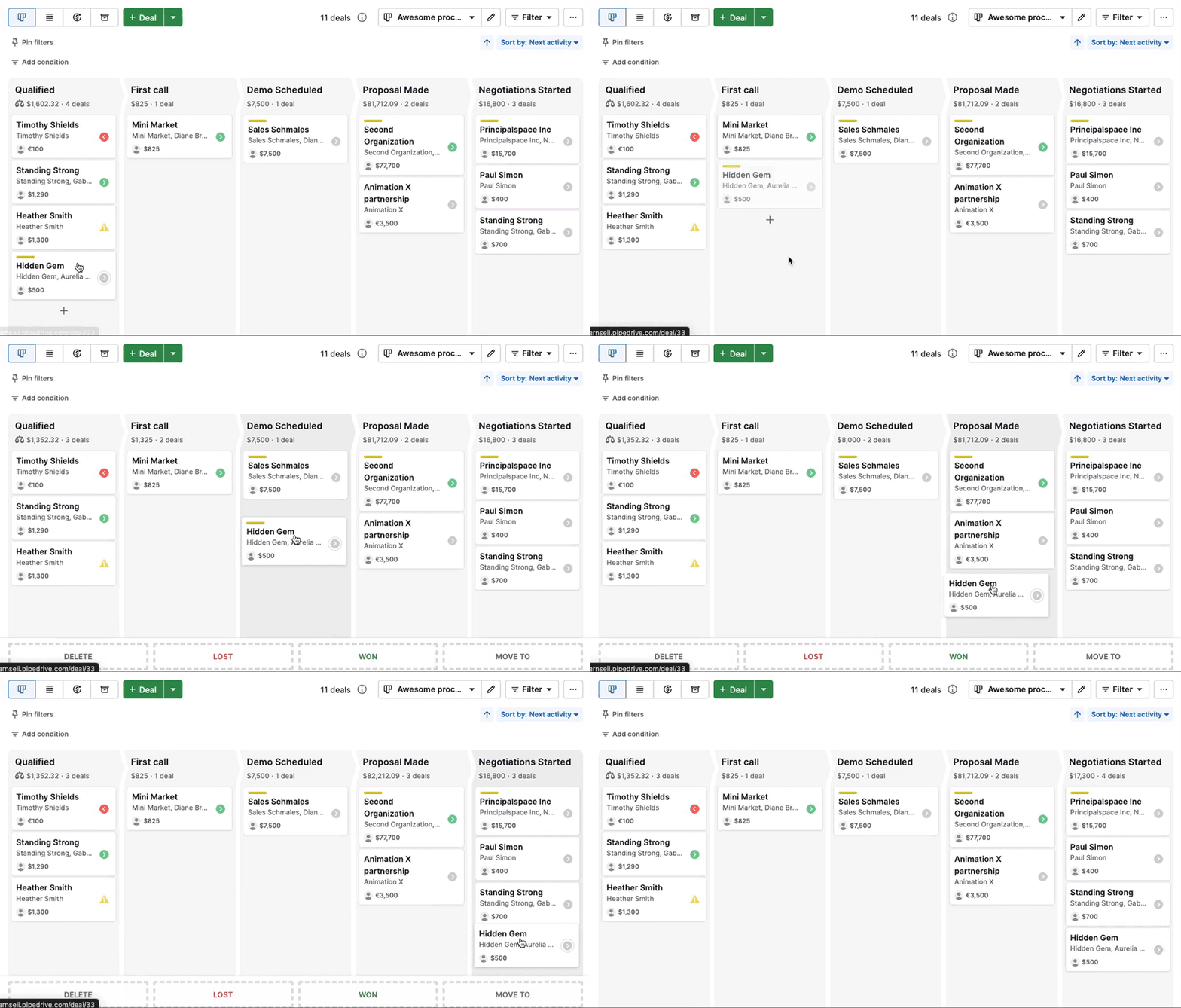
Move your deals through the stages of your pipeline until they reach a final outcome.
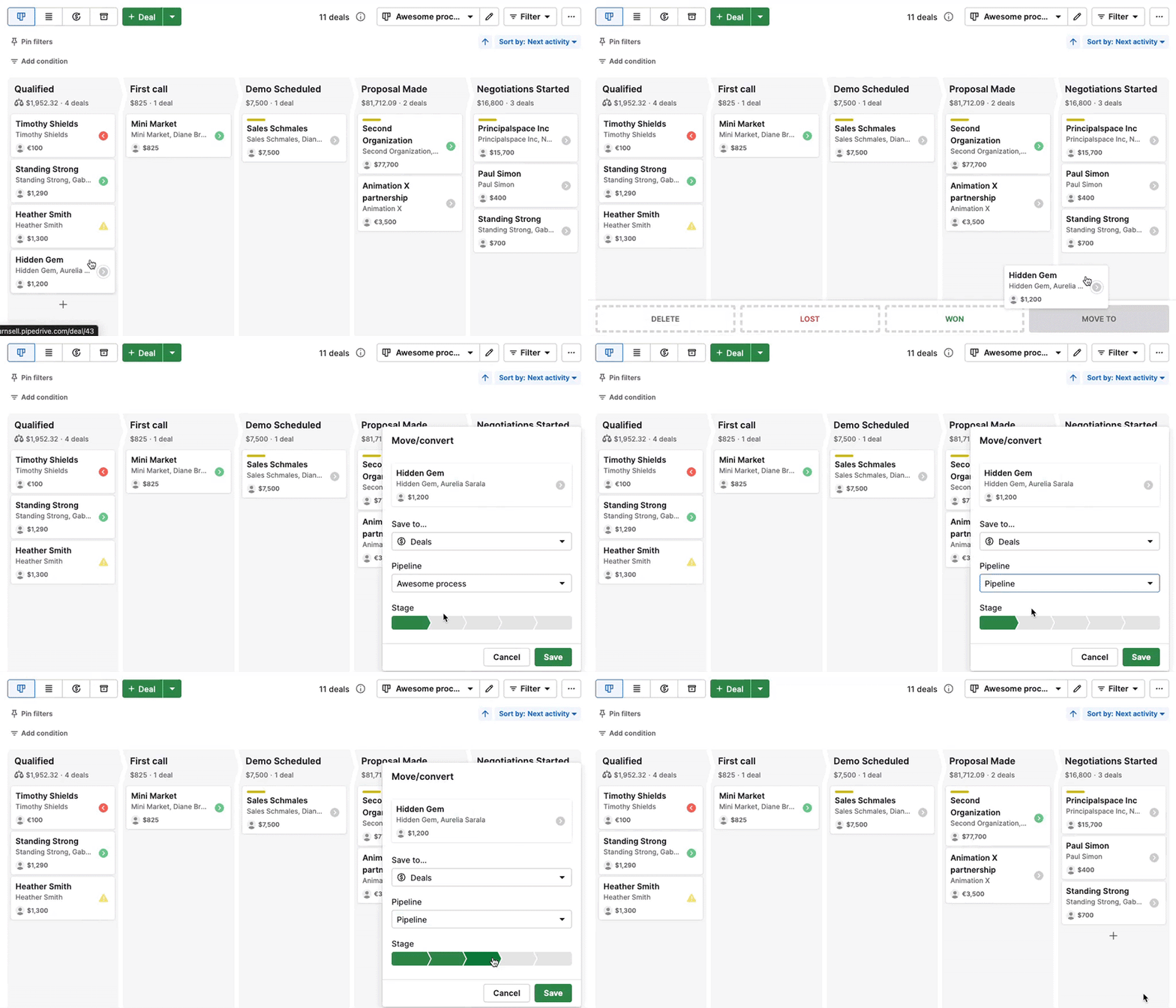
If needed, you can also move a deal to another pipeline.
To keep your pipeline active, use the Rotting feature to highlight deals that haven’t been updated recently.
Close deals
When a deal reaches an outcome, mark it as:
- Won – The deal was successful
- Lost – The deal was unsuccessful
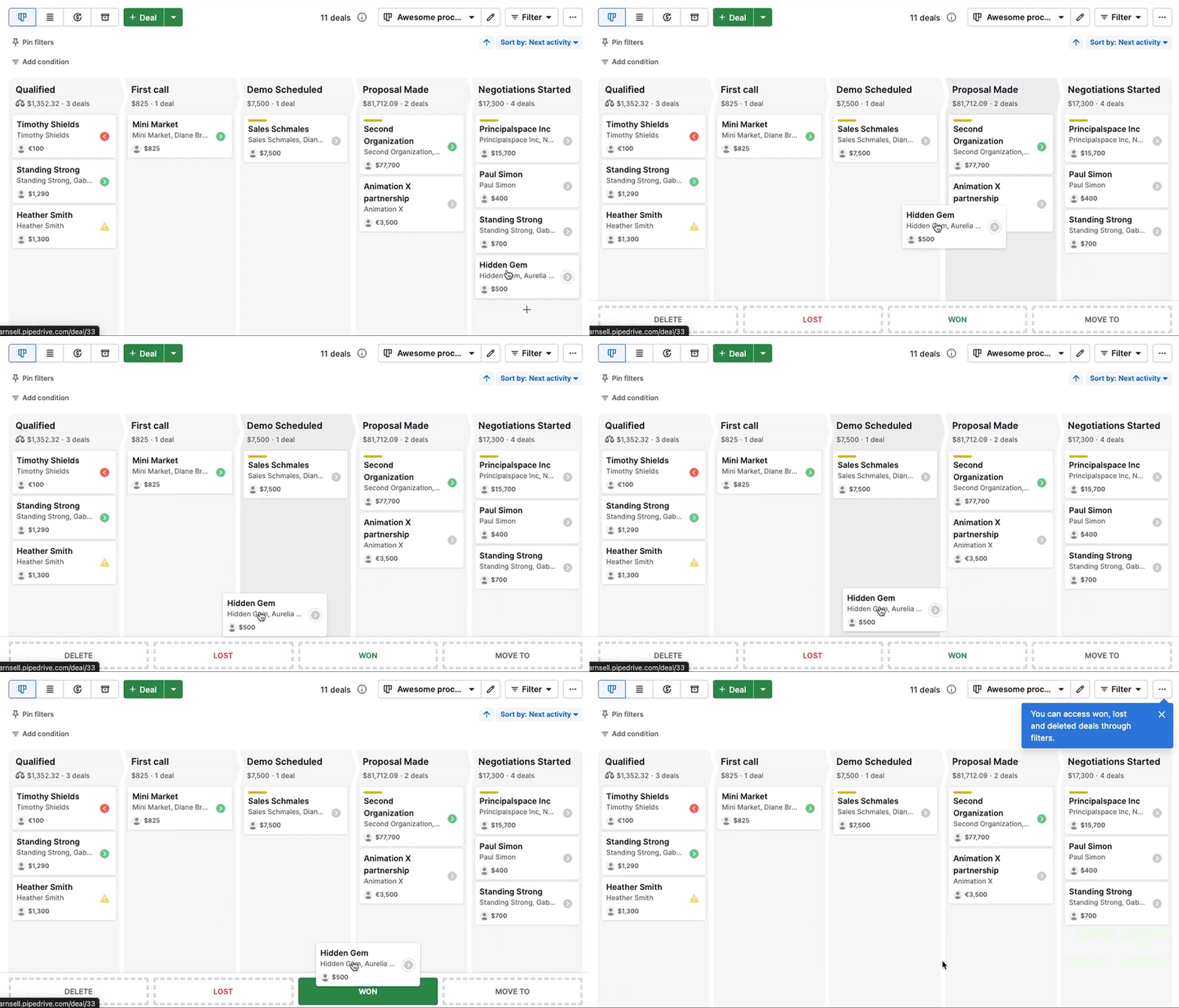
Closed deals are removed from the active pipeline view. You can still access them later by filtering for won or lost deals.
Delete deals
To permanently delete a deal from your account, drag it to the “Delete” option.
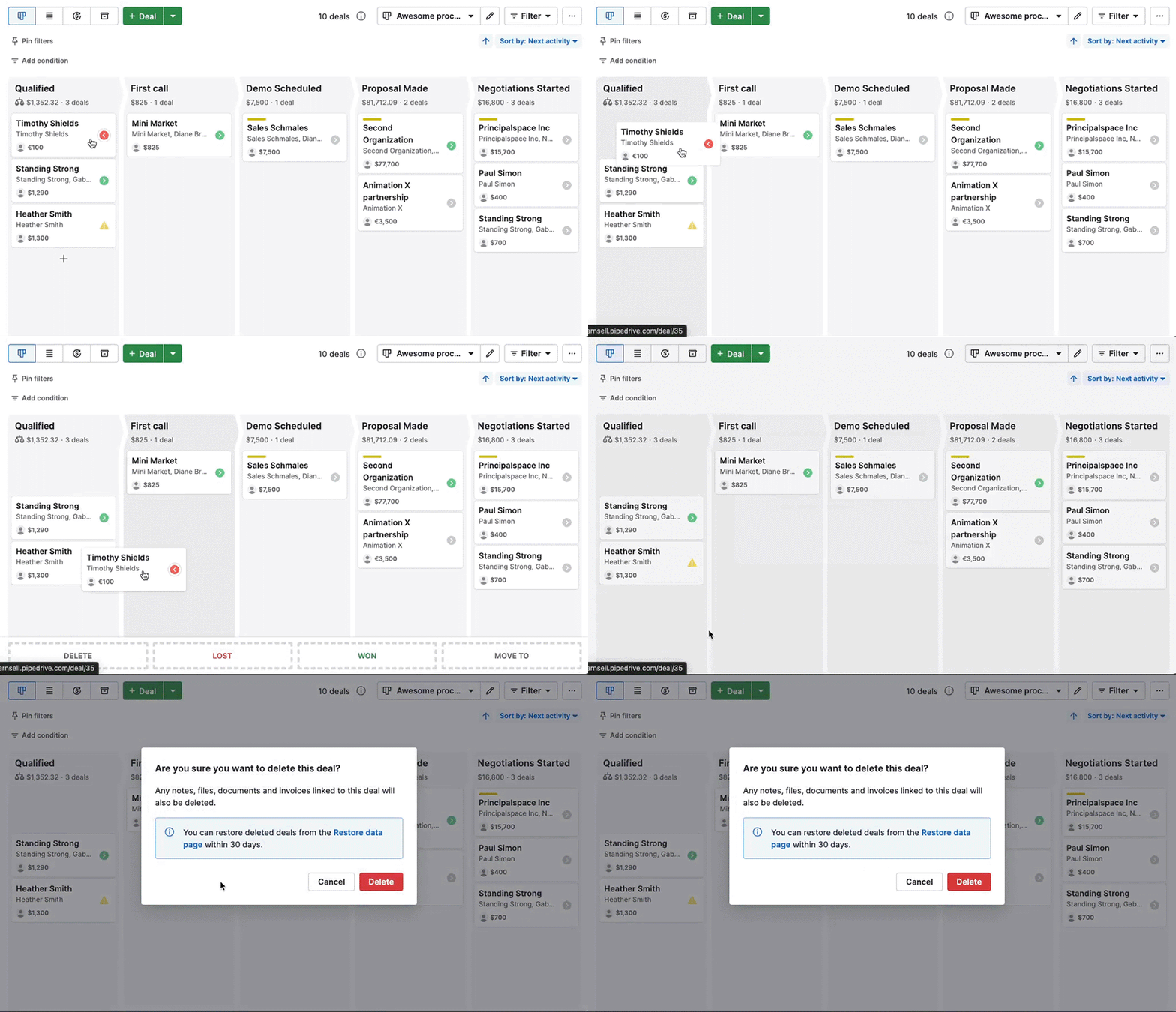
Deleted deals can be restored from the Restore data page within 30 days.
Organize and prioritize deals
Use these tools to stay focused, prioritize work and keep your pipeline up to date.
Filter deals
To find specific deals, go to Filter > Filters. Select an existing filter or click “+ Add new filter”.
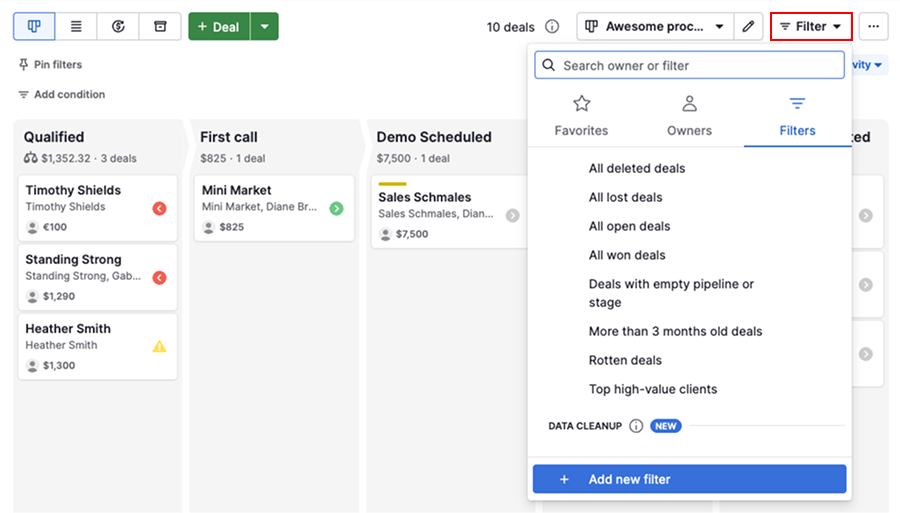
You can also add filters to your favorites for quicker access. Learn more about advanced filtering.
Sort deals
By default, deals are sorted by next activity, helping you prioritize what needs attention first.
If multiple deals share the same activity status, they’re sorted by creation time, with newer deals appearing first.
To change the sorting, click the “Sort by” dropdown.
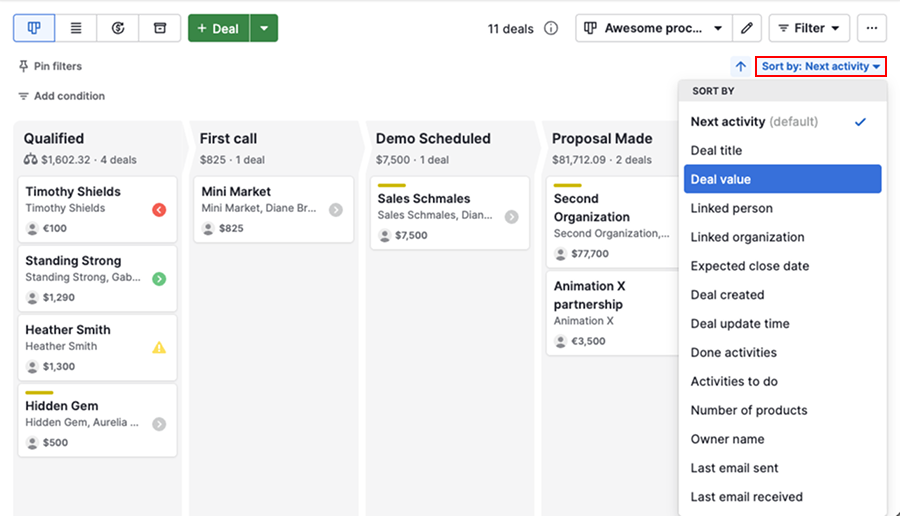
For example, you can sort by fields such as deal value, expected close date or owner, depending on your priorities.
Best practices
Here are some other tips to help you focus:
| Tip | Why it helps |
|---|---|
| Regularly move deals to the correct stage | Track accurate progress |
| Archive or delete lost or irrelevant deals | Prevent clutter |
| Use filters to focus on your own deals or specific time frames | Prioritize your work |
Manage pipelines for your team
Use these settings to control how pipelines are organized and who can access them across your company.
Reorder pipelines
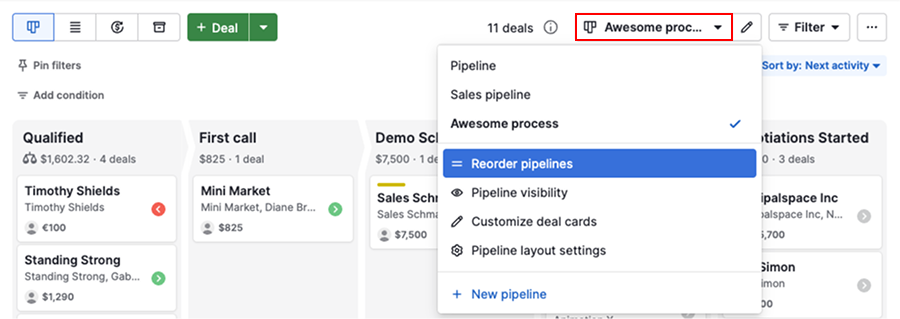
Organize your pipelines by priority to make navigation easier for your team. Open the pipeline selection dropdown and click “Reorder pipelines” to adjust their order.
Pipeline visibility
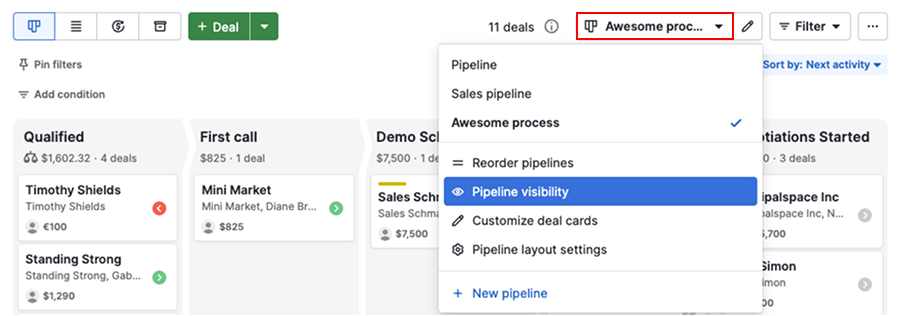
With pipeline visibility, you can control which pipelines and deals are accessible to different visibility groups.
Personalize your pipeline view
Use these settings to adjust how deal information appears and how the pipeline behaves in your own account.
Customize deal cards
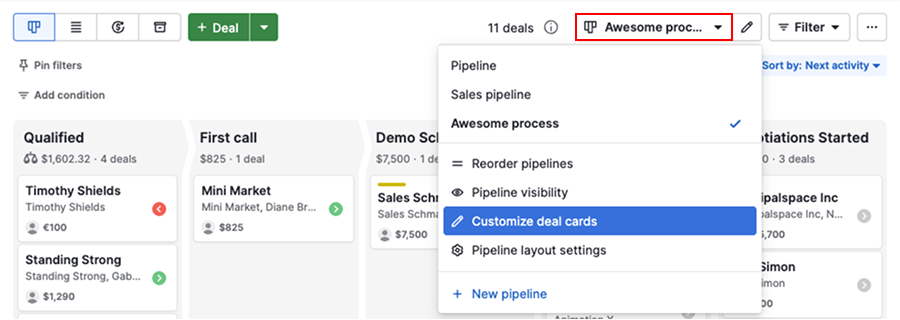
Use deal card customization to adjust which fields are displayed on deal cards.
Pipeline layout settings
Open the pipeline dropdown and select “Pipeline layout settings” to adjust how your pipeline view behaves.
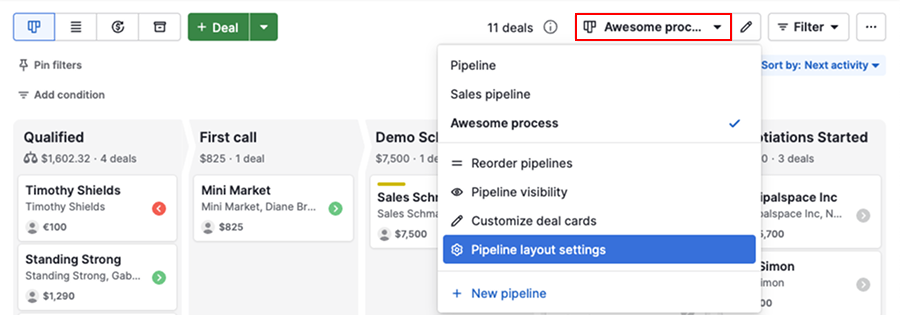
You can define how stages are displayed, how deal detail views open and whether pinned or quick filters are visible.
Was this article helpful?
Yes
No