How can I remove seats?
If your team size has reduced and you’re not replacing a deactivated user, consider removing their unused seat from your subscription.
Staying on top of your seat count ensures you’re only billed for team members who actively use Pipedrive.
Remove seats
To remove an unused seat, you’ll first need to deactivate the user from your account.
While deactivating a user, you’ll see a summary of all items owned by that user and a reminder to reassign their data.
When you tick the checkbox under remove unused seats, you’ll ensure that the user’s seat is removed from your subscription at the next renewal date.
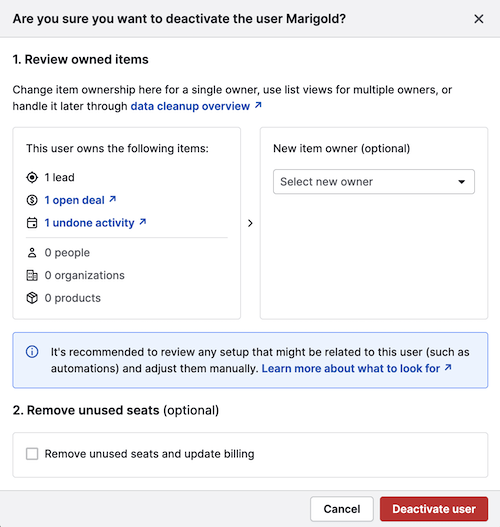
Click “Deactivate user” and follow the checkout steps to confirm the seat removal.
Remove deactivated users’ seats
If you leave the checkmark unticked during deactivation, the deactivated user’s seat remains part of your subscription.
You can remove it by opening the account menu in the top right corner and going to Billing > Manage subscription > Team size.
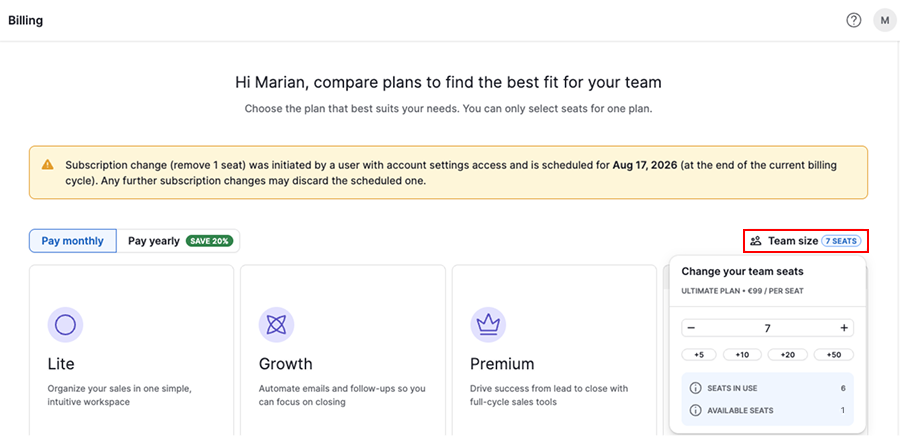
Use the plus and minus buttons to change your seat count. Once ready, click “Continue” and complete the entire billing flow.
Learn more about billing changes when deactivating a user in Pipedrive.
Was this article helpful?
Yes
No