Projects: manage project health
The project health section helps you monitor project progress and identify issues before they affect delivery.
You can manually update your project health status or use AI to generate a summary based on your project data, including emails, notes, tasks and activities.
The AI summary helps you assess project progress, identify risks and decide on next steps more quickly.
Manage project health
In the project detail view, you’ll find the project health section in the sidebar.
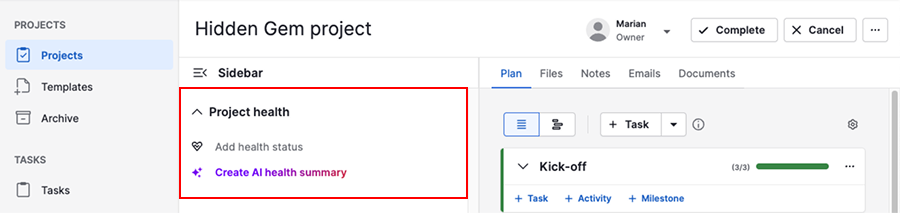
From there, you can either:
- Add health status – manually reflect the project’s current progress
- Create AI health summary – generate a suggested health status, overview and recommendations
To use AI-generated summaries, the feature must first be enabled for your company account.
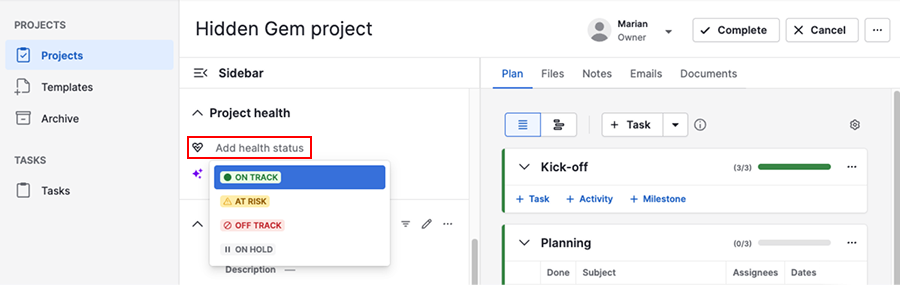
Both manual updates and AI-generated summaries use the following project health statuses:
| Status | Description |
|---|---|
| On track | The project is progressing as expected |
| At risk | The project may miss deadlines without attention |
| Off track | Major issues are affecting progress |
| On hold | Work on the project is temporarily paused |
To apply the AI-generated status to the project, click “Update health status”.
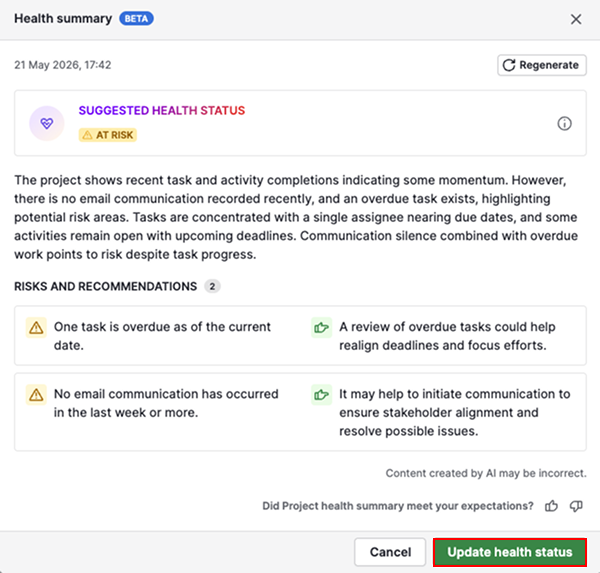
If your project data has changed or you want AI to refresh the summary, click “Regenerate”.
You can reopen the latest AI-generated summary at any time by clicking “Create AI health summary” again.
Review the AI summary
Review the AI summary to understand recent project activity, risks and recommended next steps.
Health status
Use the health status to quickly understand whether the project is progressing as expected or needs attention.

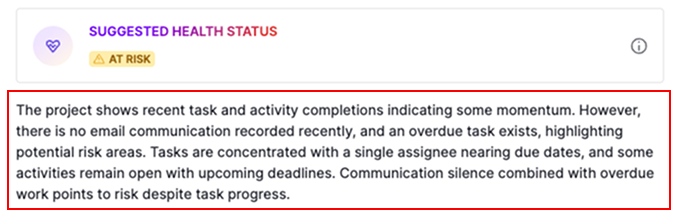
General health overview
Use the overview to review recent progress and activity without manually checking individual updates.
Risks and recommendations
This section highlights potential risks and suggests actions you can take to keep the project moving forward.
For example, the summary may identify overdue work items, uneven workload distribution or lack of communication.
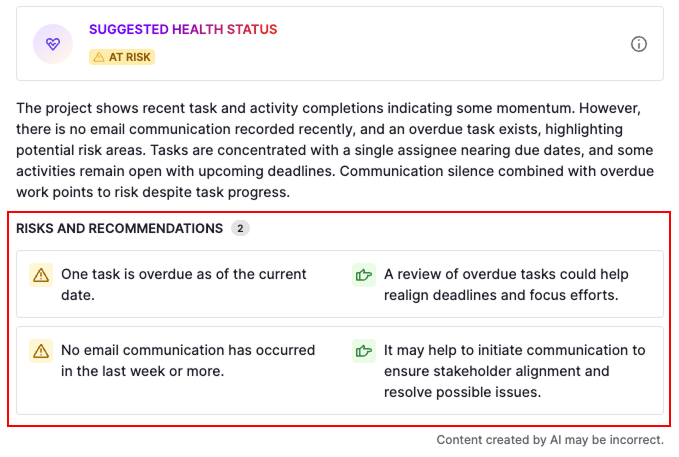
Use these recommendations to rebalance workloads, follow up on stalled work or adjust project timelines when needed.
Use project health across Pipedrive
Once you start tracking project health, you can use it across other areas of Pipedrive.
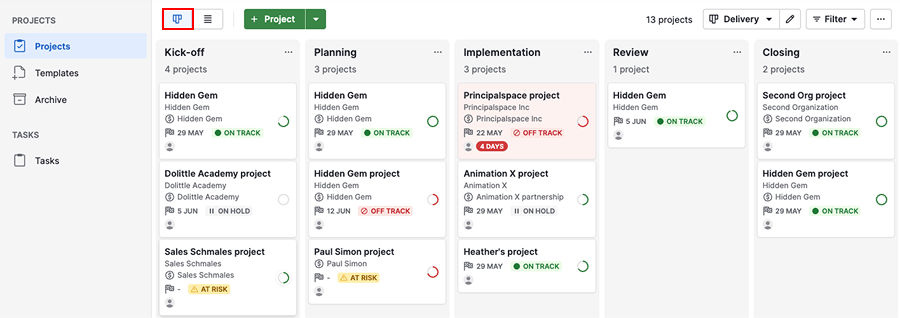
In the project board, the health status appears directly on project cards, making it easier to spot projects that may need attention.
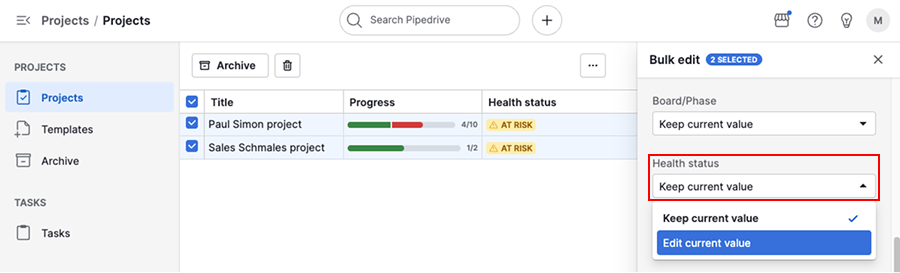
If you need to update multiple projects at once, you can use the list view to filter projects by health status and apply bulk edits.
Project health statuses can also be used to:
- Visualize project performance in Insights
- Trigger automations when a project’s health status changes
- Import or export projects with health status data
Was this article helpful?
Yes
No