Contact people vs. leads
In Pipedrive, both leads and contact people are essential to managing your sales process, but they serve different purposes and behave differently in our platform.
Understanding this distinction is crucial to avoiding data issues, especially when bulk editing or converting items. This article breaks down how leads and contact people are connected, what they’re used for, and common pitfalls to avoid.
What is a contact person?
In Pipedrive, the contact people are the individuals with whom your company has a relationship, whether it’s a customer, prospect or business partner. They live in your contacts section.
Think of your contact list as your sales phone book. It holds core information about individuals, such as phone numbers, email addresses and the organization where they work, and acts as a central hub for their activities.
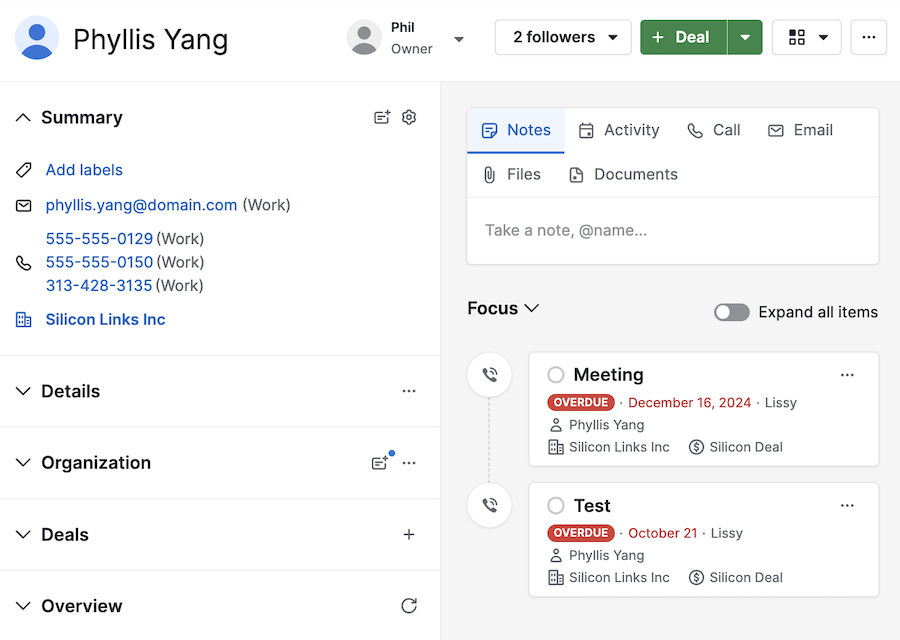
In a contact person‘s detail view, you’ll see everything linked to that person, including:
Leads
Deals
Email communications
Notes
Activities
Each contact person can be linked to multiple leads or deals, helping you track their full history with your company.
You can read more about contact people and organizations in this article.
What is a lead?
A lead is a potential sales opportunity in its earliest stage. It’s where you track interest before creating a deal in your pipeline.
Essentially, a lead might one day become a deal, but there’s no guarantee. Leads live in your Leads Inbox.
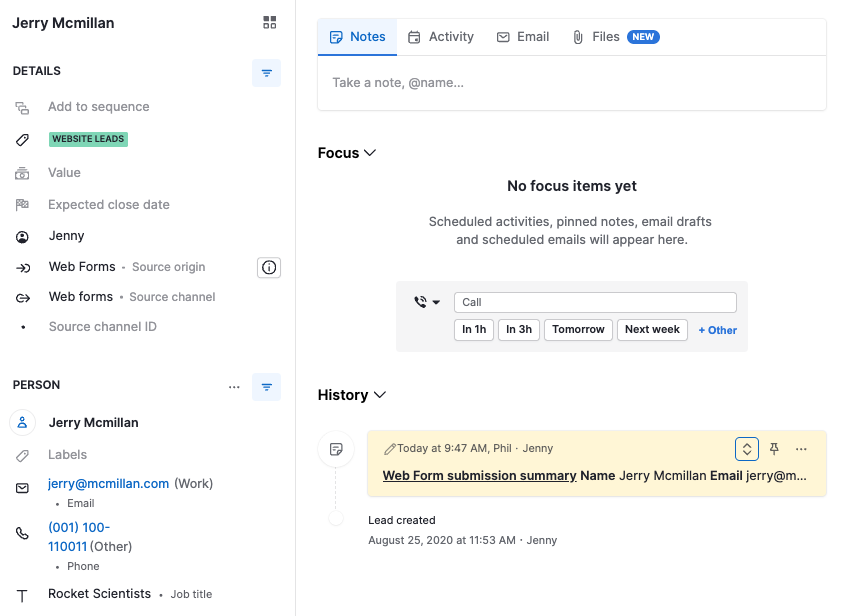
Let’s say you used a Leadbooster web form on your website for customers to express interest in your products or services, or ask questions about them.
Some people who fill it up might turn into new deals one day for your company, but you still need to determine if people are simply seeking more information about your product or service, or if they’re genuinely interested in making a purchase.
In short, leads enable you to gather details and qualify the opportunity before deciding whether to proceed with it. Every lead:
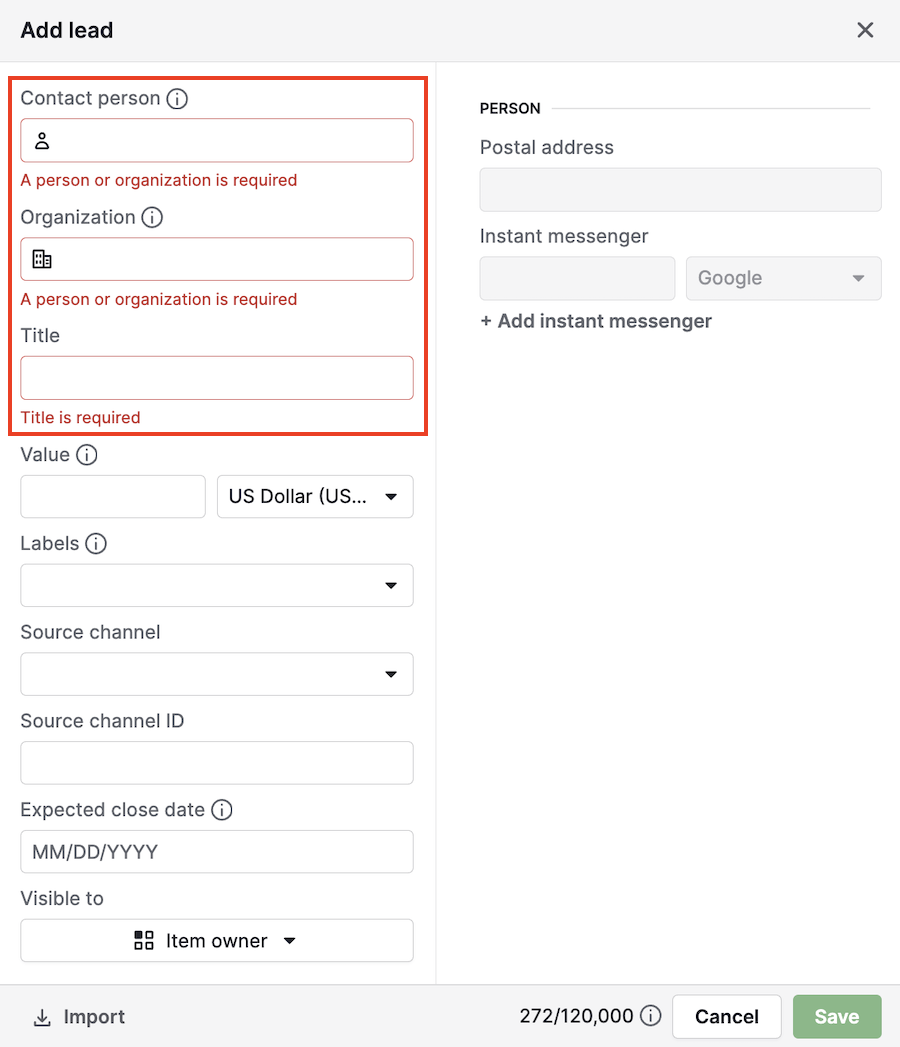
Lacks contact information; therefore, it must be linked to a contact person/organization
Has its own notes, emails and activities separate from other leads or deals linked to the same contact
Can be converted into a deal when ready to move to the pipeline
You can learn more about leads and how they differ from deals in this article.
Contact people vs. leads
Feature / Field | Contact person | Lead |
Purpose | Represents an individual person you engage with | Represents a potential sales opportunity |
Contains contact data (such as email/phone) | Yes | No. Needs to be linked to a contact |
Data type | Persistent person record | One-time opportunity |
Can it exist without the other? | Yes, contacts can exist without a lead or deal | No, leads must be linked to a contact person |
Shared across items? | Yes. Used across leads and deals | No. Specific to one opportunity |
Where activities are logged | Centralized view of all activities | Activities and notes added to a lead are visible from the person and organization views |
Editable independently? | Yes. But changes apply across linked items | Yes. Lead fields are editable per opportunity |
Can it be linked to multiple items? | Yes. Can be linked to many leads or deals | No. One lead per opportunity |
Can it be converted into a different entity? | No. Contacts remain the same | Yes. Can be converted into deals |
Deleted when the item is converted? | No. Contact remains active | No. After converting a lead into a deal, a link to the original lead remains in the deal‘s history, but you won‘t be able to edit the original lead any longer |
Visible in contacts list? | Yes | No |
Required for deals or leads? | Yes. At least one person/organization must be linked to a lead or deal | Not required for deals, but can be converted into one |
Custom fields available? | Yes | Yes |
Labels available? | Yes. To track type/relationship | Yes. For lead-specific categorization |
How contact people and leads are linked
Every lead must be associated with a contact person or with an organization.
This link is shared across all leads and deals that use the same contact. If you update the name, email, or other details of a contact person, the change will be reflected in every lead and deal where the contact is used.
This is where confusion often happens: Users may think editing a lead is an isolated action, but when you edit the contact’s name or details within the lead view, you’re actually updating the central contact record.
Organizing with labels: contacts vs. leads
Labels help you organize your data visually by adding color-coded tags to your leads, contact persons, or organizations. Understanding how to use labels strategically can help you avoid confusion and streamline your sales process.
Labeling contacts
By default, Pipedrive includes some contact labels that overlap somewhat with lead labels, such as:
Customer: someone you’ve sold to before, regardless of current activity
Hot lead: a strategically important contact
Warm lead: someone who’s shown interest, but isn’t actively moving forward at the moment
Cold customer: no engagement in a long time
While contact labels like “hot lead” and “warm lead” can overlap with lead labels, remember they describe the person’s overall relationship with your business, not the status of a specific opportunity.

If that status is temporary, it’s better to use a lead label instead. You can also rename or customize contact labels when adding them to match your workflow and avoid confusion.
These labels serve as long-term identifiers and remain attached to the contact, regardless of the number of leads or deals to which they’re linked. You can apply different labels for people and organizations.
Labels are visible in the contacts list and help you filter or segment your network.
Learn how to set up contact labels in this article.
Labeling leads
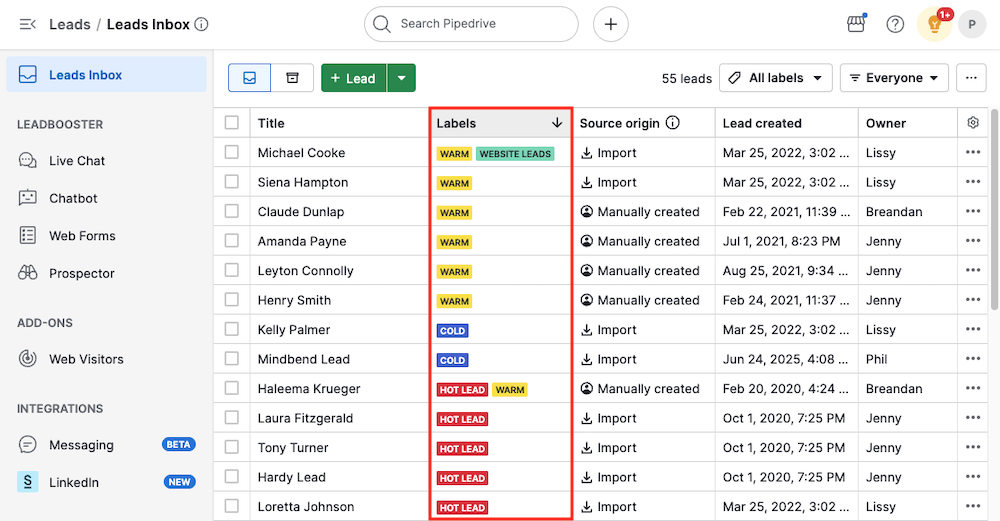
Lead labels are used to show the status or quality of a specific sales opportunity.
Since a single contact can have multiple leads over time, each lead may require its own label depending on its progress or potential. For example:
- Hot: high intent or engagement
- Warm: a lead that showed interest or partial qualification, but who‘s not yet ready to convert
- Cold: slow to respond or low interest
- New: just added, not yet qualified
- Follow-up: needs further outreach
Lead labels are visible in the Leads Inbox and help prioritize and sort opportunities.
Learn how to manage lead labels in this article.
Frequent issues and how to solve them
Here are some of the most frequent issues reported by users, and how to avoid them:
Editing contact details inside a lead
Problem: A Pipedrive user in your company changed a contact’s name inside a lead, unintentionally updating it across hundreds of other leads and deals.
Solution: Always edit contact person information from the contact profile (not directly within a lead) to apply changes carefully and intentionally.
Linking the wrong contact to multiple items
Problem: A bulk import or bulk edit incorrectly links many deals and leads to the wrong contact person, overwriting the original data.
Solution: Before doing any bulk actions, review your import or filter to ensure that the correct contact is selected. Use the Changelog feature to track recent edits if something appears to be incorrect.
Best practices for managing leads and contact data
Here’s how to avoid mistakes and stay in control of your data:
Always review the contact person before updating names or emails
Use filters and the changelog to investigate bulk changes or unexpected linkages
If possible, avoid doing large bulk edits unless you’ve reviewed the impact across leads and deals
For bulk imports, carefully review your import preview before confirming
Use labels to help differentiate contact types or lead quality
Was this article helpful?
Yes
No