Troubleshooting: automations
This guide covers common reasons why an automation might not trigger or execute steps as expected. It’s important to investigate issues as quickly as possible, as automation history is only kept for 15 days.
Before you start
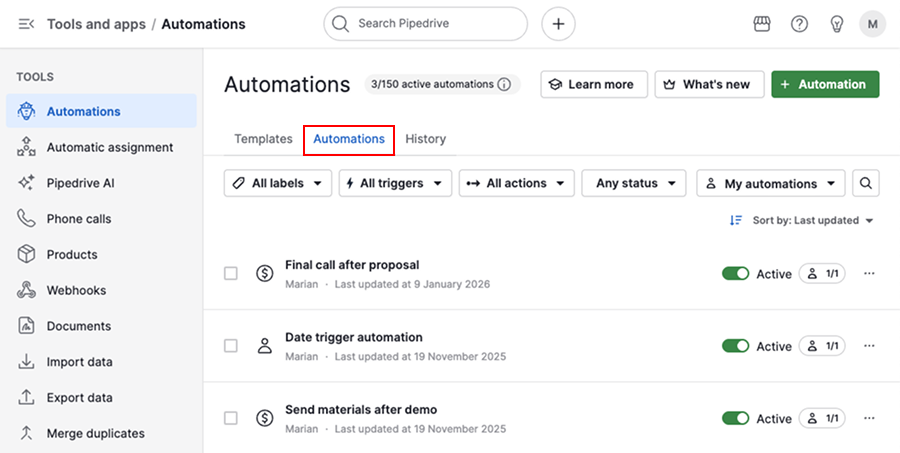
To troubleshoot an automation, open the account menu in the top-right corner and go to Tools and apps > Automations.
Use the automations tab to review and manage your automation setup.
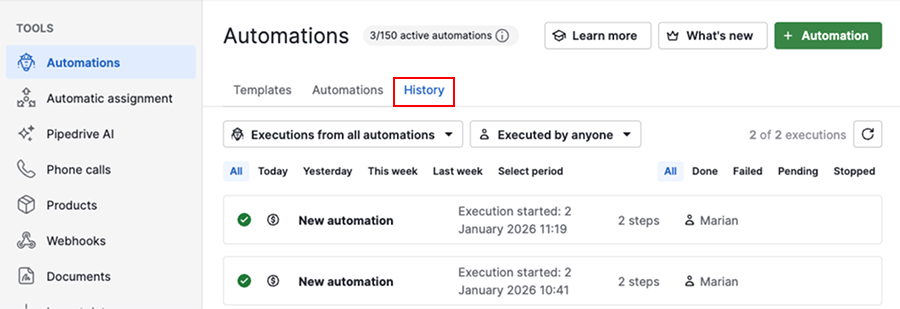
Switch to the history tab to see past automation activity. Only automations that meet all trigger conditions and complete their first action will appear here.
Check why the automation didn’t trigger
If your automation didn’t run, go to the automations tab and open the automation to review its setup.
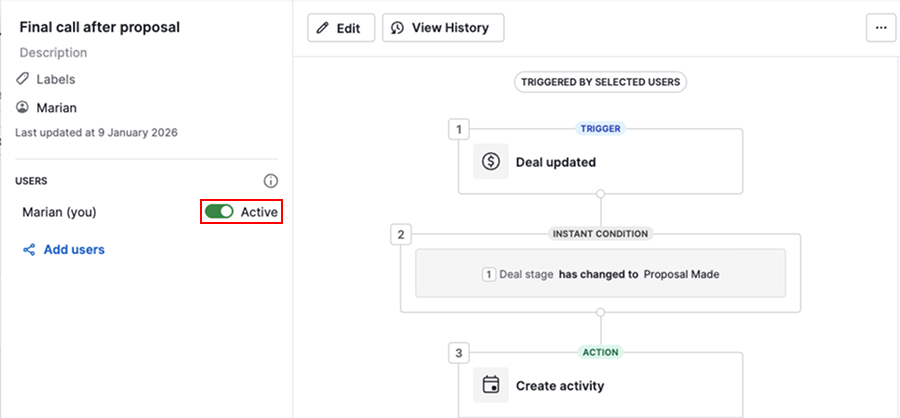
Confirm that the automation is active for you. Automations don’t work retroactively.
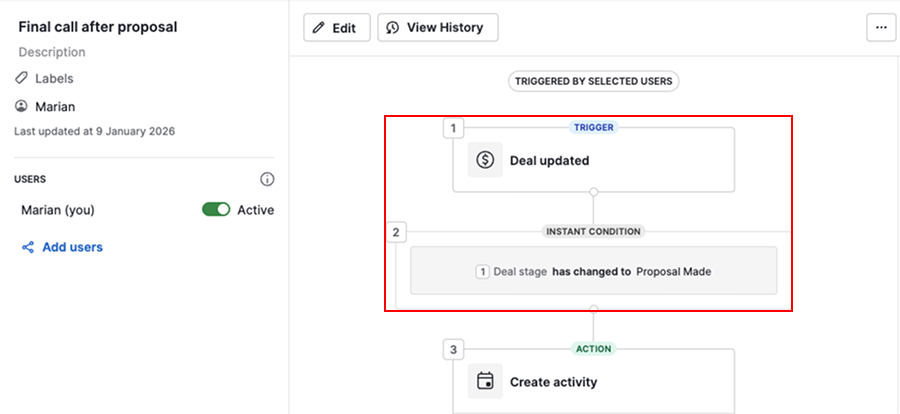
Ensure the item matches the trigger and conditions.
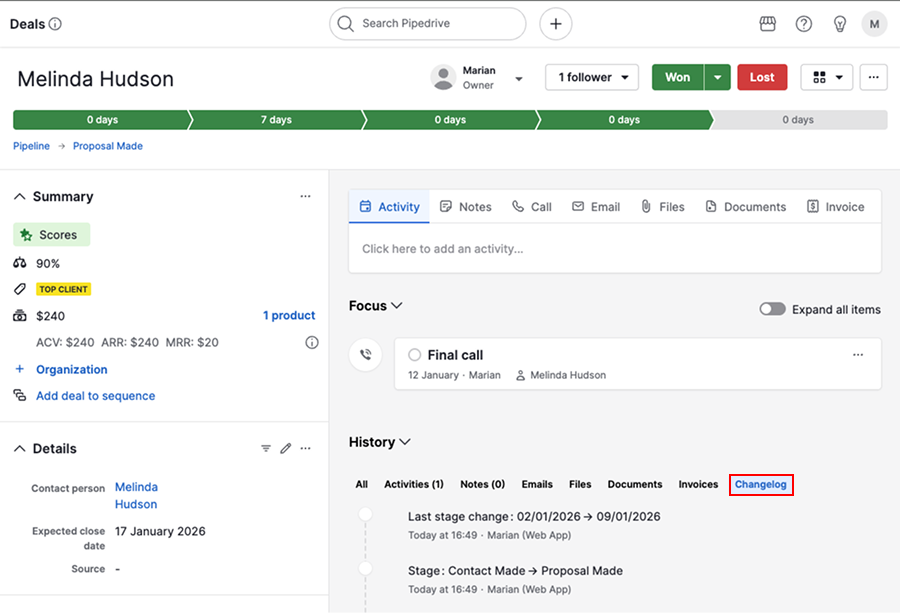
Open the item’s detail view and go to History > Changelog to confirm changes.
Permission or visibility issues
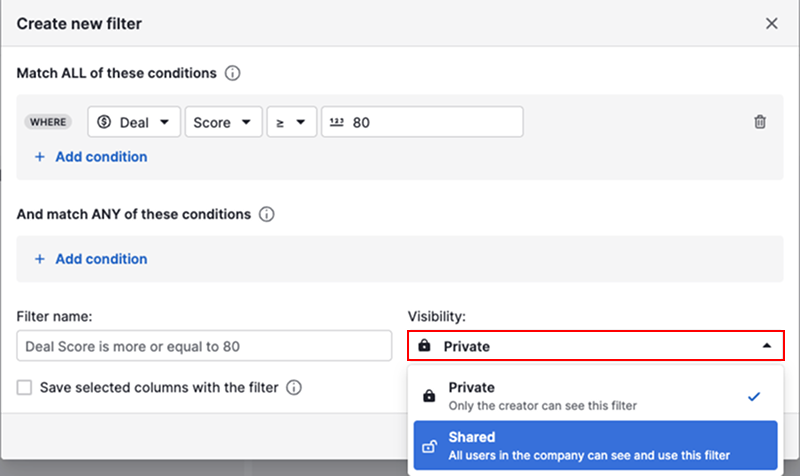
If the user who triggers the automation doesn’t have access to the filter or the items involved, it will fail.
To avoid this scenario, change filter visibility from private to shared.
Change item visibility and make sure the “See other users’ data” permission is enabled.
Understand triggers that may not activate
API request
Automations triggered by items that are created by API requests or third-party forms must meet these conditions:
- The automation is active before the item is created
- The new item matches the trigger and conditions
- Fields passed via API use valid and detectable values (e.g., field names, owner, status).
For example, if your automation triggers when a deal is created and owned by you, but the API creates the deal under another user, it won’t trigger.
Import
Most imports don’t trigger automations, unless they fall under the following conditions:
Import purpose | Automation trigger type | Example |
Update leads | Event trigger | Automation triggers when the lead owner changes |
Add or update date fields for activities, deals, organizations or people | Date trigger | Automation triggers a day after a deal was created |
In all other cases, imports won’t trigger automations, even if fields match automation logic.
Bulk update
Bulk updates can trigger automations, but if the update involves a large number of items, it may exceed frequency limits. When this happens, the automation fails, and you can see related errors in the history tab.
Email-sending automations triggered by a large bulk edit can be blocked by your provider, as standard email tools aren’t meant for high-volume sending. For mass emails, use group emailing or the Campaigns add-on instead.
Items created by automation are missing
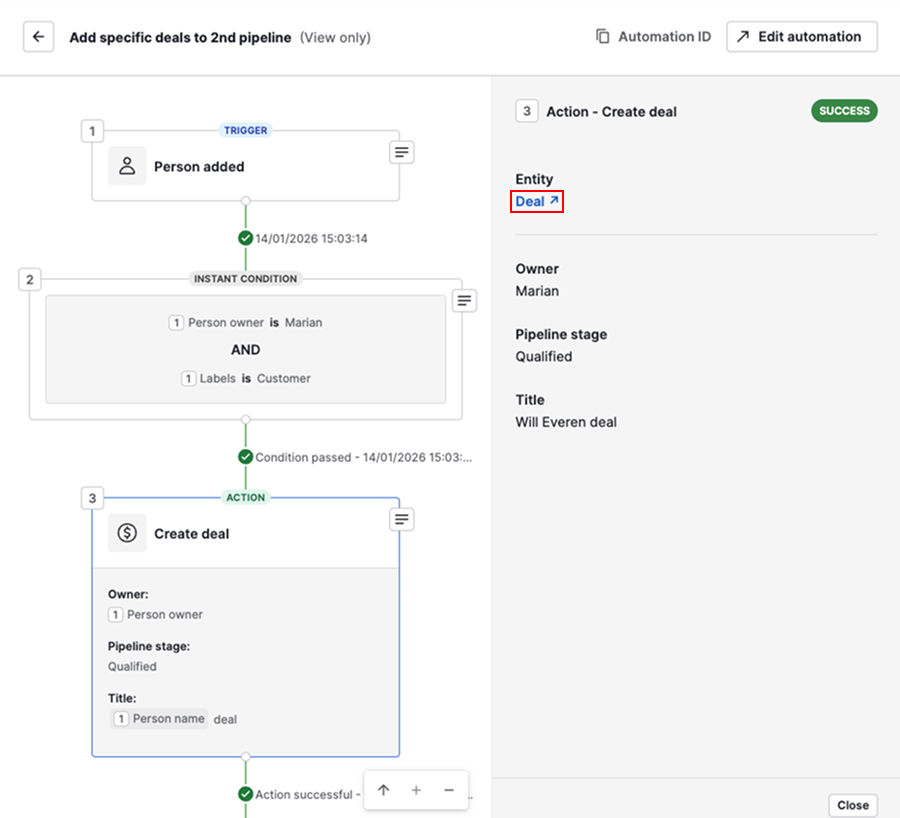
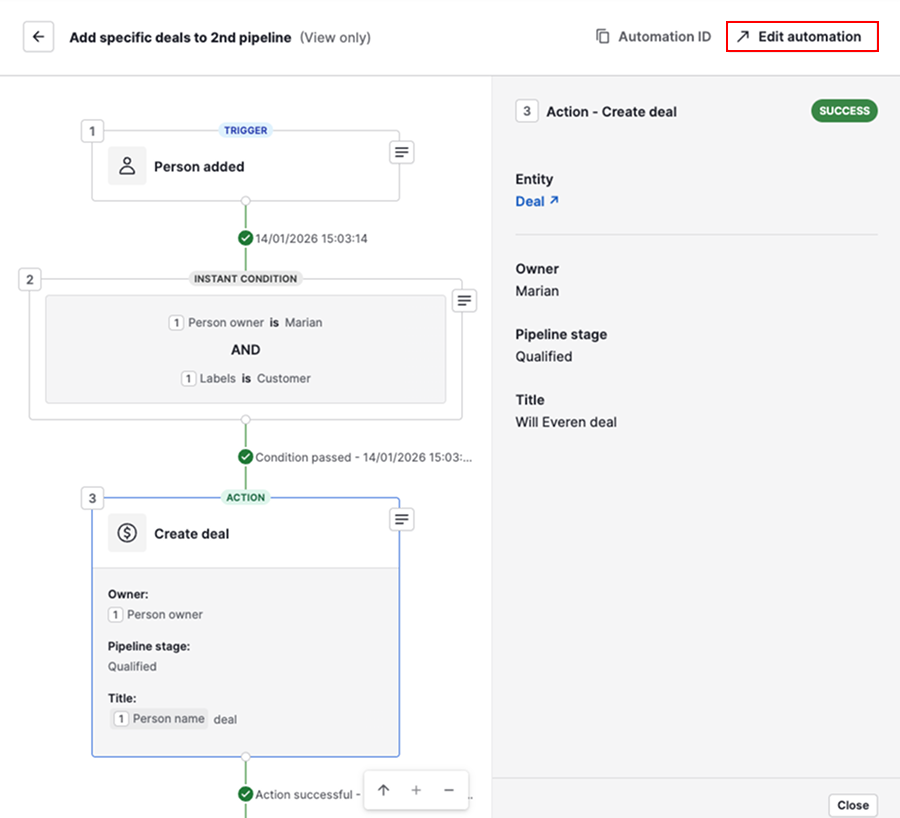
If your automation is set to create a deal, lead, contact, organization, project or activity, but you can’t find it in your account, open the history tab and check the automation execution.
Select the automation from the list and click on the action step responsible for creating the item.
If successful, you’ll see a link to the created item under the entity.
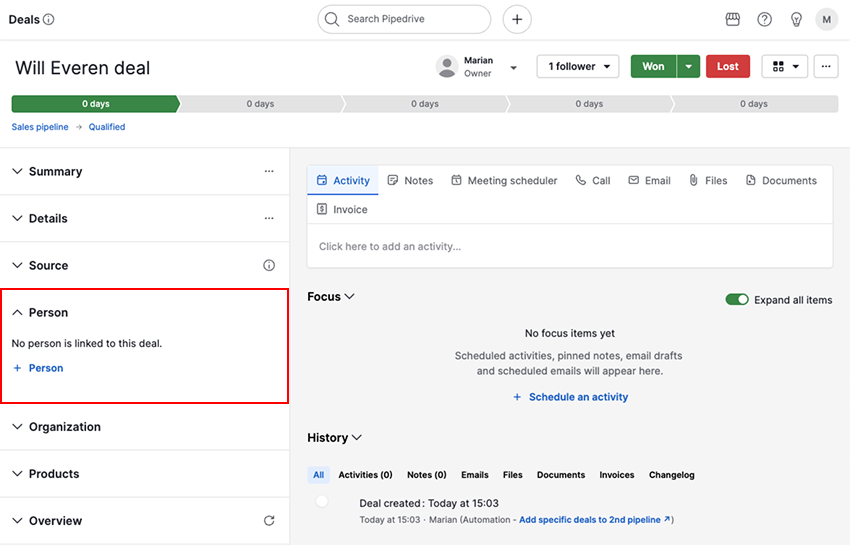
If your items aren’t linked, open the item and add the relevant link manually.
Automate correct linking
To ensure automatic linking in the future, open the automation and click “Edit automation”.
Select the create deal step, click “Back” and then select one of the linked item options.
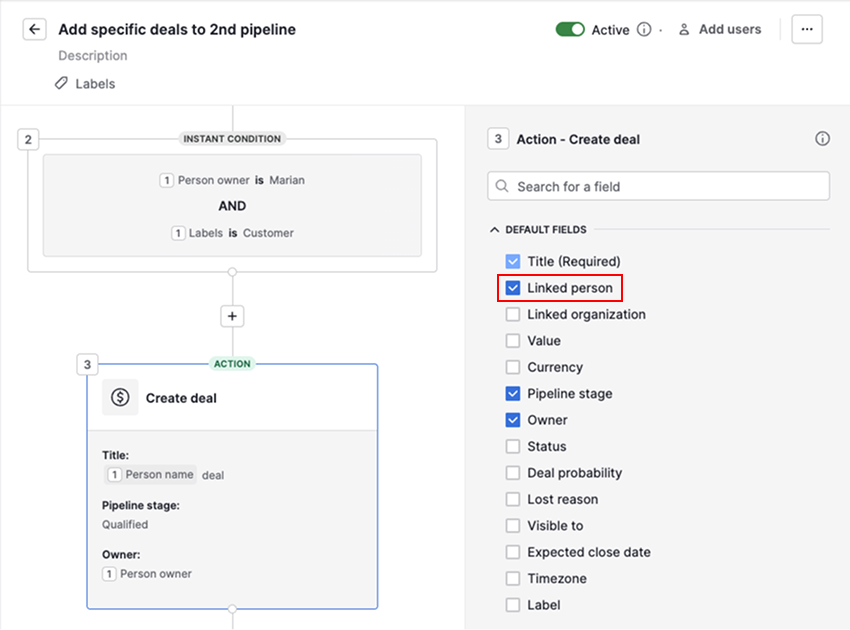
The automation updates once you apply the action and save your automation.
Why automation actions weren’t executed
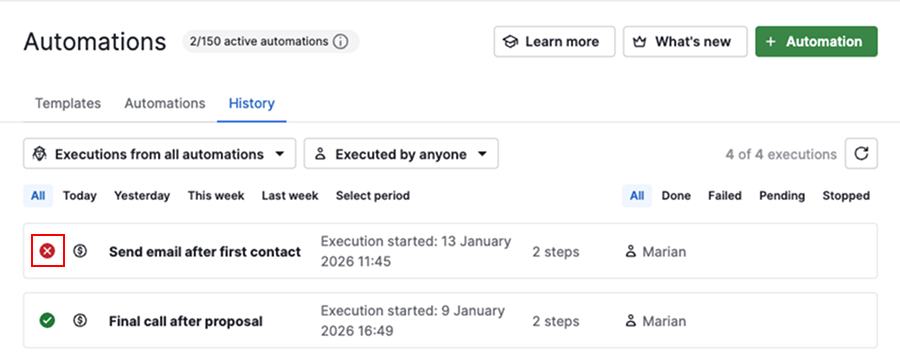
If your automation triggered but failed, you’ll see a red “x” icon in the history tab.
View error messages
To check what went wrong, select the automation from the list. Click on the action step that failed to view the error message.
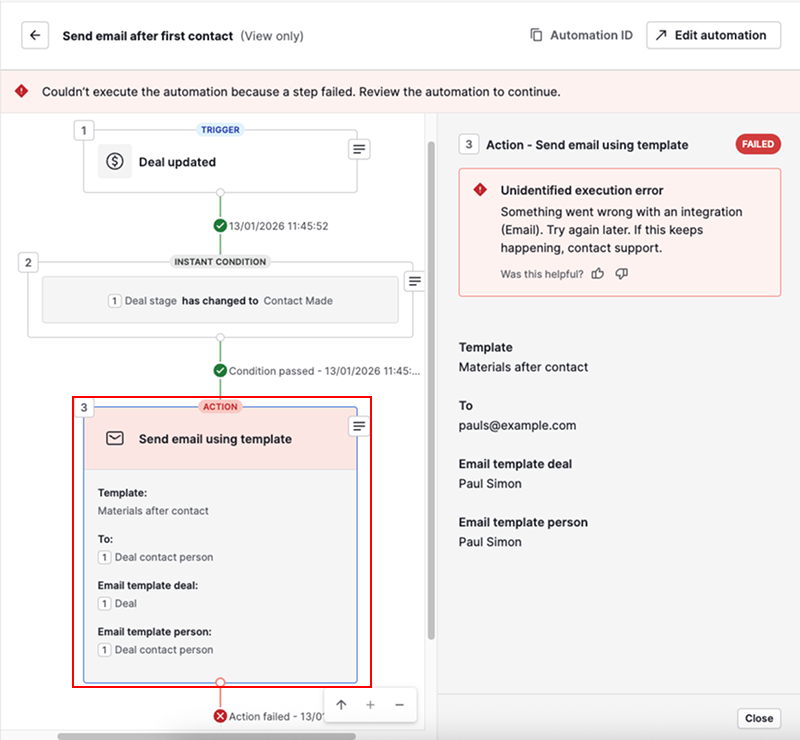
In the example above, the automation failed to send an email, and the error suggests that you review your email sync settings.
Emails not sent
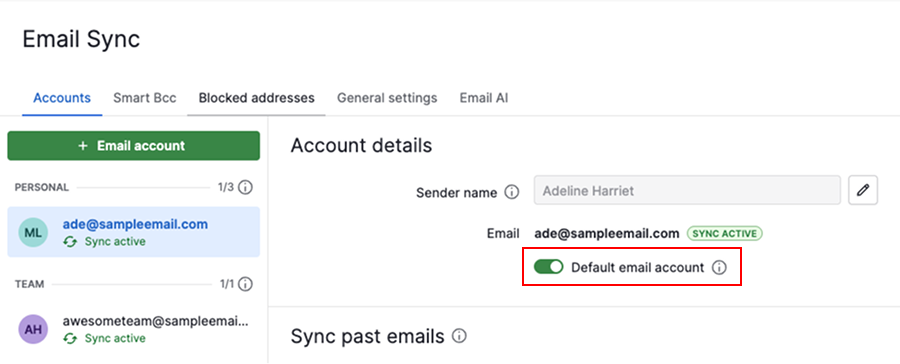
When your automation fails to send emails, go to Personal preferences > Email sync > Account to verify whether the sync is active.
If you sync multiple email accounts, make sure that one is set as the default email account.
Integration actions fail
If the failed step involves a third-party integration, such as Slack, Microsoft Teams, Asana or Trello, it usually means the app needs to be reauthorized.
To fix this, open the account menu and navigate to Tools and apps > Installed apps and select the integration.
- Click “Uninstall”
- Reinstall it from Pipedrive Marketplace and authorize access
Common automation errors
Below are common errors and what they mean:
| State | Title | Message |
|---|---|---|
ReachedRateLimit | Maximum frequency limit reached | Maximum automation execution frequency limit reached. |
FailedWrongData | Invalid data | There was a problem with the data used in the automation execution. |
FailedUserInactive | Inactive user | User is inactive. |
FailedUnknown | Unidentified execution error | Something went wrong. |
FailedPermissions | Insufficient permissions | The user executing the automation doesn’t have sufficient permissions. |
FailedMaxRetries | Maximum retry limit reached | Maximum number of automation execution retries reached. |
FailedCompanyInactive | Inactive company | Company is inactive. |
FailedActionQueuePush | Unidentified execution error | Something went wrong. |
FailedActionCreation | Invalid data | There was a problem with the data used in the automation execution. |
What happens when automation owners are deactivated
When a user who owns automations is deactivated:
- Their automations are turned off
- Users with account settings access rights are notified by email
A global admin can transfer ownership to another user, who can then reactivate the automation for themselves.
Contact support
If you need additional assistance, you can reach out to our support team.
To speed up troubleshooting:
- Describe the main goal of the automation
- Explain what went wrong
- Include full-page screenshots of the automation and related items
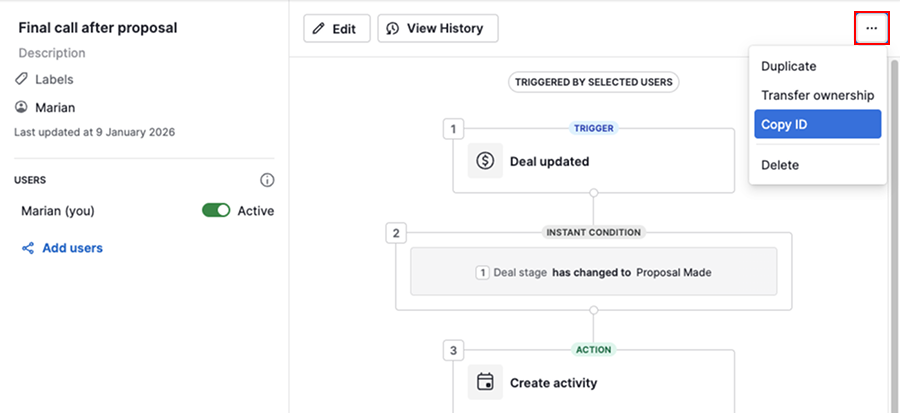
Make sure to copy the Automation ID from the automations tab under “...” > Copy ID.
Add the affected Pipedrive System ID, so our team can investigate further.
Was this article helpful?
Yes
No