Pipeline: create multiple sales processes
In Pipedrive, you can create multiple pipelines to manage different sales processes in parallel. Each pipeline has its own set of stages, allowing you to reflect how your team sells across different products, services or workflows.
Using multiple pipelines keeps your deals organized and ensures each process is tracked with the right level of detail.

For an overview of how pipelines work, see our pipeline management software page.
When to use multiple pipelines
Use multiple pipelines when your sales processes differ in structure or complexity.
| Scenario | Recommendation | Why |
|---|---|---|
| You sell products or services that require different sales processes | Use multiple pipelines | Each process can have its own tailored stages |
| You need pipeline-specific custom fields | Use multiple pipelines | Keeps data clean and specific to each process |
| You want to group deals by location or industry | Don’t use multiple pipelines | Use custom fields and filters instead |
| You want to organize deals by salesperson | Don’t use multiple pipelines | The owner field already handles this |
| You want to track delivery after a deal is won | Don’t use multiple pipelines | Use Projects instead |
Keeping pipelines focused makes them easier to manage, while fields and filters help you segment deals within a single pipeline.
How to create multiple pipelines
Before creating a new pipeline, put some thought into how you’ll structure the process clearly. For guidance, see our pipeline design article.
You can either create a new pipeline from scratch or duplicate an existing one.
Create a new pipeline
Open the pipeline selection dropdown in the pipeline view and click “+ New pipeline”.
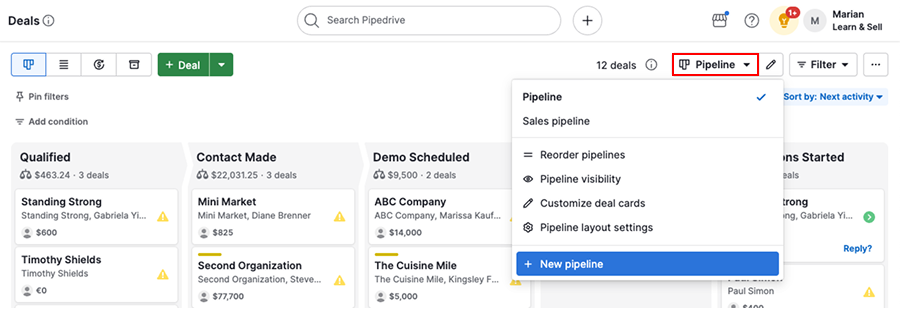
Name your pipeline, customize its stages and configure options like stage and deal probabilities or the Rotting feature. When you’re done, click “Save changes“.
Duplicate a pipeline
If your new process is similar to an existing one, duplicating a pipeline can save time.
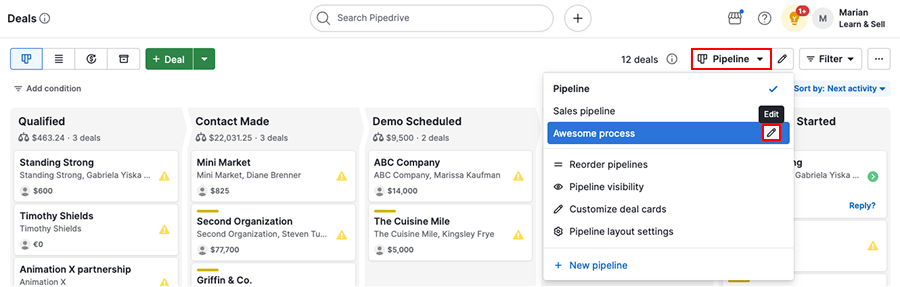
Open the pipeline selection dropdown, then click the pencil icon next to the pipeline you want to copy.
Click “…” and select “Duplicate pipeline”.
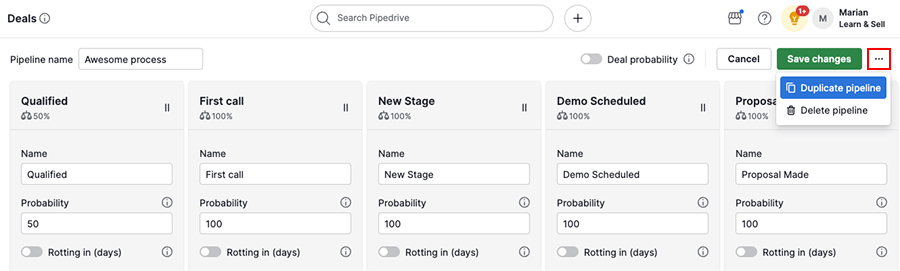
Make any necessary changes, then click “Save changes”.
Switch to your new pipeline
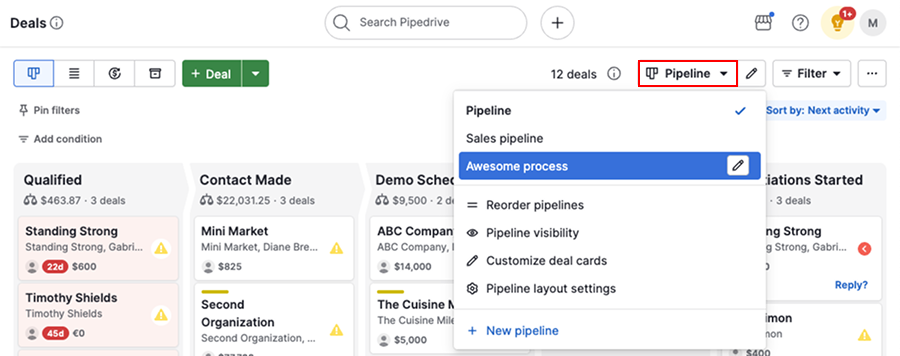
After creating or duplicating a pipeline, open the pipeline selection dropdown and select it from the list.
Was this article helpful?
Yes
No