Exporting data from Pipedrive
You can export data from Pipedrive in two ways:
- Use the list view to combine data from different items (like deals, organizations and people)
- Use the Export data tab to download all data for each item type individually
Whether you’re setting up your CRM, switching platforms or just needing a backup, you can learn more about importing and exporting data in this post.

Where can I export data?
You can generate an XLSX or CSV file of your data and export it from the following sections:
Export data
In the Export data section, most item exports include default, custom and system fields, along with ownership information and any linked records.
To export data, open the account menu at the top right corner and go to Tools and apps > Export data.
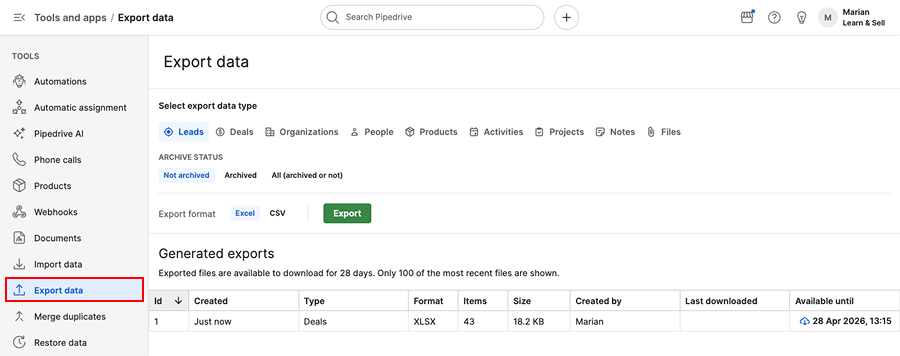
Next, select the data type you want to export. The table below summarizes the available options and the contents of each export.
| Item type | Export options | What the export includes |
|---|---|---|
| Leads | Based on archive status: not archived, archived or all. | Lead fields Linked organizations and contact people |
| Deals | Entire list of deals or deals with participants only. For the full list, you can filter by archive status. For participant-based exports, you can filter by deal creation date or won time. | Deal fields Linked organizations and contact people |
| Organizations | Entire list of organizations or only related organizations. | Organization fields |
| People | The entire list of people. | Person fields Linked organizations |
| Products | Entire product catalog or only products added to deals. For deal-based exports, you can filter by deal creation date or won time. | Product fields Linked deals when exporting products linked to deals |
| Activities | Filter activities by date marked as done, due date, date added or last updated. | Activity fields Linked deals, leads, organizations, people and projects |
| Projects | Available on Premium and higher plans or with the Projects add-on. Based on archive status: not archived, archived or all. | Project fields Linked deals, organizations and contact people |
| Notes | Export notes in HTML format or as plain text. | Note fields Linked deals, leads, projects, organizations and contact people |
| Files | Export files based on the date they were added. | File fields Linked deals, leads, projects, products, organizations and contact people |
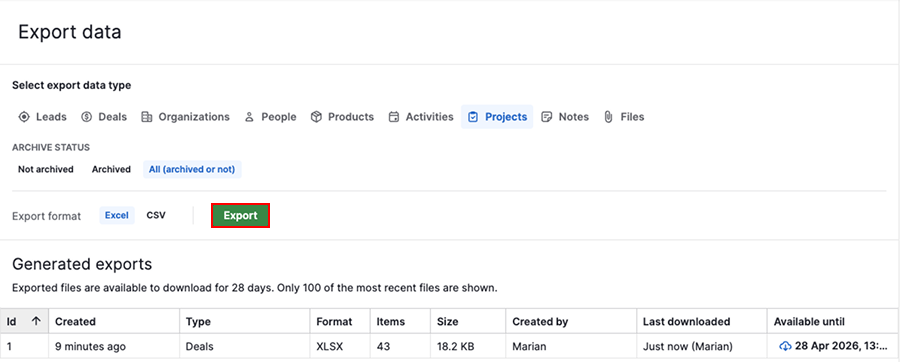
After selecting your data, choose the format as “Excel“ or “CSV”, then click “Export”.
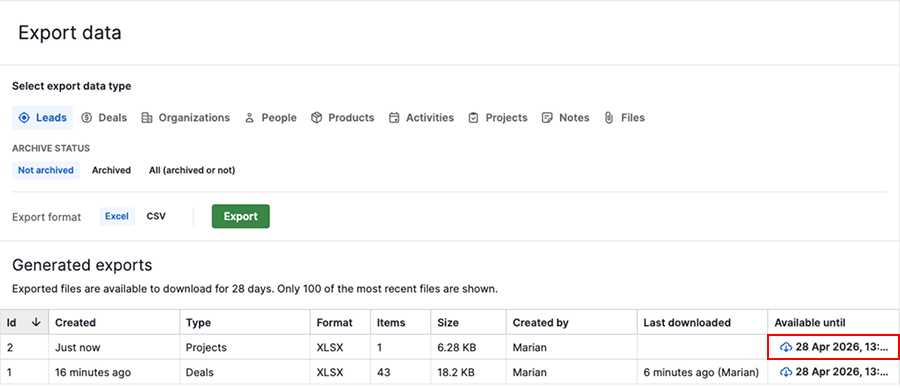
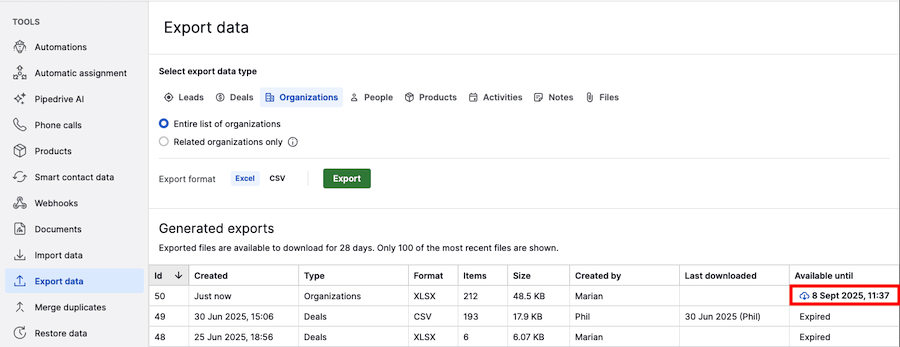
Your file will appear in the “Generated exports“ list. To download it, click the cloud icon in the “Available until“ column.
List view
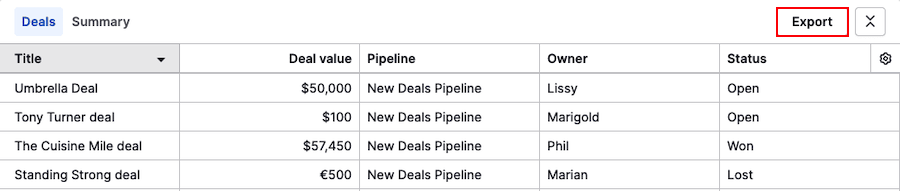
You can export customized data from the list view for deals, leads, projects, contacts and organizations.
Open a relevant list view and apply a filter to show the data you want to export. For example, you can select “All lost deals“ to export only lost deals.
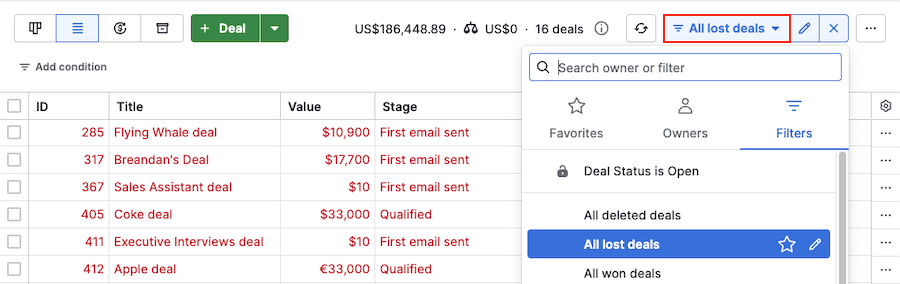
Once your filter is applied, click the gear icon and choose which columns to include.
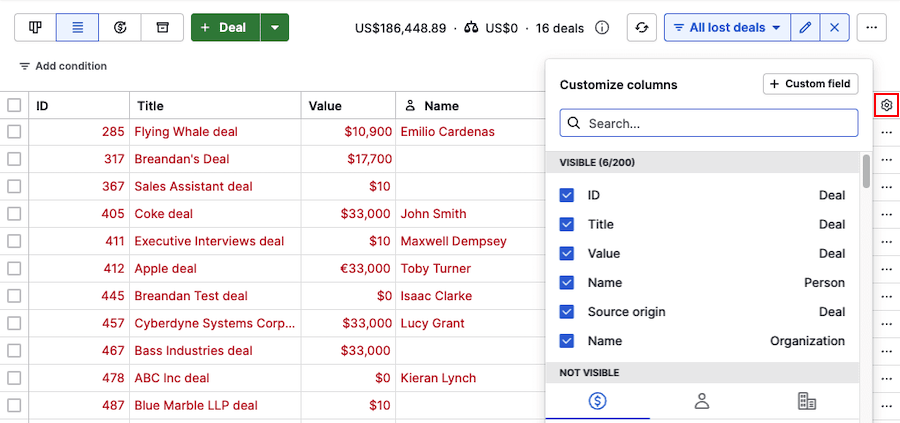
The available fields depend on the item type. For example, in the deal list view, you can include deal, person and organization fields in one export.
To export the displayed fields, click “...” > Export filter results.

Detail view
Open a deal and click “...” > Export as XLSX in the top right corner.
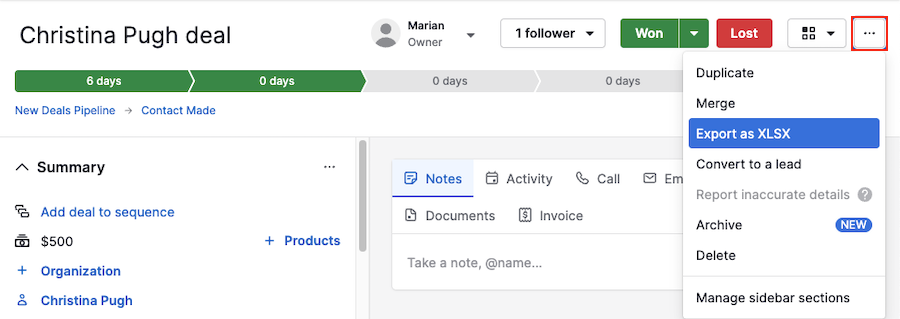
The exported file includes deal details and any linked person or organization data.
Insights
There are two ways you can export data from your Insights tool:
Export charts
To export a report or goal, click “Export” and choose either PDF or PNG.
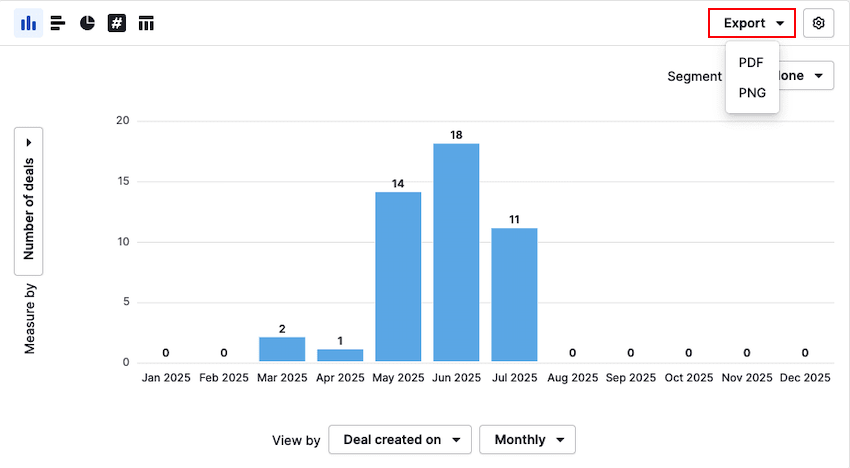
The exported file includes the chart, title and applied filters.
You can also export a dashboard by opening it, clicking “...” and selecting the desired file type.
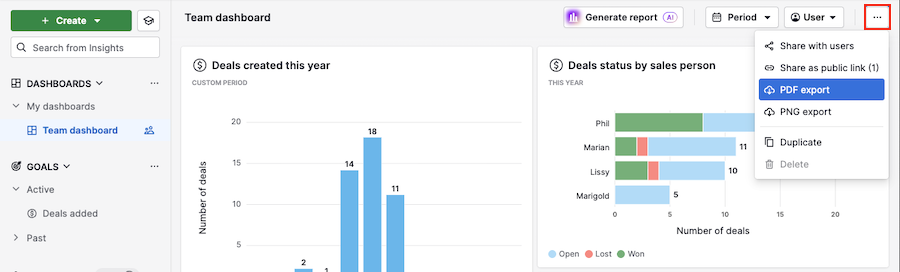
Export to spreadsheets
To export report data as a spreadsheet, click “Export” above the table.
Data fields
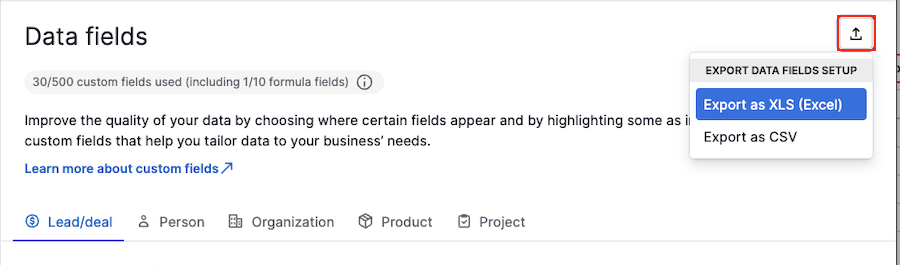
You can export your data field setup from Personal preferences > Data fields.
Click on the export icon and choose your preferred format.
You can export either the fields setup or selectable options within the fields:
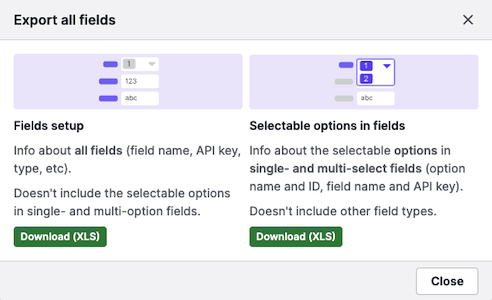
The field setup export includes item type, field name, field type, whether the field is custom and the API key.
The selectable options export includes option ID, option name, item type, field name, field type and the API key.
API-based data export
The Pipedrive API provides endpoints for all major data types, including deals, contacts, organizations, activities and custom fields.
This option is useful for automated or advanced use cases:
- Automated workflows – Schedule regular data exports without manual intervention
- Real-time access – Pull the most current data instantly rather than generating static files
- Custom formatting – Structure your data exactly as needed for your systems
- Selective data retrieval – Export only specific fields or records that match your criteria
- Integration capabilities – Connect directly with other business tools and databases
To get started, you’ll need an API token from your Pipedrive account.
Users and access
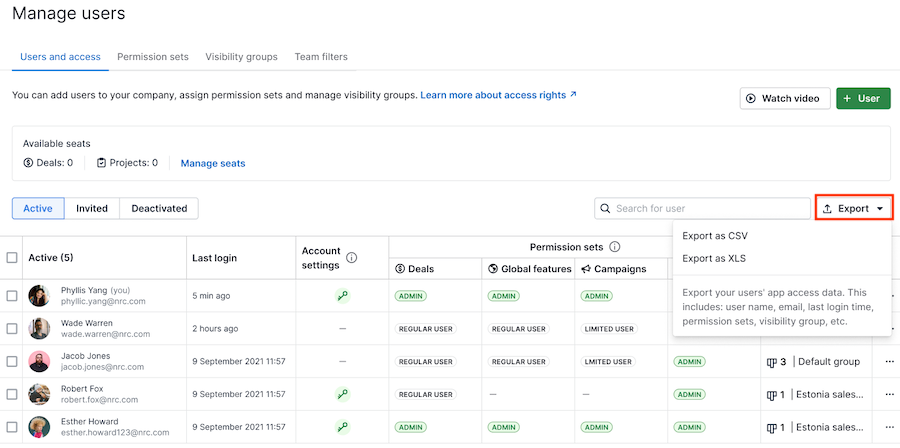
Go to Manage users > Users and access to export user data.
This export includes user name, email, last login time, permission sets and visibility groups.
Where can I find exported files?
When exporting from the list view or the Insights table, you’ll see a prompt to download the file immediately.
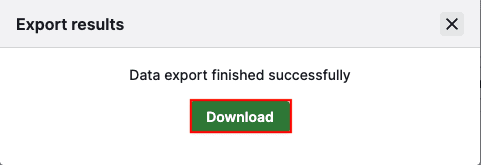
If you close the window, you can download it later from Tools and apps > Export data > Generated exports by clicking the cloud icon.
Exports from Insights charts, deal detail views, data fields or users and access are downloaded directly to your device.
Was this article helpful?
Yes
No