Business card scanner on mobile
Business cards remain a powerful tool for professional networking, perfectly complementing today’s digital communication advancements. You can easily save time by using the Pipedrive mobile app to digitize your new contacts.
Scanning business cards on your phone significantly speeds up the process of recording and organizing contact details, allowing you to focus on building relationships and closing deals.
Where can I find the card scanner?
Tap on the main ”➕” button. Then, tap on ”Contact scanner”.
Android | iOS |
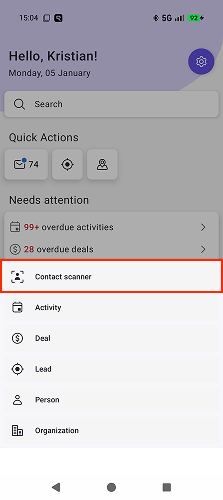 | 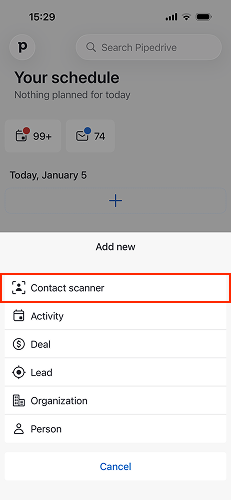 |
You can also find the option in the person list.
Android | iOS |
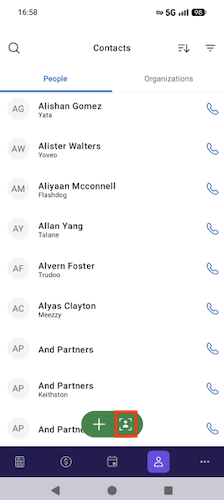 | 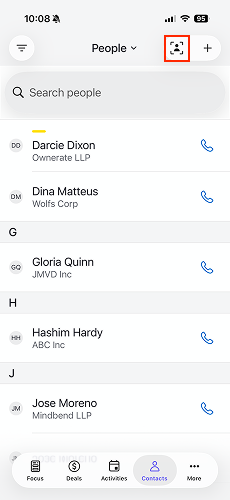 |
How does the scanner work?
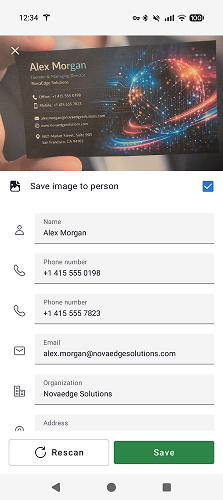
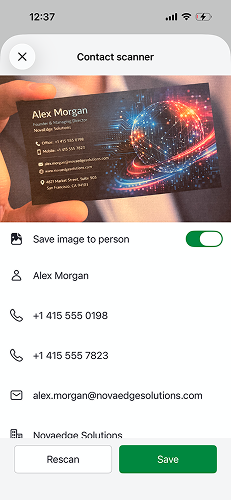
The scanner recognizes information on your cards and can scan multiple phone numbers or email addresses at once. To ensure accuracy, you’ll need to review the scan and confirm the information you want to save to Pipedrive.
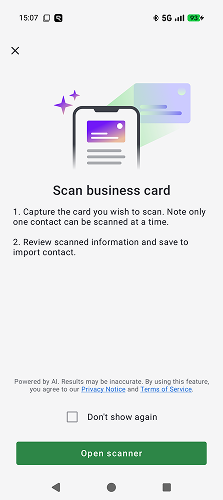
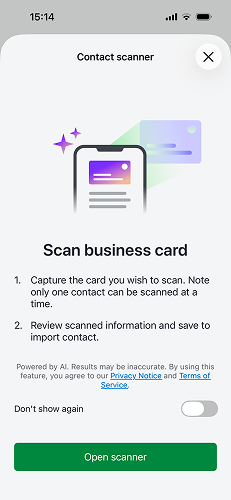
Tap on ”Contact scanner” to open the scanner prompt. Then, you can start scanning the business card you want to scan.
Android | iOS |
 |  |
You can rescan if needed and save the card image directly to your contact timeline.
If the scanned information looks good, simply tap on “Save” to add the contact to your list.
Android | iOS |
 |  |
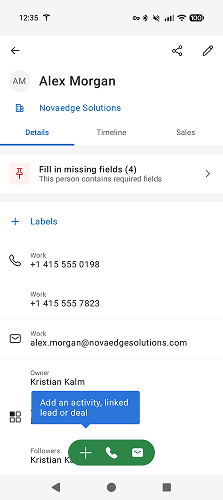
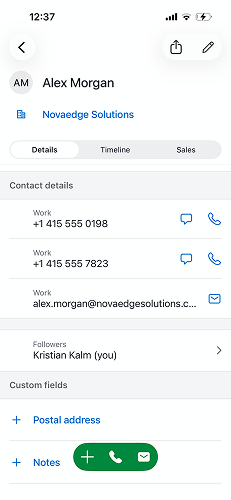
Once the contact is saved, you can continue closing deals.
Android | iOS |
 |  |
Was this article helpful?
Yes
No