HubSpot migration to Pipedrive
If you’re migrating from HubSpot to Pipedrive, you can keep your leads, contacts, deals and activities with you.
This guide explains how to prepare your data, export it from HubSpot and import it into Pipedrive.
Key differences in terminology
Before importing, it’s crucial to understand the terminology between HubSpot and Pipedrive. This will help during the mapping process.
HubSpot |
Pipedrive |
What it represents |
|---|---|---|
Deal |
Deal |
They represent potential sales. |
Contact |
Person |
In HubSpot they’re called contacts, while in Pipedrive we call them persons/people. |
Company |
Organization |
Both track the business entities linked to people or deals. |
Deal Stage |
Stage |
Pipedrive stages live within Pipelines. HubSpot uses deal stages within a pipeline. |
Pipeline |
Pipeline |
Same term. Setup and customization differ. |
Task / Activity |
Activity |
HubSpot differentiates tasks, calls, emails. Pipedrive groups them under Activities. |
Lead |
Lead / Person |
Pipedrive treats leads as pre-deal contacts in the Leads Inbox. |
Custom property |
Custom field |
Both allow custom fields on contacts, deals, etc. |
Marketing contact |
Contact (no distinction) |
Pipedrive doesn’t separate marketing vs non-marketing contacts. Note that in Pipedrive you need to add a marketing status to your contacts. |
We highly recommend reviewing your HubSpot data before migrating. Make sure to remove duplicates and create any custom fields in Pipedrive first, so they’re available during import.
Additionally, we suggest that you get familiar with Pipedrive structure and how is data organized. You can find more information in this guide.
Pipedrive fields
Pipedrive is a sales-focused CRM designed to help you track leads, deals and contact relationships across your sales pipeline.
Key data points include:
- People: Contact-level Individual
- Organizations: These are contact-level companies
- Deals: Sales opportunities moving through your pipeline
- Activities: Tasks, meetings, calls and to-dos related to deals or contacts
- Notes: Freeform comments or logs attached to any item (people, organizations, deals or leads)
- Users: Your internal sales team members
- Labels: Color-coded tags for visual categorization (they exist independently for every main data entity in Pipedrive: people, organizations, deals, or leads)
- Custom Fields: Fully customizable fields that you can create for all the main data entities outside of the default Pipedrive data structure
Learn more about custom fields in this article and about Pipedrive terminology in our glossary.
Export your HubSpot CRM data
Start by exporting your HubSpot CRM data in CSV format so it’s ready for import into Pipedrive.
In HubSpot, you need to export records separately depending on their type (contacts, companies, deals, etc.)
To export:
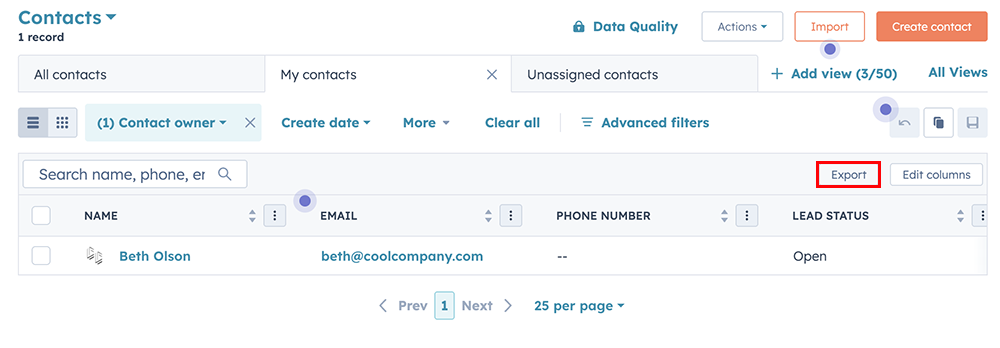
- Open the list view of the records you want to export. In this view view, you can apply filters.
- Click the ”Export" button
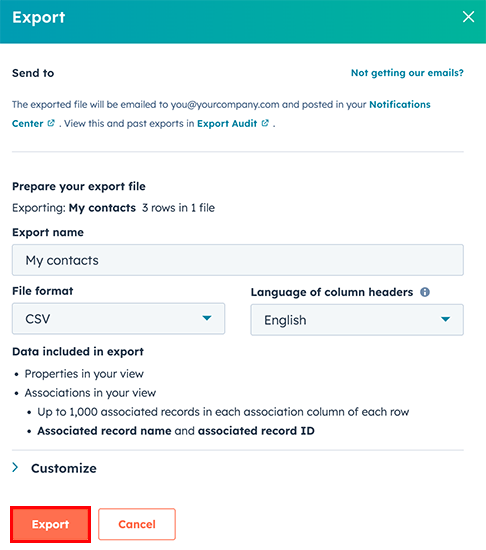
- You’ll see a prompt for exporting. The CSV format is compatible with Pipedrive's import tool. If everything looks good, click ”Export”
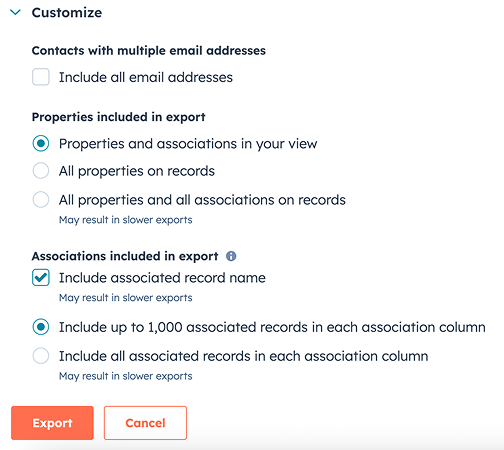
- If you click on ”Customize” at the bottom of the prompt, you’ll see more options for your export.
- Click the Export button (found in the upper-right corner)
- The export file will be sent to the email of your HubSpot account. You’ll see a pop-up confirming the export.
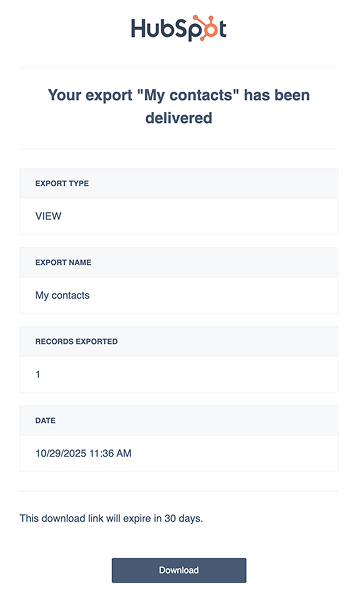
Visit HubSpot’s detailed export guide here.
Repeat the process for the entities you need to export into Pipedrive.
Prepare Pipedrive for importing
Before importing, set up your Pipedrive workspace for a smooth transition.
Create custom fields
- Go to Company settings > Data fields
- Add fields that match your HubSpot custom data and make sure the field types (text, dropdown, date, etc.) are correct
- Use the same field names as in HubSpot so Pipedrive can automatically map them during import
Customize pipelines (for deals)
- Open the pipeline view
- Click “Add new pipeline“ or edit an existing one
- Add stages that replicate your HubSpot deal stages (e.g. “Qualification”, “Demo Scheduled”)
Add missing activity types
- Go to Company settings > Activities and scroll down to “Activity types“
- Add any missing activity types from HubSpot (e.g. “Follow-Up”, “Intro Call”)
Import your data
With your data ready and your workspace set up, you can start importing.
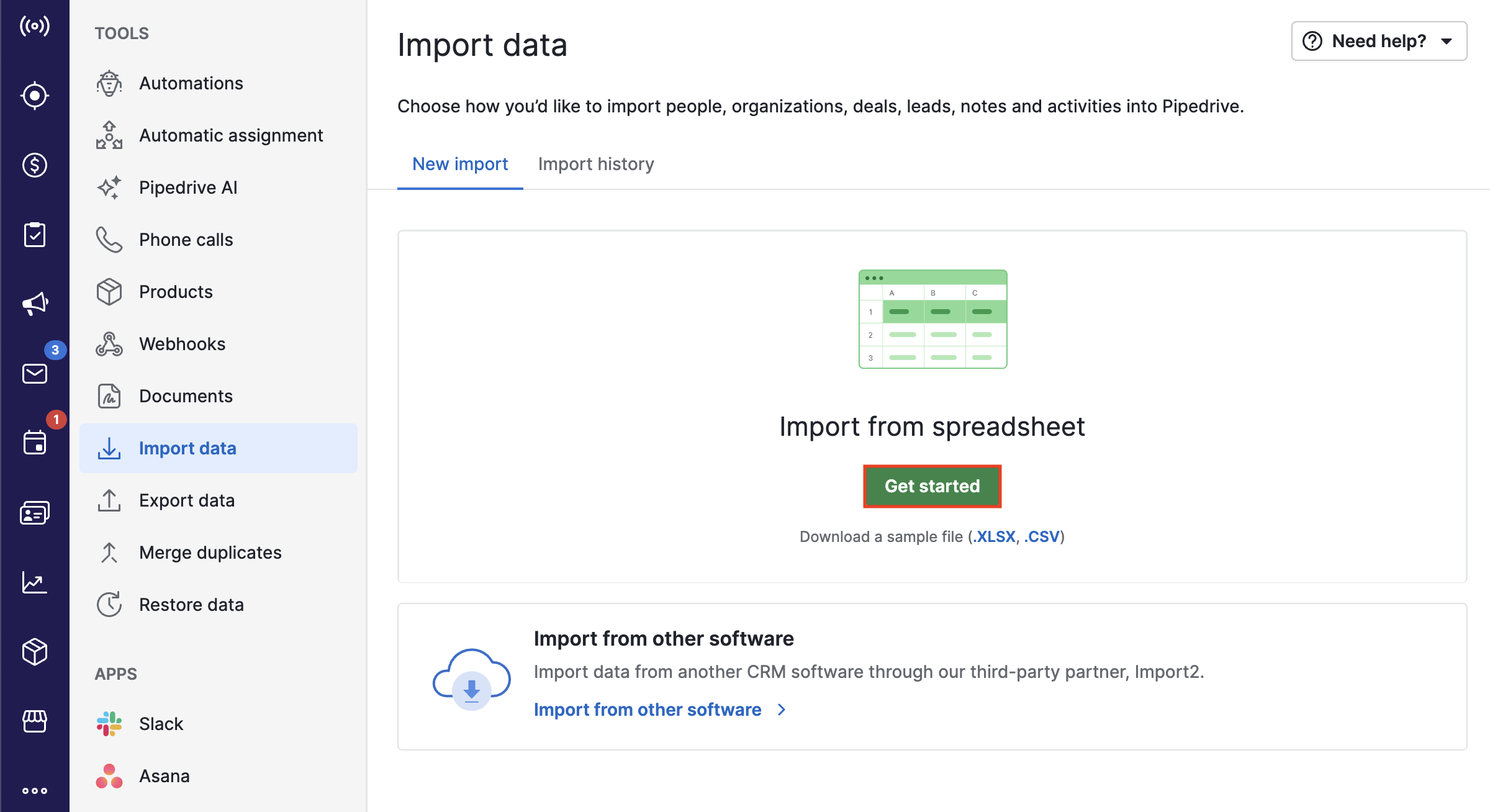
- Navigate to Tools and apps > Import data
- Click ”Get started”
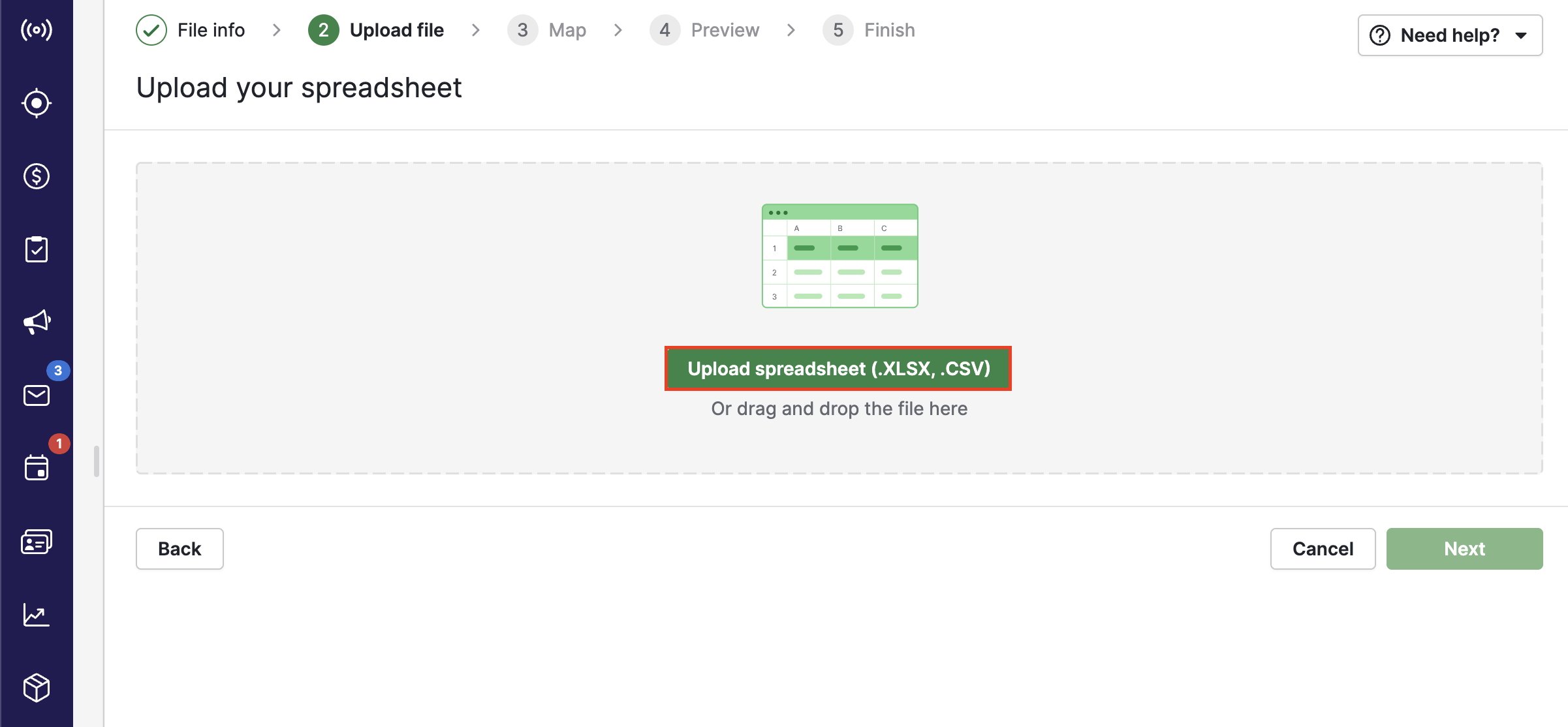
- Upload your CSV file (start with organizations and persons)
-
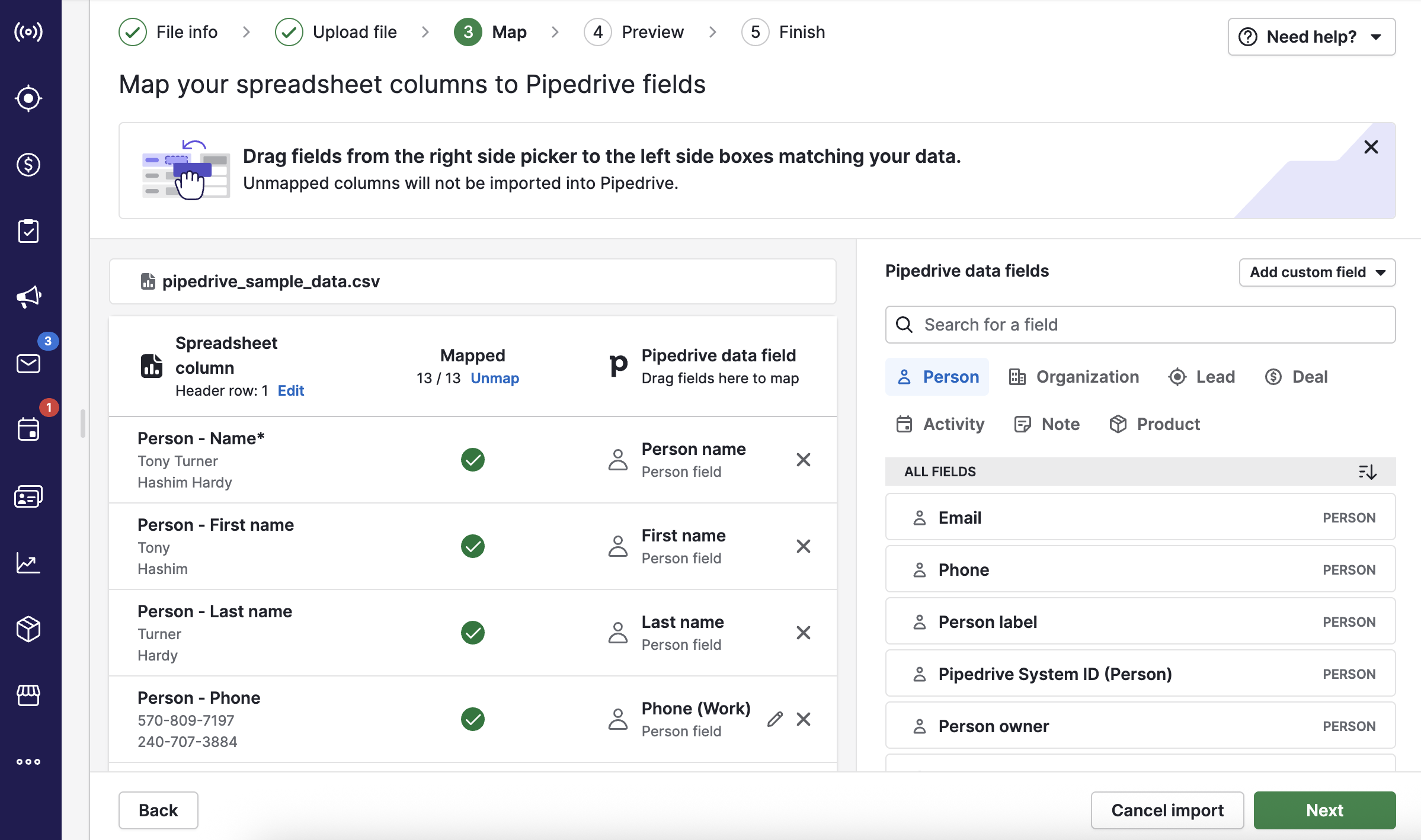
Match each CSV column to a Pipedrive field (system or custom). This is called mapping.
-
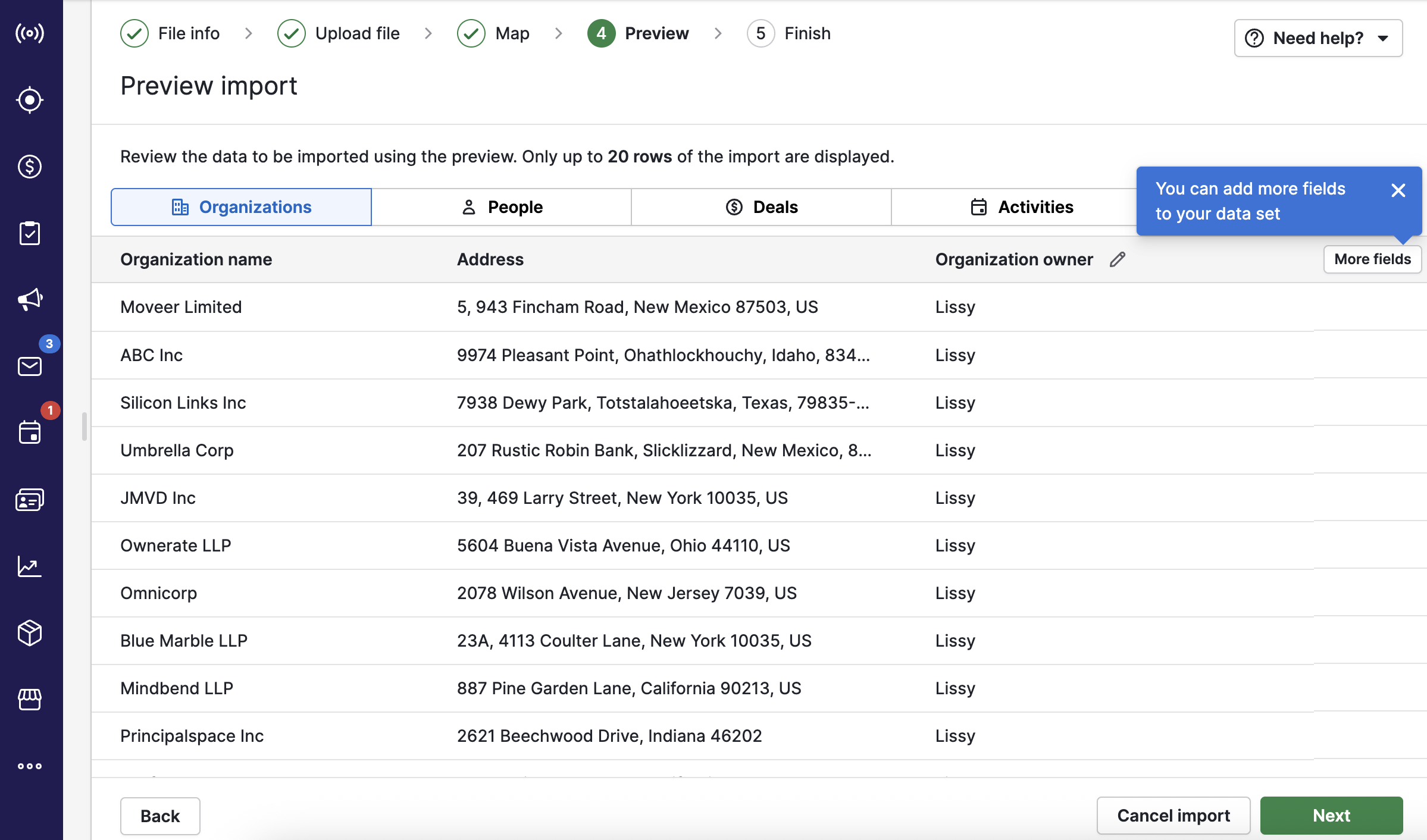
Use the preview to check formatting
-
Use a unique field (like email) to link records between entities (e.g. match persons to organizations)
We recommend you to import your data in this order:
- Organizations (companies)
- Persons (contacts)
- Deals
- Leads
- Activities (tasks)
- Notes (optional)
After each import, you’ll see the summary and the imported records.
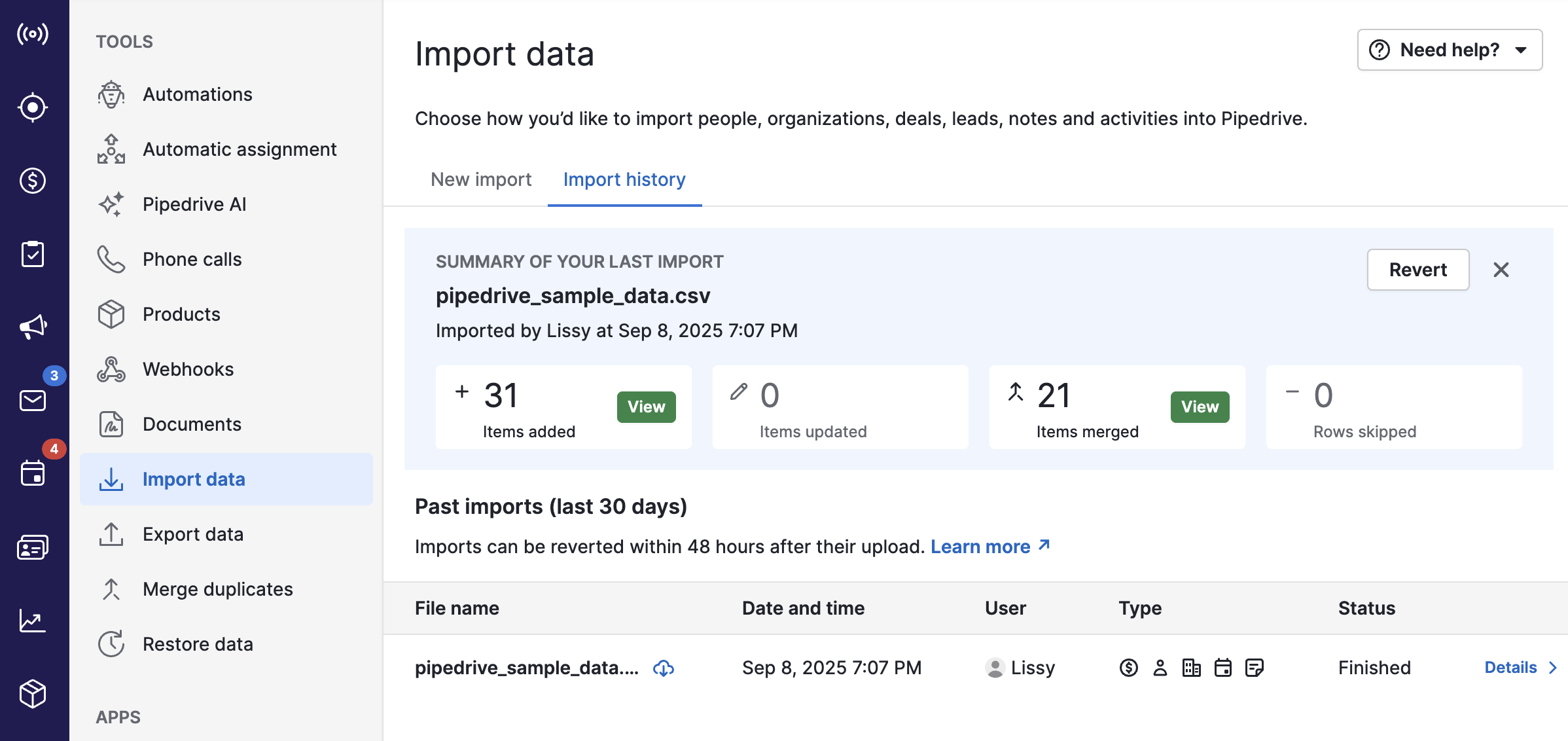
You can open the respective module in Pipedrive to spot-check records.
Use filters to confirm that labels, custom fields and links were mapped correctly.
After the import
- Check your data with filters and spot-check records
- Automate follow-ups with our automations feature
- Save your exported HubSpot files in case you need to review them
- Explore integrations in the Pipedrive marketplace
Need help?
If you need assistance, reach out to our Support team or request help from our Technical Set Up Team for guided migration.
Was this article helpful?
Yes
No