Contacts: people and organizations
Contacts are the people or organizations you’re selling to using Pipedrive, and they’re involved in all of your deals, leads and projects.
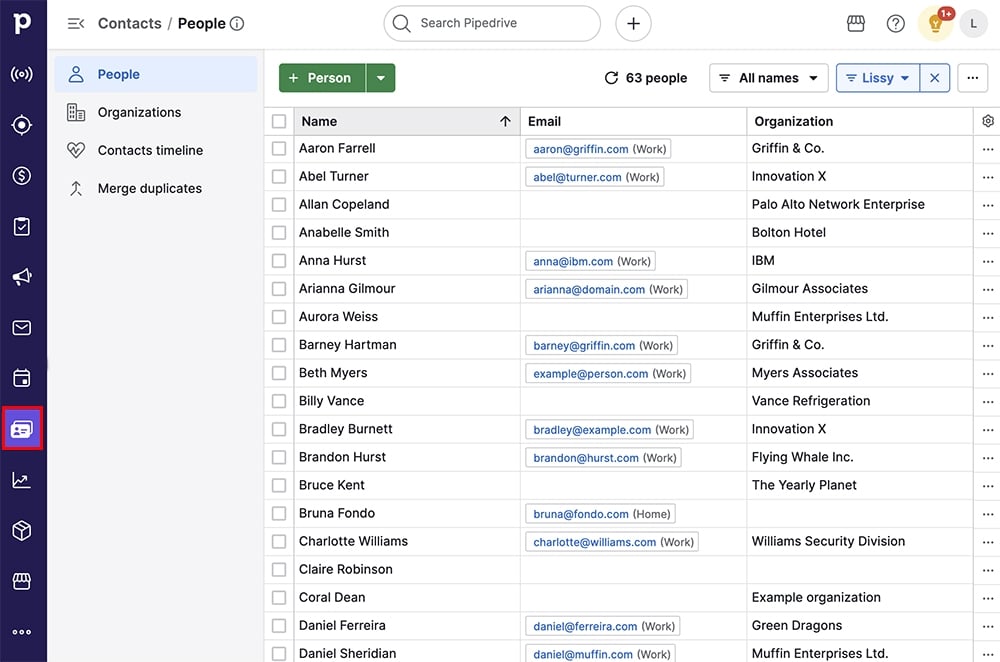
You can find your contacts list view by clicking the icon on the left-side navigation bar.
People
People contacts are the individual customers that you sell to from Pipedrive.
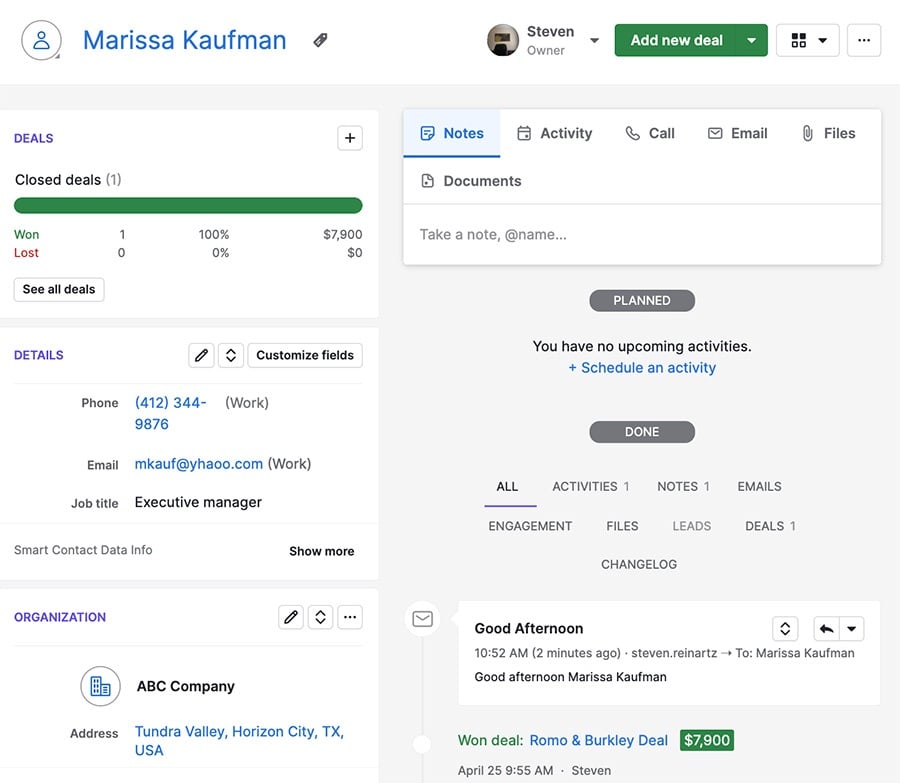
They’re the backbone of the sales process, and related information like scheduled activities and emails is tracked in that person’s detail view.
Things to keep in mind about people:
- They’re your customers and contain email addresses and phone numbers.
- They can be linked to an organization.
- They can be linked to multiple leads or deals at the same time.
- They can be synced with using a contact provider, or imported using a spreadsheet or Import2.
Organizations
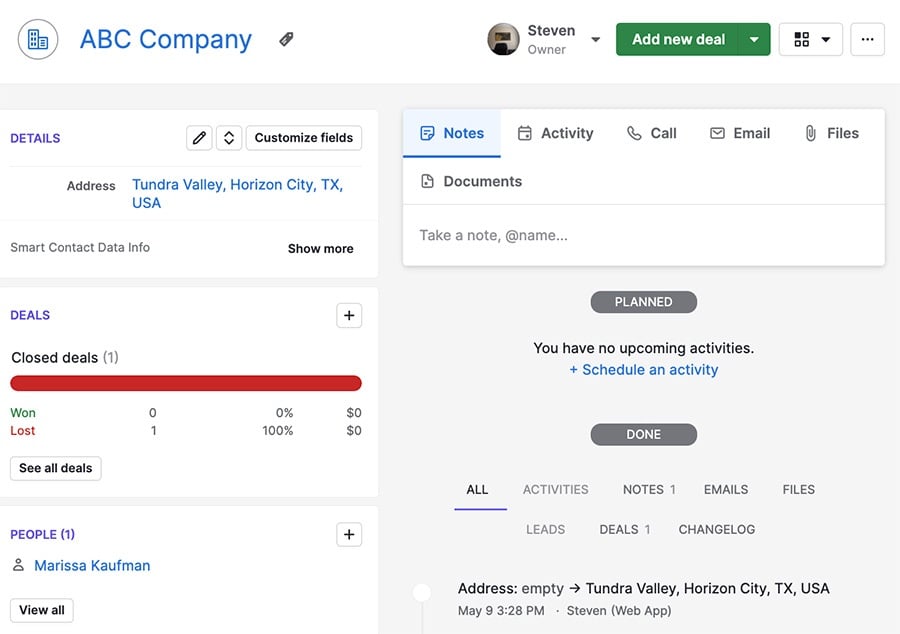
Organizations are businesses or collections of contacts, and like people, you can find their relevant details and linked information in the detail view.
Things to keep in mind about organizations:
- They’re the companies your people contacts work for and contain information like a mailing address or industry information.
- They can be linked to multiple people.
- They can have multiple deals open for them at the same time.
- They can be related to other organizations.
- They can be synced with using a contact provider, or imported using a spreadsheet or Import2.
How to add contacts
People and organizations can be added to your Pipedrive account in several ways:
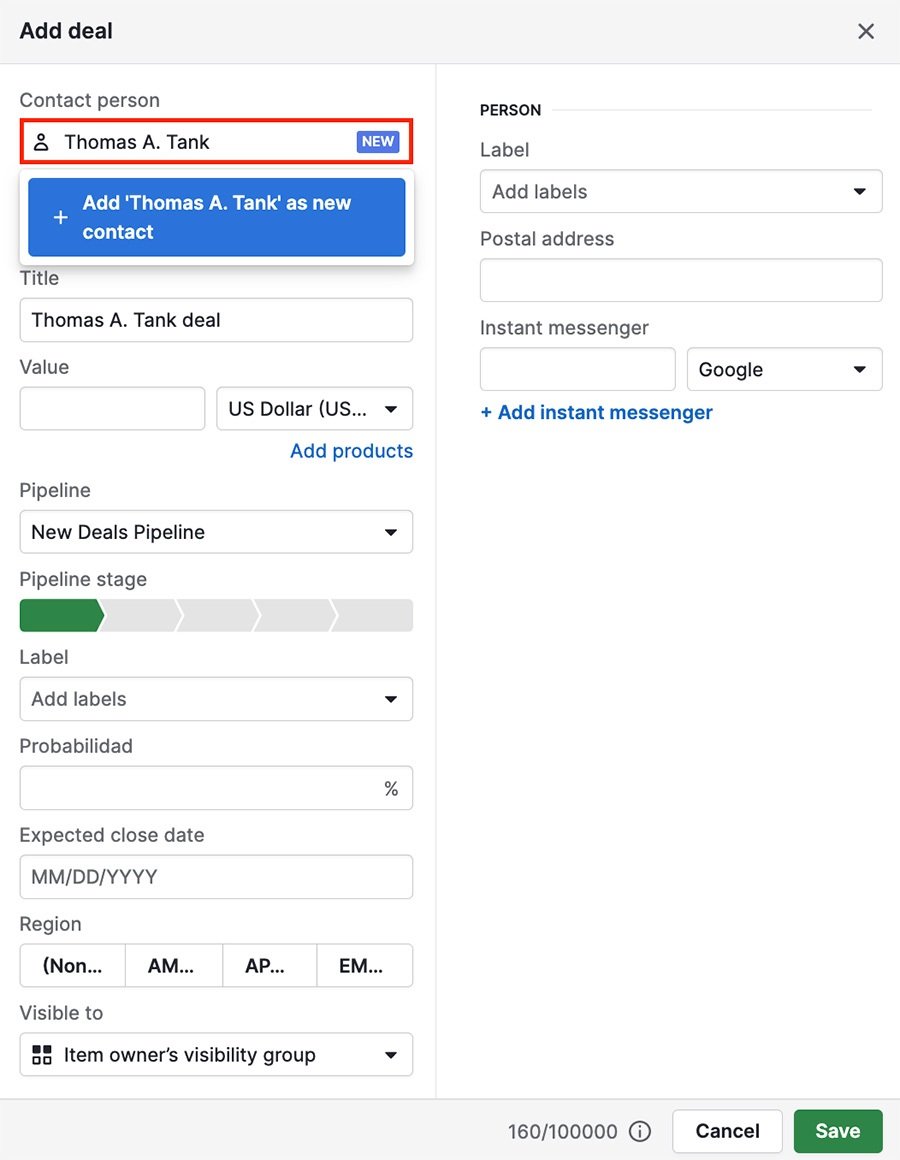
- In the “Add deal” or “Add lead” dialog box, you can create a new contact by adding a name not linked to an existing contact.
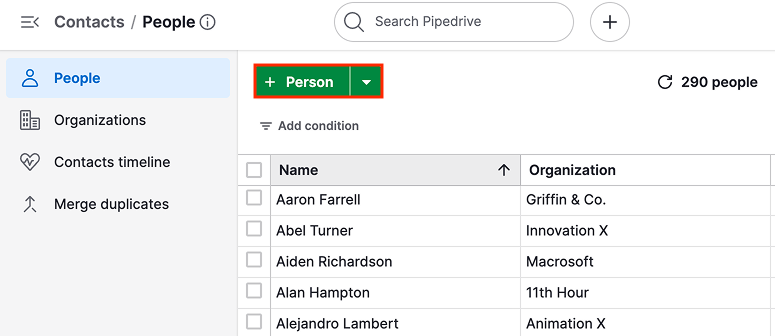
- In the list view of your people or organizations tab, you can create new contacts with the “+ Person” or “+ Organization” buttons.
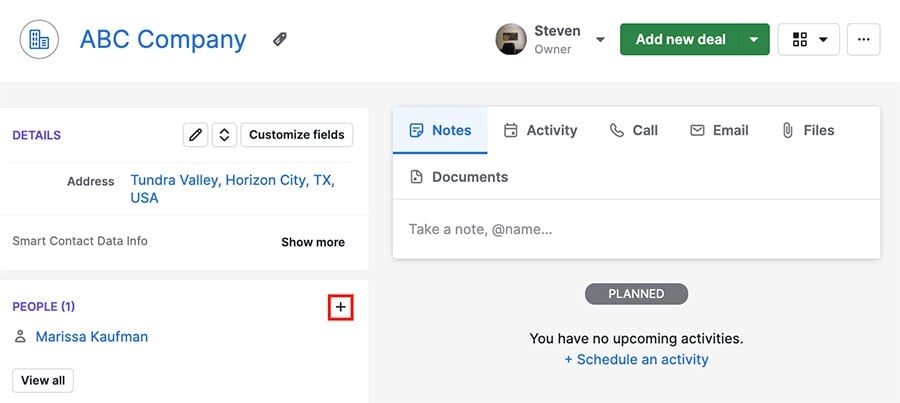
- In an organization’s detail view, you can add a new person using the “+” button in the people section.
Contact sync
You can use the contact sync tool to connect your Google Contacts list with your Pipedrive contacts.
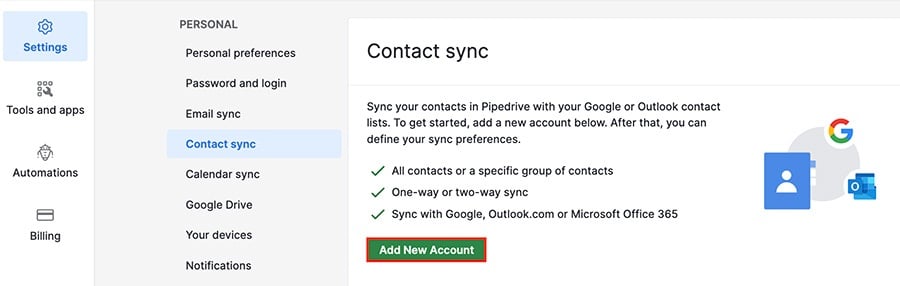
Go to Settings > Contact sync > “Add New Account” to start syncing your contacts.
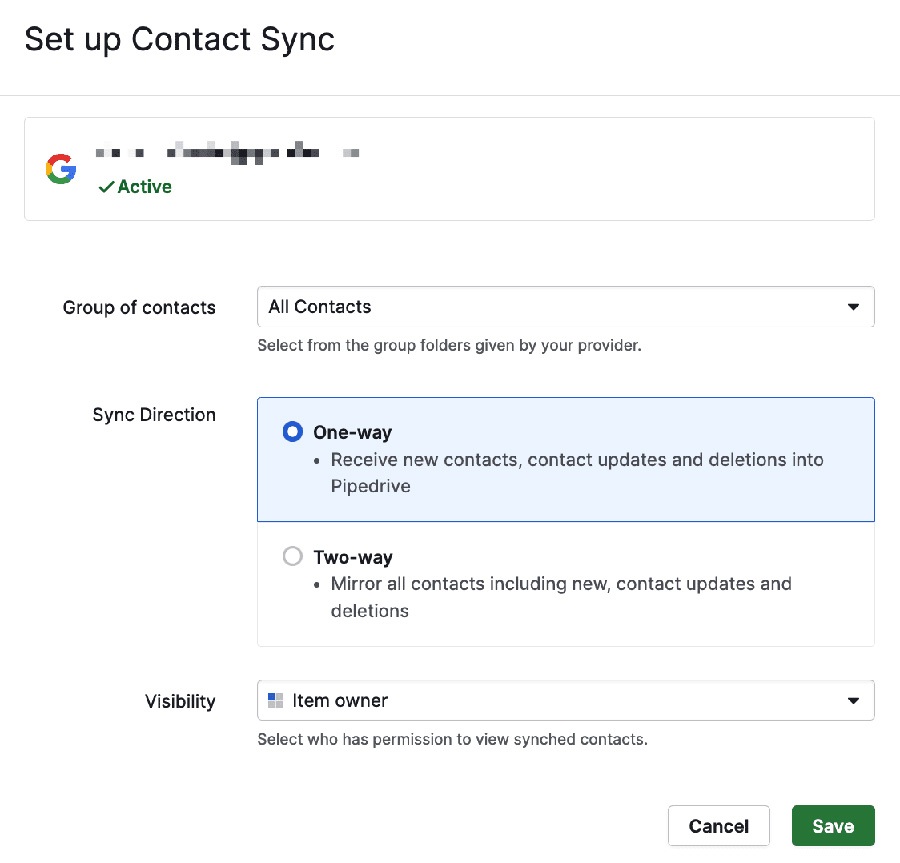
You can choose:
- A one-way sync, which updates your Pipedrive contacts but doesn’t change your external contacts
- A two-way sync, which mirrors changes made in either location
Labeling contacts
Your Pipedrive contacts can be categorized using the contact labels feature.
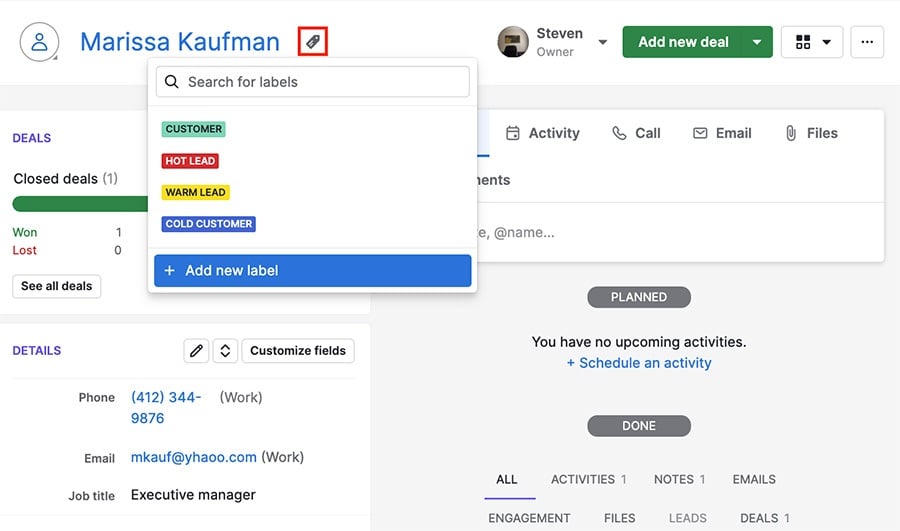
You can add existing labels to contacts, or create new labels using the “+ Add new label” option.
Was this article helpful?
Yes
No