Pipedrive MCP for ChatGPT
You can connect the Pipedrive MCP server to ChatGPT to allow your AI assistant to securely access and interact with your Pipedrive data.
Before you begin
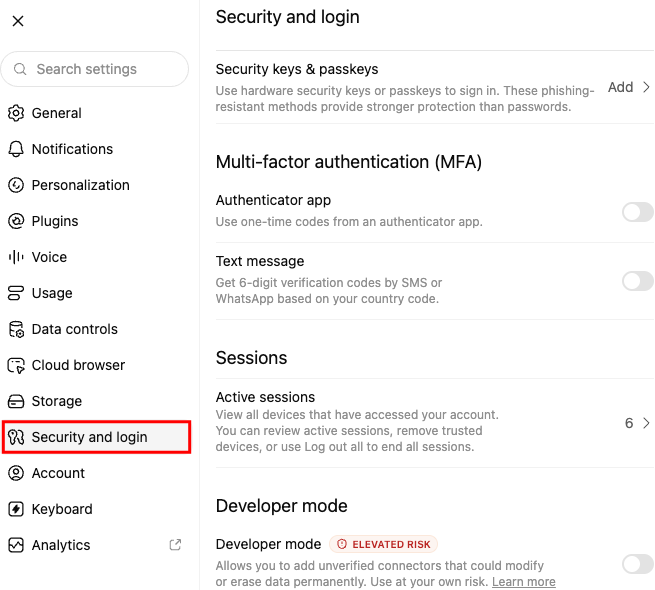
Make sure that you have permission to install apps in your Pipedrive account and that developer mode is enabled in ChatGPT.
To enable developer mode in ChatGPT, open ”Security and login”. Then, scroll down to ”Developer mode”.
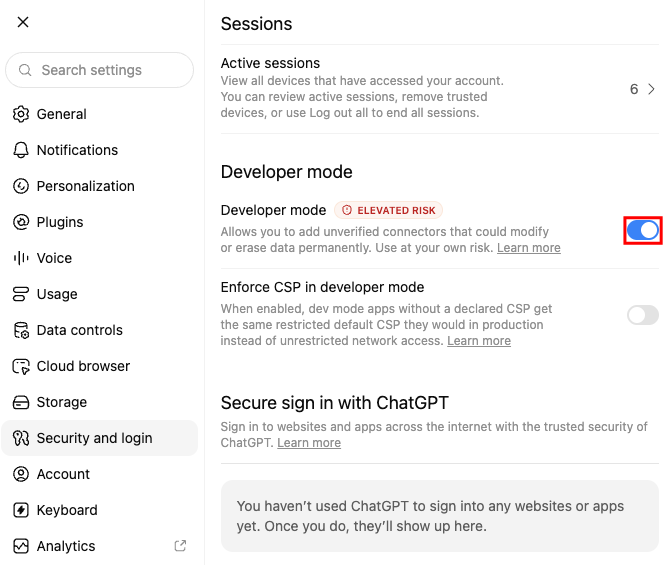
Then, enable ”Developer Mode”.
Create the Pipedrive MCP app
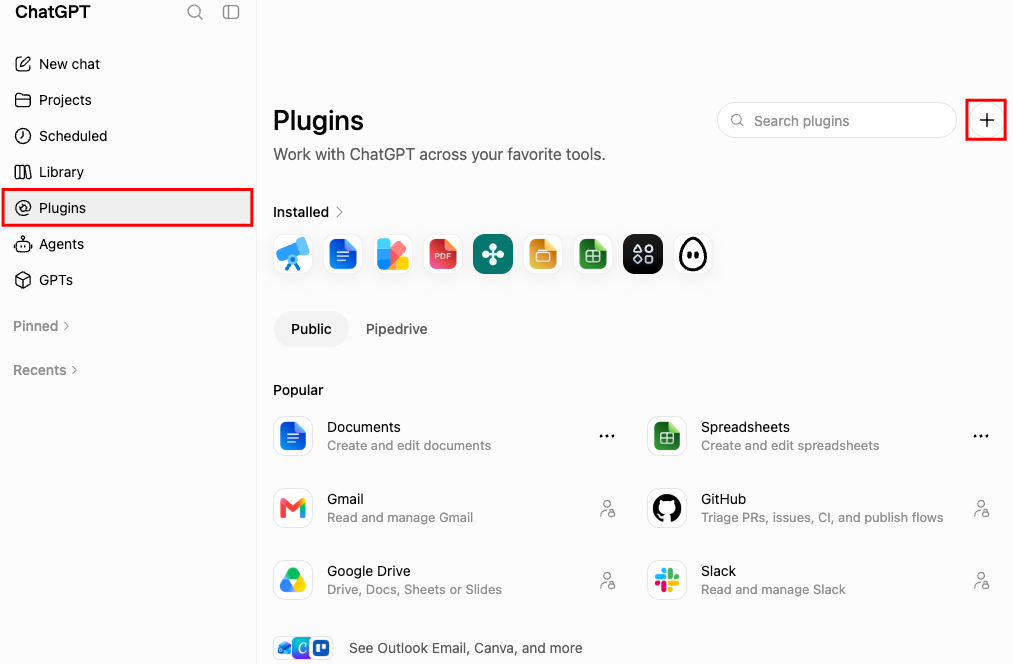
Once developer mode is enabled, go to ”Plugins” on the left-hand side of the screen and click ”+” to create a new plugin.
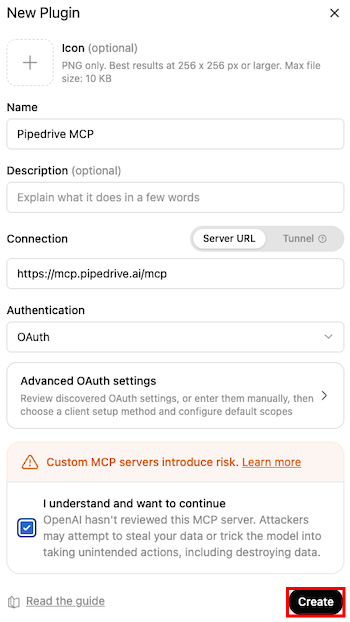
Enter Pipedrive MCP as the app name and in the ”Connection” field enter https://mcp.pipedrive.ai/mcp. Then, click ”Create”.
After creating the app, you’ll be redirected to Pipedrive to complete the installation.
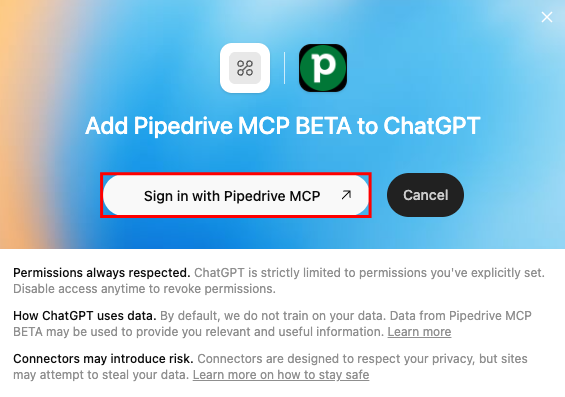
Install the Pipedrive MCP app
Review the requested permissions in the Pipedrive pop-up. Click ”Allow and install” to complete the installation process.
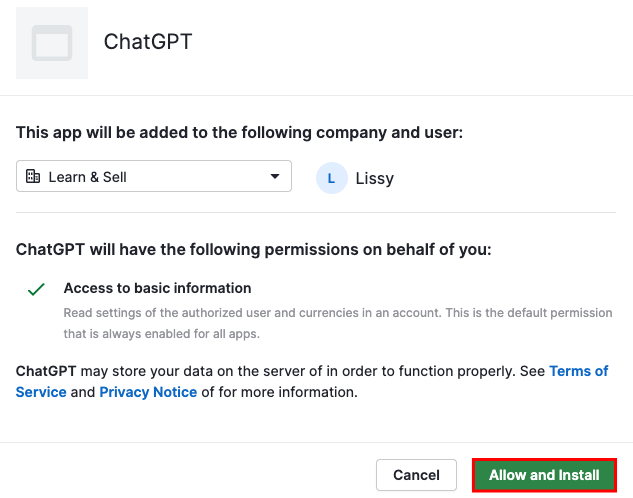
Once the installation is complete, ChatGPT will be authorized to access your Pipedrive account in accordance with your existing user permissions.
Use Pipedrive MCP in ChatGPT
Before starting your conversation, add the plugin ”Pipedrive MCP” to the conversation.
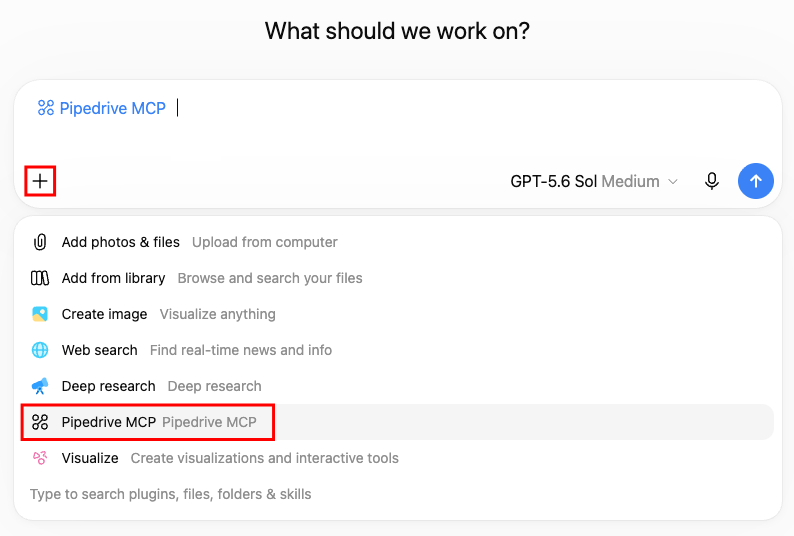
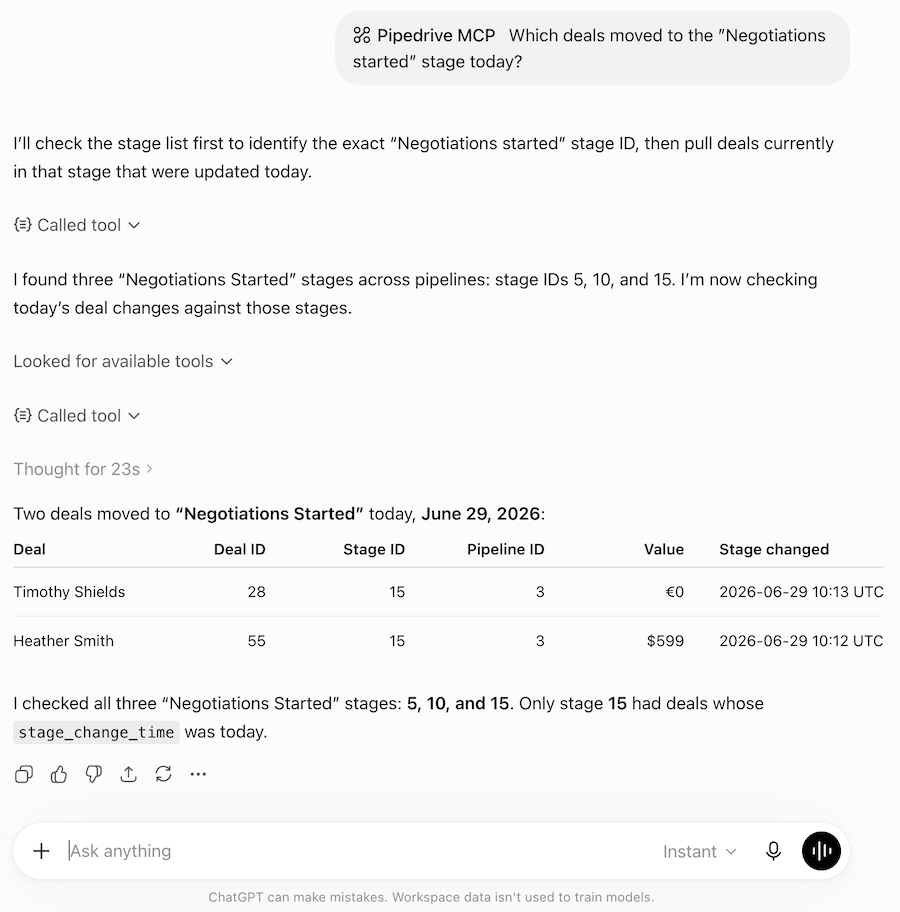
Your AI assistant can now access Pipedrive data and perform supported actions based on the permissions granted to your account.
Was this article helpful?
Yes
No