Pipedrive MCP for Claude
You can connect the Pipedrive MCP server to Claude to allow your AI assistant to securely access and interact with your Pipedrive data.
Enable the Pipedrive MCP connector
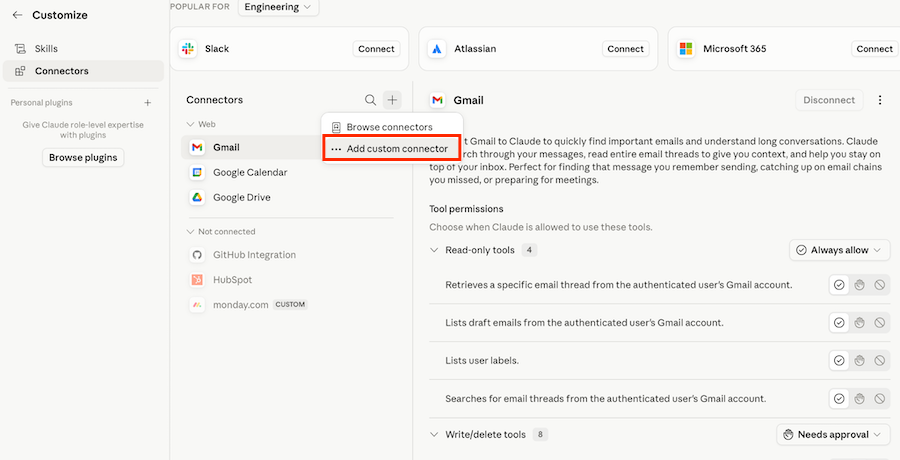
To enable the Pipedrive MCP connector for Claude go to “Customize” and select “Connectors”.
Then, click on the “+” icon and select “Add custom connector”.
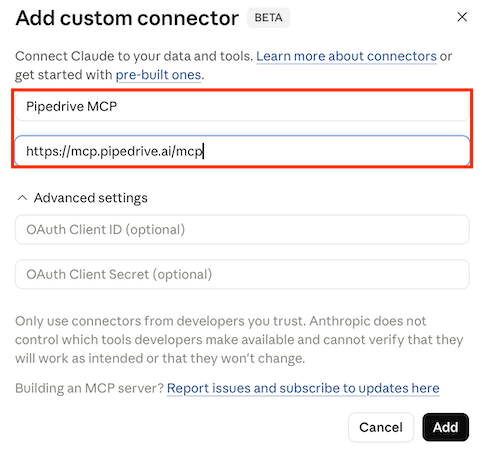
Click ”Connect”. Enter Pipedrive MCP as the app name and in the ”Connection” field, enter https://mcp.pipedrive.ai/mcp and click ”Add”.
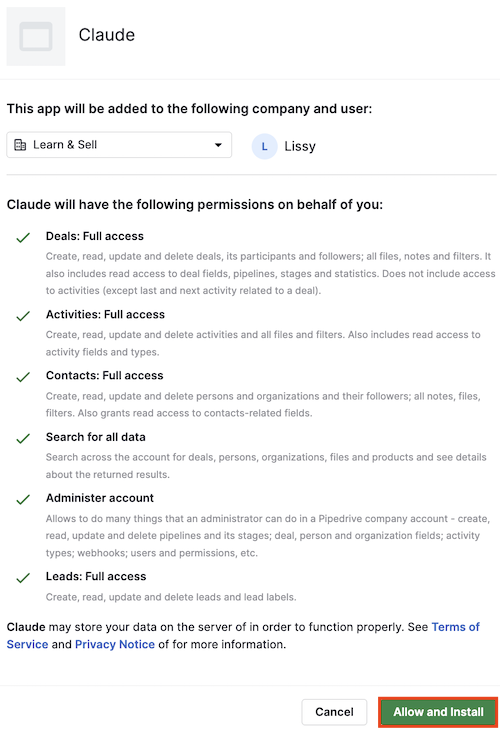
Review the requested permissions in the Pipedrive pop-up and click ”Allow and install” to complete the installation process.
Once the installation is complete, Claude will be authorized to access your Pipedrive account in accordance with your existing user permissions.
Use Pipedrive MCP in Claude
Once the connector is enabled, you can start using Pipedrive MCP in your conversations with Claude.
Before starting a conversation, open a new chat and verify that Pipedrive MCP is enabled and available.
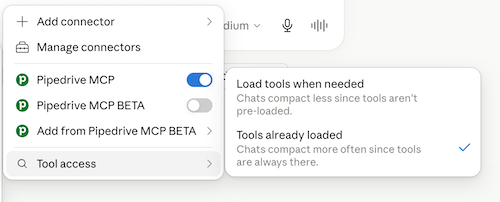
Your AI assistant can now securely access Pipedrive data and perform supported actions based on the permissions granted to your account.
Was this article helpful?
Yes
No