Visibility and permissions overview
Understand how to control what users can see and do in your account using visibility groups, item visibility and permission sets.
Difference between visibility and permissions
In Pipedrive, access control is split into two main parts:
Visibility groups – define what users can see
Permission sets – define what users can do
For example, a user might be able to see a deal but not edit or delete it.
Permission sets
Permission sets control what actions users can perform.
Where to manage permission sets
Go to Manage Users > Permission sets.
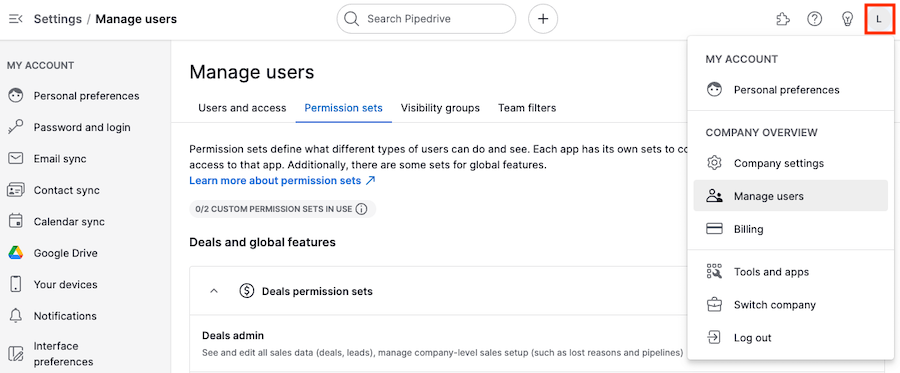
Types of permission sets
Admin – full access (not editable)
Regular – editable
Custom – tailored to your needs
What permissions control
Permissions define what users can do across the account, such as:
Creating, editing or deleting items
Importing and exporting data
Changing visibility
Viewing reports and statistics
Editing permission sets
Open a permission set
Click “...” > “Edit”
Update permissions and click “Save”
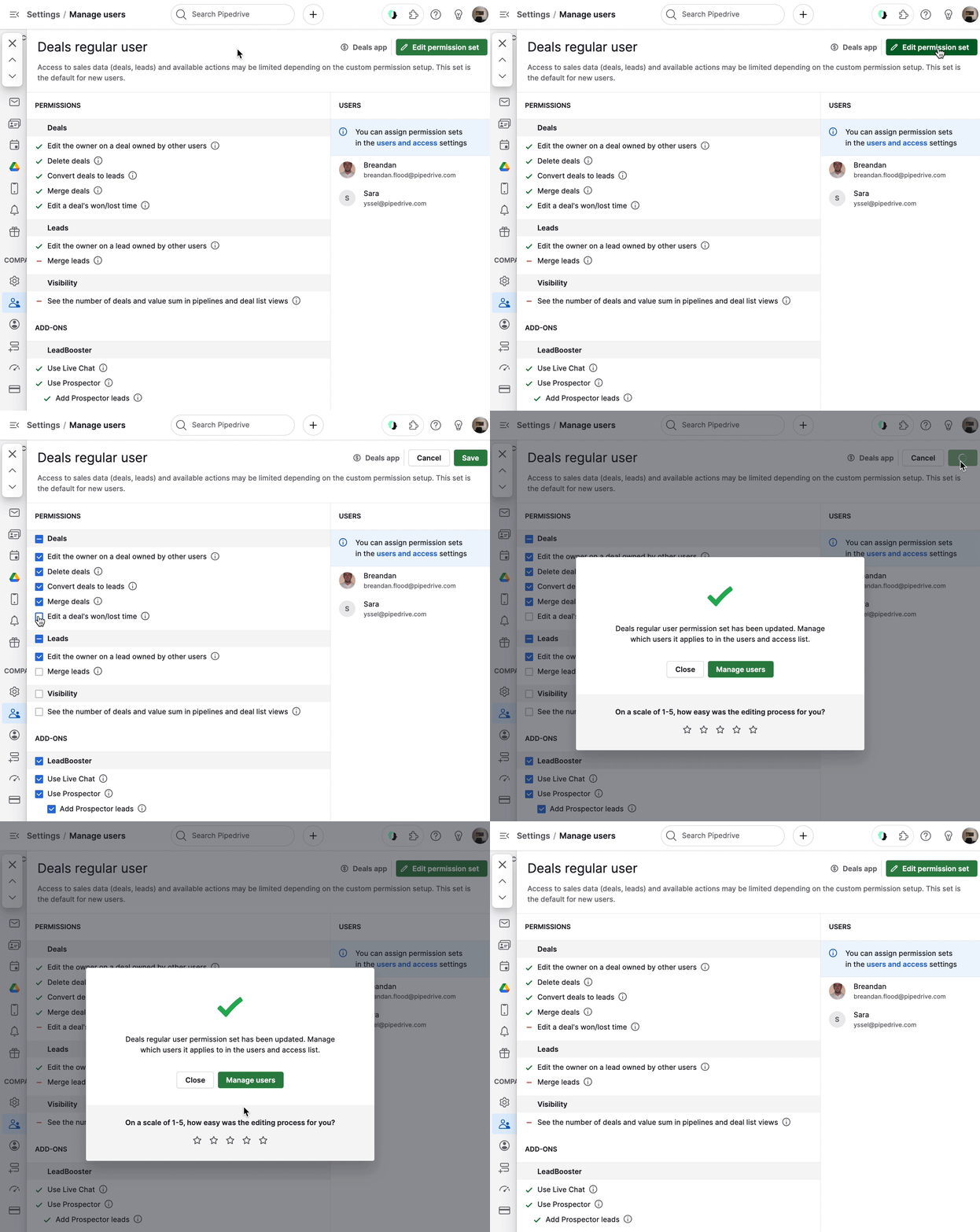
Plan limits
Lite and Growth: no custom sets
Premium: two custom sets
Ultimate: unlimited custom sets
Ownership and access
Each item has an owner.
Owners can always view and edit their items
Ownership can be updated in detail or list view
Deal owners are credited for won or lost deals
Visibility groups
Visibility groups control which data users can access across your account.
Where to configure visibility groups
Go to Settings > Manage Users > Visibility groups.
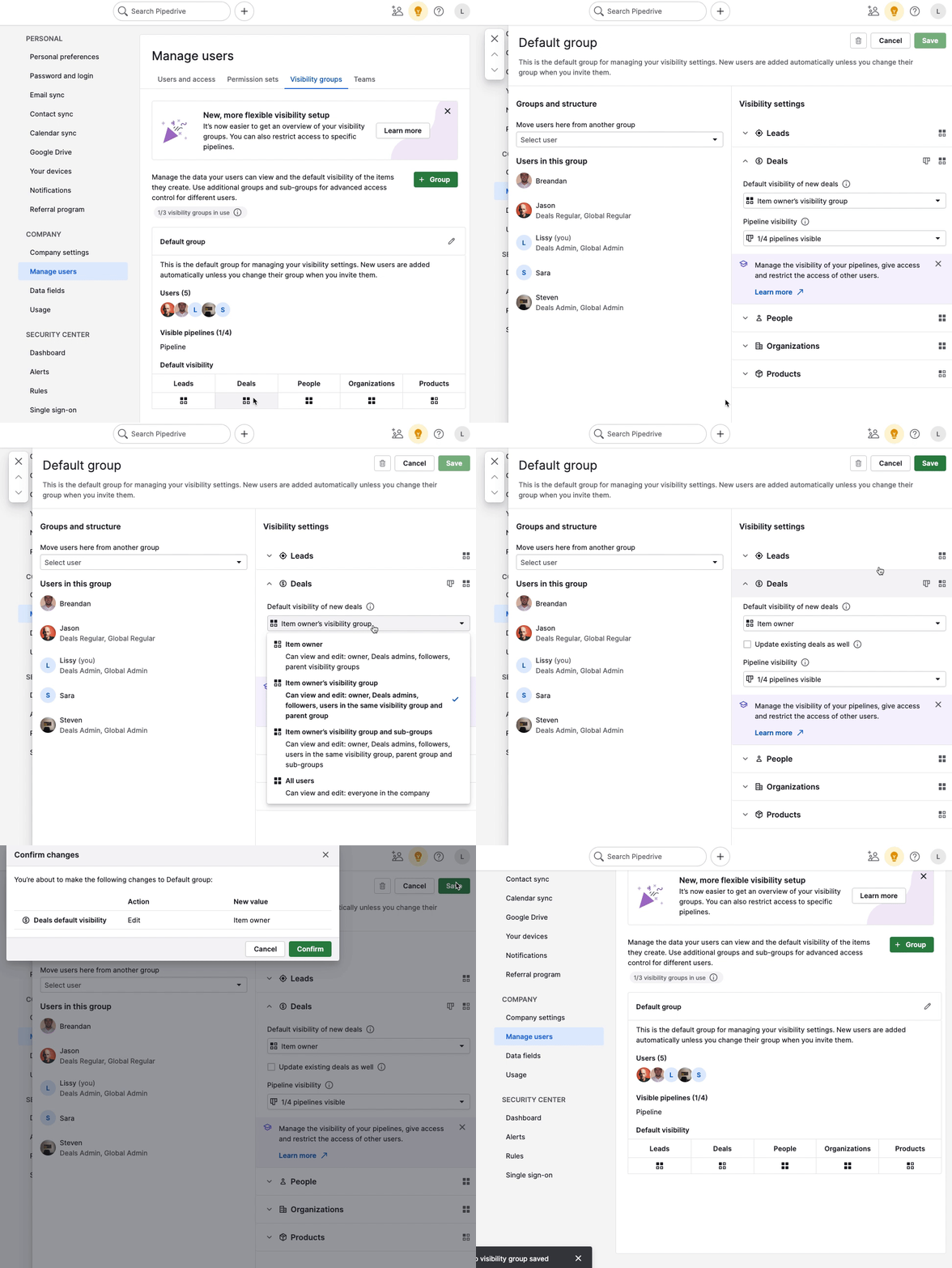
How visibility groups work
Each user is assigned to one visibility group.
A user can only belong to one group at a time
Visibility rules apply across items, reports and dashboards
Visibility options by plan
Lite and Growth plans
Item owner – visible to owner, followers, admins and parent visibility group
All users – visible to everyone in the company
These plans include one default visibility group.
Premium and Ultimate plans
You can create multiple visibility groups and sub-groups for more granular access.
Available options:
Item owner
Item owner’s visibility group
Item owner’s visibility group and sub-groups
All users
Managing users and pipelines
Assign users to a group from the visibility settings
Remove users using the “X” (they return to the default group)
You can also control pipeline visibility:
Pipelines are visible by default
Hidden pipelines and their deals won’t appear for restricted users
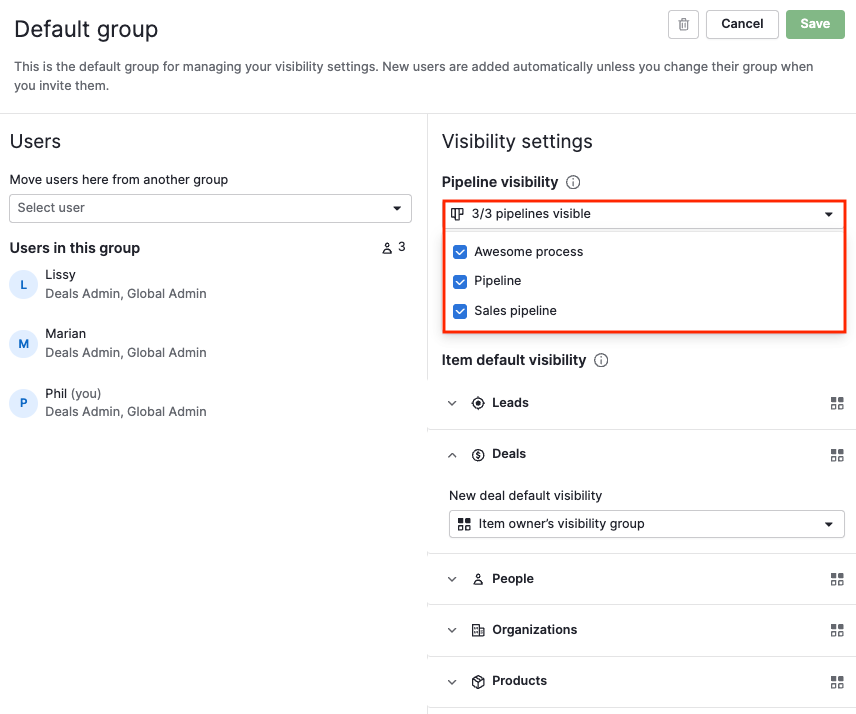
Insights visibility
Insights will follow the same visibility rules as items.
There are no separate visibility settings for Insights
Access is based on visibility for deals, leads, contacts, organizations and products
This means:
Users only see data for items they have access to
Charts and aggregated data remain visible, but restricted records are hidden
Admin users are not restricted by these rules
Admin access
Some users always have full visibility, regardless of visibility group settings:
Users with deal admin permissions can view all deals and leads, regardless of visibility group or “Visible to” settings.
Global admins can see all items
Item visibility
Each item (deal, lead, person, organization or product) has a “Visible to” setting.
This lets you override visibility for specific items when needed.
How to change item visibility
Use visibility groups for broad control, detail view for single items and list view for bulk updates.
Choose the method based on how many items you want to update.
Default visibility (visibility groups)
Use this when you want to set or update visibility rules for many items at once, or define a default for new items.
Go to Settings > Manage Users > Visibility groups to set visibility for new or existing items.
Detail view (single item)
Use this when you want to change the visibility of a specific item.
Open the item

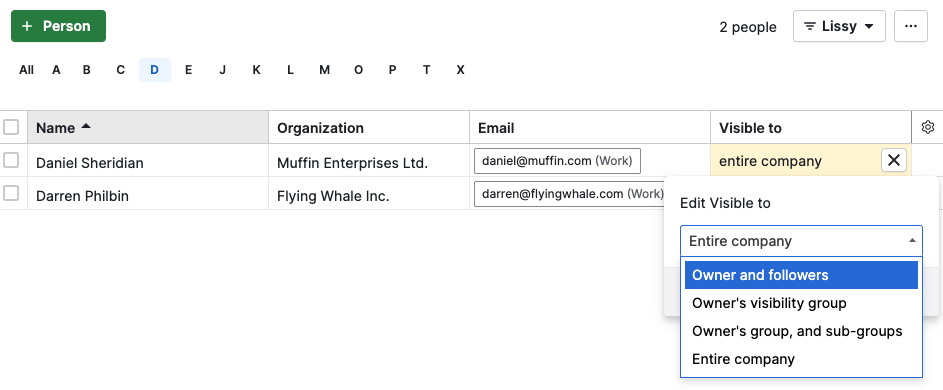
List view (single or multiple items)
Use this when you want to quickly update one or more items in a list.
Add the “Visible to” column
Edit one item using the pencil icon

Was this article helpful?
Yes
No