Leads contextual view
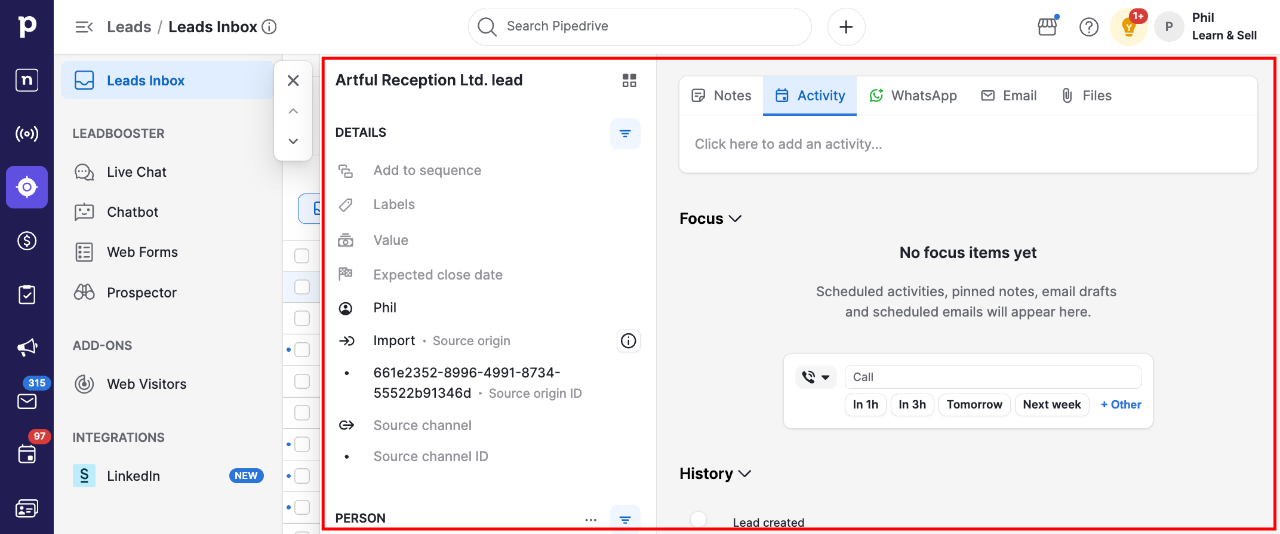
Pipedrive‘s contextual view lets you see a lead's details without opening a separate window. This makes it easier to move between leads and see your data as you work through your Leads inbox.
With contextual view, you can:
Edit a lead's details directly, without leaving your Leads inbox
Create notes, activities, WhatsApp messages and emails for a lead in the same window
Move between leads using the on-screen arrows
Open the lead contextual view
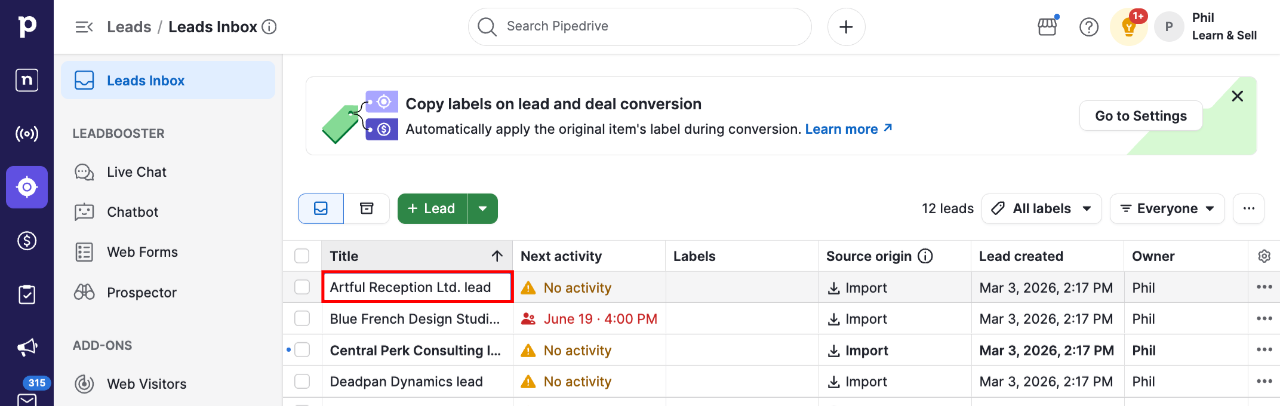
Click any lead in your Leads inbox to open its contextual view.
The lead‘s details appear on the left, and you can work with its notes, activities, WhatsApp messages and emails on the right.
Communicate and take notes
You can add notes, activities, send WhatsApp messages and compose emails by clicking on the respective tab at the top of the window.
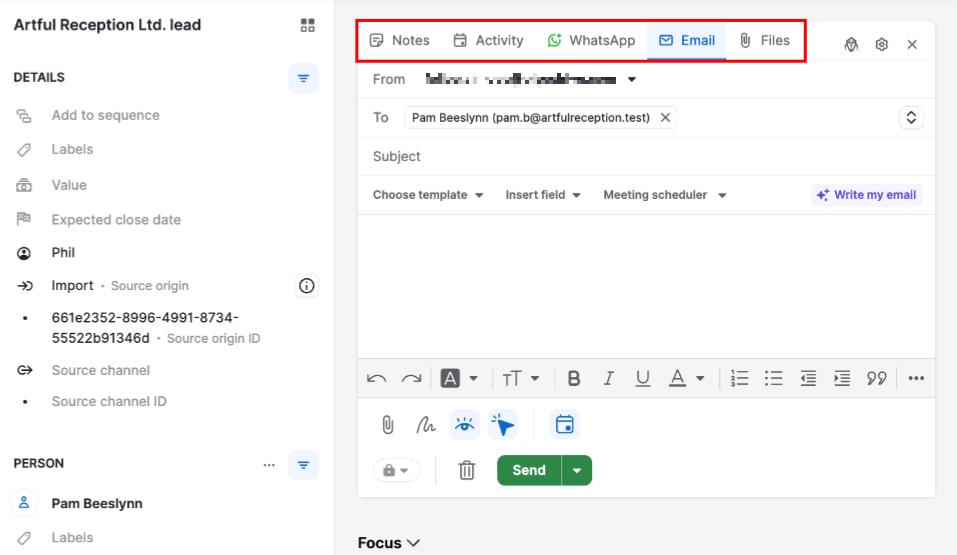
The email tab also includes an AI writing assistant (available on Premium and Ultimate plans) that can draft messages for you. Learn more in the article AI email creation.
Navigate between leads
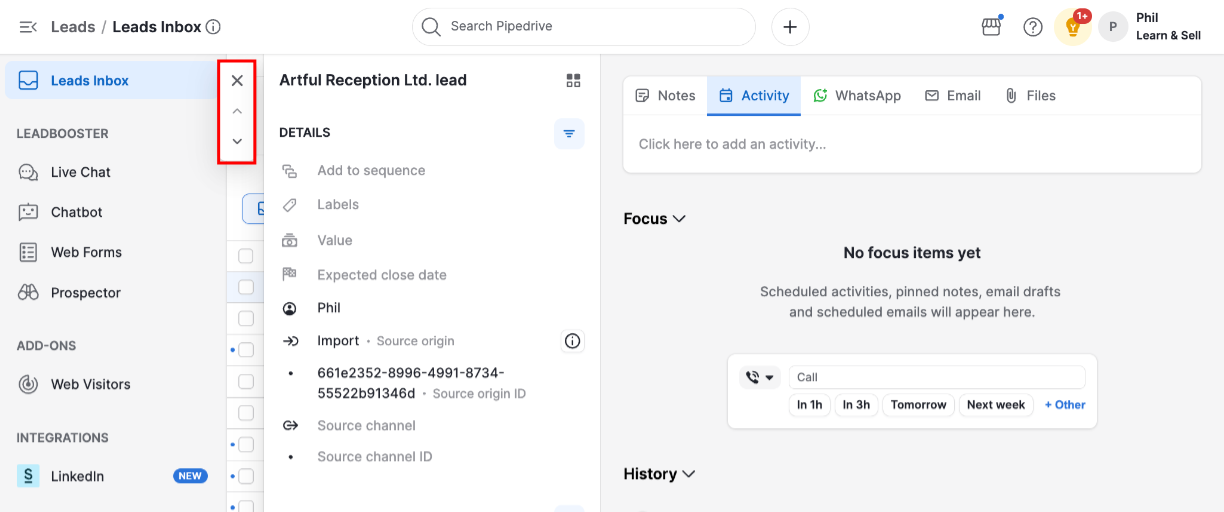
Use the on-screen arrows to move between leads, or use the keyboard shortcuts: J for the next lead and K for the previous one. Click the “X” to close the contextual view and return to your Leads inbox.
Was this article helpful?
Yes
No