How can I add notes?
Notes let you add extra context to deals, leads, projects, contact people and organizations, activities, tasks, subtasks and milestones.
Use notes so you and your team never have to rely on memory. Log a call summary, capture a key detail or leave context for whoever picks up the item next.
Add notes
Before you add a note, keep the note limits for each item in mind:
| Item | Notes allowed | Max size per note |
|---|---|---|
| Deal, lead, project, person, organization, task, subtask, milestone | Up to 100 notes | 100 KB |
| Activity | 1 note | 100 KB |
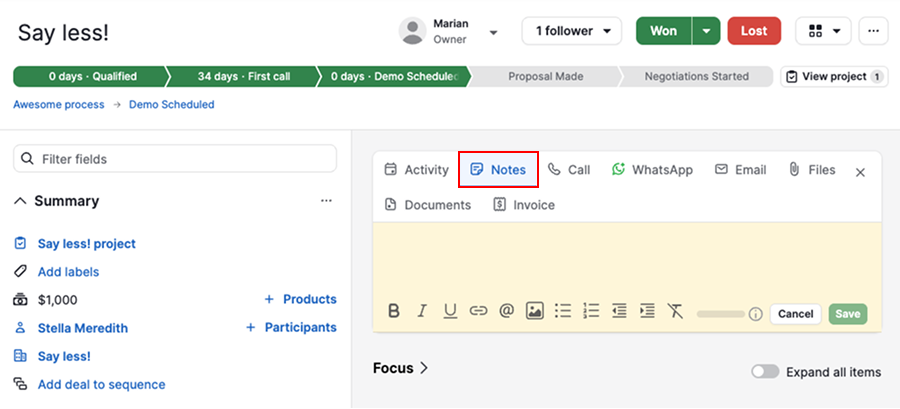
To add a note, open the item’s detail view and click the notes tab.
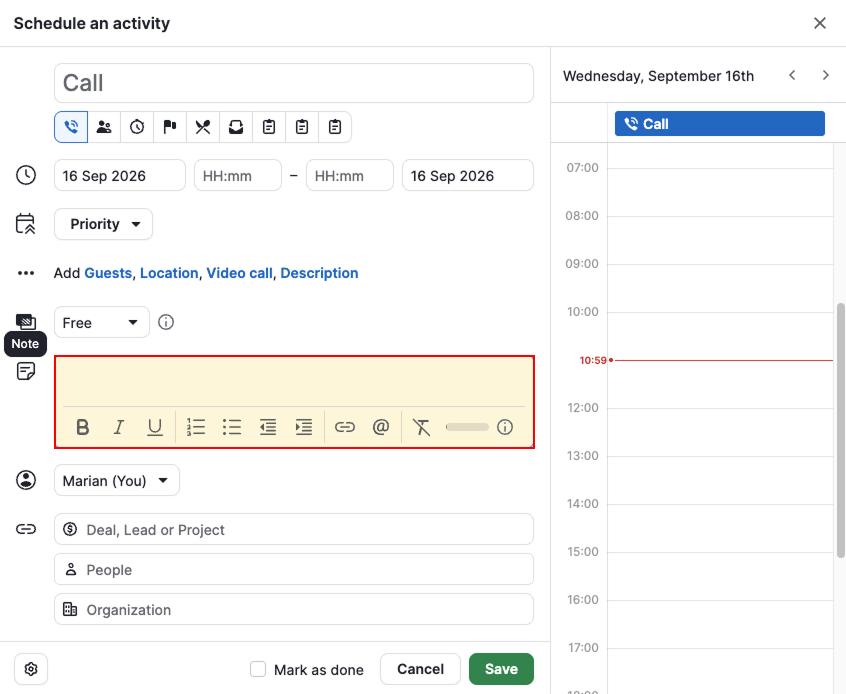
For activities, add your note directly in the note section instead.
Format your note
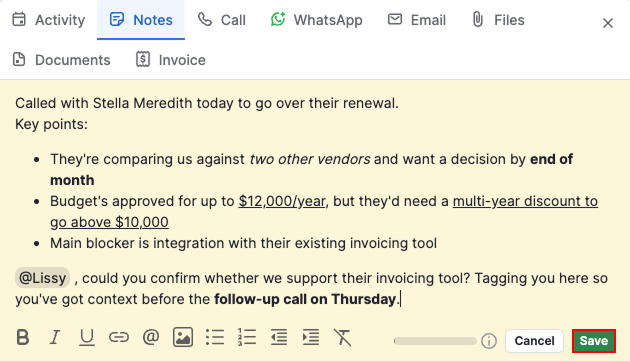
Use the toolbar at the bottom of the note editor to format your text:
- Bold – makes the selected text bold
- Italic – italicizes the selected text
- Underline – underlines the selected text
- Link – embeds a link in your text. The linked text appears blue and you can click it to open the link.
- Mention someone – type “@“ followed by a teammate’s name to mention them. Mentioned users get notified and can leave comments directly on the note. Learn more about mentions and comments.
- Image – add a picture to your note
- Bulleted list – creates an unordered list
- Numbered list – creates a numbered list
- Outdent – moves the selected line further left
- Indent – moves the selected line further right
- Remove styling – clears formatting form the selected text
When you’re done editing your note, click “Save“.
Manage notes
Pin, edit or delete notes
Your saved notes appear in the history section of the detail view.
Click “...“ next to a note to edit, pin or delete it.
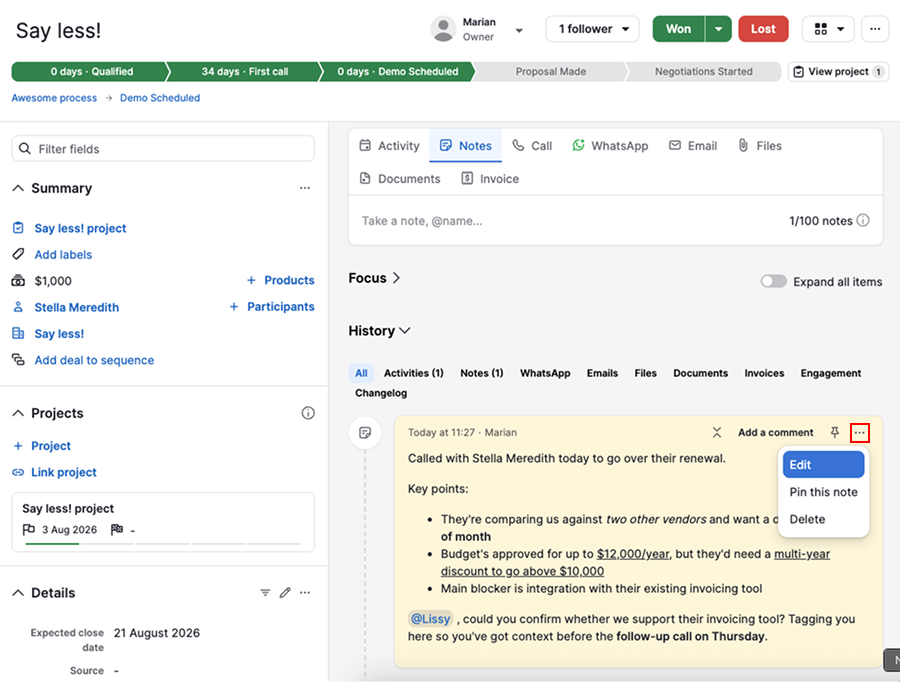
A pinned note stays at the top of your history section.
Find notes
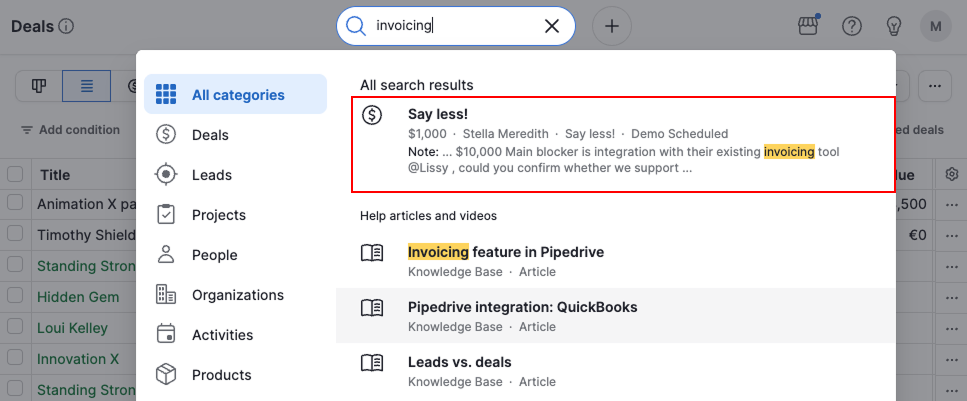
If you can’t remember which item a note is linked to, search using a keyword from the note’s text. Pipedrive shows you the matching note along with the item it belongs to.
Was this article helpful?
Yes
No