Automation limits in Pipedrive
Automation limits help maintain stable performance across all accounts. These limits are based on how many automations you have, how they’re built and how often they run.
If a limit is reached, some automations may stop running, fail to complete actions or ignore new executions. Keeping your automations optimized helps them run reliably.
How many automations you can add
Each company has a limit on the number of automations that can be set to active at the same time.
The limit depends on your plan:
Plan |
Active automations per company |
Growth |
50 |
Premium |
150 |
Ultimate |
250 |
To check how many automations are currently active, open the account menu and go to Tools and apps > Automations.
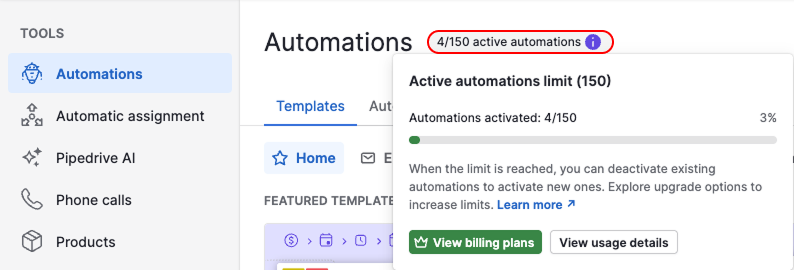
In the automations tab, you can review all your automations in detail and manage their status.
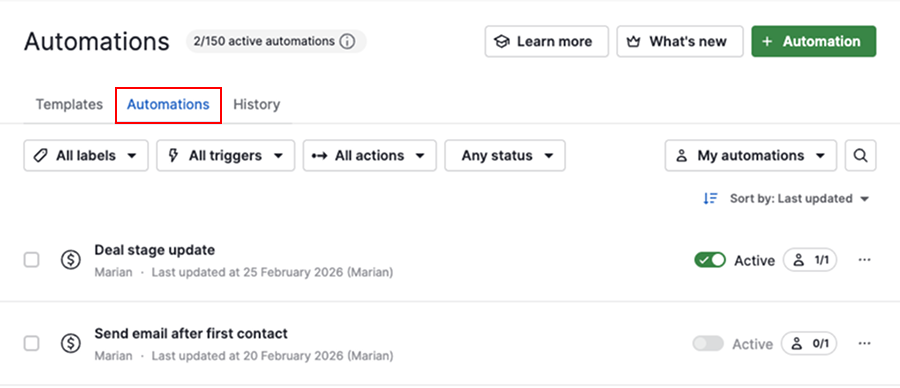
If you reach the active automation limit, you won’t be able to activate any additional automations. Existing active automations will continue to run.
Types of automation limits
Limits within automation structure
Each automation starts with a trigger and at least one action. More complex automations include additional steps, each with its own limits.
Actions per automation
Each automation can include up to ten actions.
Steps per automation
The number of steps you can add depends on your plan and the type of step.
| Step type | Growth | Premium | Ultimate | Key limitations |
|---|---|---|---|---|
| Wait for condition | 10 | 10 | 10 | Each step can run up to seven days. If conditions aren’t met, the automation stops |
| Delay | 10 | 10 | 10 | Total delay per automation is 90 days. This includes weekends, even if skipped |
| If/else condition | 3 | 10 | 20 | Branches automation based on whether conditions are met |
Frequency limits
Frequency limits control how many times automations can run within a given time frame. Each time an automation is triggered and completes an action, it counts as one execution.
These limits protect system performance and prevent automation loops:
- Company level – up to 10,000 executions within ten minutes
- Automation level – up to 5,000 executions for a single automation within ten minutes
Common cases
Frequency limits are most commonly reached when automations run at scale or interact with each other. How executions are handled depends on how they’re triggered:
| Scenario | What happens | Visibility in automation history |
|---|---|---|
| An automation is triggered by a bulk edit | Executions are stopped | Shown as “Stopped” |
| Automations create loops between each other | Executions are ignored | Not shown |
| One automation triggers many others | Executions are ignored | Not shown |
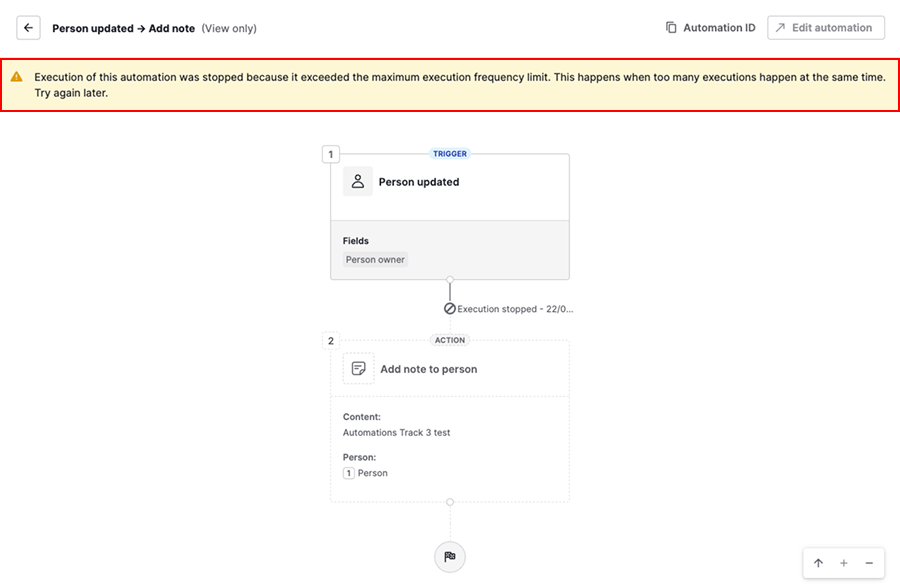
Here’s an example of a message shown when an execution is stopped due to frequency limits:
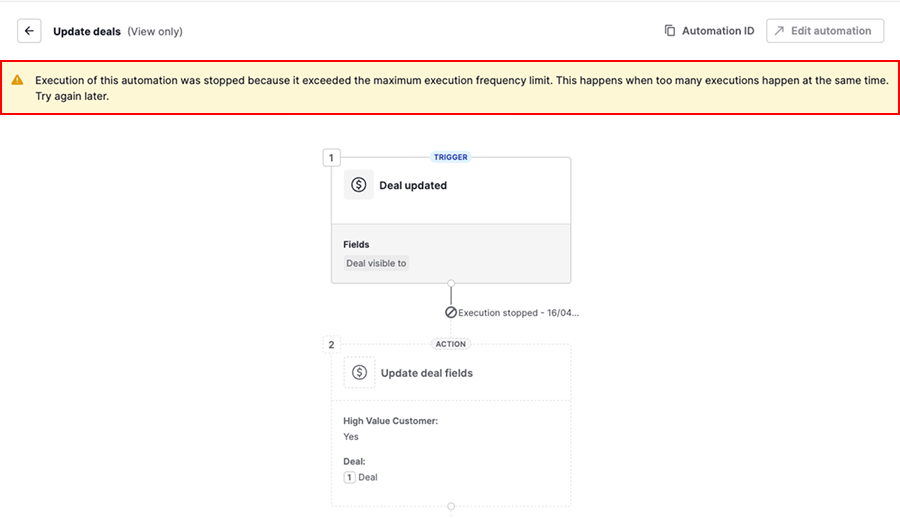
To help you identify potential issues before reaching a frequency limit, Pipedrive monitors automation activity against a warning threshold.
The warning threshold is calculated based on your company size and is lower than the execution limits. Its purpose is to give you time to review and optimize your automations before any executions are stopped.
When your company reaches this threshold, an email notification is sent to the account owner to inform that your automations are running at a high frequency.
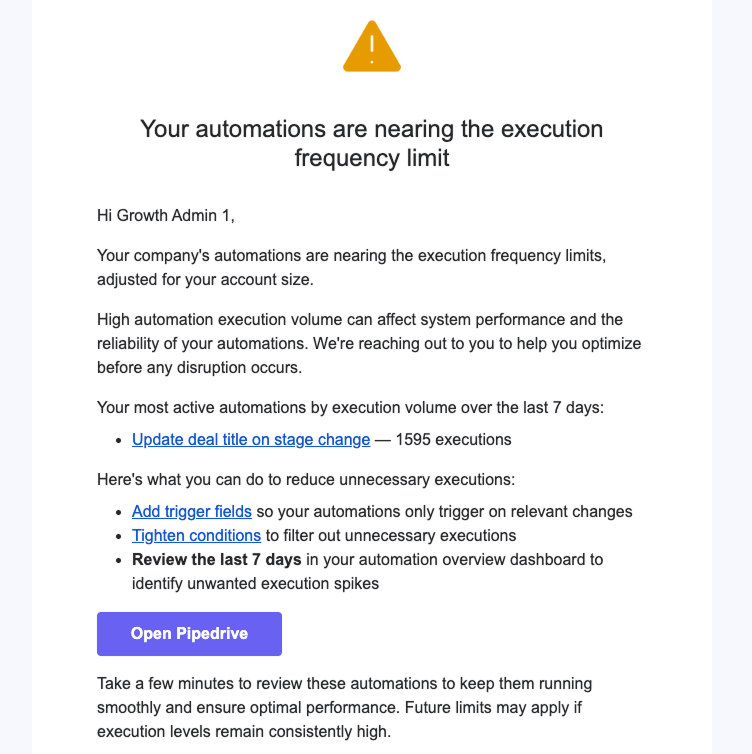
If automation activity continues to exceed the warning threshold, frequency limits will be enforced for the account.
Email sending limits
Automated emails are queued and sent in short 30-second intervals to keep delivery stable and prevent sudden spikes. Email actions may fail if they hit rate limits or email provider limits.
| Limit type | Limit | Visibility in automation history |
|---|---|---|
| Rate limit | Up to 40 email actions per minute within a company account | Shown as “Failed” |
| Email provider limits | Providers like Gmail or Outlook apply their own limits (for example, daily or hourly caps) | Shown as “Failed” |
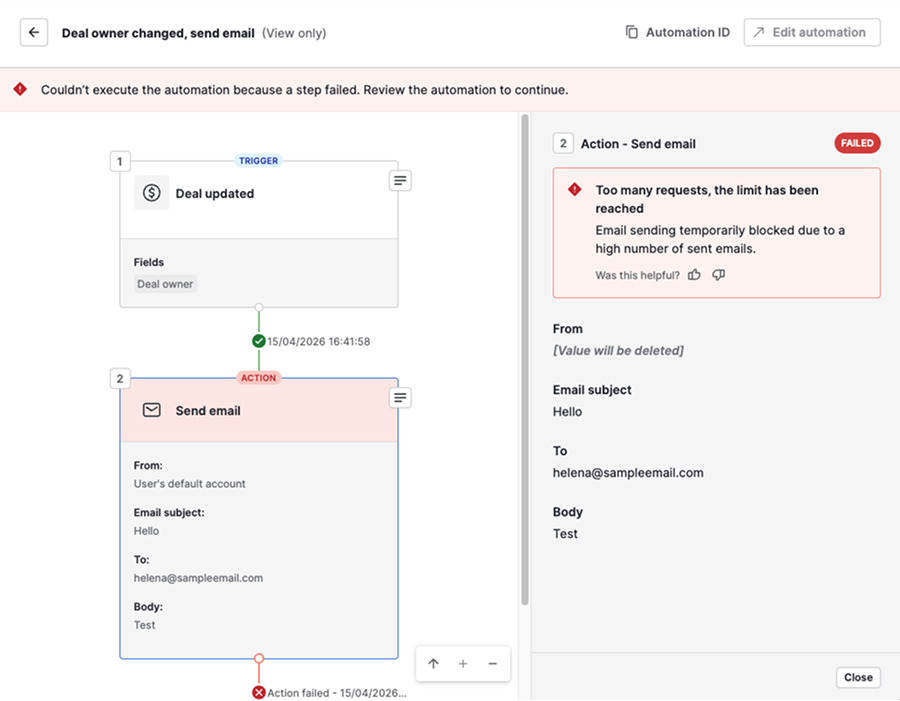
Here’s an example of a message shown when an email action fails:
Limits from other features and integrations
In addition to automation-specific limits, general Pipedrive features and external integrations may affect how automations run. When these limits are reached, the related actions fail. Examples include:
| Feature | Limit | Visibility in automation history |
|---|---|---|
| Sequences | Up to 100 deals or contacts per sequence | Shown as “Failed” |
| Notes | Up to 100 notes per deal, person or organization | Shown as “Failed” |
| External integrations (APIs, webhooks) | Defined by the external service | Shown as “Failed” |
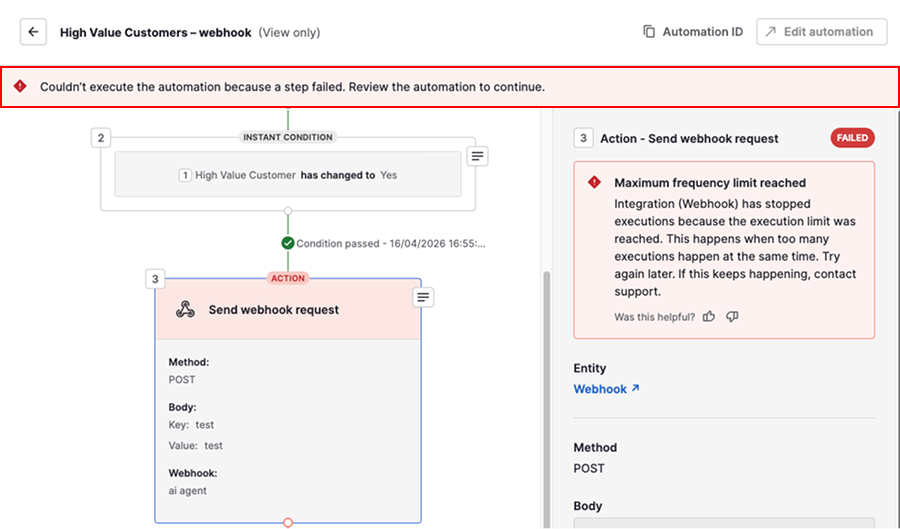
Here’s an example of a message shown when an action fails due to these limits:
How to check automation execution issues
To review automation activity, open the account menu and go to Tools and apps > Automations > History.
Use the following filters to identify issues:
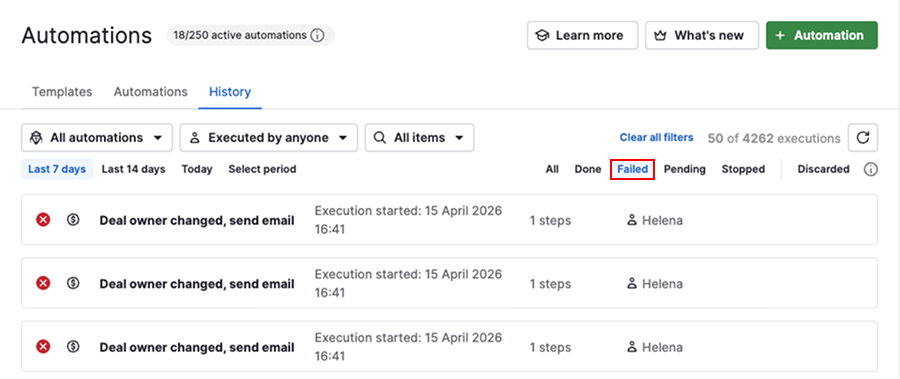
- Failed – for executions where an action couldn’t be completed due to limits or other issues
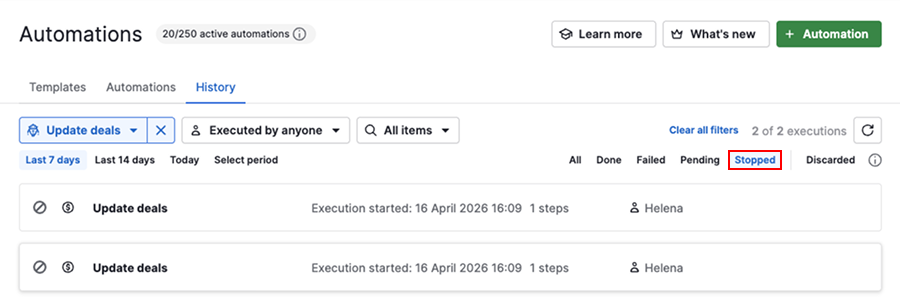
- Stopped – for executions affected by frequency limits, interruptions or when conditions in later steps aren’t met
Open an execution to view more details about what happened and why.
Best practices to stay within limits
Regular maintenance and thoughtful setup can help you avoid reaching automation limits.
| Best practice | What it helps with |
|---|---|
| Remove automations that are no longer needed | Keeps your account within active automation limits |
| Combine similar or duplicate automations | Reduces unnecessary executions and simplifies management |
| Add conditions | Ensures automations only run when needed |
| Skip automations with bulk updates | Prevents large numbers of executions triggered at once (available to global admins) |
| Avoid automations triggering multiple other automations | Prevent hitting frequency limits |
| Space out email actions | Reduce risk of hitting email rate limits |
| Upgrade your plan | Increases the number of active automations available |
Was this article helpful?
Yes
No