Projects on mobile
Manage your projects wherever you are with the Pipedrive mobile app. You can view project progress, update tasks and activities, add notes and create new projects without opening the web app.
Manage projects on the go
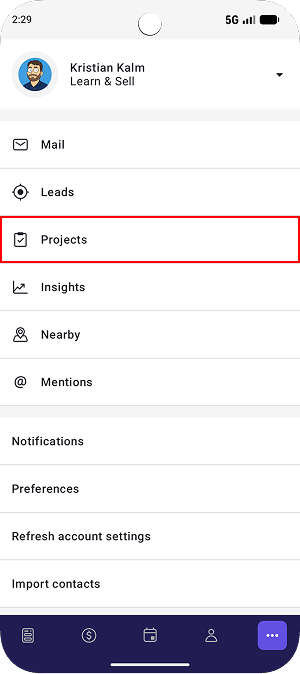
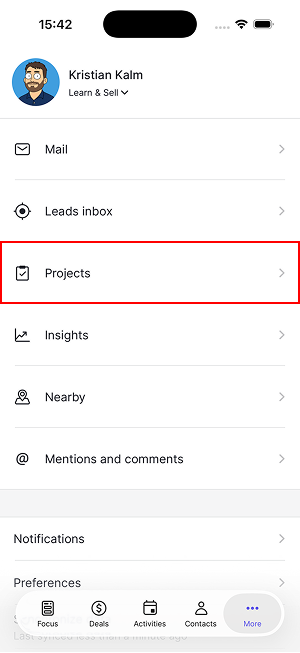
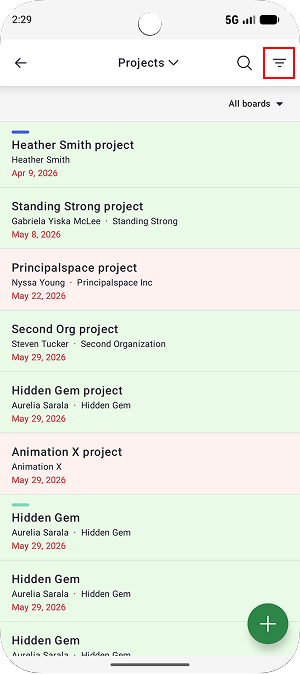
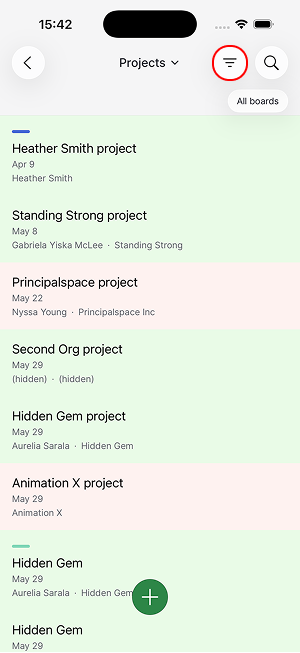
Open the Pipedrive mobile app and tap “...” > Projects to see all projects across your boards.
Android | iOS |
 |  |
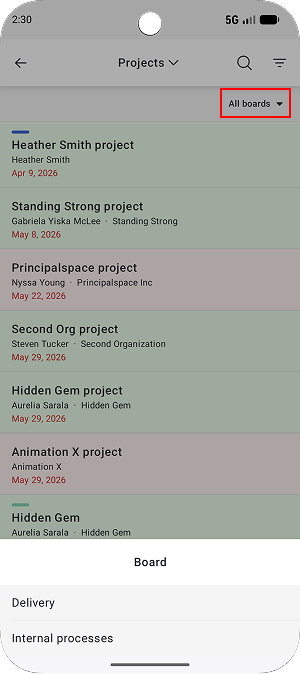
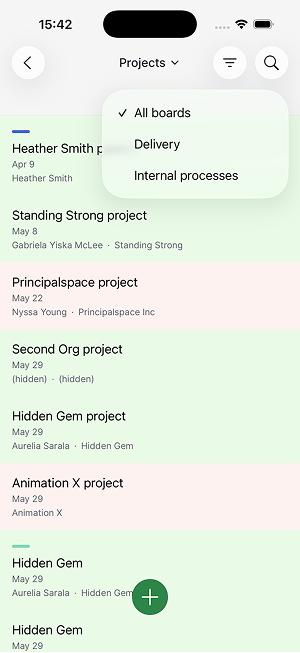
To focus on a specific board, tap “All boards” and select the board you want to view.
Android | iOS |
 |  |
You can also use filters to narrow results by user or apply filters you’ve already created in the web app.
Android | iOS |
 |  |
Add projects
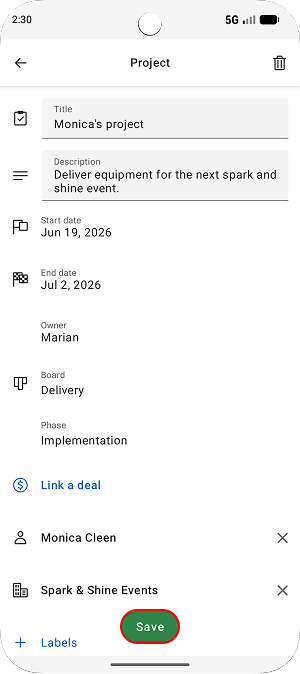
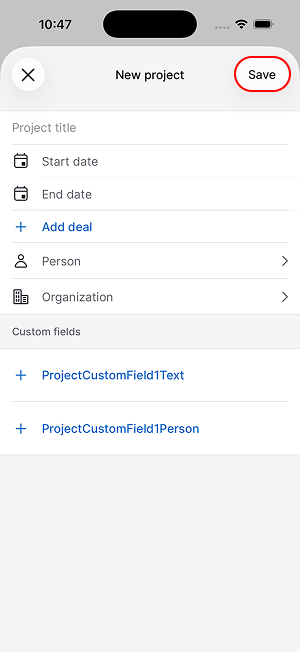
To add projects on the go, tap the “+” in the projects view.
Enter your project details and tap “Save”.
Android | iOS |
 |  |
View projects
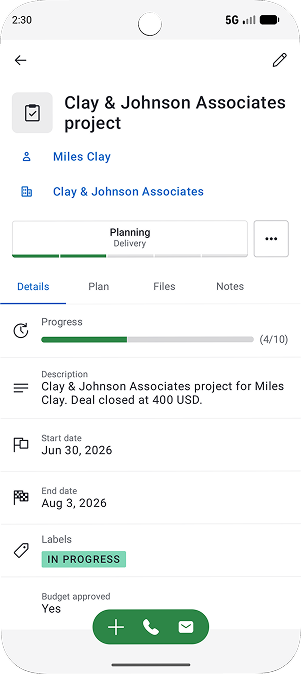
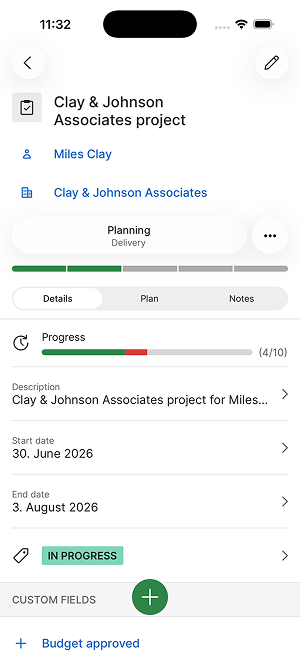
Tap a project to open its detail view. Here, you can review key information, such as the linked contact and organization, current phase, start and end dates, labels and custom fields.
Android | iOS |
 |  |
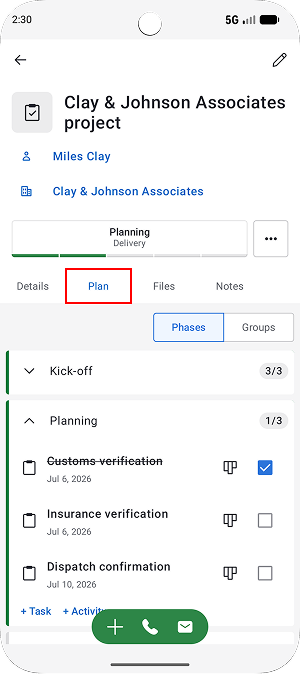
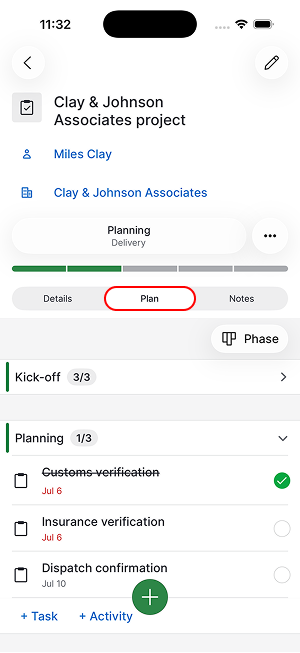
Switch to the plan tab to review tasks, subtasks, milestones and activities.
Android | iOS |
 |  |
The notes tab contains notes, comments and mentions, making it easy to stay updated on project discussions.
Edit projects
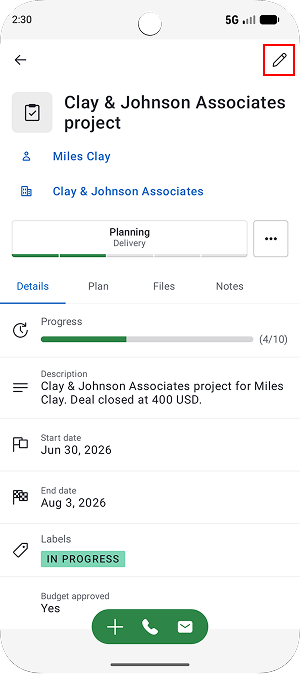
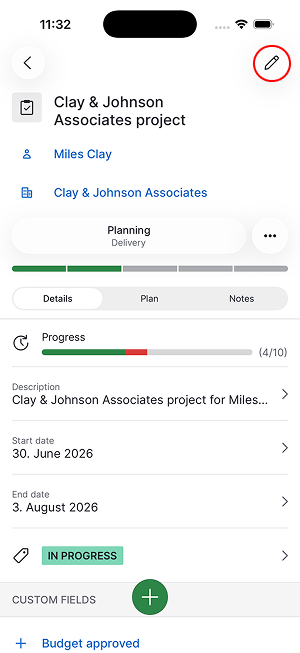
If you need to update project information, tap the pencil icon in the project view.
Android | iOS |
 |  |
In the plan tab, you can mark tasks, subtasks, activities and milestones as completed or open them to make changes.
Item | What you can do |
|---|---|
Task | Update subject, description, assignees, start and due dates, linked project, phase and group. Add subtasks. |
Milestone | Update subject, description, assignees, start and due dates, linked project, phase and group. Milestones can’t have subtasks. |
Activity | Update subject, due date and time, priority, notes, guests, location, description, linked items and assignee. |
Add activities, tasks, notes and files
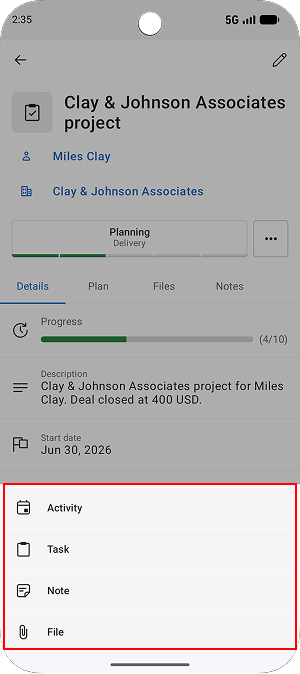
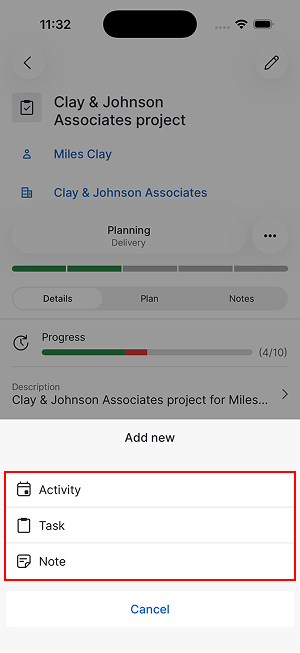
Tap “+” inside the project and choose whether you want to create an activity, task, note or file.
Android | iOS |
 |  |
Track work across projects
If you want to see project work across multiple projects, go back to the projects view and select “Tasks”.
Android | iOS |
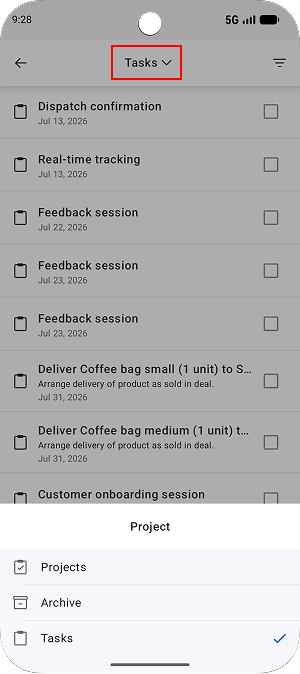 | 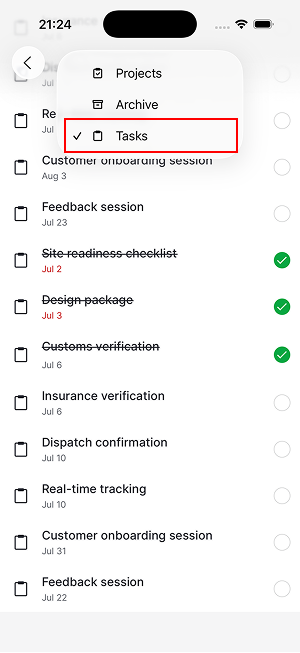 |
You can filter items by status or user to focus on the work that’s most relevant for you. The tasks view displays tasks, subtasks and milestones from all your projects in one place, making it easier to review upcoming work and track progress across projects.
View archived projects
To view archived projects, tap the current view selector in the projects screen and select “Archive”.
Android | iOS |
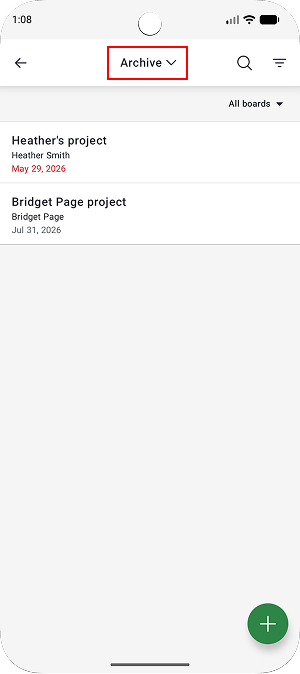 | 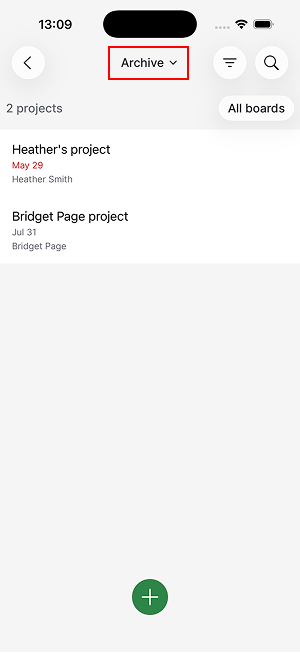 |
Just like the main projects view, you can select a specific board and apply filters to find projects you’re looking for.
Was this article helpful?
Yes
No