Participants
In Pipedrive, a deal can only have one linked person at a time. Use participants to add additional people to a deal without losing the one clear point of contact your deal is built around.
Once added, Pipedrive automatically suggests participants to you when you create activities or send emails, or when you haven’t yet linked the main contact person.
Manage deal participants
Add participants manually
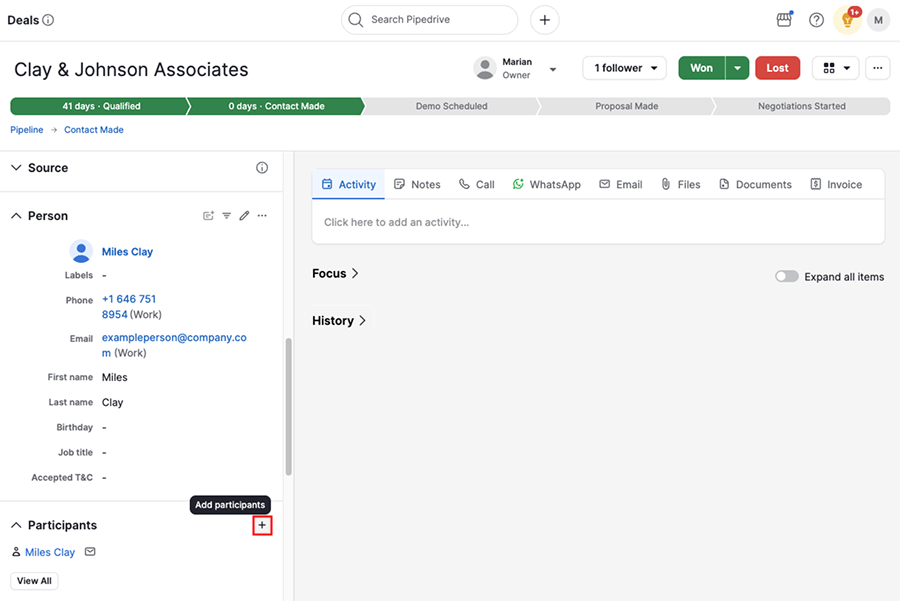
To add a participant, open a deal, go to the participants section in the deal detail view sidebar, then click “+”.
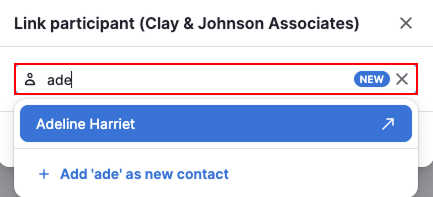
Enter the participant’s name, then select from existing or create a new person.
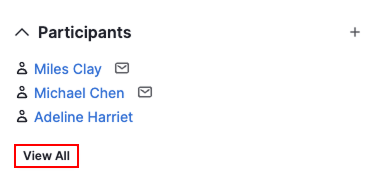
Once added, the person becomes a participant. You can click “View All” to see the full list of participants linked to that deal.
Add participants from your linked conversations
Since participants are often the people you email, Pipedrive lets you add them directly from your linked conversations.
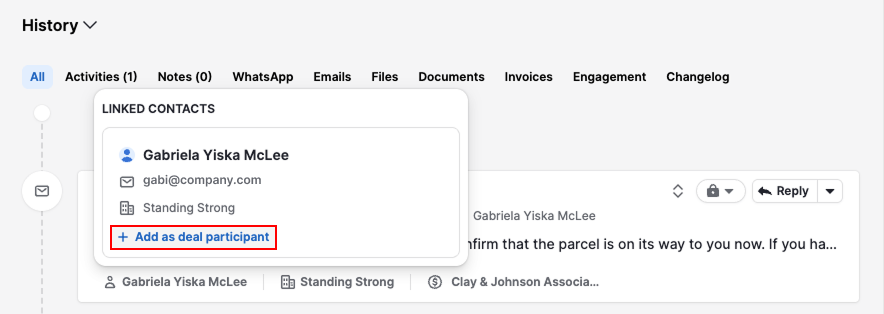
Find the email in the deal history section, hover over the contact person and click “Add as deal participant”.
Add participants in bulk
To add participants to several deals at once, you can import them using a spreadsheet. Learn more about setting up your file in this article on importing followers and participants.
Unlink participants
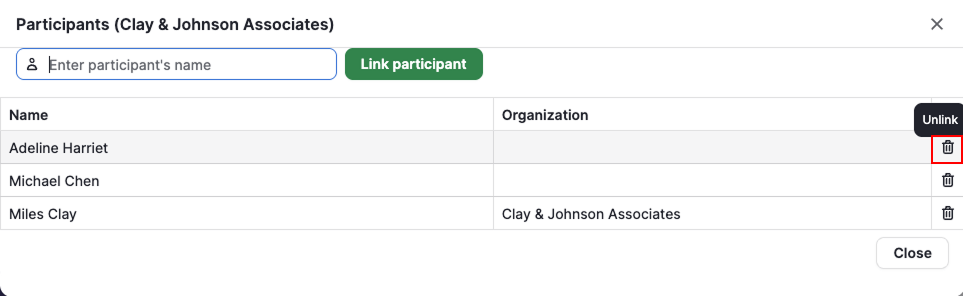
To unlink a person from a deal, click “View All” in the participants section. Find the person you want to remove and click “Unlink”.
Add suggested participants
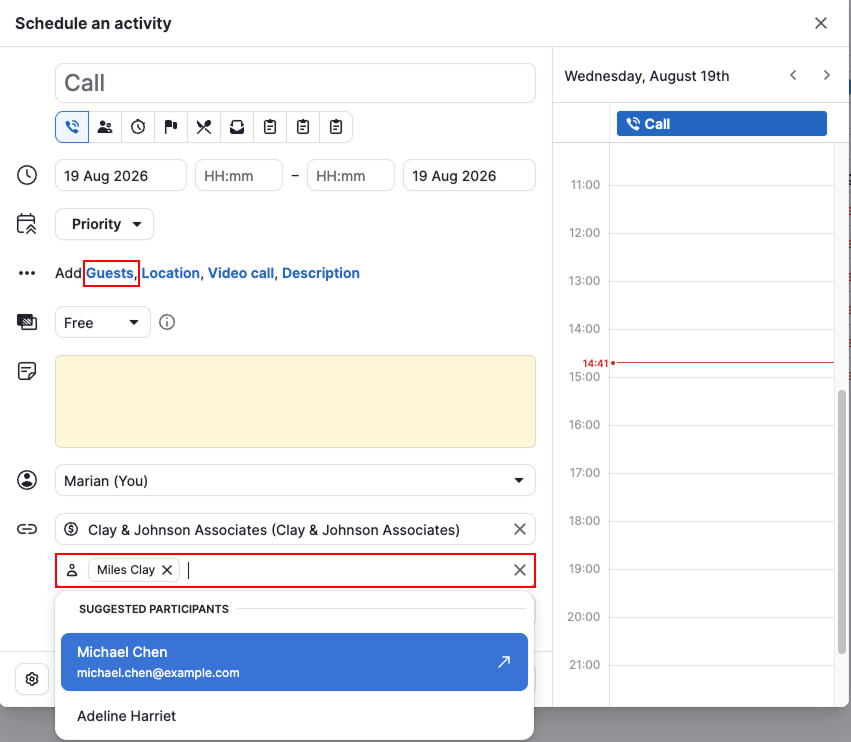
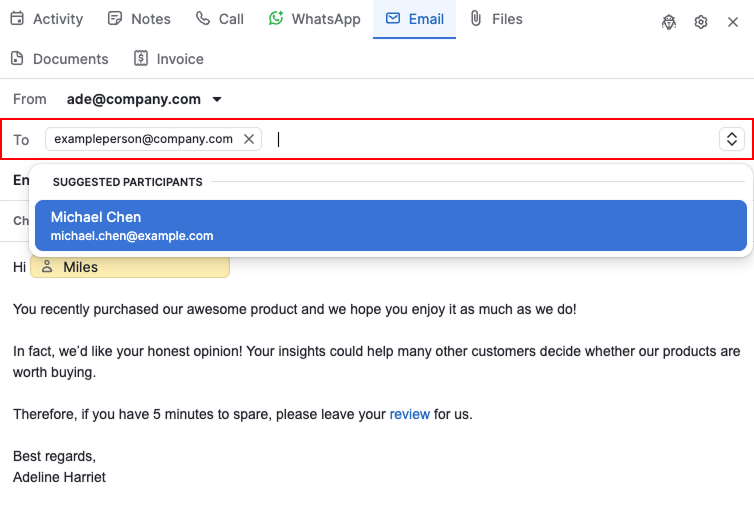
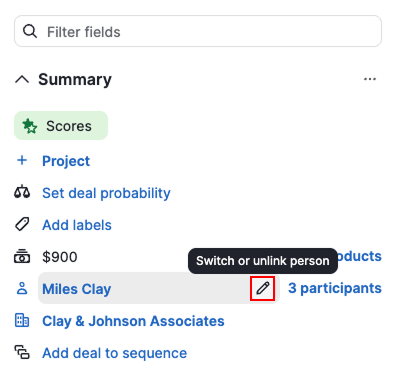
Once you’ve added participants to a deal, Pipedrive automatically suggests these people to you when you:
- Add guests or link contact people to activities
- Add recipients to emails
- Switch the deal contact person
View participants in the deal list view
To see which participants are involved in different deals at a glance, open the deal list view and click the gear icon to customize columns.
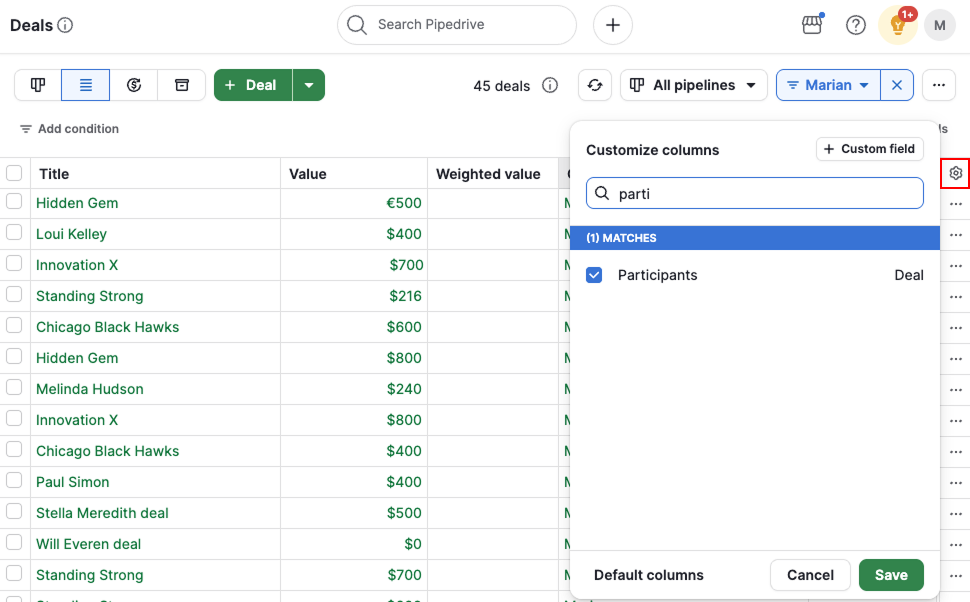
Find the “Participants” field and click “Save”.
Was this article helpful?
Yes
No