Add emails as activities
Send emails from Sales Inbox or detail views and automatically add them as activities.
Adding emails as activities helps you reduce reporting gaps and track your team’s effort more accurately in the activities performance report, without creating separate activities for every email you send.
Why add emails as activities
In Pipedrive, activities represent scheduled or completed actions, such as calls, meetings, tasks and emails. They help you plan your next steps, stay organized and consistently follow up.
To track your efforts, create an activities performance report, which gives visibility on:
- How many activities you’ve completed
- How the workload has been distributed across your team
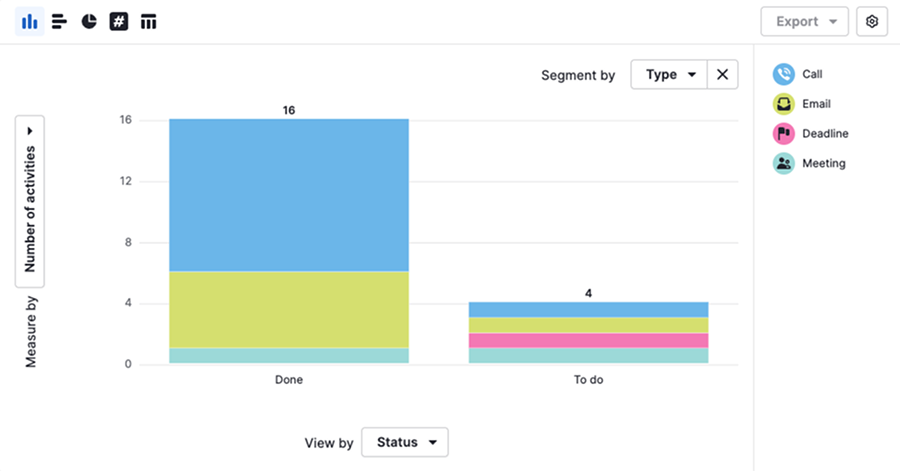
Sending emails is one of the most common activities in sales, but unless you add them as activities, they won’t count as work performed in your activities report.
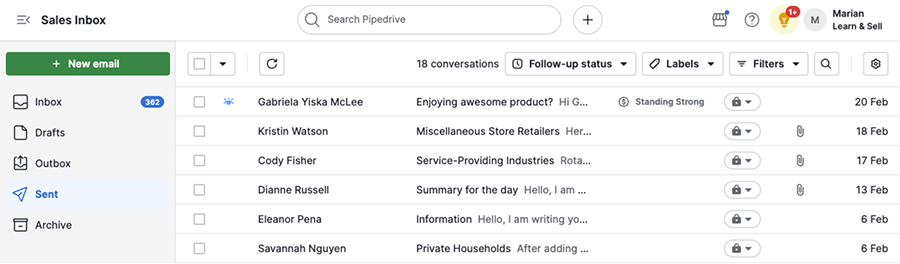
To make sure your effort is reflected in Pipedrive:
- Enable the option to add an email as an activity before sending it
- Send the email from Pipedrive
This way, your email communication is visible in the Sales Inbox and counted as a completed activity in your reports.
How to add an email as an activity
You can enable this option by default in your email sync settings or adjust it while composing the email.
Add emails as activities by default
To automatically add emails as activities, open the account menu in the top-right corner of your screen and go to Personal preferences > Email sync > General.
Enable “Automatically add emails sent from Pipedrive as activities”.
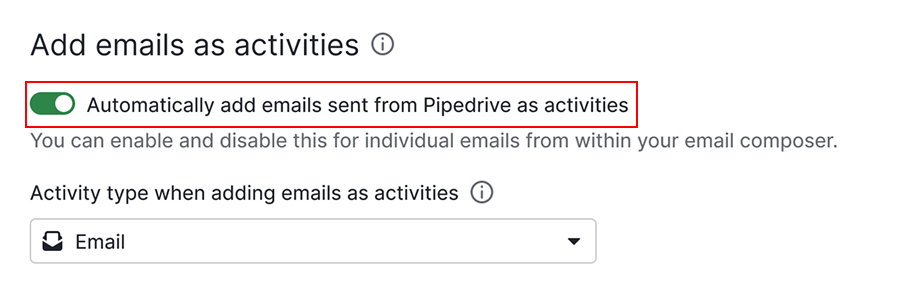
Then choose the activity type to use when adding emails as activities. The available activity types depend on your company settings.
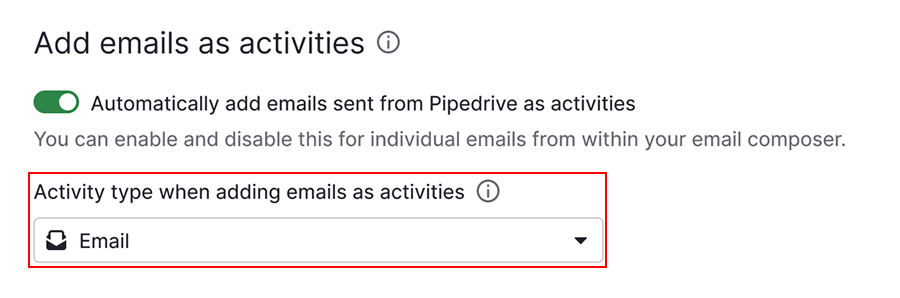
Once you've followed the above steps, every email you send from Pipedrive will also be added as a completed activity.
From Sales Inbox
Click “+ New email” or reply to an existing conversation. Write your email as usual, then enable “Add this email as activity” in the email composer.
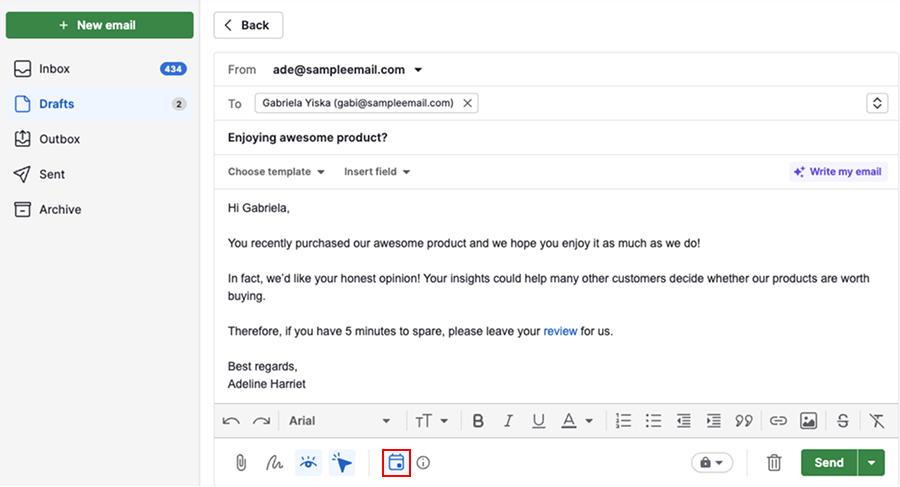
Click “Send”.
From the detail view
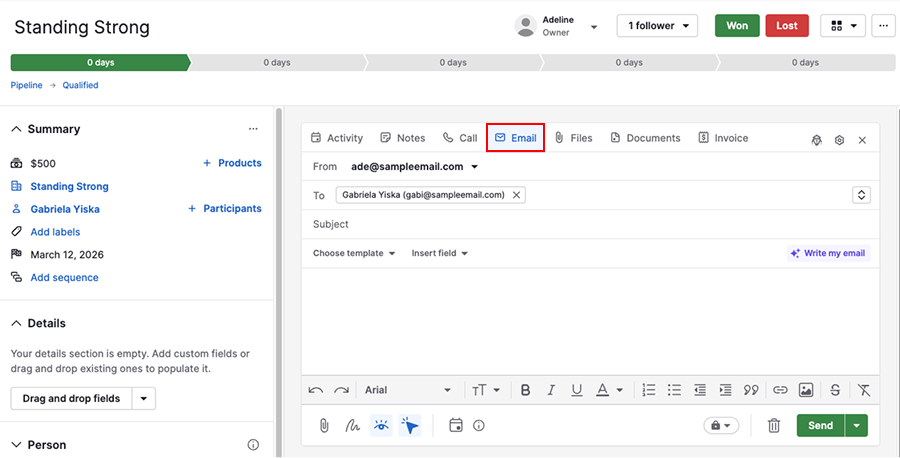
Open a deal, lead, project, contact or organization detail view, then click “Email” to open the composer.
Once you’ve composed your message, enable “Add this email as activity”.
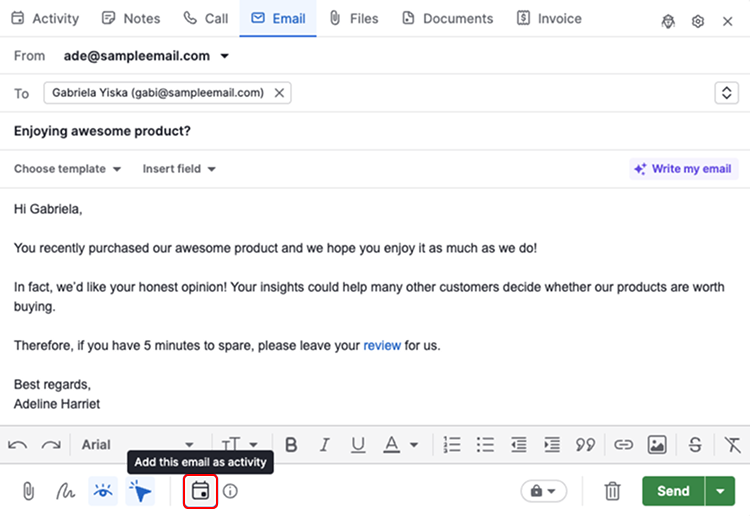
Click “Send”.
What happens after you send the email
When you turn emails into completed activities, you capture both the communication and the effort.
As soon as you click “Send”, Pipedrive automatically creates an email activity.
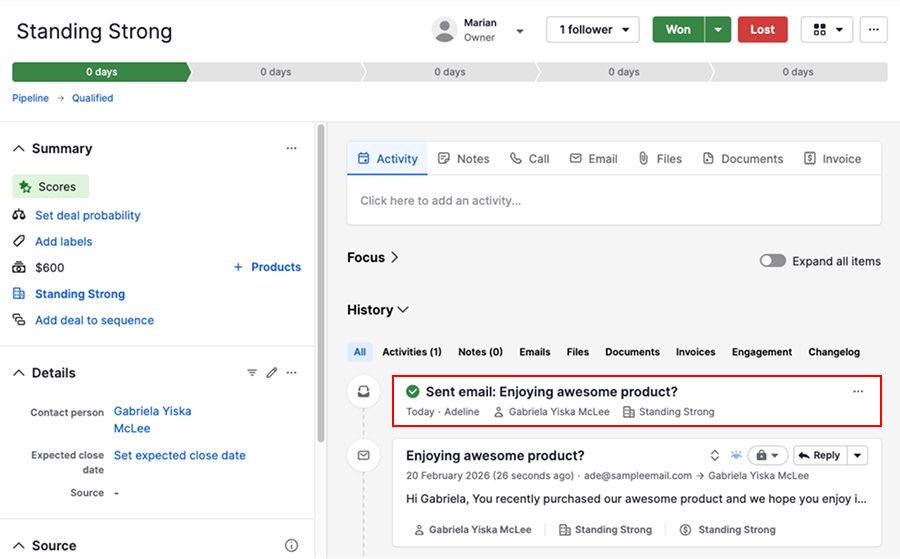
The activity is marked as done and linked to the same items as the email conversation.
This keeps your communication history and activity history aligned, so your reports reflect the full scope of your work.
How to add activities for emails sent outside Pipedrive
If you use Smart Bcc or send emails from Gmail, Outlook or another provider, those emails aren’t automatically added as activities in Pipedrive.
To create activities in bulk for these emails, go to Sales Inbox and open the sent folder.
Select one or several conversations and click “Add activity”.
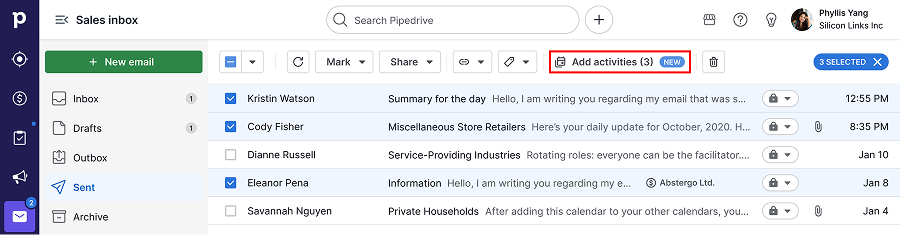
This ensures your activities performance reports accurately reflect your email activity, even for emails that weren’t originally sent from Pipedrive.
Reporting on emails
To get a clear view of both your sales efforts and email communication volume, use two separate reports. The table below explains when to use each one.
Activities performance report vs. emails performance report
| Activities performance report | Emails performance report | |
|---|---|---|
| Primary focus | Sales effort tracked through completed activities | Email communication volume |
| Which emails are included? | Email activities | Sent and received emails |
| What it shows you |
|
|
| Best for | Reviewing effort, coaching performance and connecting activity volume to outcomes | Understanding email engagement and overall communication volume |
| Key takeaway | If “Add as activity” is disabled, the email effort won’t show in this report | This report shows communication, but it doesn’t replace activity-based coaching views |
Using both report types helps you understand not only how many emails your team has sent, but also how much effort your team has invested in outreach.
Was this article helpful?
Yes
No