Agregar correos electrónicos como actividades
Envía correos electrónicos desde el Buzón de ventas o las vistas de detalles y agrégalos automáticamente como actividades.
Añadir correos electrónicos como acciones te ayuda a reducir las lagunas en los informes y a hacer un seguimiento más preciso del esfuerzo de tu equipo en el informe de rendimiento de acciones, sin crear acciones independientes para cada correo electrónico que envías.
¿Por qué agregar los correos electrónicos como actividades?
En Pipedrive, las actividades representan acciones programadas o completadas, como llamadas, reuniones, tareas y correos electrónicos. Te ayudan a planear tus próximos pasos, mantenerte organizado y hacer un seguimiento constante.
Para hacer un seguimiento de tus esfuerzos, crea un informe de rendimiento de acciones, que te ofrece visibilidad sobre:
- Cuántas acciones has completado
- Cómo se ha distribuido la carga de trabajo en tu equipo
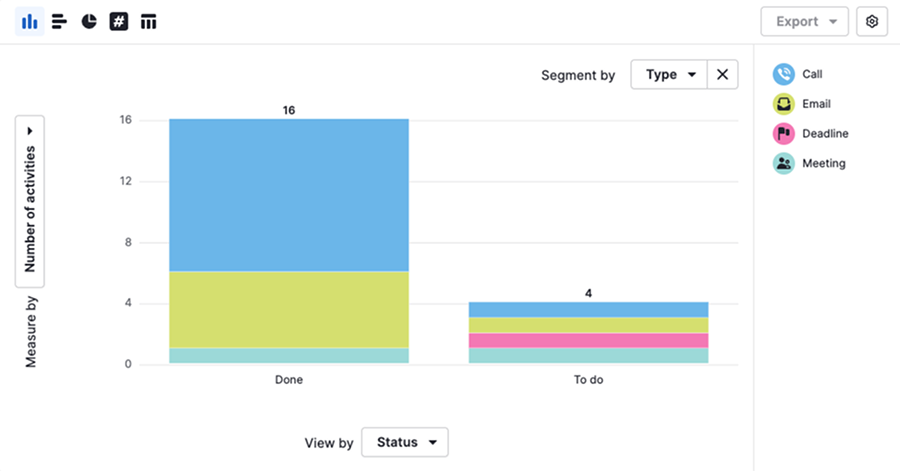
Enviar correos electrónicos es una de las acciones más habituales en ventas, pero, a menos que los añadas como acciones, no contarán como trabajo realizado en tu informe de acciones.
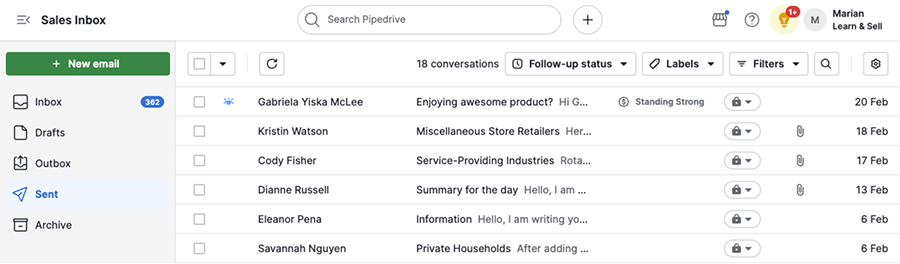
Para asegurarte de que tu esfuerzo se refleje en Pipedrive:
- Habilita la opción para añadir un correo electrónico como acción antes de enviarlo
- Envía el correo electrónico desde Pipedrive
De esta forma, tu comunicación por correo electrónico será visible en Sales Inbox y contará como una acción completada en tus informes.
Cómo agregar un correo electrónico como una actividad
Puedes habilitar esta opción de manera predeterminada en la configuración de sincronización del correo electrónico o ajustarla mientras redactas el correo electrónico.
Añadir correos electrónicos como acciones de forma predeterminada
Para añadir correos electrónicos como acciones automáticamente, abre el menú de la cuenta en la esquina superior derecha de la pantalla y ve a Personal preferences > Email sync > General.
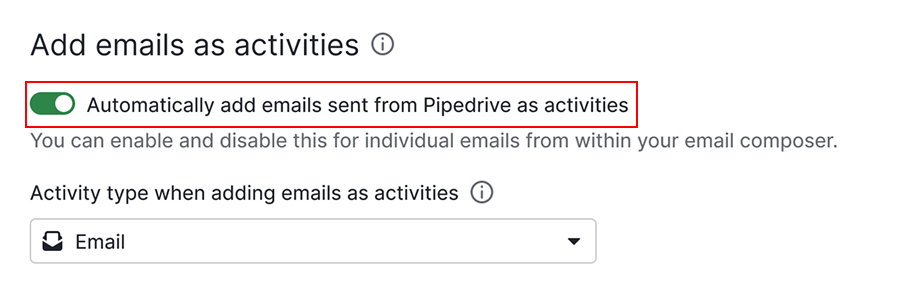
Habilita la opción “Agregar automáticamente como actividades los correos electrónicos que se envían desde Pipedrive”.
Después, elige el tipo de actividad que se utilizará al agregar los correos electrónicos como actividades. Los tipos de actividad disponibles dependen de la configuración de tu empresa.
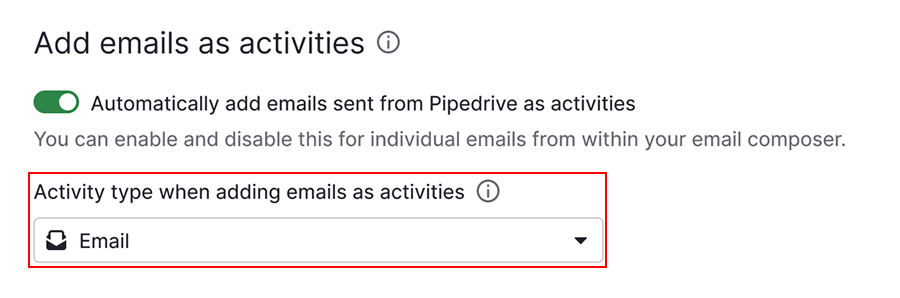
Una vez que hayas seguido los pasos anteriores, cada correo electrónico que envíes desde Pipedrive también se añadirá como una acción completada.
Desde el Buzón de ventas
Haz clic en “+ Nuevo correo electrónico” o responde a una conversación existente. Escribe tu correo electrónico como de costumbre y después, activa la opción “Agregar este correo electrónico como actividad” en el editor de correos electrónicos.
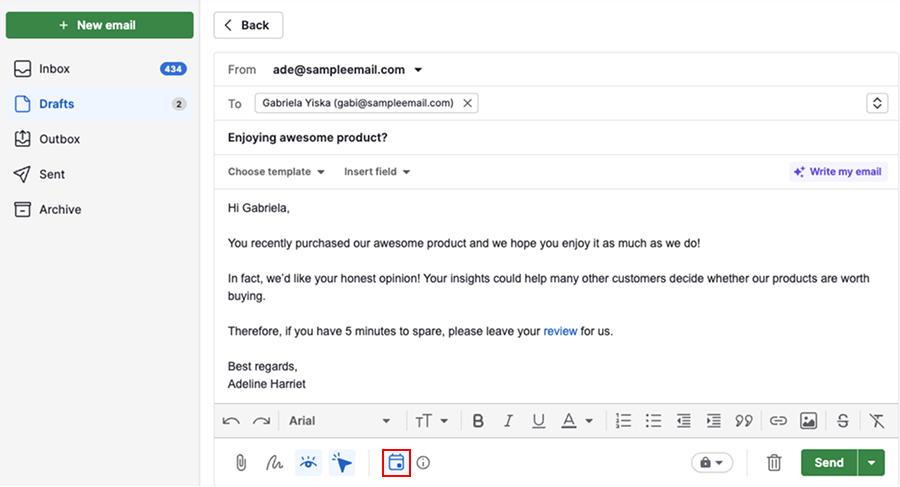
Haz clic en “Enviar”.
Desde la vista de detalles
Abre la vista de detalles de un trato, un prospecto, un proyecto, un contacto o una organización y después, haz clic en “Correo electrónico” para abrir el redactor.
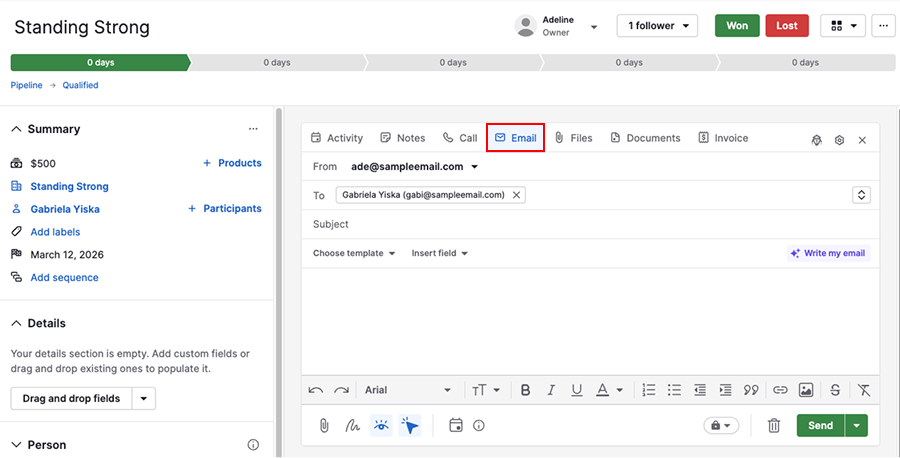
Una vez que hayas redactado el mensaje, habilita “Add this email as activity”.
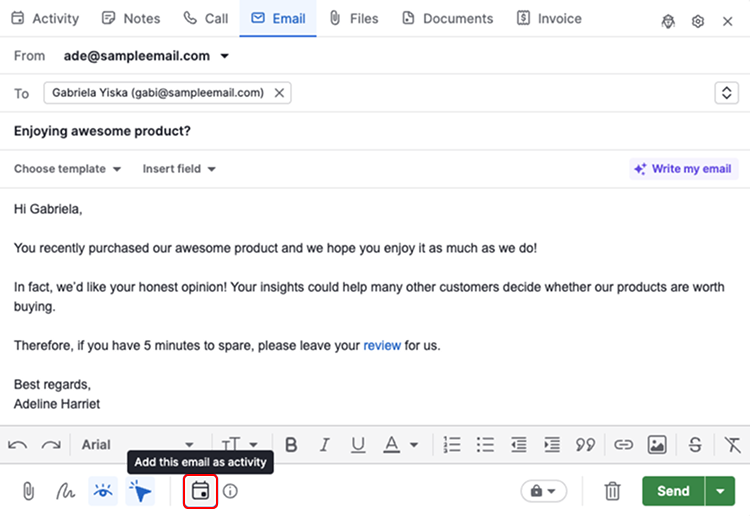
Haz clic en “Enviar”.
Qué ocurre después de enviar el correo electrónico
Cuando conviertes los correos electrónicos en actividades completadas, capturas tanto la comunicación como el esfuerzo.
Tan pronto como hagas clic en “Enviar”, Pipedrive crea automáticamente una actividad de correo electrónico.
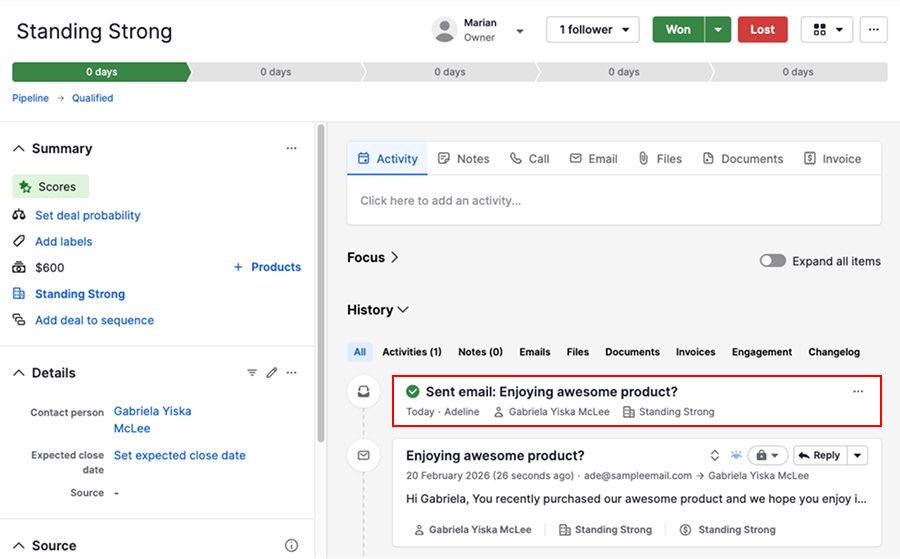
La actividad se marca como completada y se vincula a los mismos elementos que la conversación por correo electrónico.
Esto mantiene tu historial de comunicaciones y tu historial de actividades alineados, de modo que tus informes reflejen todo el alcance de tu trabajo.
Cómo agregar actividades en correos electrónicos que se envían fuera de Pipedrive
Si usas Smart Bcc o envías correos electrónicos desde Gmail, Outlook u otro proveedor, esos correos electrónicos no se añaden automáticamente como acciones en Pipedrive.
Para crear actividades en grupo para estos correos electrónicos, ve al Buzón de ventas y abre la carpeta de enviados.
Selecciona una o varias conversaciones y haz clic en “Agregar actividad”.
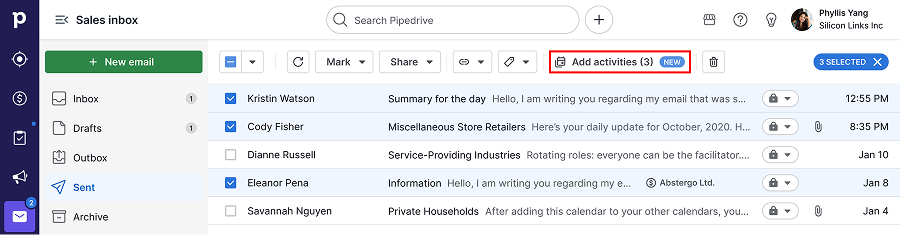
Esto garantiza que tus informes de rendimiento de acciones reflejen con precisión tu actividad por correo electrónico, incluso en el caso de correos electrónicos que no se enviaron originalmente desde Pipedrive.
Informes sobre los correos electrónicos
Para obtener una visión clara tanto de tus esfuerzos de ventas como del volumen de comunicación por correo electrónico, usa dos informes independientes. En la tabla siguiente se explica cuándo utilizar cada uno.
Informe sobre el rendimiento de las actividades vs. informe sobre el rendimiento de los correos electrónicos
| Informe sobre el rendimiento de las actividades | Informe sobre el rendimiento de los correos electrónicos | |
|---|---|---|
| Enfoque principal | Esfuerzo de ventas obtenido mediante actividades completadas | Volumen de la comunicación por correo electrónico |
| ¿Qué correos electrónicos se incluyen? | Actividades de correo electrónico | Correos electrónicos enviados y recibidos |
| Qué te muestra |
|
|
| Ideal para | Revisar el esfuerzo, supervisar el rendimiento y relacionar el volumen de la actividad con los resultados | Comprender la participación en los correos electrónicos y el volumen total de las comunicaciones |
| Puntos clave | Si la opción “Agregar como actividad” está deshabilitada, los esfuerzos relacionados con los correos electrónicos no se mostrarán en este informe | Este informe muestra las comunicaciones, pero no reemplaza las vistas de capacitación basadas en actividades |
Usar ambos tipos de informe te ayuda a entender no solo cuántos correos electrónicos ha enviado tu equipo, sino también cuánto esfuerzo ha invertido en la prospección.
¿Te pareció útil este artículo?
Sí
No