How can I upload a file to a lead, a deal or a contact?
You can attach files directly to leads, deals and contacts to keep important documents organized where they‘re most relevant. Upload files from your computer or Google Drive, access them from the item‘s detail view and easily access them alongside your notes, activities and emails in Pipedrive.
How to upload files
To attach a file to a lead, deal or contact in Pipedrive, go to the deal detail view of the item and select the Files tab.
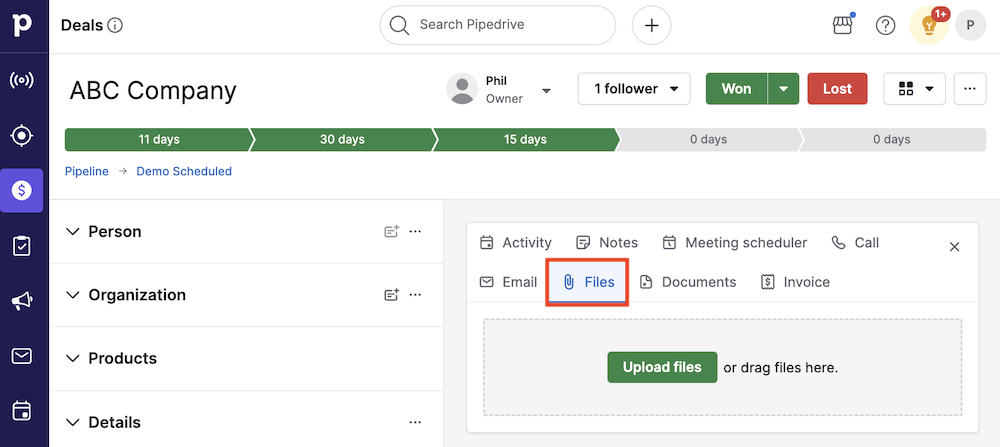
There, you can:
- Drag and drop a file into the upload area
- Click “Select from your computer” to upload from your local storage
- Upload a file using the Google Drive integration
Once uploaded, the file is accessible from the item‘s detail view to users with visibility permissions for that item.
Where to find the uploaded files
Uploaded files are listed in the History section of the item’s detail view.

Files appear alongside notes, activities and emails.
A separate files tab within the History section is available only in the deal and contact detail views. This tab is not available in the lead detail view, where uploaded files appear directly in the History timeline instead.

Adding a description to your file
After uploading a file, you might find it helpful to add a description with further details on the file.
Click the “…” button next to the uploaded file and select “Add description”.
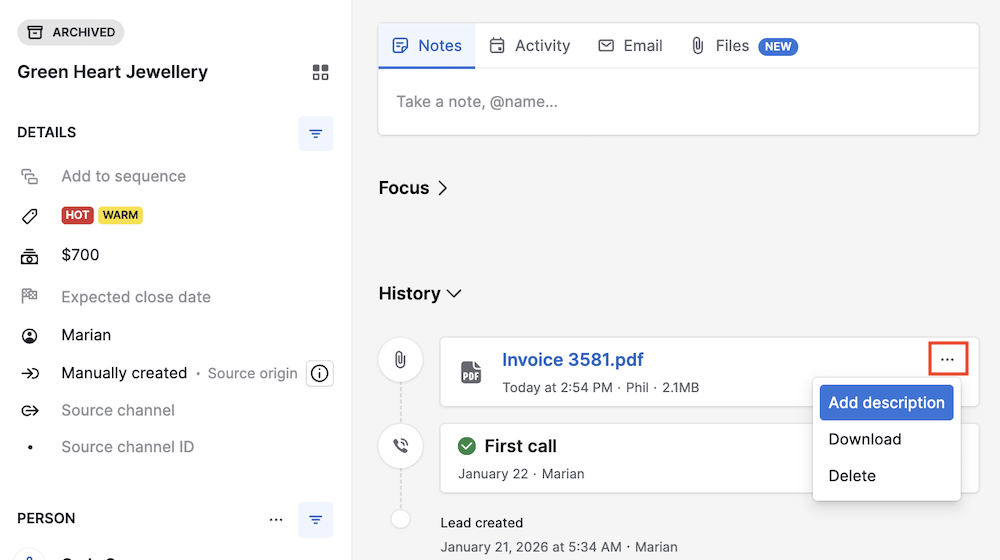
You can also download or delete the file from the same menu.
Once saved, the description appears under the file name in the detail view.

Searching for a file
You can search for the file using the search bar in Pipedrive.

Selecting the result takes you directly to the item’s detail view, where the file is uploaded.
Was this article helpful?
Yes
No