Activity contextual view
Pipedrive's contextual view lets you see and edit an activity‘s details without opening a separate window. This makes it easier to move between tasks and keep working through your list.
With contextual view, you can:
Edit an activity‘s details directly, without leaving your list view
Check any linked deals, people or organizations, or link a new one
Move between activities using the on-screen arrows
Open the full detail view when you need more space
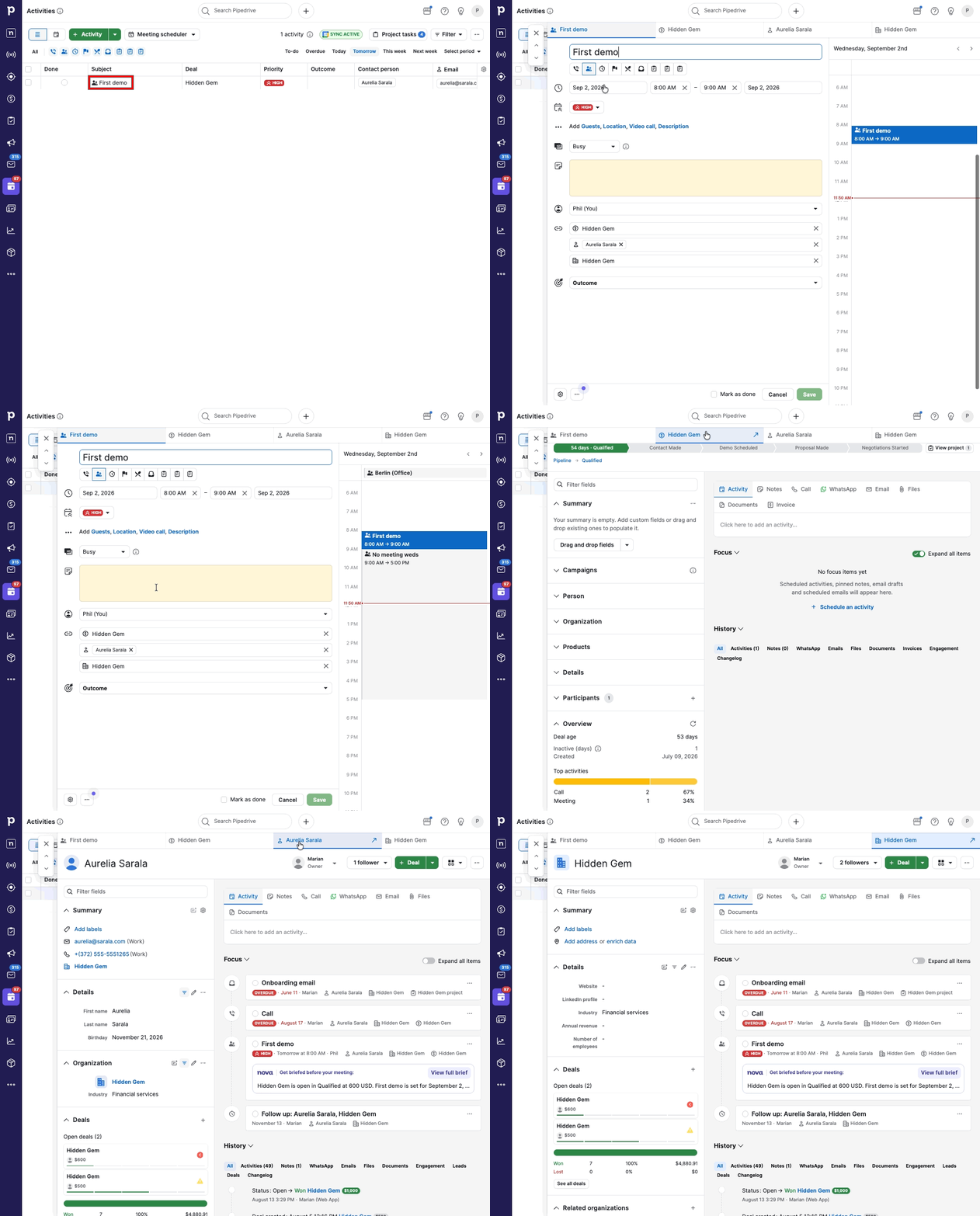
Use the activity contextual view
The activity contextual view opens whenever you click an activity in your activities list view. It shows the same information as the activity's detail view, but keeps you inside your list so you can move quickly between tasks.
Open the activity contextual view
Click any activity in your list view to open its contextual view.
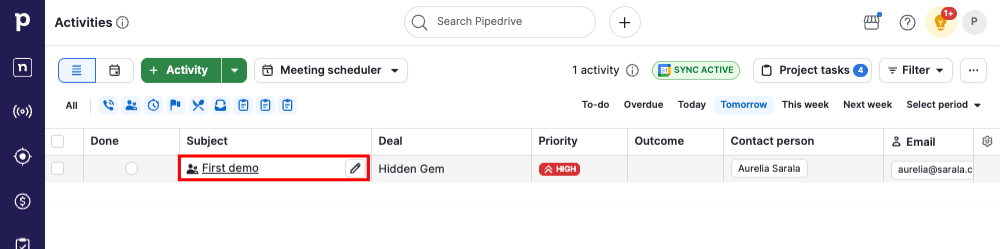
The contextual view appears on top of your list, showing the activity's details on the left and your schedule on the right.
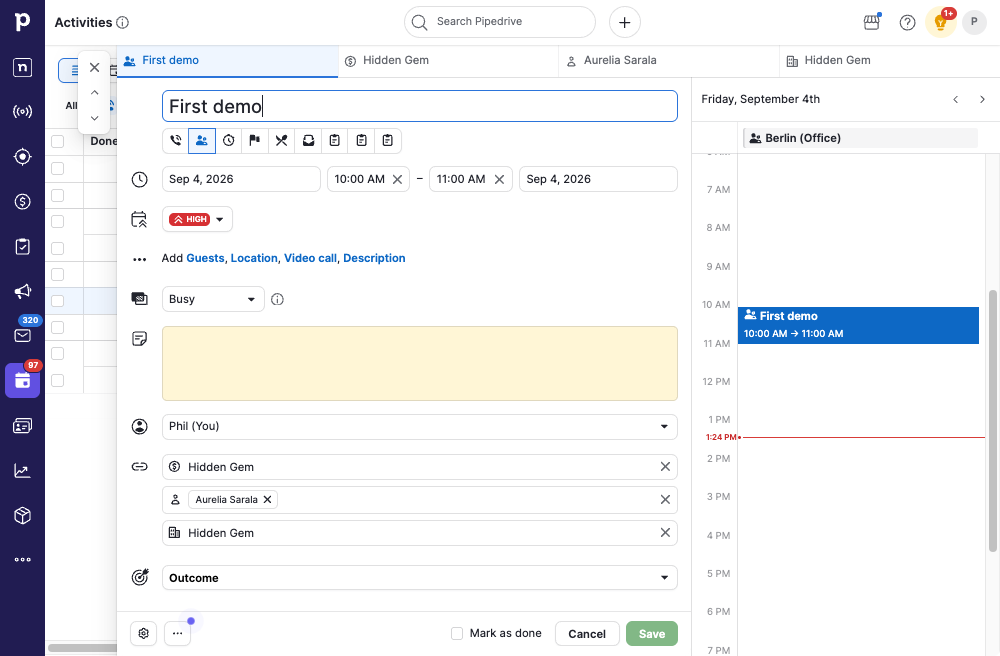
Edit details and link items
While in the contextual view, you can edit the activity's details directly. Click on the tabs to check any linked deals, people or organizations.
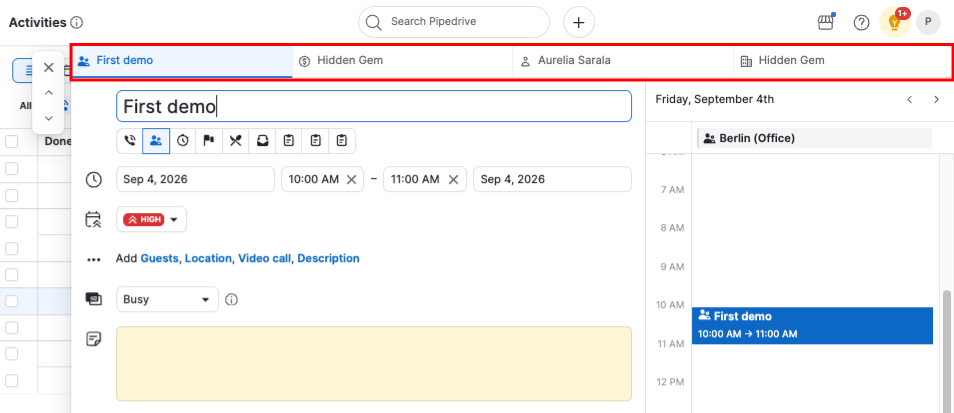
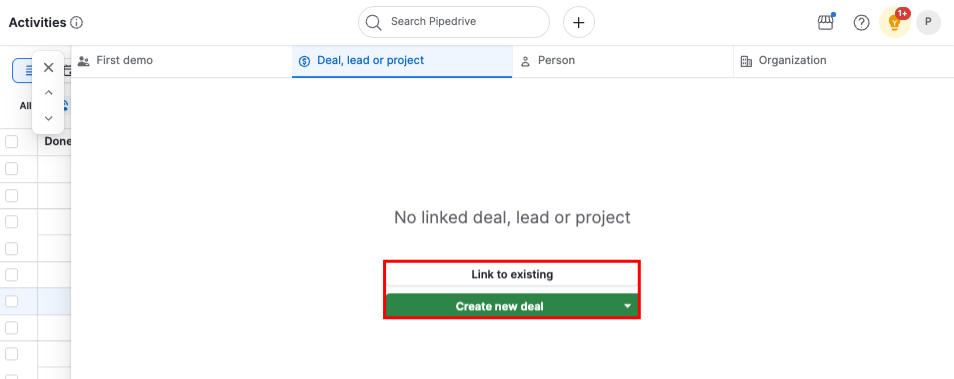
If an activity has no linked item, you can select an existing one or create a new one to link, right from the same tab.
Open the full item detail view
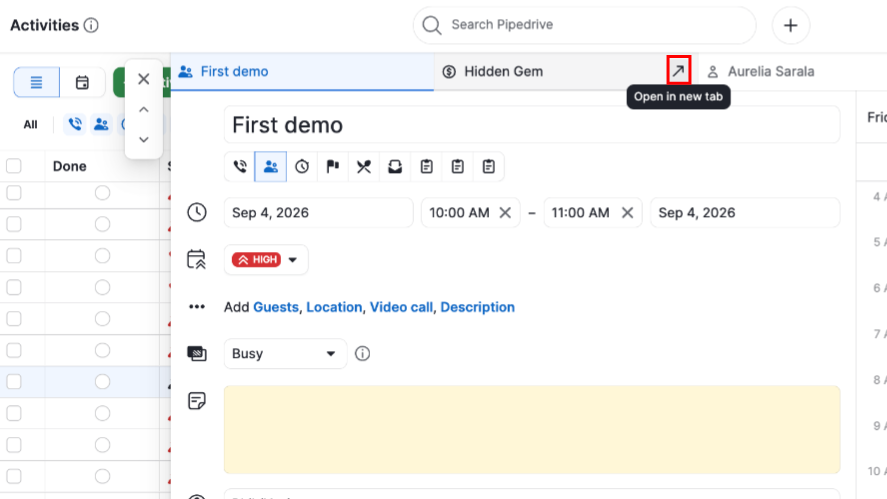
While in the activity contextual view, hover over any linked deal, person or organization tab and click the arrow icon. This opens that item‘s detail view in a new browser tab, so you can dig into the full record without losing your place in the list.
Navigate between activities
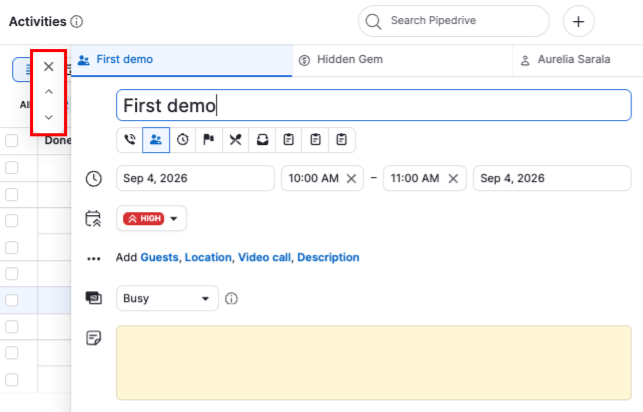
Use the arrows on the left side of the contextual window or use the keyboard shortcuts: J for the next activity and K for the previous one to scroll through your activities one by one. Clicking the “X” or pressing “Esc” on your keyboard will close the window and return to your list.
Was this article helpful?
Yes
No