Pipedrive Nova: Slack notifications
Slack notifications help you keep up with Nova while you work in Slack. Once you connect Slack, Nova sends you a private direct message when a pre-meeting brief or post-meeting recap is ready. You can open the notification to view the full content in Nova.
Requirements
Before you connect Slack, make sure you have:
- Access to Nova
- A Slack account
- Permission to install apps in your Slack workspace, or a workspace admin who can approve the Nova app
Nova supports one connected Slack account in one workspace per Nova user.
Connect Slack
To connect Slack:
- In Nova, go to Settings > Connection
- Find Slack and click Connect
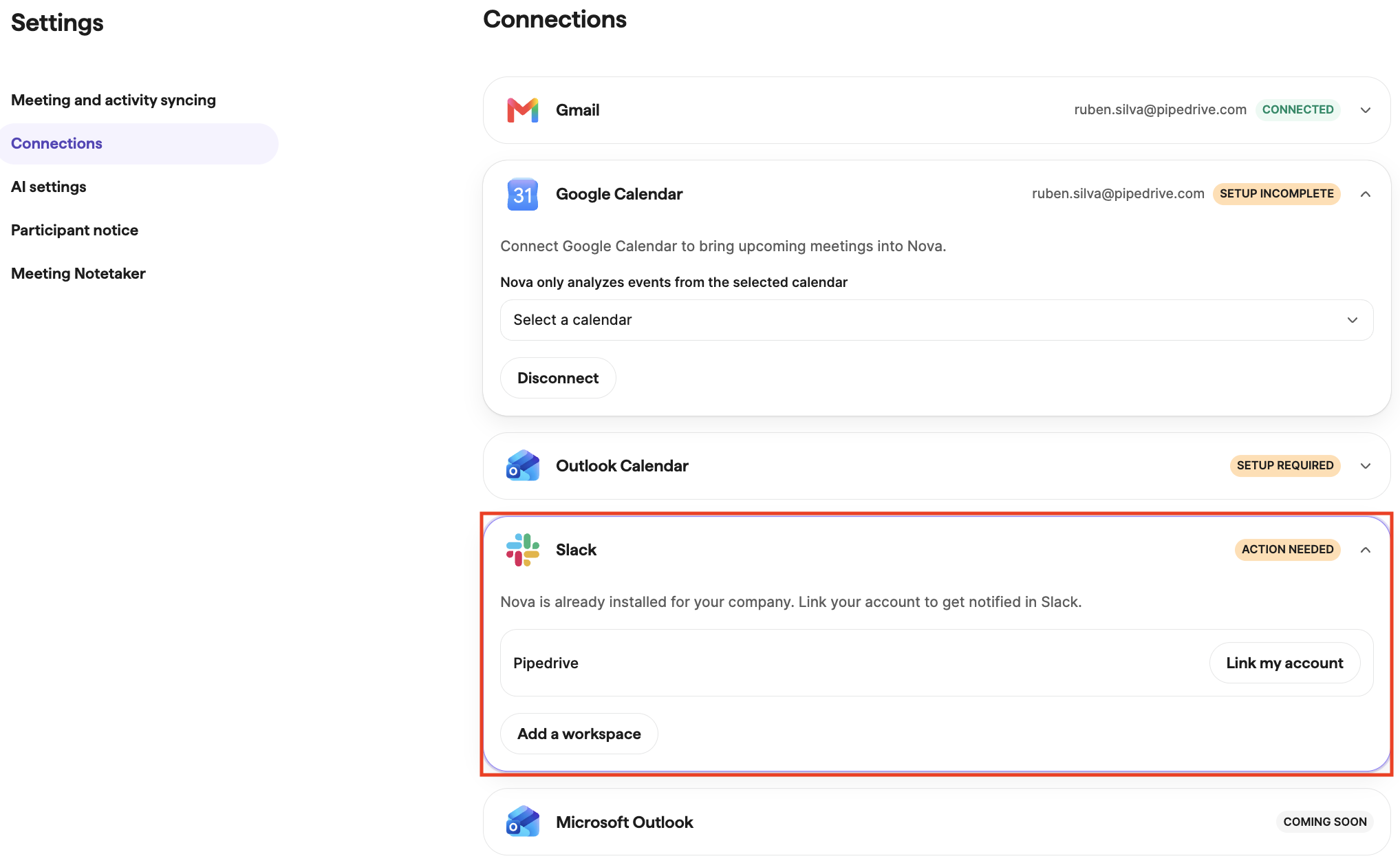
- Select the Slack workspace you want to use
- Follow Slack’s prompts to install or approve the Nova app. If your workspace restricts app installations, Slack sends an approval request to a workspace admin.

- Follow the prompts in Nova to link your Slack account
Once the connection is active, Nova sends notifications for new pre-meeting briefs and post-meeting recaps. It doesn’t send notifications for content generated before you connected Slack.
Notifications you receive
Nova sends private Slack direct messages when:
- A pre-meeting brief is ready
- A post-meeting recap is ready
Each notification includes context about the meeting and links to the relevant content in Nova. Depending on the notification, you can open the brief, summary, transcript or proposed CRM updates in Nova.
Nova sends notifications only to your linked Slack account. It doesn’t send meeting information to public or shared channels.
Slack connection
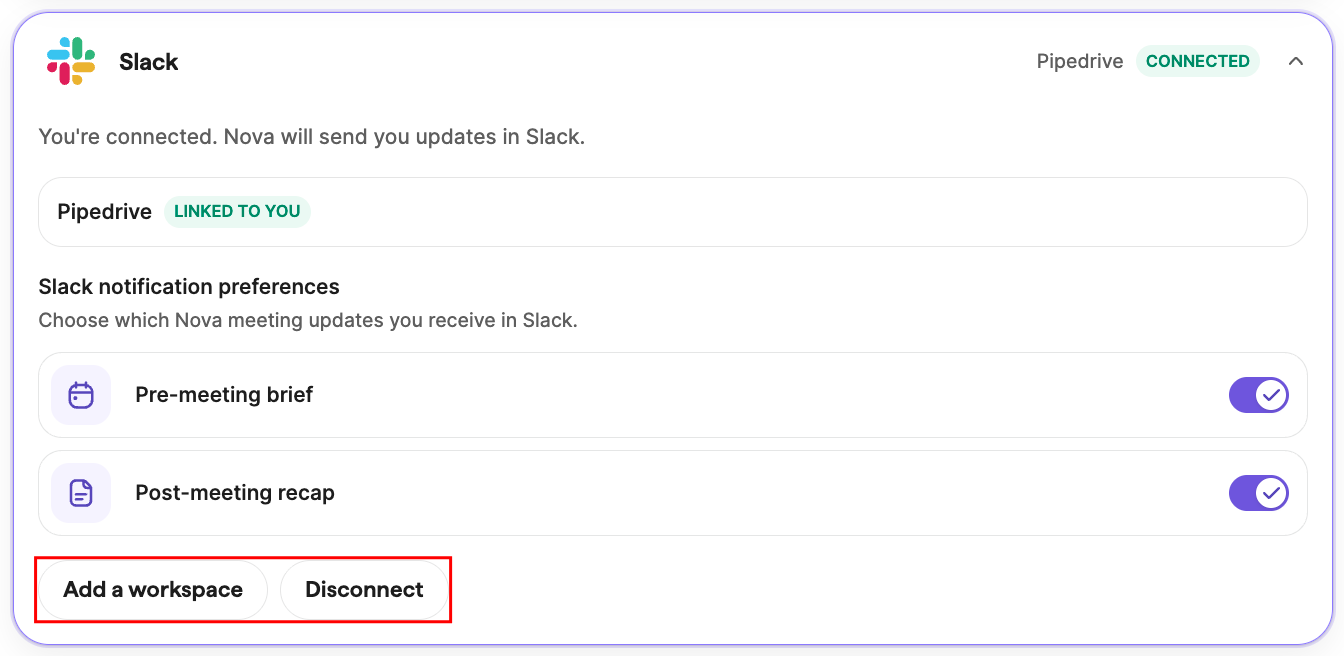
To view or manage your connection, go to Settings > Connections in Nova.
From there, you can:
- Disconnect Slack
- Reconnect Slack
- Connect a different Slack account or workspace after disconnecting the current one
Messages Nova has already sent remain in your Slack direct-message history and are subject to your workspace’s message-retention settings.
Notification preferences
Slack notifications are currently controlled with a single connection setting.
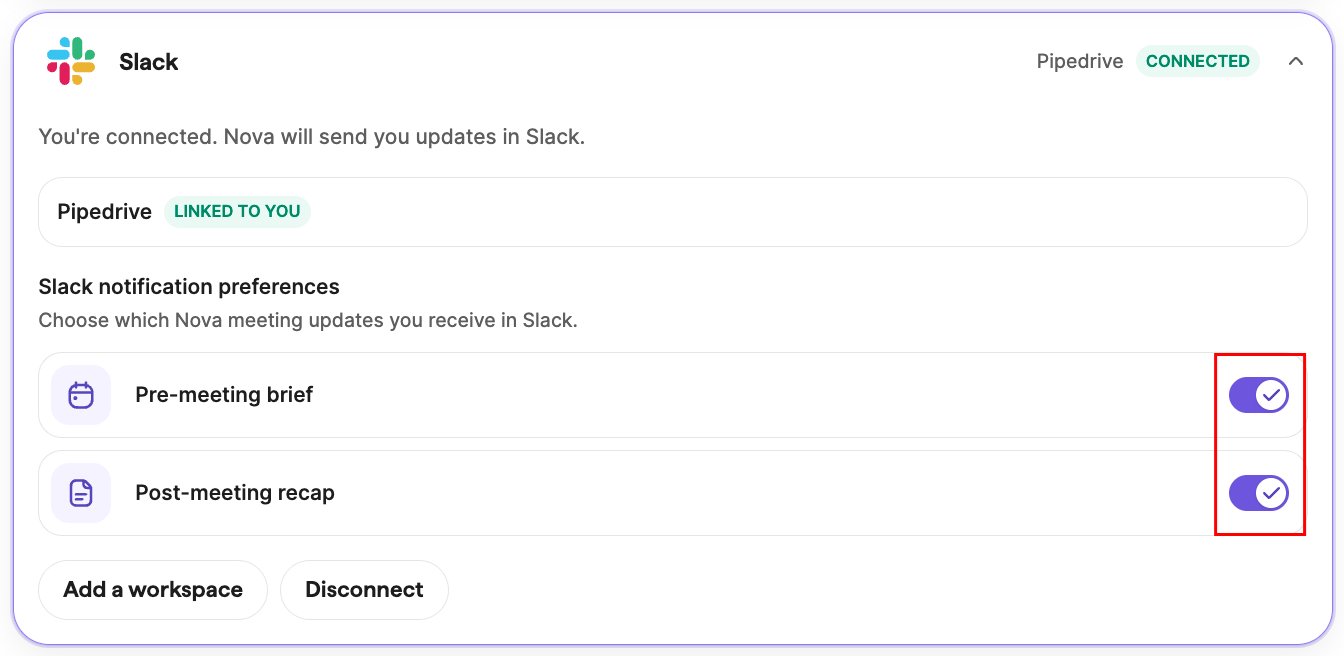
To stop all Slack notifications, disconnect Slack from Settings > Connections. You can reconnect it at any time.
Privacy and permissions
Nova uses Slack only to send notifications to your linked account. The Nova app doesn’t read your Slack message history or search your workspace.
Nova respects your existing visibility and access permissions. You receive notifications only for Nova content you’re allowed to access, and you must be signed in to the correct Pipedrive account and company to open linked content.
Troubleshooting
I can’t install the Nova app
Your Slack workspace may restrict app installations. Complete the approval request in Slack, or ask a workspace admin to approve the Nova app.
Slack is connected, but I don’t receive notifications
- Confirm that you linked the Slack account where you expect to receive messages
- Check that a new pre-meeting brief or post-meeting recap was generated after you connected Slack
- If the Nova app was removed from your workspace or its access was revoked, disconnect and reconnect Slack from Settings > Connections
A notification link doesn’t open the expected content
Make sure you’re signed in to the Pipedrive account and company linked to the notification. If you’re signed out, complete the sign-in flow and open the link again.
I connected the wrong Slack account or workspace
Go to Settings > Connections, disconnect Slack and reconnect using the account and workspace you want to use.
Frequently asked questions
Can Nova send notifications to a Slack channel?
No. Nova sends private direct messages only. Posting to public or shared channels isn't supported.
Can I review or apply CRM updates from Slack?
No. Slack notifications contain links that open the relevant page in Nova, where you can review and apply proposed CRM updates.
Can I connect more than one Slack workspace?
No. Nova currently supports one connected Slack account per user, per workspace.
What happens to my Slack messages after I disconnect?
Nova stops sending new notifications, but messages already delivered remain in Slack. Their retention is controlled by your Slack workspace’s settings.
Was this article helpful?
Yes
No