Customize activity fields
Admins can customize which fields sales reps see when creating, editing and completing activities. This helps teams collect the information they need while keeping activity forms focused on the fields that matter.
You can customize activity fields in two ways:
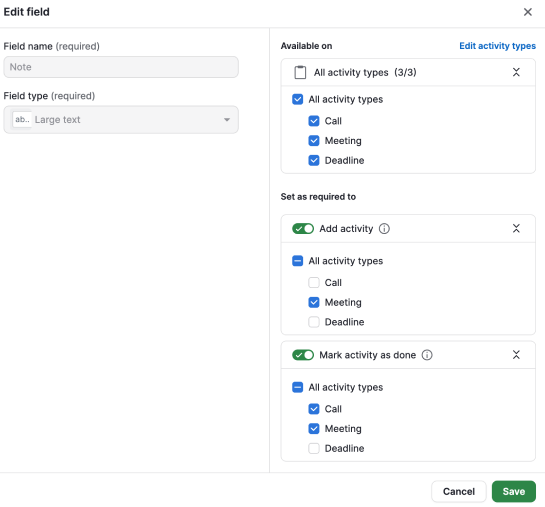
- Adjust default fields: Edit the fields that Pipedrive already provides. Choose which activity types show each field. Set whether the field is required when you add an activity or mark it as done.
- Create custom fields: Add your own fields with a name, field type and list of options. You get the same controls over activity types and required rules as with default fields.
Go to Company settings > Data fields > Activity to manage activity fields.
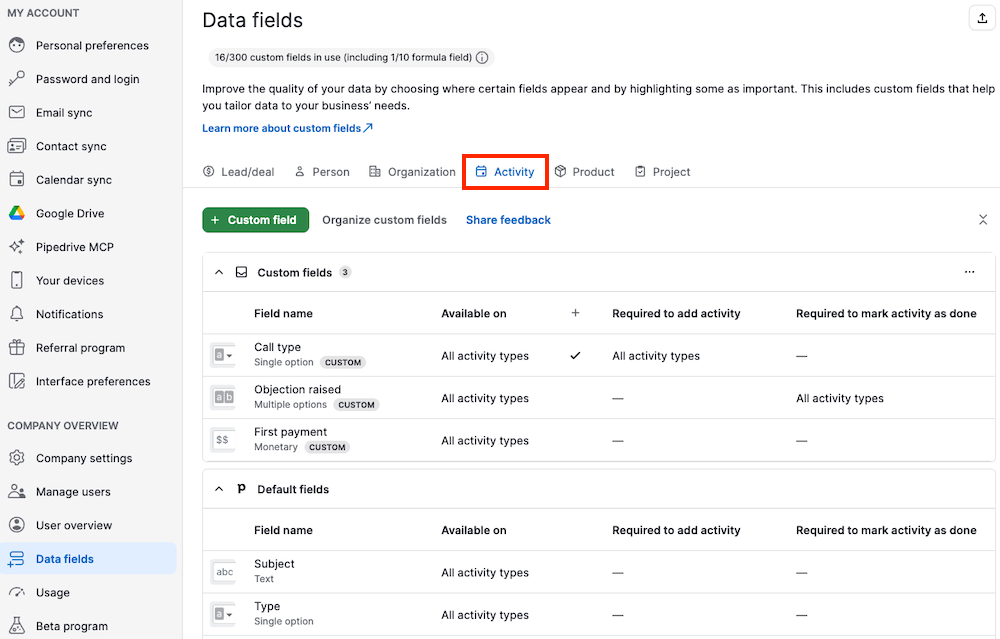
Customize default fields
Pipedrive’s default activity fields can’t be renamed or deleted, but you can change how some of them behave for each activity type.
For example, you can:
- Show the location field for meetings and hide it for tasks
- Require a linked deal before you can add a call
- Require a note before you can mark a meeting as done
The settings you can change depend on the field:
Setting | Available for |
| Show or hide per activity type | Guests, location, video call URL, public description, note, outcome |
| Set as required to add an activity | Priority, guests, location, video call URL, public description, note, linked deal/lead/project, linked people, linked organization |
| Set as required to mark an activity as done | Outcome, note |
Some activity fields look similar because they all involve people. Here’s how they differ:
Field | What it does |
| Guests | Lists the people you invite to the calendar event. You can only add guests if you’ve connected calendar sync. Without it, Pipedrive prompts you to set up calendar sync. |
Assigned to user | Shows the team member responsible for the activity. |
| Linked people | Links Pipedrive contacts to the activity. It’s a multi-select field and appears next to the Deal/Lead/Project and Organization fields. |
Customize the ”Outcome” field
The outcome field lets you record the result of a completed activity. For example, you can record whether a call connected or a meeting took place.
The note field is free text, so it works best for details about what happened.
Outcome uses a set list of values, so your team records results consistently. With outcome, you can:
- See results in the activities list and filter by them
- Report on results in insights, such as calls that connected and calls with no answer. Learn more in Insights reports: activities performance.
- Use outcomes in automations
Default outcome values
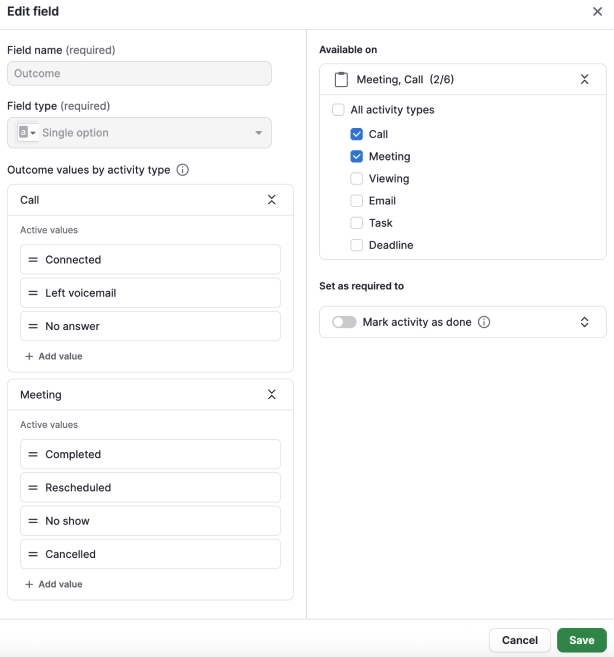
By default, outcome is available for call and meeting activities. It includes these values:
- Call: connected, left voicemail, no answer
- Meeting: completed, rescheduled, no-show, cancelled
Manage the Outcome field
Admins can:
- Add custom outcome values
- Rename custom outcome values
- Reorder all outcome values
- Deactivate and restore any outcome value
- Choose which activity types show the outcome field
- Require the outcome field before someone can mark an activity as done
Create custom fields
Creating, editing and deleting custom fields works the same way as for other items in Pipedrive. For the basics on field types, naming and how to add or edit fields, check Custom fields.
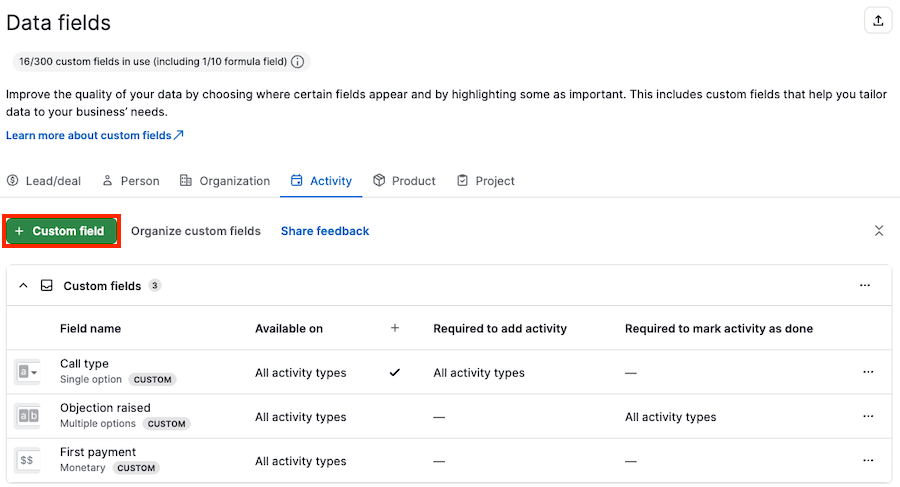
To create an activity custom field, go to Company settings > Data fields > Activity.
Click “+ Custom field”.
You can also reorder custom fields relative to each other. Click “Organize custom fields” next to the “+ Custom field” button. Each activity type has its own order, set separately. Reordering fields for meetings doesn’t change the order for calls.
After you create a custom field, users see it grouped under the note field when they add or edit an activity. Users can also show these custom fields as columns in the activities view and filter activities by them.
Require information to add an activity
You can require users to fill in certain fields before they save a new activity. This works for any custom field and for these default fields: priority, guests, location, video call URL, public description, note, linked deal, lead or project, linked people and linked organization.
If a required field is empty, whether it’s a default or a custom field, users can’t save the new activity until they fill it in.
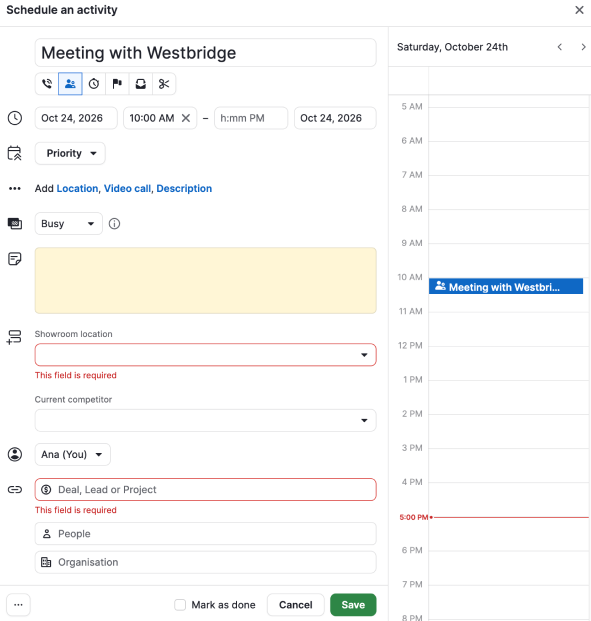
Keep in mind:
- Pipedrive only checks required fields when you create an activity. Editing an existing activity later doesn’t trigger the check again.
- The setting doesn’t apply to activities created before you turned it on.
Require information to mark an activity as done
You can require users to fill in certain fields before they mark an activity as done, including the default fields outcome and note.
This setting is independent of the setting that requires a field when you add an activity. A field can be required when you add an activity, when you mark it as done, at both points or at neither.
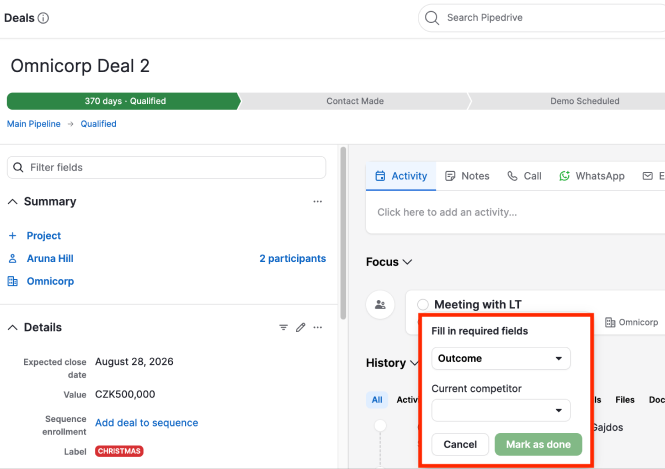
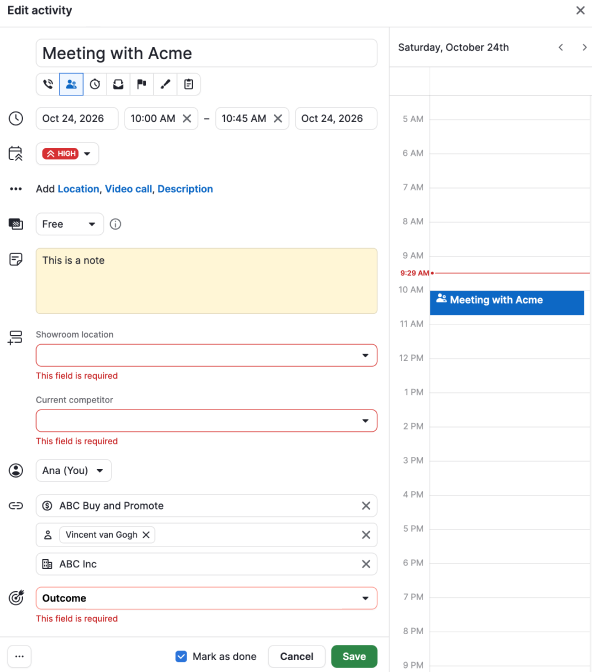
If a required field is empty, Pipedrive prompts users to fill it in when they mark the activity as done.
If you mark an activity as done with a quick completion action and one or two required fields are empty, a popover asks for the missing information.
If three or more required fields are empty, a full activity view will point out the fields that users need to fill in.
Was this article helpful?
Yes
No