Customize activity fields
Admins can customize which fields sales reps see when creating, editing and completing activities. This helps teams collect the information they need while keeping activity forms focused on the fields that matter.
Go to Company settings > Data fields > Activity to manage activity fields.
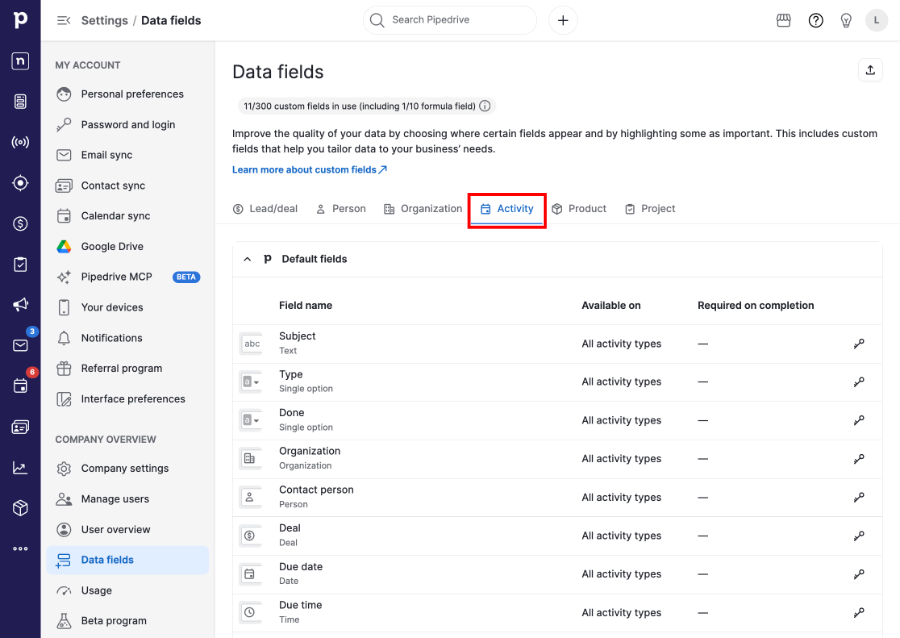
Configure fields by activity type
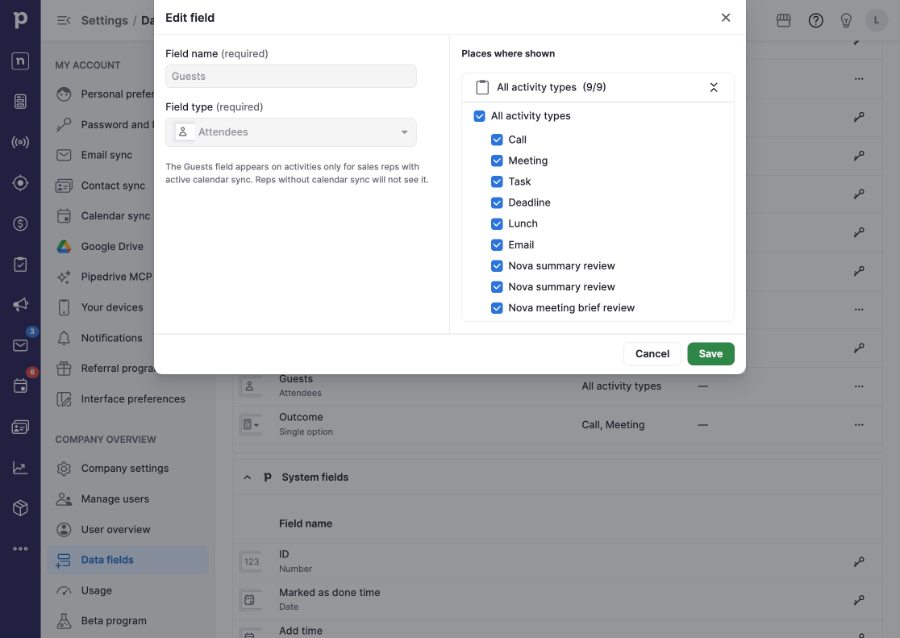
Some activity fields can be configured separately for each activity type. For example, you can show a field for meetings but hide it for tasks.
In the Activity tab, you can configure:
- Outcome
- Note
- Location
- Guests
- Description
- Video call URL
Depending on the field, you can:
- Show or hide the field for each activity type
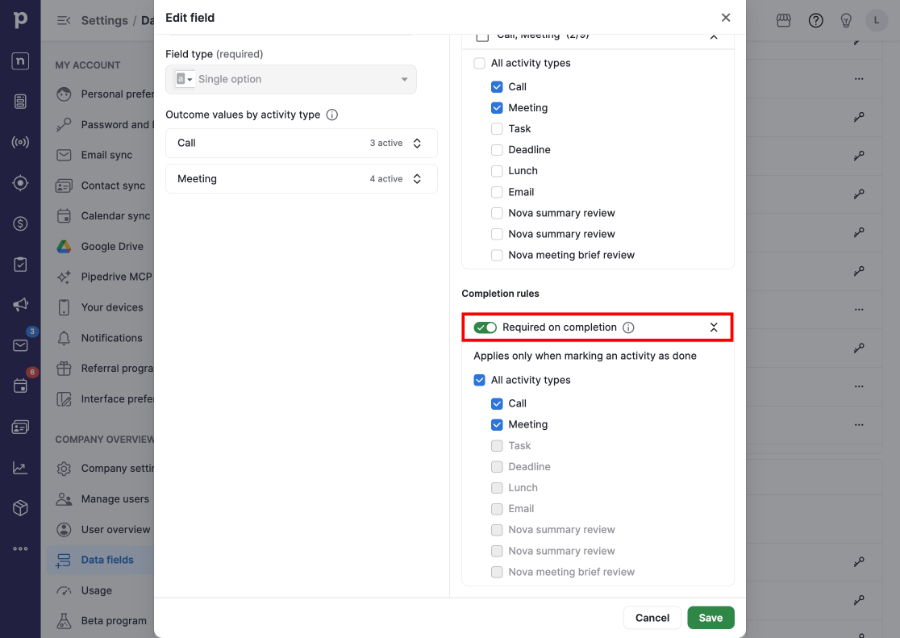
- Make the field required before an activity can be marked as done
- Manage available field values
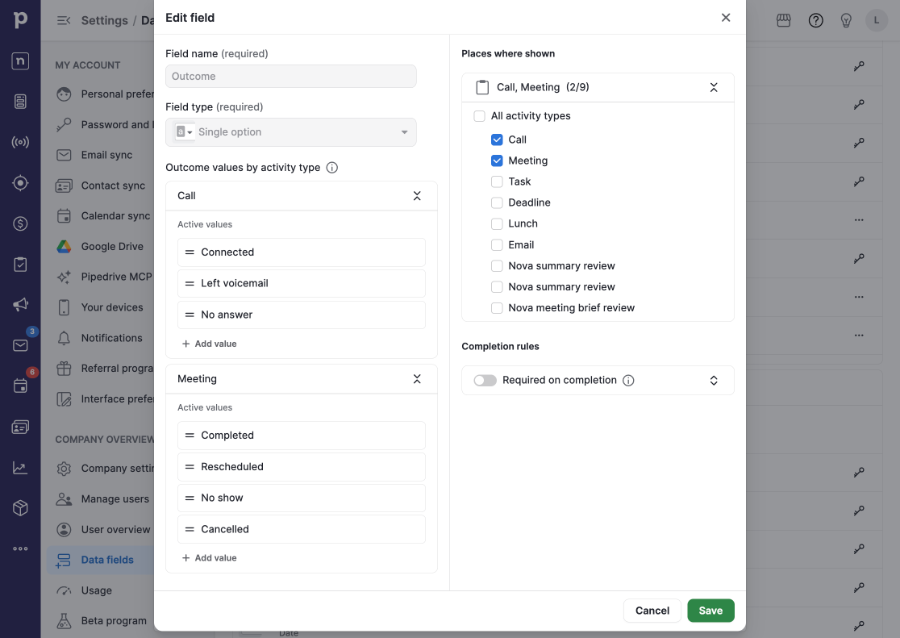
Customize the ”Outcome” field
The ”Outcome” field allows salespeople to record the result of completed activities.
By default, the field is available for ”Call” and ”Meeting” activity types and includes Pipedrive-defined outcome values.
Admins can:
- Show or hide the field for each activity type
- Make the field required before an activity is marked as done
- Add custom outcome values
- Reorder outcome values
- Deactivate and restore custom outcome values
Require information before completing activities
You can require sales reps to complete the outcome field, the note field or both before an activity can be marked as done.
When a required field is missing, users will be prompted to provide the information before the activity is completed.
This validation also applies when users mark activities as done from quick completion actions throughout the web app.
What salespeople see
Sales reps will see the configured fields whenever they create, edit or complete activities.
The outcome field is available in:
- The ”Edit” activity dialog
- The ”Add” activity dialog when logging a completed activity
- The activities list and filters
- The web calling experience
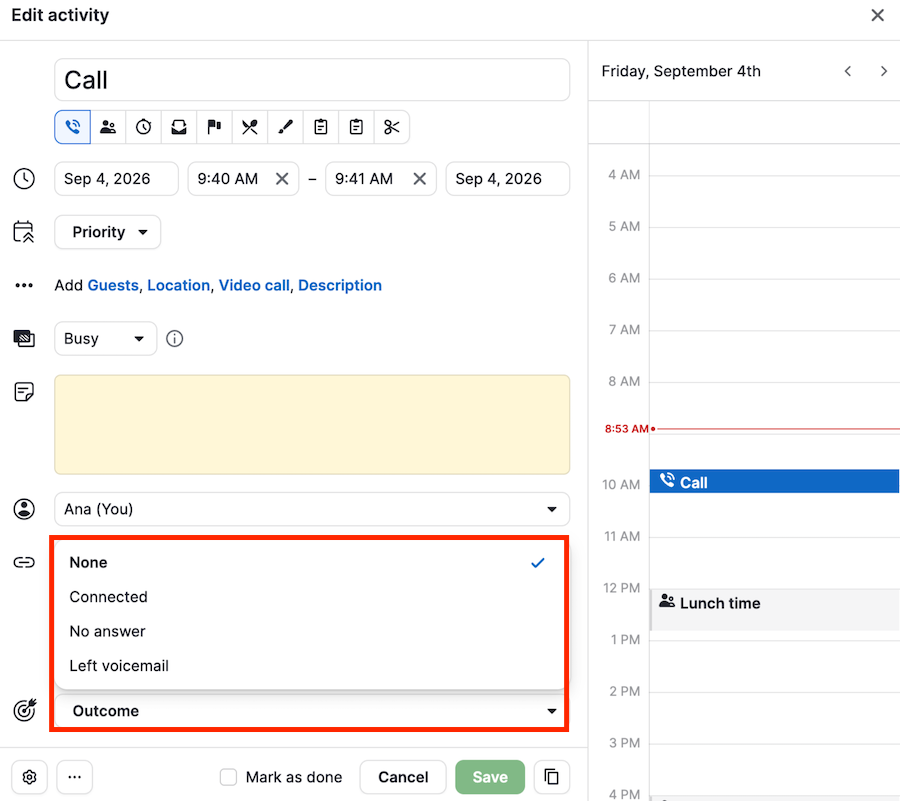
You can also select an outcome when marking an activity as done without opening the activity editor.
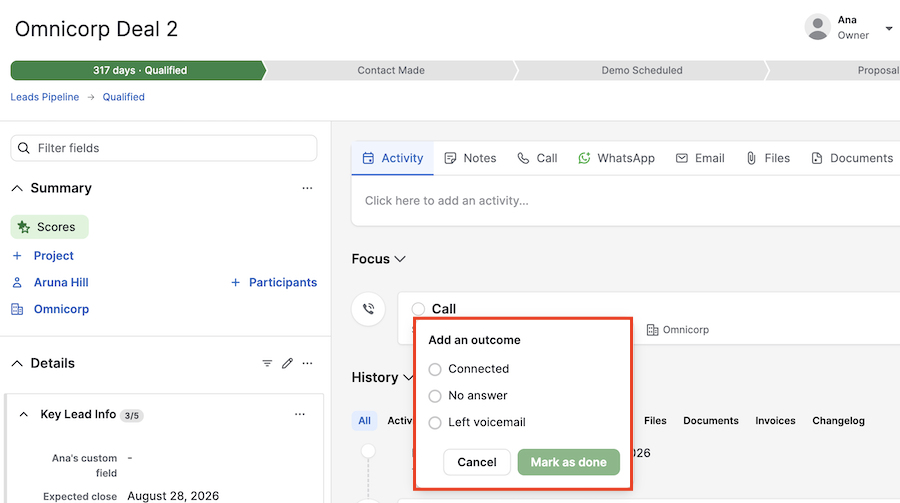
If required fields are configured, they must be completed before the activity can be marked as done.
Was this article helpful?
Yes
No