Projects: manage work items efficiently
As your projects grow, updating tasks, subtasks, activities and milestones one by one can take more time. Pipedrive gives you several ways to add, shift and update work items in bulk, so you spend less time on manual updates and more time moving work forward.
We’ll refer to tasks, subtasks, activities and milestones collectively as work items throughout this article. For the basics of creating and editing a single work item, see Projects: how to plan your project.
Add tasks in bulk
Instead of adding tasks one at a time, add a whole list in a single step.
Go to the project’s plan tab and click “+ Task” in the phase or group where you want the tasks to live.
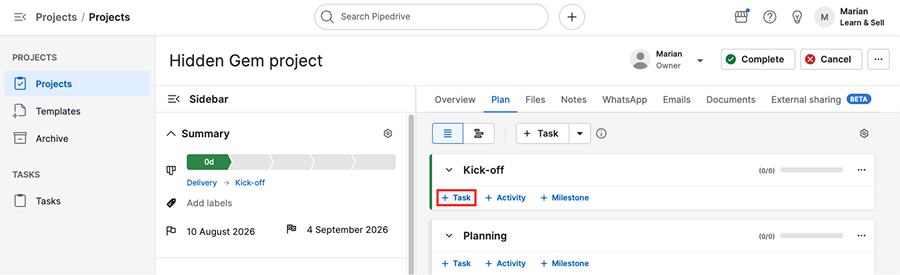
Paste a list of tasks, or press Shift + Enter to add each one on a new line. If you include a date with a task, Pipedrive automatically sets that date as the task’s due date.
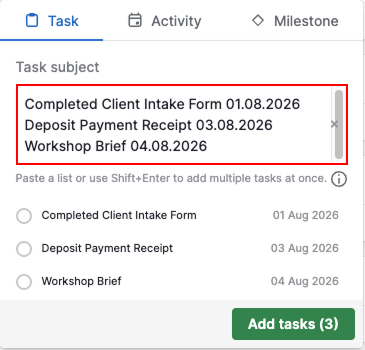
Click “Add tasks”. You can edit the assignee, priority or other details for each task afterward.
Shift work timelines
When a project’s timeline changes, you often need to move more than one work item. The Gantt view inside a project lets you shift an entire phase or group at once.
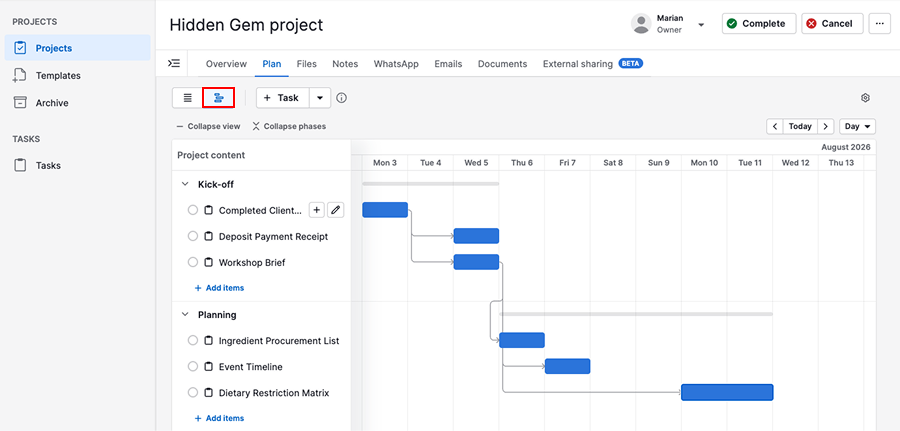
Move work items
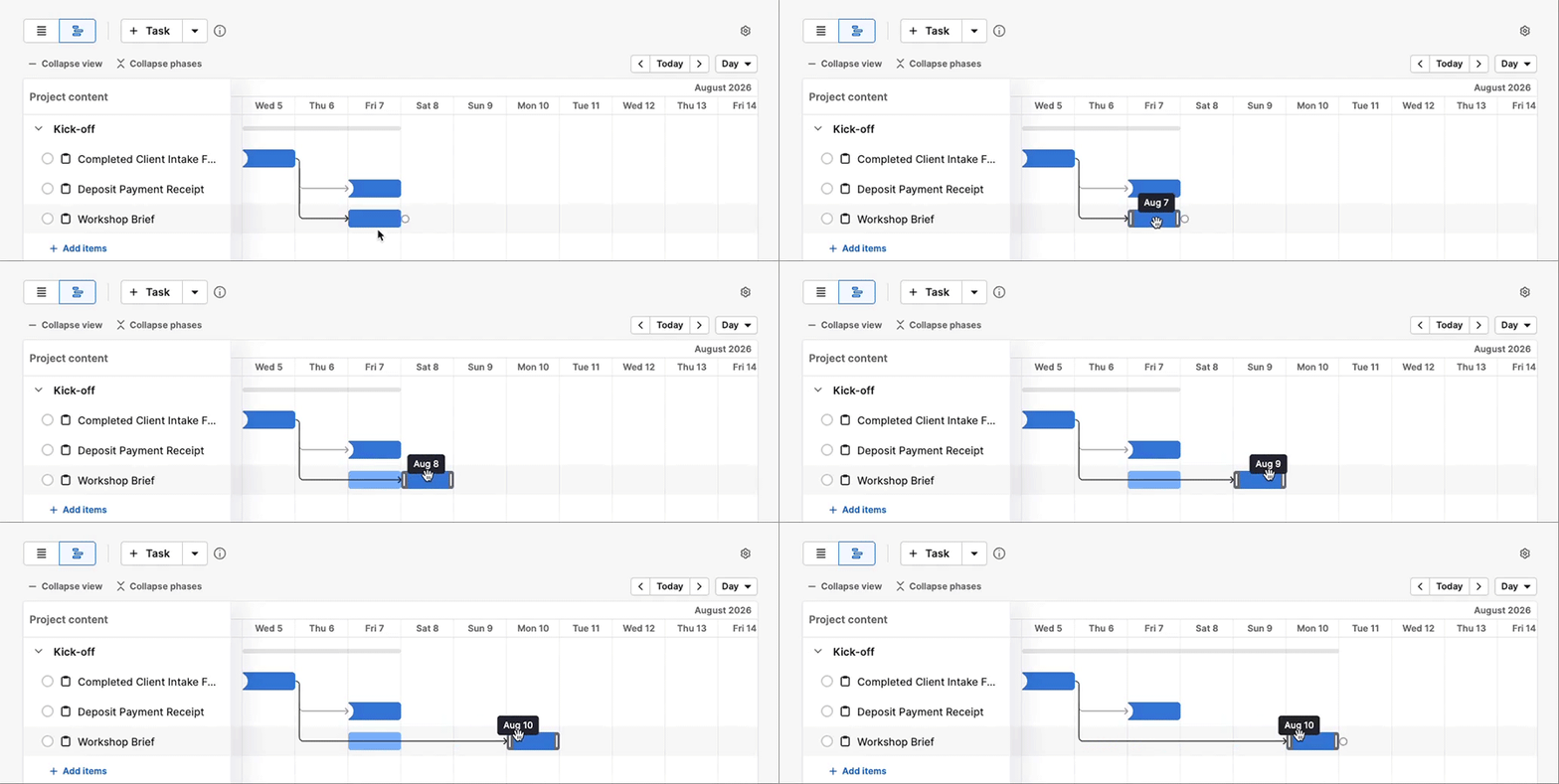
Select the block of work items in a phase or group, then drag to shift the entire block in time.
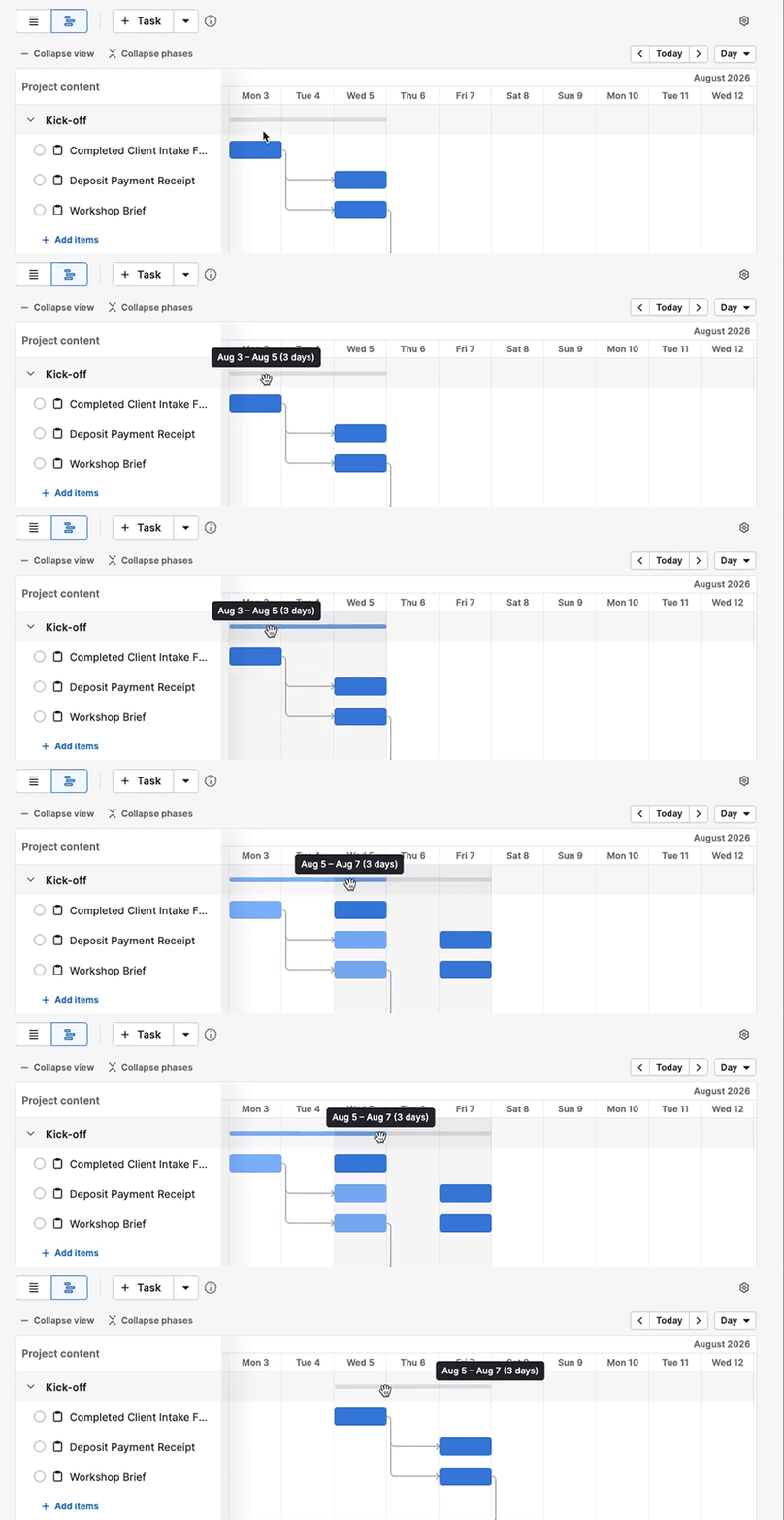
All the items keep their spacing relative to each other. For example, if one task starts on Monday and the next starts on Wednesday, shifting the block by two days moves them to Wednesday and Friday.
Move individual work items
If only one item needs to move, drag that item on its own instead of selecting the whole phase or group. This works the same way as shifting a block, just for a single item.
Update tasks and milestones in bulk
You can bulk edit tasks and milestones directly from the task list view. Go to tasks in the left sidebar to see them listed together.
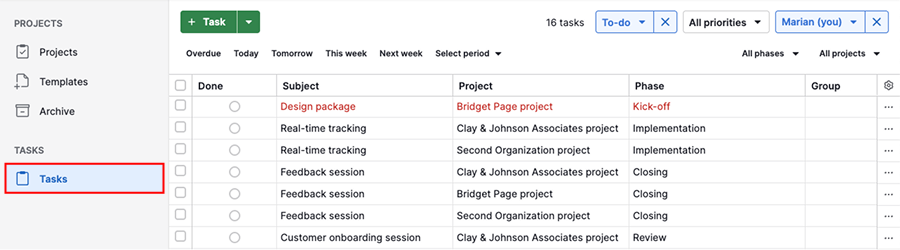
To narrow down the items you’d like to edit, filter by item status, priority, owner, due date, project phase or project status.
Select the items you want to update, then bulk edit any of the following fields:
- Subject
- Done status
- Due date
- Start date
- Assignees
- Project
- Board/phase
- Priority
Auto-complete remaining work items
When a project changes phase or status, Pipedrive lets you handle any remaining open tasks, subtasks, activities and milestones without updating them one by one.
Mark the remaining work items as done
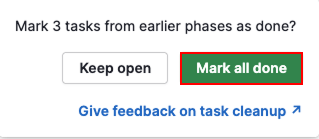
When you move a project to its next phase or mark it as complete, Pipedrive lets you mark any remaining open work items in that phase as done.
For example, if a phase has four tasks and only one is marked done, progressing the project to the next phase lets you close out the other three at the same time.
Delete remaining work items
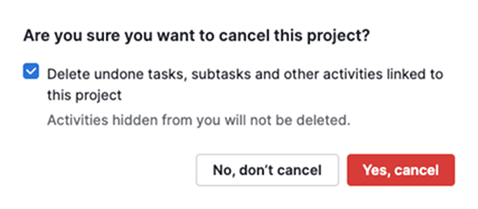
When you cancel a project, Pipedrive lets you delete any remaining open work items rather than mark them as done, since the project’s work won’t continue.
Stay on top of deadlines
Set up a summary email that brings work item deadlines to your inbox.
Enable summary email
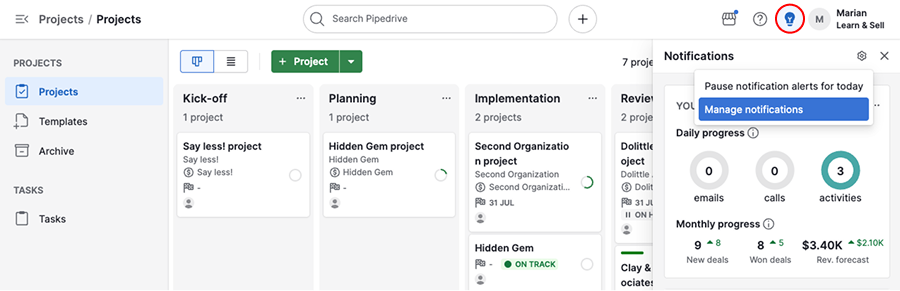
Click the light bulb icon in the top right corner, then click the gear icon and select “Manage notifications”.
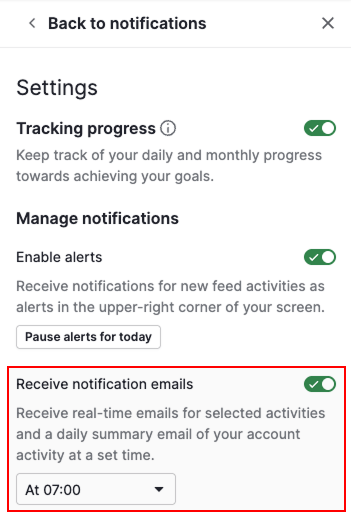
Enable “Receive notification emails” and set the time you want the email sent.
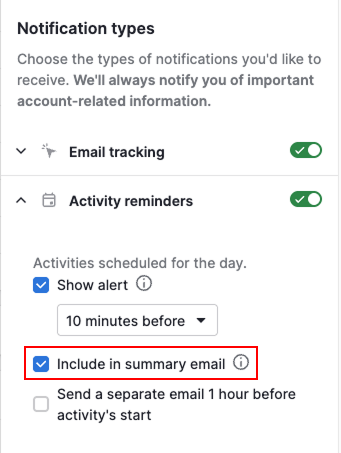
To include project work in the email, scroll to the notification types section. What each setting includes is different, so enable whichever matches what you want to see:
- To receive activities, expand “Activity reminders” and enable “Include in summary email”
- To receive tasks, subtasks and milestones, expand “Project tasks” and enable “Include in summary email”
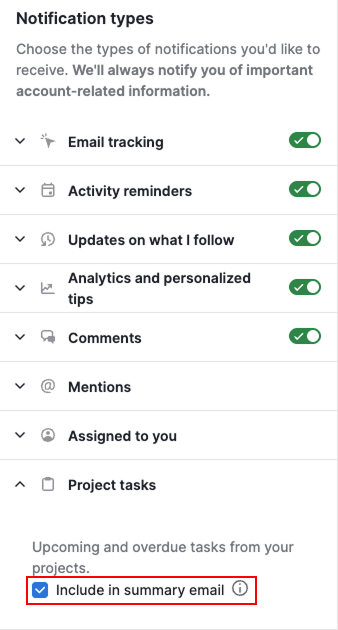
You can enable one or both, depending on which work items you want to see.
Open tasks directly from the email
When you open the summary email, click any work item to go directly to it in Pipedrive.
This saves you from searching for the task manually once you know what needs attention.
View tasks alongside your activities
To see tasks and milestones in the activities list view, alongside your activities, click “Project tasks”.
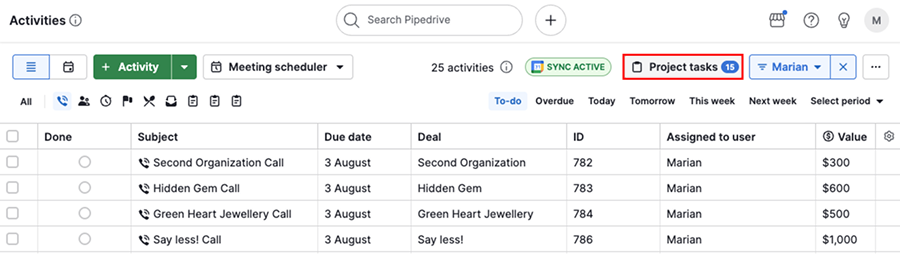
This means you can see and mark your work items as done in one place, without switching between the two views.
Was this article helpful?
Yes
No