WhatsApp: send and manage messages
Once WhatsApp is connected and your conversations are linked to deals and contacts, you can reply, send templates, and manage each conversation directly in Pipedrive. This article covers day-to-day messaging. For connecting WhatsApp to Pipedrive, see the “WhatsApp integration: how to set it up” article. For an overview of WhatsApp in Pipedrive, linking conversations to deals and contacts, and permissions, see the WhatsApp integration article.
Compose and send messages
Reply with free text, send an approved template, schedule a message for later, or send it now, then track whether it was delivered and see how your contact reacted.
Reply with free text
WhatsApp only lets you continue an existing conversation with free text for 24 hours after the customer’s most recent message. Once that window closes, you’re required to use an approved template to continue.
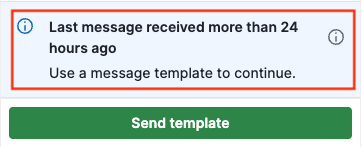
The composer indicates whether the service window is currently open and how much time you have left to reply.
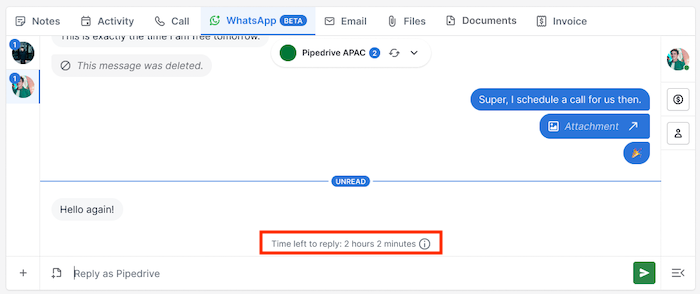
Open any active conversation and type your message in the text field to continue the discussion. Once your message is ready, send it directly from the conversation view.
If your WhatsApp account is configured for coexistence, you’ll also see a link to open the conversation directly in the WhatsApp app.
Coexistence mode
If your WhatsApp Business number is configured for coexistence, Pipedrive and the WhatsApp Business app can share the same number simultaneously. Incoming messages are visible in both, and you can reply from either platform.
When coexistence is active, a “Chat in WhatsApp” link appears in the conversation composer, allowing you to switch to the WhatsApp app for any thread at any time.
Send a template
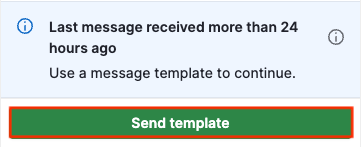
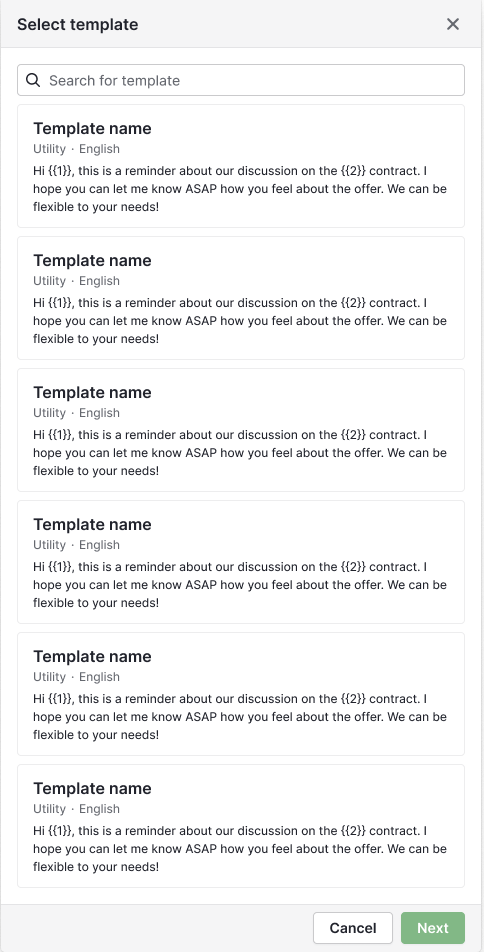
To send a template, open a conversation and click “Send template”. You can search and select a template based on its name, category, language, or content.
After selecting a template, click “Next” and review the content to fill in any required variables.
A preview will show how the message will appear to the recipient. Click “Send” to deliver the message.
To create or manage the templates available here, see the “Managing WhatsApp templates” article.
Schedule messages
Instead of sending a message immediately, you can also schedule it to go out at a future date and time. This works for freeform text messages, templates, and file attachments.
To schedule a message, compose it as normal and then open the “Schedule message” option next to the “Send” button.
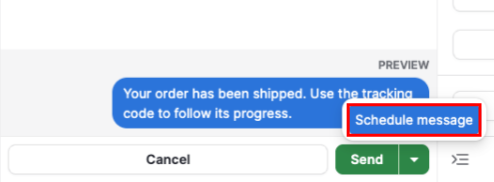
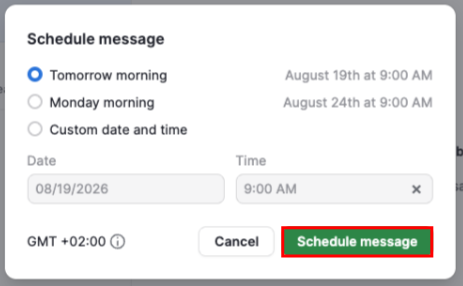
Pick one of the quick presets or choose a custom date and time, then click “Schedule message” to confirm.
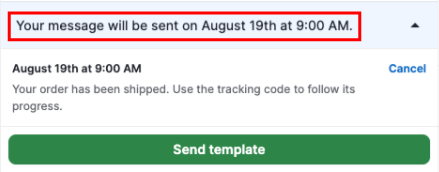
A banner in the conversation footer shows any pending scheduled messages.
Message delivery status
Each message you send shows its current delivery state:
Sent: WhatsApp has accepted your message
Delivered: the message has reached the customer’s device
Read: the customer has opened the message
If a message fails to send immediately, it shows an error state with a “Try again” button. Click it to resend the same message.
If WhatsApp reports a failure after the message has already left Pipedrive (for example, the recipient’s account is restricted), the message updates to an error state with the reason shown.
In this case, there is no retry option. You’ll need to compose and send a new message manually.
Message reactions
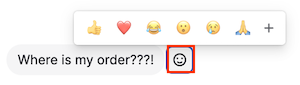
You can react to messages using emojis directly in the conversation. When a customer reacts to one of your messages, it appears in real time.
To react to a message, hover over the message and select an emoji from the reaction picker. Each message supports one active reaction per user. Sending a different emoji replaces the previous one.
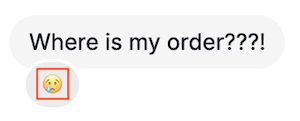
To remove your reaction, click it again in the conversation.
Files and media
View, send, and browse the images, videos, documents, and audio shared in a WhatsApp conversation.
Work with files and media
Pipedrive archives inbound media files automatically so they remain accessible beyond WhatsApp’s original seven-day retention window.
Images are shown inline in the conversation. Click an image to preview or download it.
Audio messages play directly in the conversation.
Videos and documents appear as file entries that show their file type. You can download them directly from the message. Filenames are shown in the file browser but not in the conversation view.
File browser
To view all media and documents shared in a conversation, expand the contextual sidebar and click “See files”.
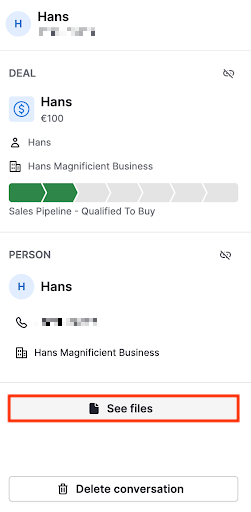
The file browser opens with two tabs:
Media: shows images, videos, and audio clips grouped by month. Click any thumbnail to open a full-size preview.
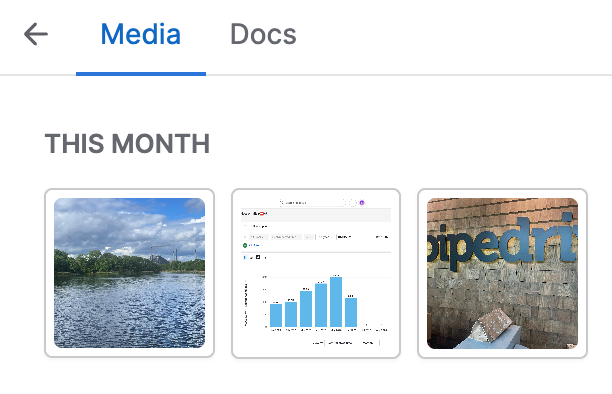
Documents: lists documents in chronological order with the filename, file type, and a download link.
Scroll down in either of them to load older files.
Manage conversations
Beyond sending and receiving messages, you can flag a conversation for follow-up or remove it from Pipedrive entirely.
Mark a conversation as unread
You can mark a conversation as unread to flag it as a personal reminder to follow up. To do so, open a conversation, expand the contextual sidebar, and click “Mark as unread.” The conversation’s unread indicator turns on immediately in the conversation list and the inbox counter.
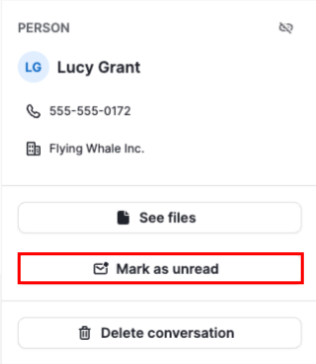
The unread flag is temporary: it clears the next time the conversation is opened. It doesn’t affect the actual message content, and nothing is sent to WhatsApp or the contact.
Delete a conversation
You can permanently delete a conversation from the contextual sidebar. Open a conversation, expand the sidebar, and click “Delete conversation”. A confirmation dialog will appear, since deletion is permanent and can’t be undone.
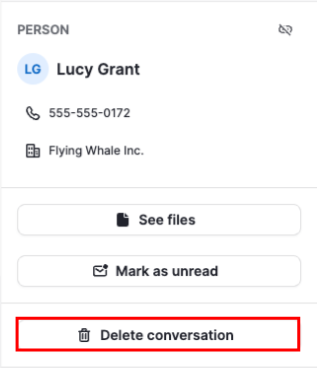
Deleting a conversation removes all of its messages, reactions, and links to deals, contacts, and other entities. Bear in mind that this action only affects Pipedrive. The contact’s WhatsApp chat history is not affected, as WhatsApp doesn’t support message deletion via its API.
Notifications
When a new WhatsApp message arrives, Pipedrive sends you a feed notification if both of the following are true:
You’re assigned to the phone number that received the message, and
You own or follow the deal linked to that conversation
The notification includes the sender’s name, a message preview, and the deal name. Click it to open the conversation directly in your Sales Inbox.
Was this article helpful?
Yes
No