WhatsApp integration
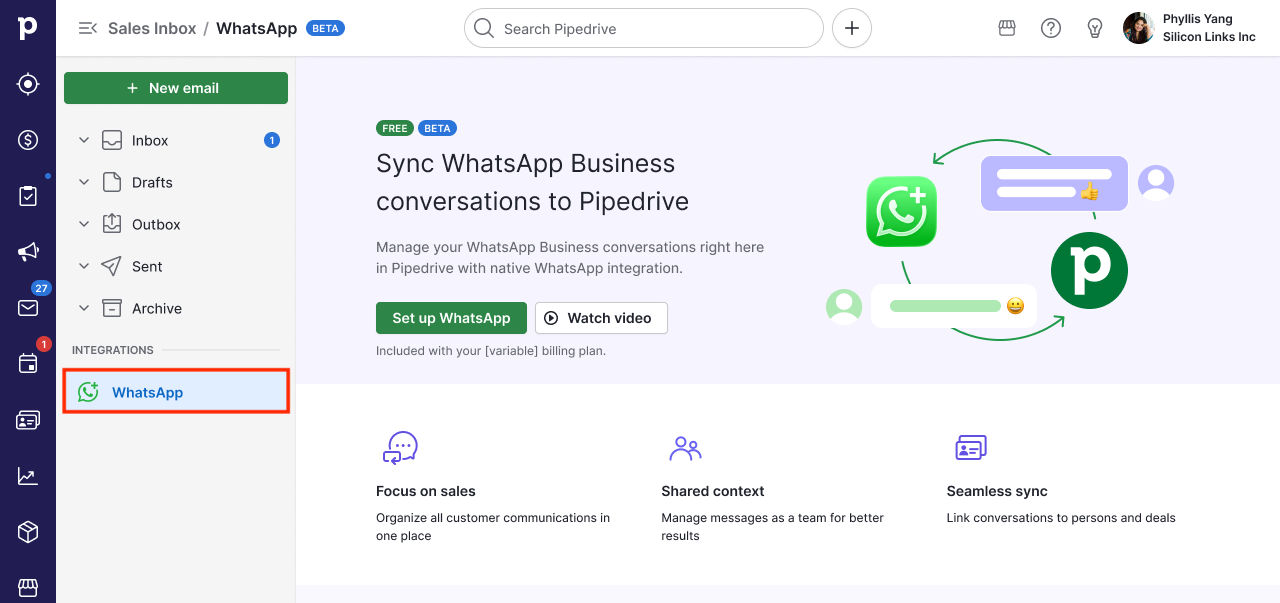
The WhatsApp integration lets you manage your WhatsApp conversations directly in Pipedrive, keeping your sales communication organized and connected to your deals and contacts.
This feature allows you to view conversations, send template messages, reply in real time and link chats to your pipeline so your team always has full context.
What you can do with WhatsApp messaging
Bring all your sales conversations into Pipedrive.
Respond to new leads, follow up on conversations and use message templates when re-engaging a contact.
Send reminders, share next steps and stay on top of renewals or upgrades.
Meet the customers where they’re at, respond faster and follow up smarter, all while staying on top of every deal.
React to messages with emojis and see the reactions your customers send.
View images inline and play audio messages directly in the conversation.
Send files (including images, documents, audio and video) directly from the conversation, as well as download videos and documents from the message
Receive in-app notifications for new messages on conversations linked to your deals, so you never miss a customer reply.
With real-time chatting, you can reduce missed connections and slow or crowded email inboxes, enabling lightweight back-and-forth conversations that feel more natural.
Keep in mind that Meta charges businesses for using the WhatsApp business platform. These charges are per message for messages delivered to users. The final cost is determined by two main factors:
The charge is applied upon message delivery, not when it’s sent.
The message category, which is one of four types: marketing, utility, authentication, or service.
Where to find WhatsApp conversations
You can access WhatsApp messaging within the Sales Inbox and the detail views of deals and contacts.
Sales Inbox
Open the Sales Inbox and click the WhatsApp integration to view a list of WhatsApp conversations associated with your assigned number. Conversations are ordered by most recent activity.
You can filter the conversation list using the tabs at the top:
All: every conversation on your assigned number
Unread: conversations with unread messages
Unlinked: conversations not yet linked to a deal or contact
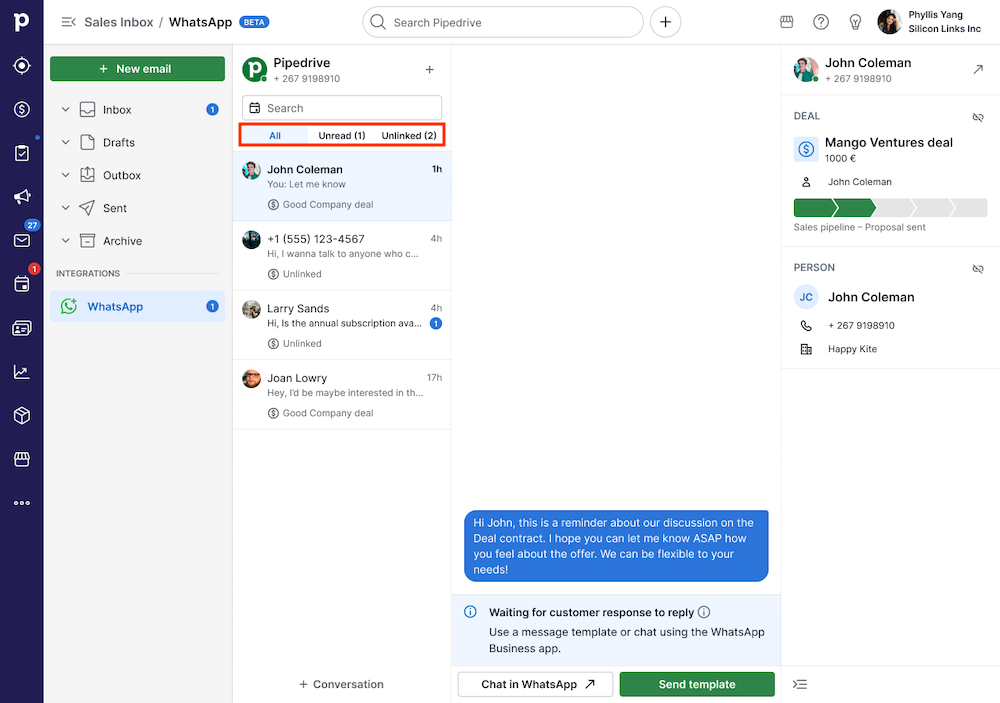
A counter next to the WhatsApp inbox in the navigation bar shows your total unread messages and updates in real time. From here, you can open any conversation, read messages, reply and link conversations to deals or contacts.
Detail view
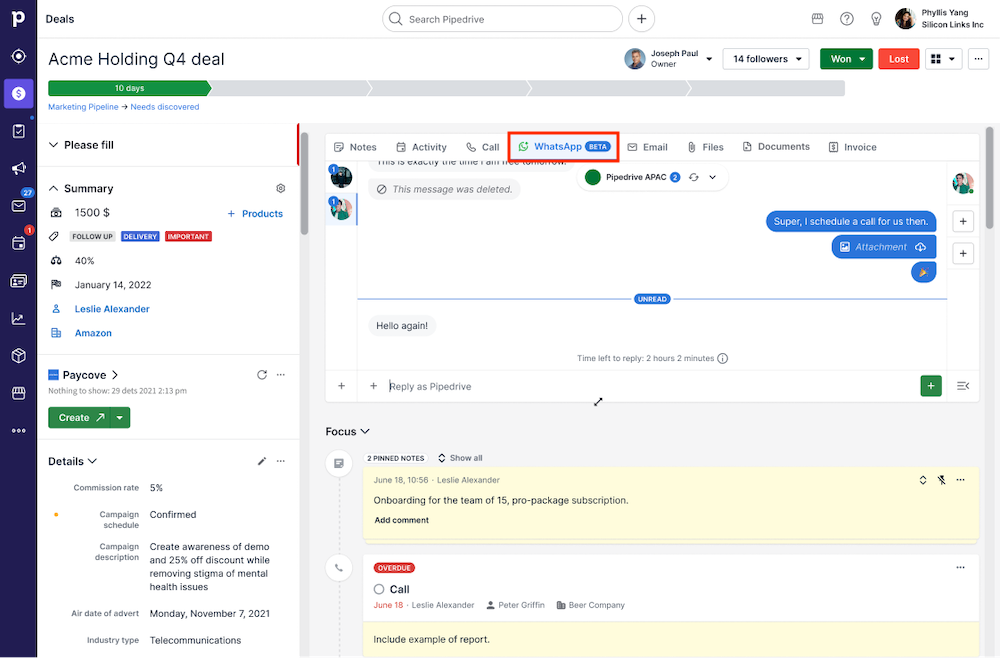
Open a deal, person, lead, or project and click the “WhatsApp” tab to see all WhatsApp conversations linked to that item. This gives you full visibility into past interactions without leaving the context of your pipeline.
How to start a WhatsApp conversation
Go to Sales Inbox > WhatsApp and click “+ Conversation”, then either select a person or enter a WhatsApp number to start a conversation. If the contact already has a phone number with a country code saved in Pipedrive, it will be pre-filled automatically.
If the contact has multiple phone numbers, you can choose the right one from the dropdown.
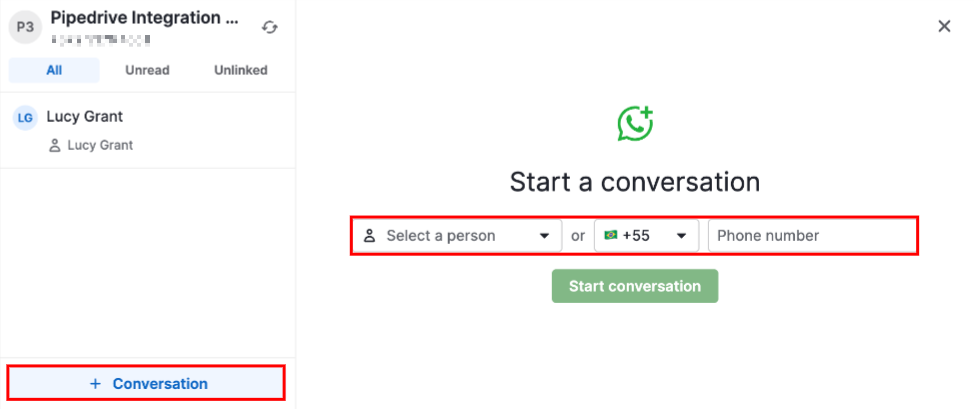
If the contact doesn’t have a number in Pipedrive, or the number is missing a country code, you can enter the correct WhatsApp number manually in the input field.
To continue chatting with a customer, click an existing conversation in the list.
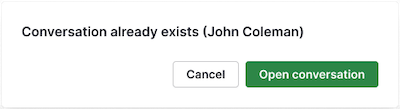
If a conversation with a specific contact already exists, Pipedrive will prompt you to open the existing thread rather than create a new one.
Starting a conversation from the detail pages
You can start a conversation directly from a person, deal, or organization detail page by clicking “Start conversation”.
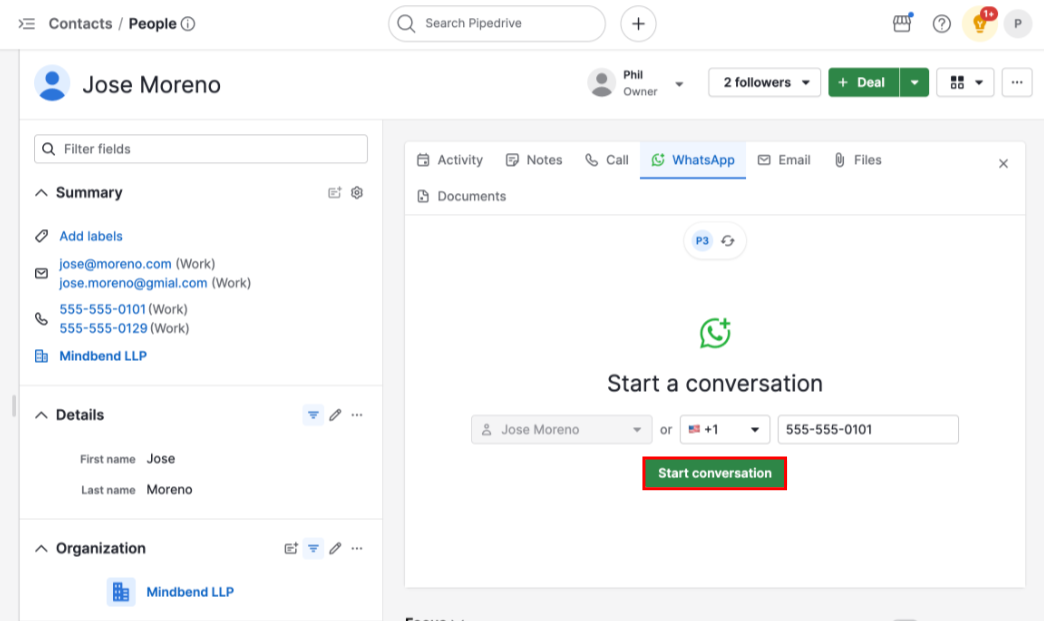
Person detail page: the phone number field is pre-filled with the person‘s main phone number. If they have multiple numbers, you can choose from a dropdown.
Deal detail page: the phone number field is pre-filled from the deal‘s phone custom field, or you can choose from a dropdown of available phone-type fields.
Organization detail page: because organizations don‘t have a phone number of their own, you’ll be prompted to pick one of the people already linked to that organization. If only one person is linked, they’re pre-selected automatically; if more than one is linked, you can choose from that list. Note that you can only pick from people already linked to the organization. If no people are linked yet, the “Start conversation” button is disabled; link a person to the organization first.
Once a phone number is confirmed, select an approved template to send and the conversation will be created.
Sending messages: free text vs. templates
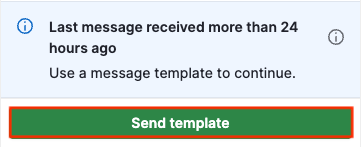
WhatsApp only lets you continue an existing conversation with free text for 24 hours after the customer’s most recent message. Once that window closes, you’re required to use an approved template to continue.
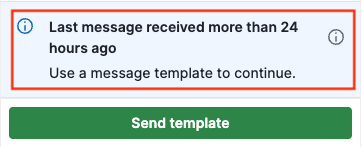
The composer indicates whether the service window is currently open and how much time you have left to reply.
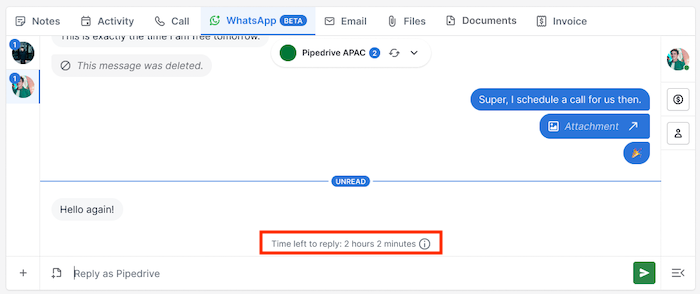
Replying with free text
Open any active conversation and type your message in the text field to continue the discussion. Once your message is ready, send it directly from the conversation view.
If your WhatsApp account is configured for coexistence, you’ll also see a link to open the conversation directly in the WhatsApp app.
Sending a template
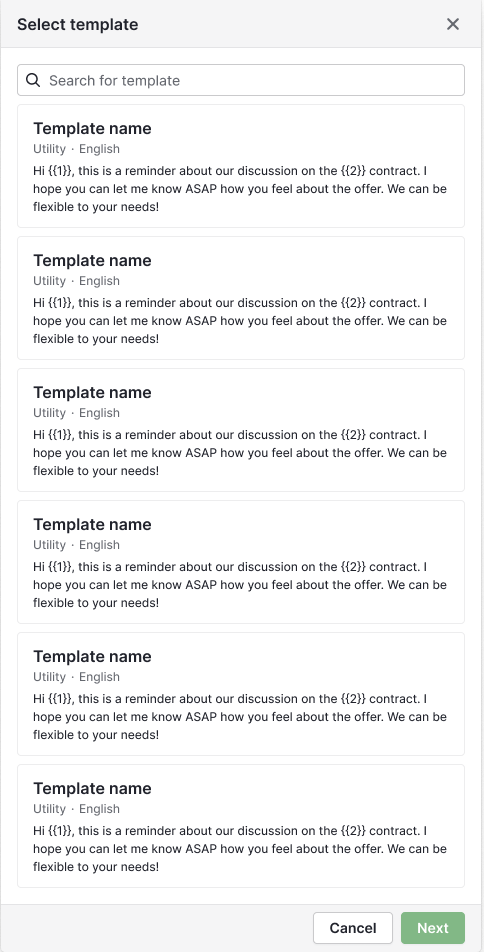
To send a template, open a conversation and click “Send template”. You can search and select a template based on its name, category, language or content.
After selecting a template, click “Next” and review the content to fill in any required variables.
A preview will show how the message will appear to the recipient. Click “Send” to deliver the message.
Working with WhatsApp templates
WhatsApp templates let you start new conversations with pre-approved messages. Starting a new conversation always requires selecting an approved template first. WhatsApp only allows businesses to initiate conversations this way.
Creating templates
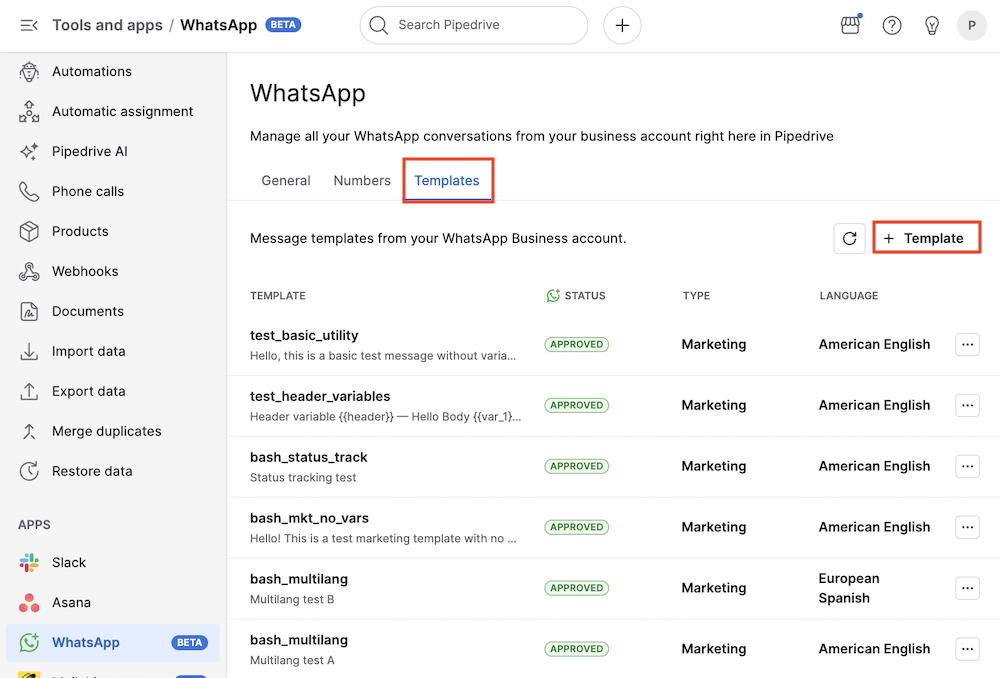
To create a template, go to Tools and apps > WhatsApp > Templates and click “+ Template”.
In the Add template modal, you can define the template‘s category (marketing or utility), name, language, an optional text header and the message contents.
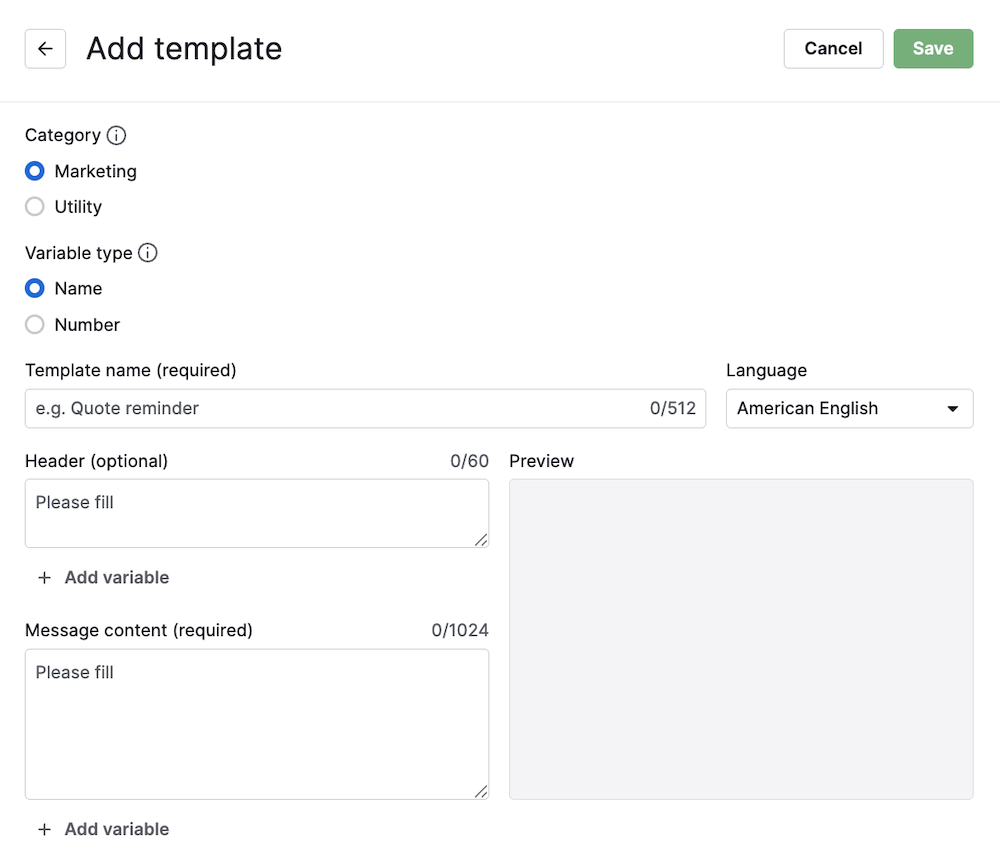
You can also include name (e.g., {{name}}) or positional (e.g., {{1}}) variables in both the header and body by clicking their respective “+ Add variable” button. Variable values must be entered manually each time you send a template.
You can see how your message will appear in the preview pane.
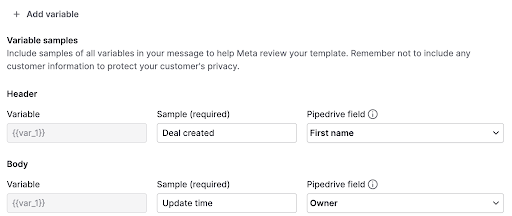
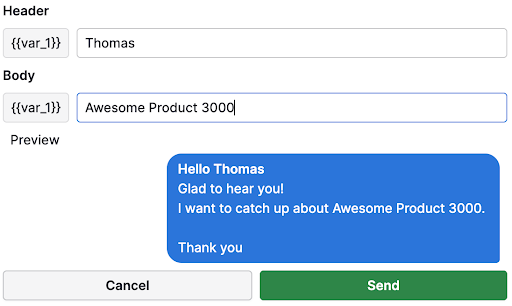
Once the template is created, it needs to be approved by Meta before it becomes available for sending, which can take up to 48 hours.
You can see the current status of your newly created template in the template page.
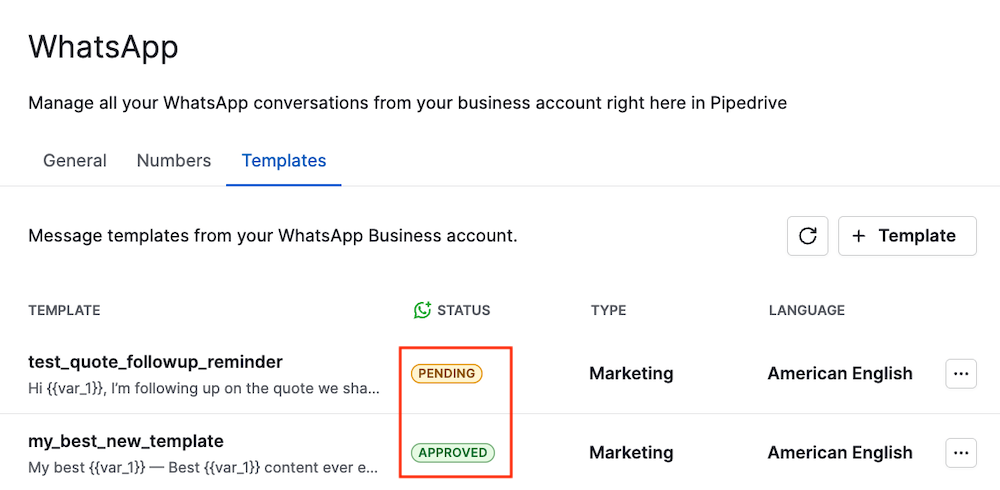
You can also create templates using WhatsApp Manager.
Template requirements and limitations
When creating and using templates, keep the following in mind:
Templates must be approved by Meta before they can be sent
Templates are required to start or continue conversations after 24 hours of the last customer message
If variables aren’t mapped or fields are empty, you must enter values manually before sending
Template structure and content must comply with WhatsApp business platform guidelines
Meta limits the total number of templates per account. Unverified businesses can create up to 250 templates, whereas verified businesses can create up to 6,000.
Managing templates
If you’re an admin user, you can view and manage templates in Tools and apps > WhatsApp > Templates.
To edit a template, click the “...” button at the right and select “Edit”.
The template form opens with the current content pre-filled. After saving, the updated template is submitted to Meta for review and its status returns to pending until approved again.
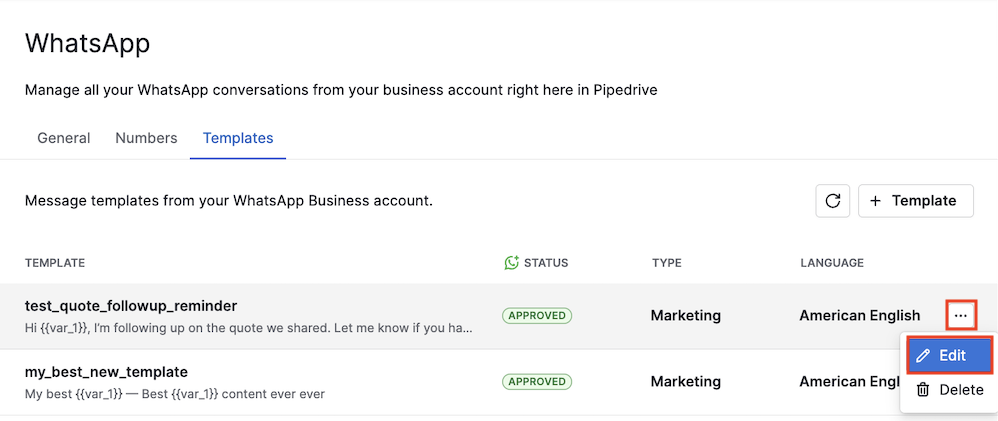
You can also delete a template by selecting the “Delete” option in the same menu.
Linking conversations to deals and contacts
Linking conversations lets your team see all communication in the right context. After linking the conversations, they become visible to anyone who has access to those linked items.
How conversations are linked automatically
Pipedrive automatically links new incoming messages to the matching person in your contacts (based on their phone number). Auto-linking also runs when a conversation is created by a workflow automation.
Once a person is matched, Pipedrive searches for a primary linked entity, a deal, a lead, or a project, at the same time:
Deal discovery uses a three-tier cascade:
Their most recent open deal, where they’re the main contact
Their most recent open deal in which they’re a participant
Their most recently closed (won or lost) deal within the last 6 months
Lead discovery picks its most recently updated, non-archived lead
Project discovery picks its most recently updated open project (only available to companies with the Projects feature)
If exactly one of these entity types has a matching candidate, the conversation is linked to it. If more than one type has a candidate, no primary entity is linked, and you’ll need to link it manually.
When a person is auto-linked and belongs to an organization, that organization is also linked automatically.
If more than one contact shares the same phone number, the conversation stays unlinked until you connect it manually.
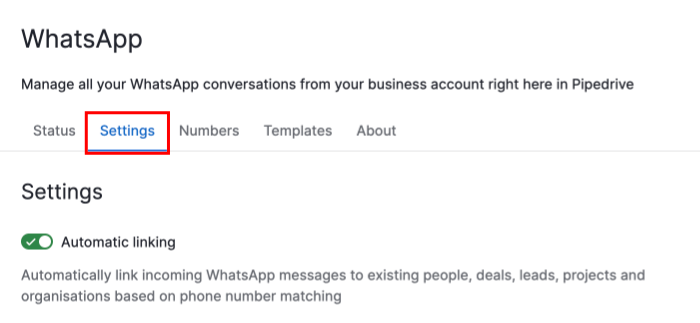
You can toggle automatic linking by going to Tools and apps > WhatsApp, then selecting the Settings tab.
Linking to an existing deal, lead, project or person
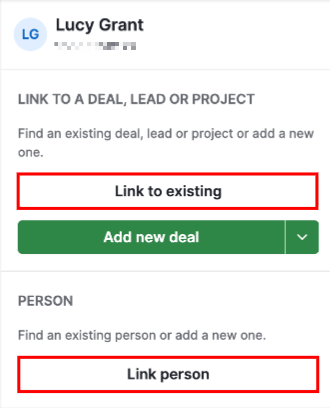
When you open an unlinked conversation, you’ll see linking options in the right-hand panel. Use “Link to existing” to connect it to a deal, lead or project and “Link person” to connect the conversation to a contact.
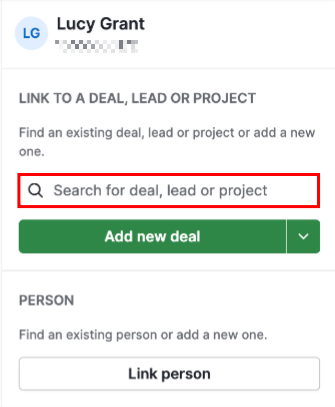
The button will turn into a search field, where you can find the relevant item and select it to create the connection.
Creating and linking a new item
From the same linking options, you can create a new deal or person. Just type in the name of the new contact, and Pipedrive automatically uses the typed name as the name for the person. The same thing applies to deals.
The WhatsApp number is also saved as the contact‘s phone number, helping you keep contact data accurate without extra steps.
Viewing linked conversations on leads and projects
WhatsApp conversations linked to a lead or project are visible directly in those items’ detail pages, just as they are for deals and contacts.
Changing or removing a link
To point a conversation to a different deal or person, you first need to remove the current link and then establish a new one.
You can also remove a link entirely by selecting “Unlink” from the linking options. This detaches the conversation from all Pipedrive entities.
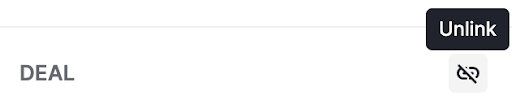
The conversation and its messages remain accessible from the inbox.
Messaging
Working with files and media
Pipedrive archives inbound media files automatically so they remain accessible beyond WhatsApp’s original seven-day retention window.
- Images are shown inline in the conversation. Click an image to preview or download it.
- Audio messages play directly in the conversation.
- Videos and documents appear as file entries showing the file type. You can download them directly from the message. Filenames are shown in the file browser but not in the conversation view.
Scheduling messages
Instead of sending a message immediately, you can also schedule it to go out at a future date and time. This works for freeform text messages, templates and file attachments.
To schedule a message, compose it as normal and then open the “Schedule message” option next to the “Send” button. Pick one of the quick presets or choose a custom date and time, then confirm.
A banner in the conversation footer shows any pending scheduled messages. From there, you can edit the content or send time, send the message immediately or cancel it before it goes out.
File browser
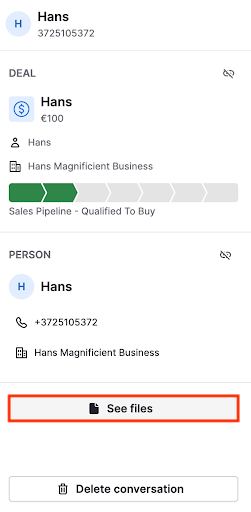
To view all media and documents shared in a conversation, expand the contextual sidebar and click “See files”.
The file browser opens with two tabs:
Media – shows images, videos, and audio clips grouped by month. Click any thumbnail to open a full-size preview.
Documents – lists documents in chronological order with the filename, file type, and a download link.
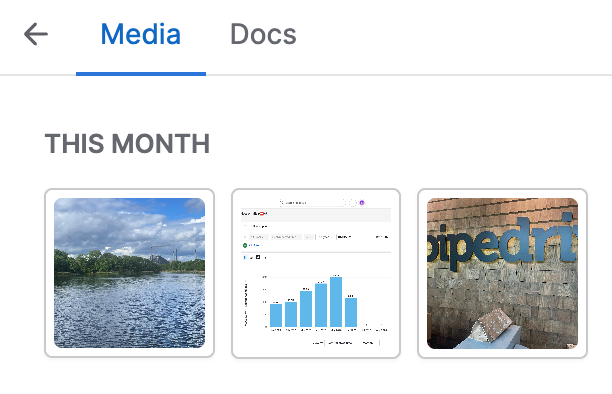
Scroll down in either of them to load older files.
Message delivery status
Each message you send shows its current delivery state:
Sent – WhatsApp has accepted your message
Delivered – the message has reached the customer’s device
Read – the customer has opened the message
If a message fails to send immediately, it shows an error state with a “Try again” button. Click it to resend the same message.
If WhatsApp reports a failure after the message has already left Pipedrive (for example, the recipient’s account is restricted), the message updates to an error state with the reason shown.
In this case, there is no retry option. You’ll need to compose and send a new message manually.
Message reactions
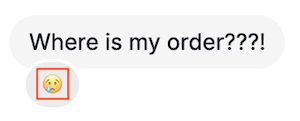
You can react to messages using emojis directly in the conversation. When a customer reacts to one of your messages, it appears in real time.
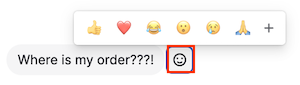
To react to a message, hover over the message and select an emoji from the reaction picker. Each message supports one active reaction per user. Sending a different emoji replaces the previous one.
To remove your reaction, click it again in the conversation.
Marking a conversation as unread
You can mark a conversation as unread to flag it as a personal reminder to follow up. To do so, open a conversation, expand the contextual sidebar, and click “Mark as unread.” The conversation’s unread indicator turns on immediately in the conversation list and the inbox counter.
The unread flag is temporary: it clears the next time the conversation is opened. It doesn’t affect the actual message content, and nothing is sent to WhatsApp or the contact.
Deleting a conversation
You can permanently delete a conversation from the contextual sidebar. Open a conversation, expand the sidebar, and click “Delete conversation.” A confirmation dialog will appear, since deletion is permanent and can’t be undone.
Deleting a conversation removes all of its messages, reactions, and links to deals, contacts and other entities. This action only affects Pipedrive, though, the contact’s WhatsApp chat history is not affected, as WhatsApp doesn’t support message deletion via its API.
Notifications
When a new WhatsApp message arrives, Pipedrive sends you a feed notification if both of the following are true:
You’re assigned to the phone number that received the message, and
You own or follow the deal linked to that conversation
The notification includes the sender’s name, a message preview, and the deal name. Click it to open the conversation directly in your Sales Inbox.
Was this article helpful?
Yes
No