WhatsApp integration: how to set it up
The WhatsApp integration in Pipedrive helps you manage conversations, assign numbers to your team and create message templates in one place.
Before getting started, make sure you have a Facebook account, a Meta Business Portfolio, a WhatsApp Business Account and a phone number for business use. These are required to connect WhatsApp to Pipedrive.
You can follow our WhatsApp setup assistant for a step-by-step guide to the requirements.
Where to find the WhatsApp integration
You can access the WhatsApp integration in your Pipedrive by going to Tools and apps > WhatsApp.
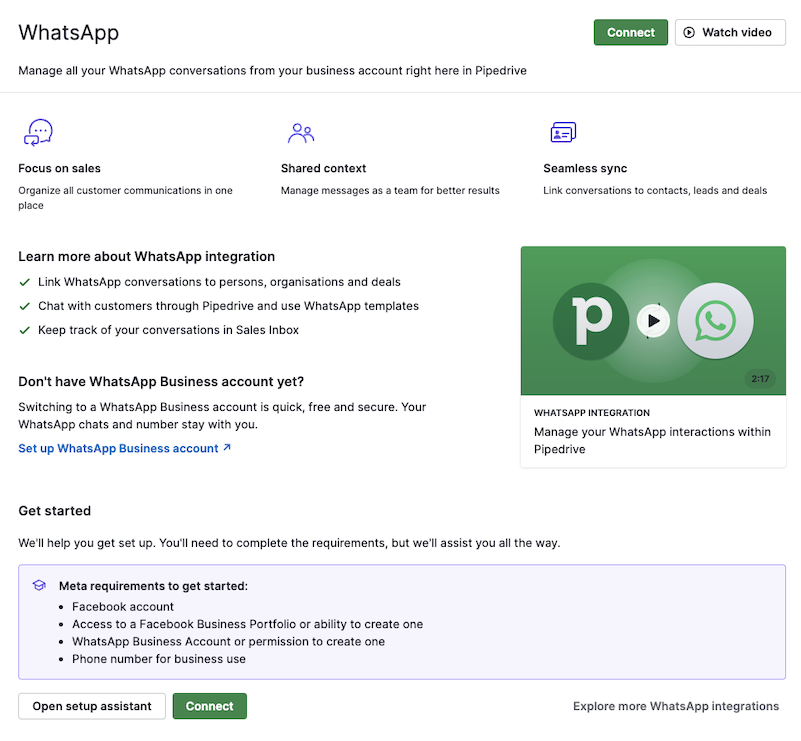
Connect your WhatsApp Business Account
To start using WhatsApp in Pipedrive, open Tools and apps > WhatsApp.
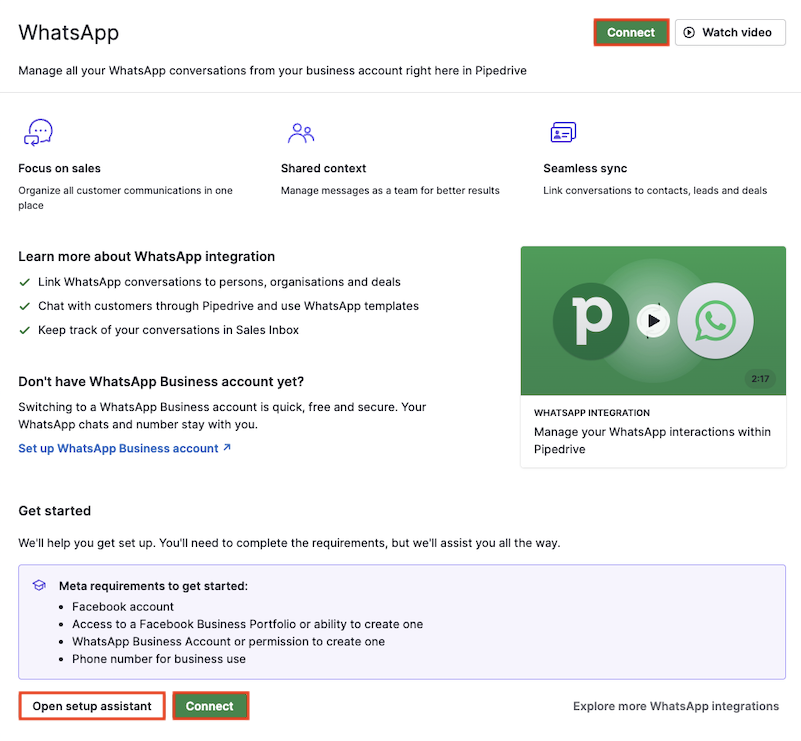
From there, you can click “Open setup assistant” to open Pipedrive‘s WhatsApp integration setup assistant (recommended) or “Connect” to go straight to Meta‘s WhatsApp connection flow.
Connect additional WhatsApp Business Accounts
You can connect up to 50 WhatsApp Business Accounts to one Pipedrive company. Once your first account is connected, click “+ Connect new account” on the status tab to link another one through the same Meta connection flow.
Connecting multiple WABAs is useful when you need more phone numbers than a single account allows. For example, coexistence accounts are limited to one phone number per WABA, so each additional number needs its own connected account.
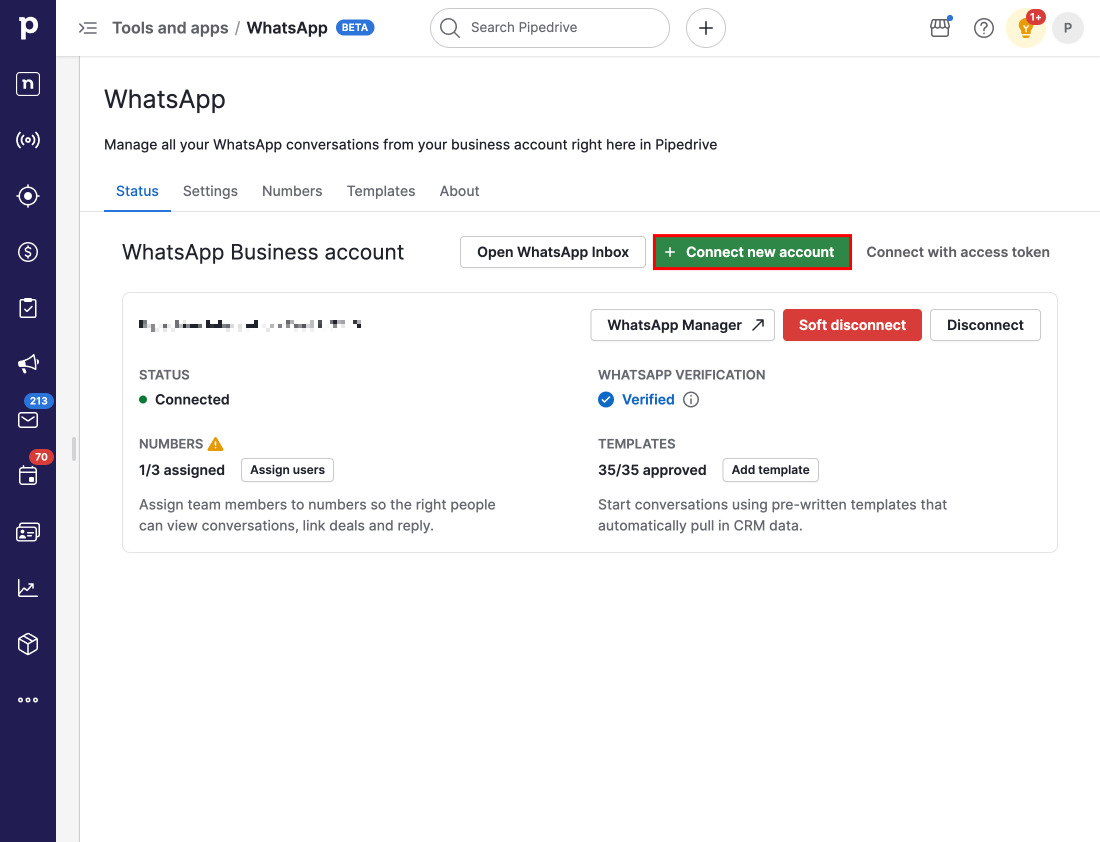
Once you reach the 50-account limit, the “+ Connect new account” button is disabled. Hover over it to see an explanation. To free up a slot, disconnect an existing account first.
Start with Pipedrive‘s setup assistant
We recommend starting with Pipedrive's setup assistant by clicking “Open setup assistant”. It will help you check if you have everything you need to complete the integration setup.
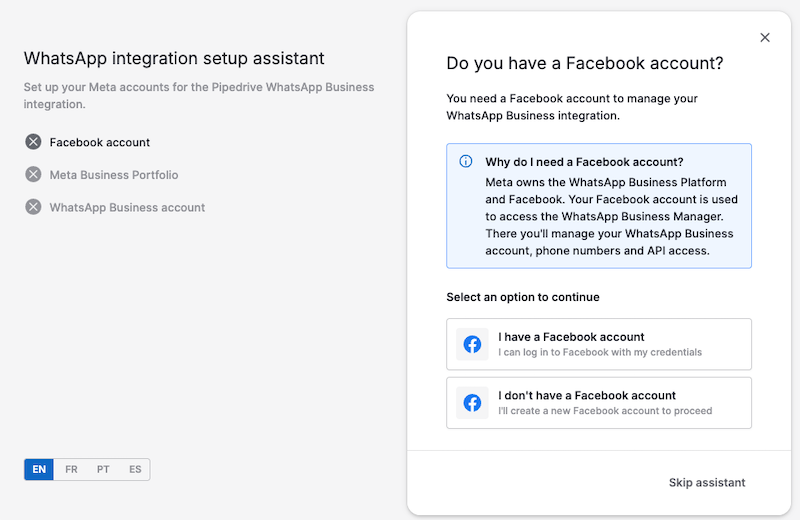
If you already have everything you need, you can click “Skip assistant” to return to the integration’s landing page and start the WhatsApp connection process directly.
Answer the questions accurately and, if any action is necessary on your part, the assistant will guide you to complete that step before advancing to the next session.
For the setup to work, you‘ll need:
Facebook account (personal or business)
Meta Business Portfolio or the ability to create one
WhatsApp Business account or the permissions to create one
Phone number for business use
Check for a Facebook account
The first requirement to set up the integration is a standard Facebook account.
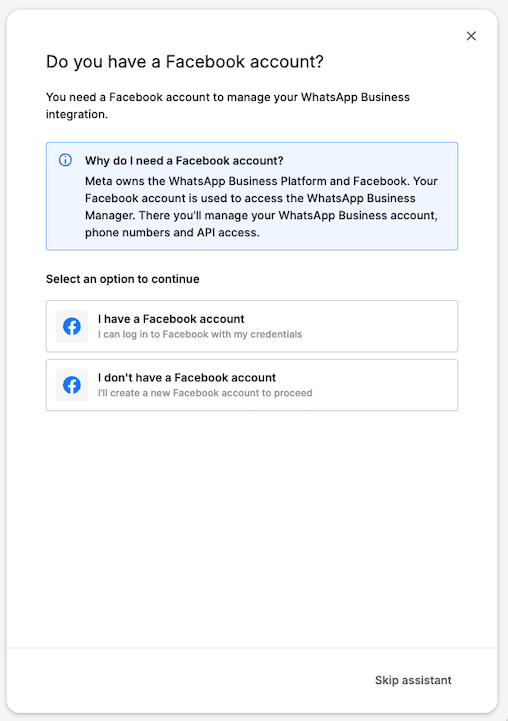
Make sure you have your credentials handy, as you’ll need them later.
If you don’t have an account, selecting the appropriate option will display step-by-step instructions to create one.
Check your access to a Meta business portfolio
The second requirement is a Meta business portfolio, Meta’s centralized hub for its business assets, including WhatsApp Business.
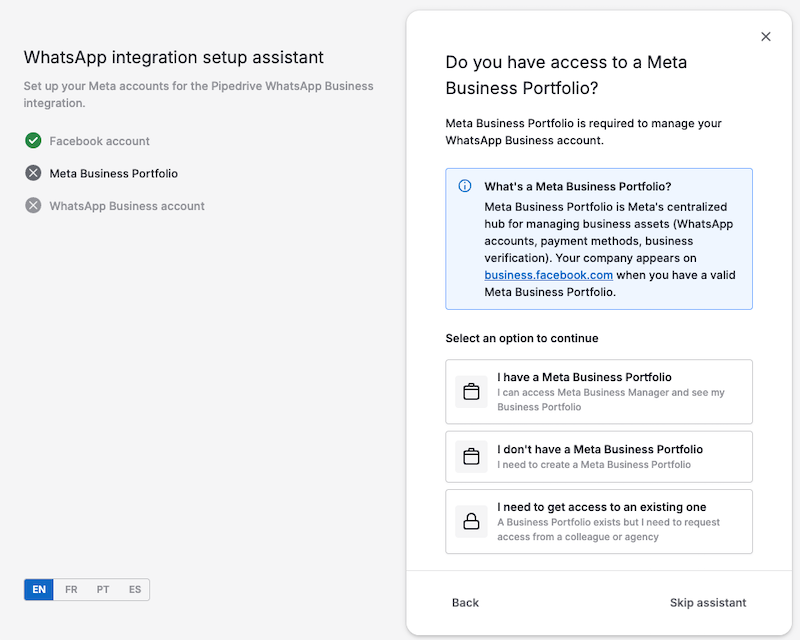
If you don’t have a Meta Business Portfolio or need access to one, select the appropriate option.
We‘ll provide you with a link to create one, or a sample request message you can copy and send to your colleague or agency partner who might have control over the business portfolio.
When you‘re done, click “Continue” or “Continue setup.”
Check for access to a WhatsApp Business Account
The final step in our setup assistant will verify your WhatsApp Business Account.
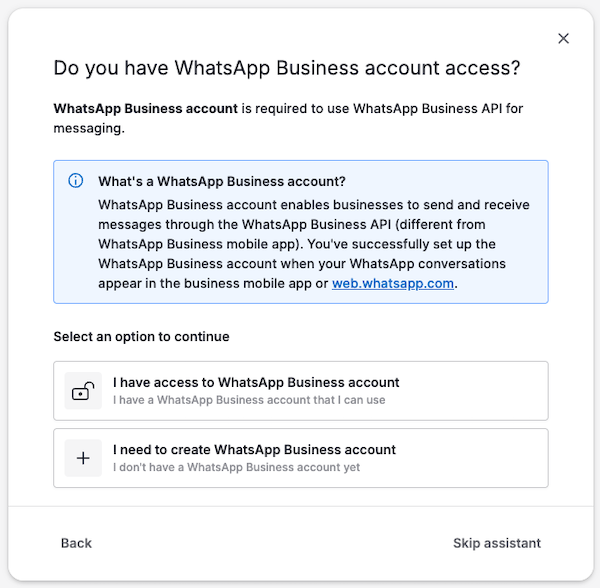
If you already have access to a business account, you’ll just have to confirm whether it’s already linked to your Meta business portfolio by following the instructions.
If not, go through the instructions to set it up. We recommend using the native mobile app, since it supports coexistence. See the “About coexistence” section next.
You’ll also choose whether to convert your personal WhatsApp number to a business number or use a new or existing one.
About coexistence
Coexistence lets you switch between the mobile app and Pipedrive without losing track of a conversation. We recommend it for on-the-go work, but it’s not required.
Chat history import
When you connect a coexistence account, Pipedrive automatically imports your existing WhatsApp chat history, up to 180 days of text messages and up to 14 days of media files (images, audio, documents and video).
During the connection process on your phone, approve “Share chat history” when prompted. The import starts automatically a few minutes after the connection is established and runs silently in the background, then, no further action is needed.
You can track the import’s progress on the status tab of the WhatsApp settings page. A banner on the account card updates in real time and can be dismissed once the import is complete.
Finish up with the assistant
When you’re finished with the assistant, it’ll tell you that you’re ready to connect the integration.
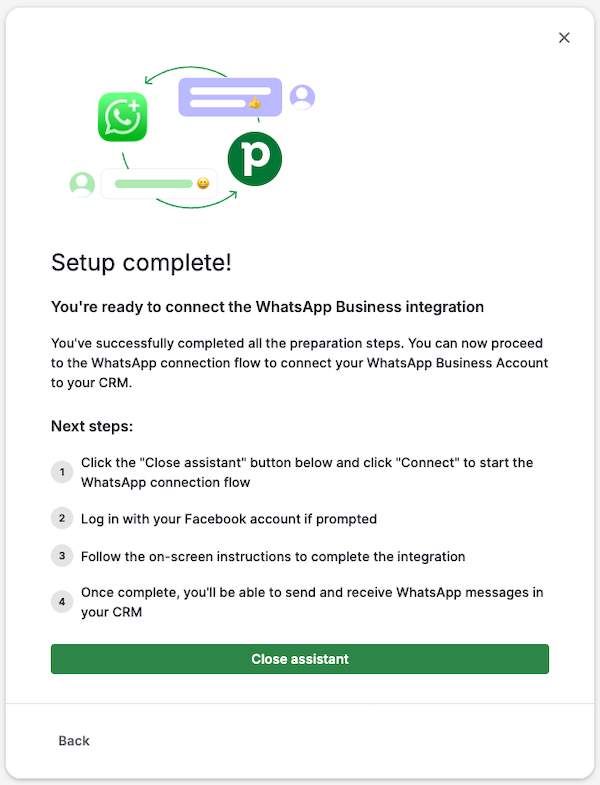
Click “Close assistant”, and you‘ll be taken back to the integration landing page. You can now continue to the WhatsApp connection flow.
WhatsApp connection flow
On the integration landing page, click “Connect” to start Meta‘s connection flow.
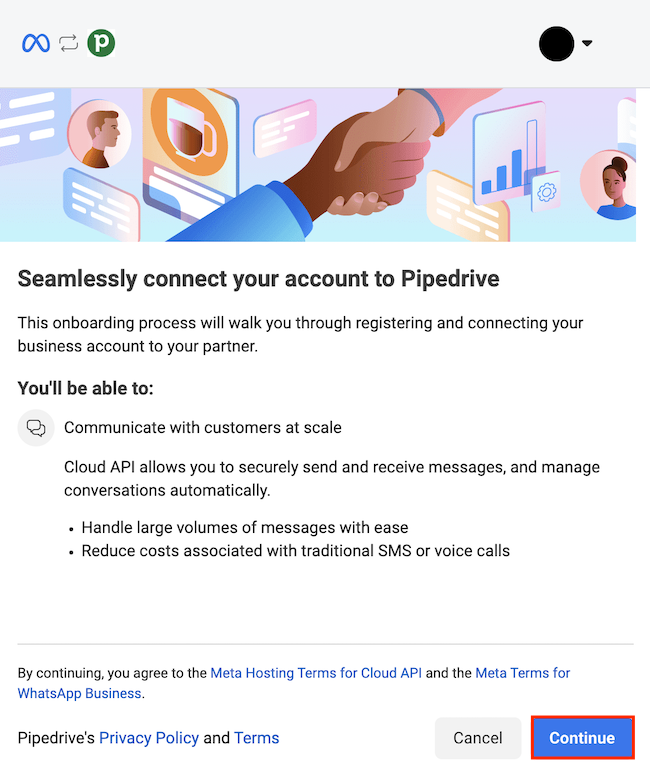
Click “Continue” to start the connection process, then select the correct business portfolio you want to connect.
Choose a Business portfolio
The first step is to select the correct Facebook business portfolio from the list.
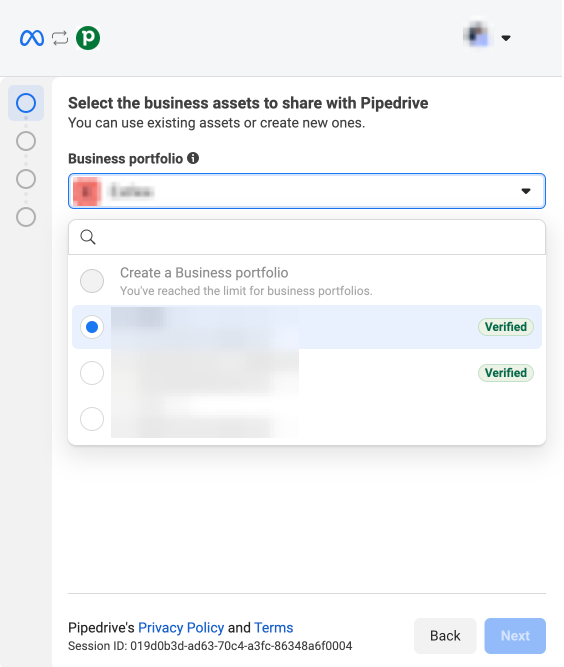
If you don‘t have one, you can create one by clicking “Create a business portfolio” and following the steps. Click “Next” when you‘re ready.
Connect a WhatsApp Business Account
If you already use WhatsApp Business, select “Connect a WhatsApp Business app” from the second drop-down menu on this step. Choosing any of the other two options will result in an error when trying to add a phone number.
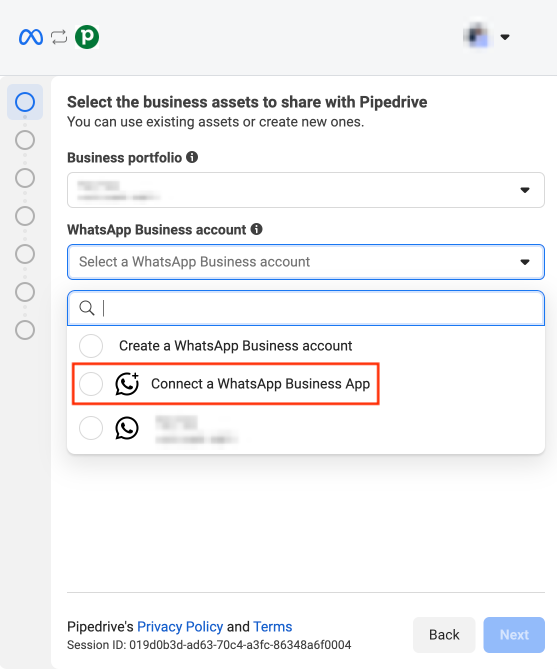
If you don‘t have a Business account yet, select “Create a WhatsApp Business account” and fill out the details. When you‘re done, click “Next”.
On the next screen, select “Use a new or existing WhatsApp number” and click “Next”.
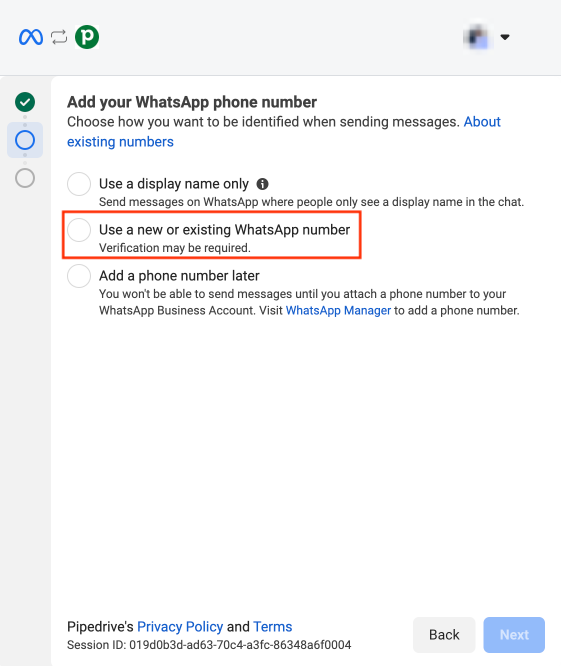
We recommend using an existing phone number. Fill in the number in the appropriate field
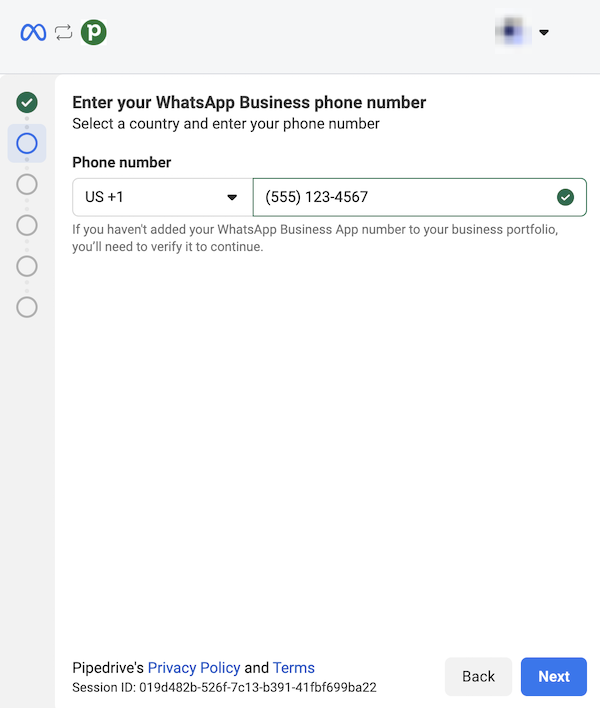
Alternatively, you can add a new WhatsApp number to your account, which you‘ll then need to verify with a code.
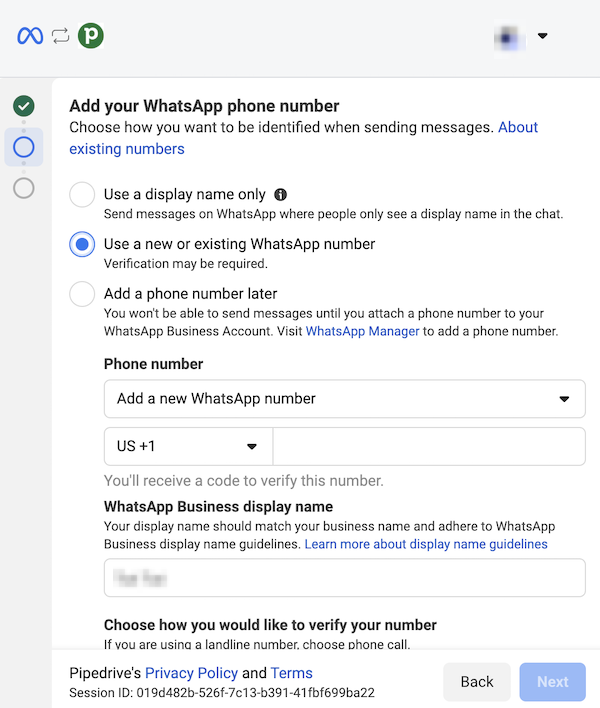
Click “Next” when you‘re done.
Finally, review the data you‘ll share with Pipedrive and click “Confirm”.
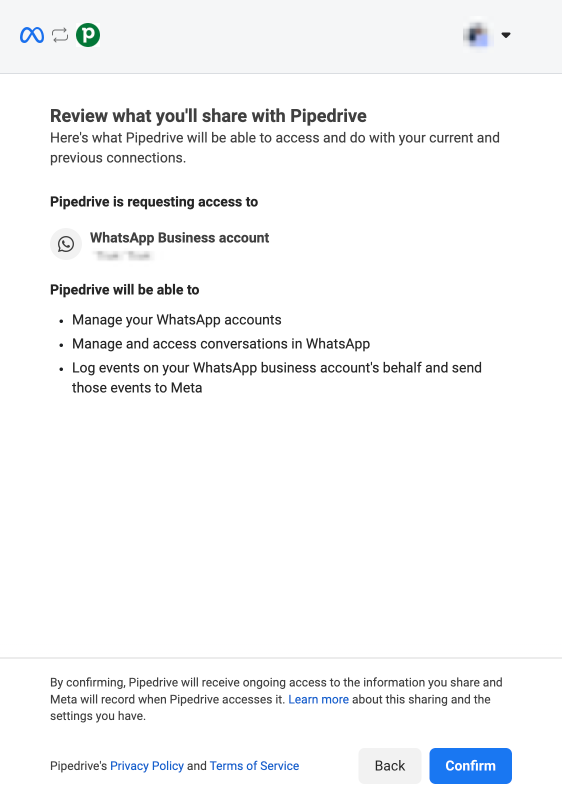
You‘ll have to wait a while before reaching the last step, which confirms that the connection was successful.
Click “Finish”, and you‘re ready to use the integration.
Managing WhatsApp numbers
Once your account is connected, you can manage how WhatsApp numbers are used across your team.
Go to Tools and apps > WhatsApp > Numbers to view all connected numbers.
If your company has more than one WhatsApp Business account connected, an account selector appears at the top of the numbers tab. Select “All accounts” to view every number across all accounts, or pick a specific account to filter the list.
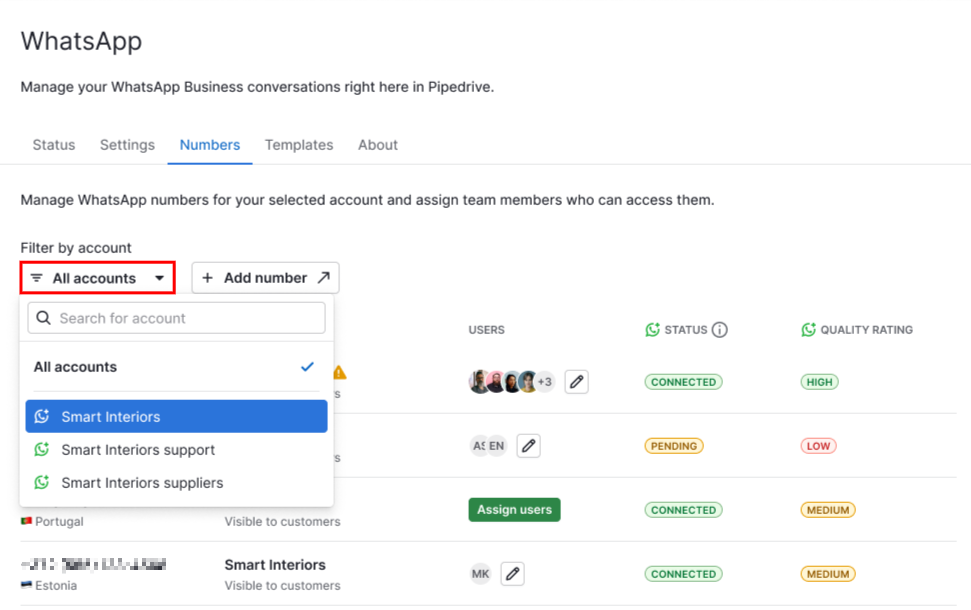
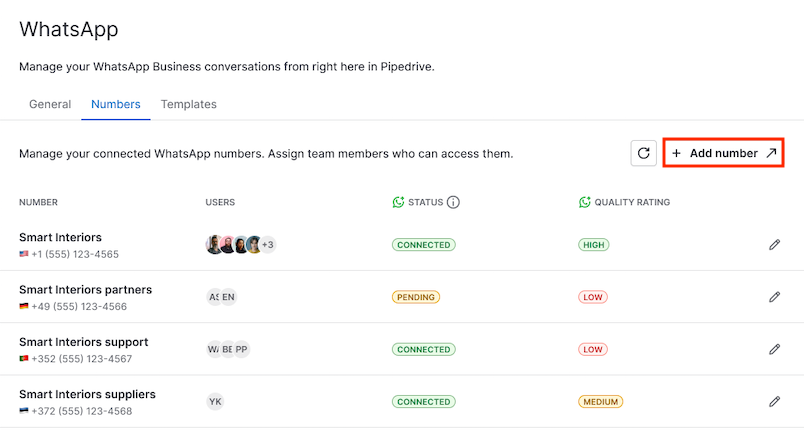
In this view, you can add a new phone number, see each number’s display name, connection status and quality rating and see which users are assigned to each phone number.
Understand phone number statuses
Each phone number shows a status reflecting its current state on Meta:
Connected: the number is active and ready to send and receive messages.
Pending/Unverified: the number has been added but isn’t fully verified with Meta yet.
Disconnected: the number is registered on Meta but isn’t active for messaging, for example, if it was previously used with a different integration. Click “Reconnect” on the number’s row to reconnect it using your existing WhatsApp PIN.
Flagged/Restricted: the number can still send and receive messages, but Meta has flagged it due to quality issues. Message delivery may be affected. Check Meta’s WhatsApp Manager details and steps to improve your quality rating.
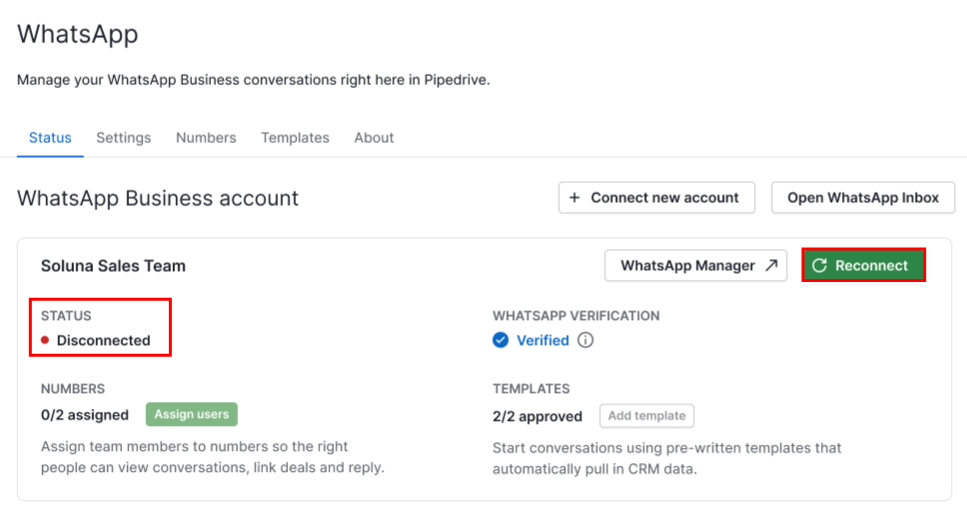
Removed: the number has been removed from your WhatsApp Business Account on Meta’s side. See Removing numbers from WhatsApp below.
Adding numbers to WhatsApp
To add a new number, click “+ Add number” and open Meta’s WhatsApp manager.
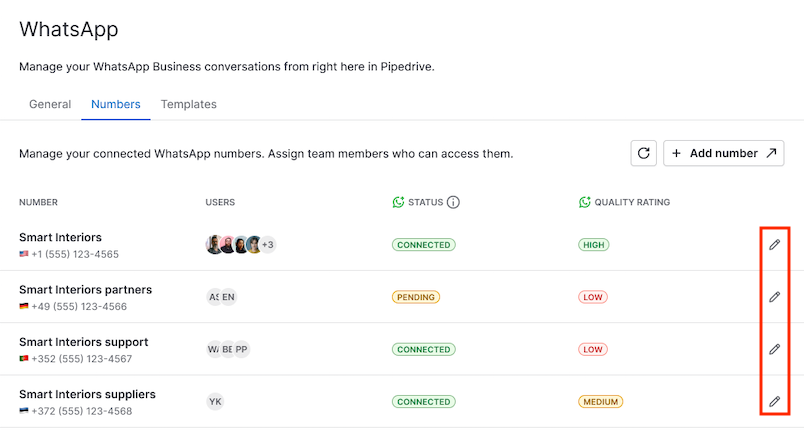
You can update phone number assignments by clicking the pencil icon next to the desired phone number.
In the pop-up, select the checkboxes next to users you want to be able to send messages from that number.
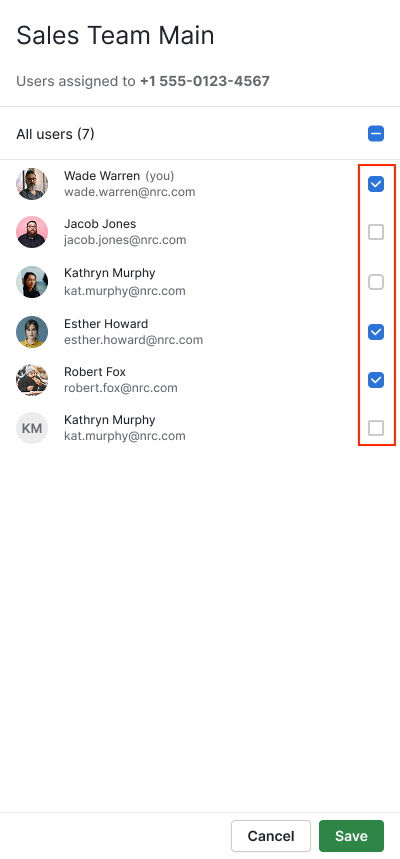
Click “Save” when you‘re done.
Assigning a number allows a user to send messages from that number. Conversations linked to deals or contacts remain visible to anyone who has access to those items.
Remove numbers from WhatsApp
If a number is removed from your WhatsApp Business account on Meta’s side, the next time an admin clicks the sync button on the numbers tab, that number will appear as removed in Pipedrive. When a number is marked as removed:
You can still read all past conversations on that number, but you can’t send new messages or reply
The “+ Conversation” button is disabled for that number
In any conversation on the removed number, the message composer is replaced by a notice informing that the number has been removed
Emoji reactions are disabled for conversations on that number. You won‘t be able to add or remove reactions, though existing reactions remain visible.
To regain send access, ask your admin to assign you to an active number. Pipedrive preserves all historical conversations and their links to contacts and deals even after a number is removed.
Global admins can still edit user assignments for a removed number, allowing you to control who keeps read-only access to its historical conversations. Numbers that were removed remain in the list and aren’t automatically deleted. If Meta later re-adds the same phone number to the same WhatsApp Business Account, the next sync restores it to active status with no further action needed.
Apply a display name change
If Meta approves a new display name for a number, a “Register” button appears on that number’s row. Click it and complete the short PIN step to apply the new name.
The number continues to work normally until you register the change. Re-registration is only required to make the new display name take effect.
If the number is disconnected and also has a pending display name change approved by Meta, you’ll only see a primary Register button, no separate info icon or secondary action. Clicking Register opens the same wizard and handles both the reconnection and the new display name in a single step. The wizard’s success screen confirms the new name once it’s applied.
What happens after connecting
After setting up the integration, your team can manage WhatsApp conversations directly in your Pipedrive Sales Inbox.
When the connection completes, you land on the status tab of the WhatsApp settings page. The settings page has five tabs: status, settings, numbers, templates and about.
The status tab shows one account card for each connected WhatsApp Business Account. Each card displays:
The account’s connection status and verification badge
A Numbers counter showing how many phone numbers are assigned to users
A Templates counter showing how many templates are approved and ready to use
Shortcut buttons to open the WhatsApp Inbox and the WhatsApp Manager in Meta
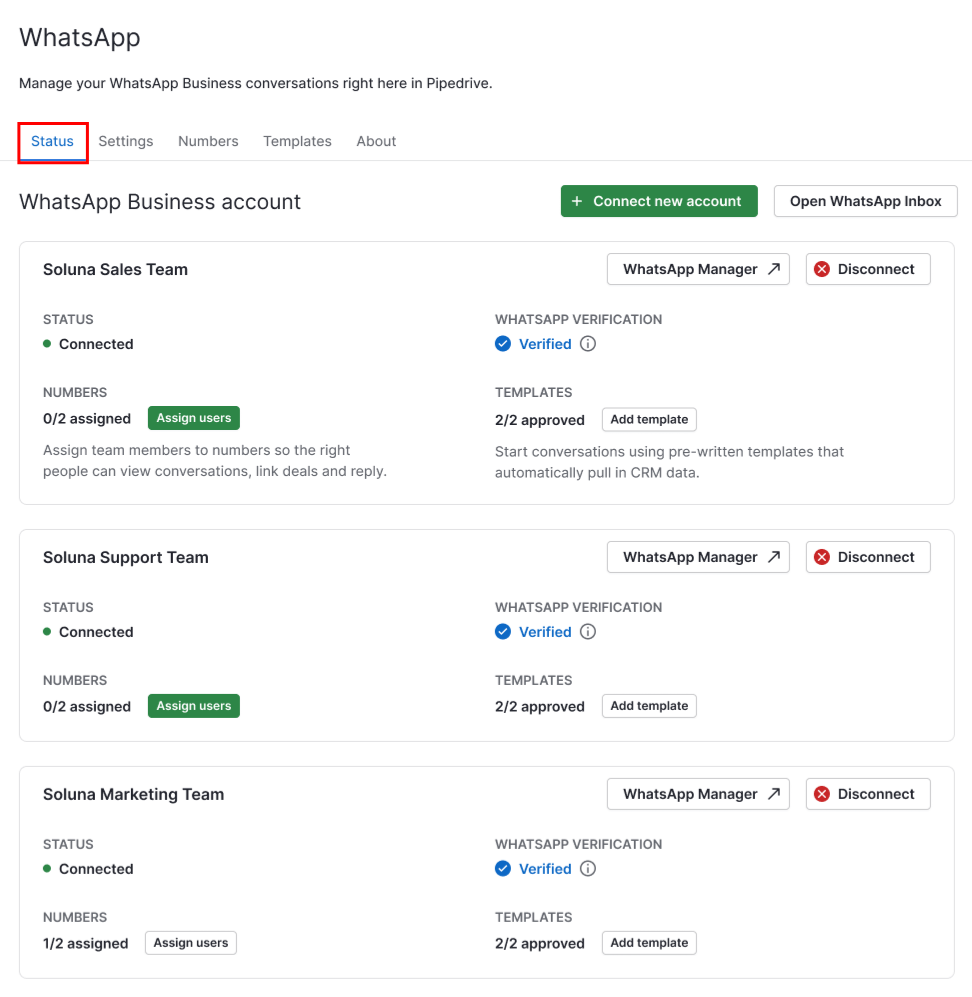
If a connected account has a setup gap, Pipedrive shows an inline warning on that account’s card with a link directly to the relevant settings. The three possible warnings are:
No phone number is registered on that account yet
A phone number exists, but no users have been assigned to it
No approved message templates exist on that account yet
Each warning links directly to the relevant tab, pre-scoped to that account.
The about tab holds feature highlights, a demo video and an FAQ section, so that information stays accessible even after you connect.
If a connected account loses access
If Pipedrive‘s access to a connected WhatsApp Business Account is lost, for example, if an admin revokes it from Meta Business settings or the authorization expires, the account’s card on the status tab shows an Access lost indicator and a “Reconnect” button in place of “Disconnect”.
You’ll also see:
A dismissible banner on every other settings tab that lists the affected account and provides a link to reconnect it. Once you dismiss it, it won’t reappear unless the same account loses access again.
A banner in the Sales Inbox and on any deal or contact page linked to that account. The message composer is disabled for conversations on that account’s numbers, but other connected accounts continue to work normally.
Click “Reconnect” on the card or the banner to redo Meta’s connection flow with the same business portfolio already selected. Once reconnected, the Access lost state clears everywhere at once.
Note: Brief or temporary Meta errors don’t trigger this state, only a confirmed loss of access does. If access is restored on Meta’s end first, the account automatically returns to Connected.
Once reconnected, incoming conversations are automatically linked to matching people, deals, leads and projects. For details on how automatic linking works, see the WhatsApp integration article.
Was this article helpful?
Yes
No