Products
Create a catalog of the products or services you sell through your deals with Pipedrive’s Products feature.
Add each product with its own pricing, tax and custom fields, then link it to a deal so Pipedrive calculates the deal’s value automatically. Once a product is linked, you can also generate quote documents that pull in its data.

Set up the Products feature
Open the account menu and go to Tools and apps > Products to enable the Products feature.
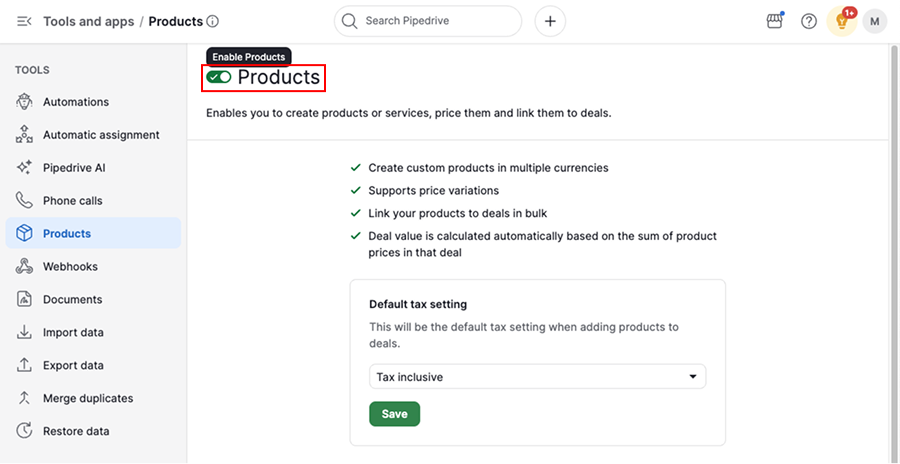
On this page, you can also set the default tax setting, which defines whether your products include tax, exclude tax or have no tax at all. Each user sets their own default tax method, and it only applies going forward, not to deals that already have products linked.
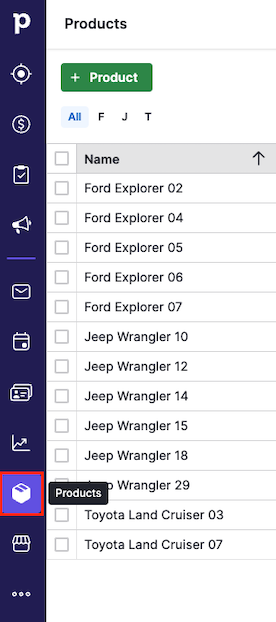
Once you turn on the Products feature, open the products tab in the left sidebar to start working on your product catalog.
Add products
Add products from the products view
Go to products in the left sidebar and click “+ Product“.
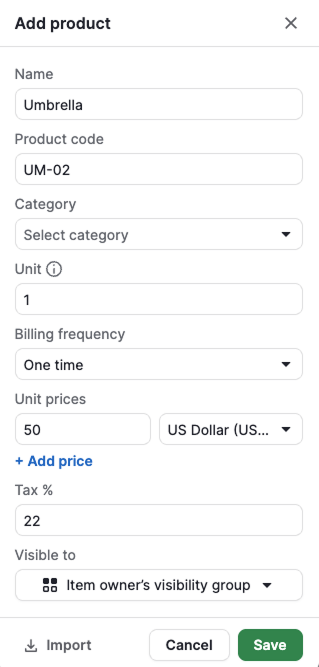
In the window that appears, fill in the product’s name and other details.
Add products while creating a deal
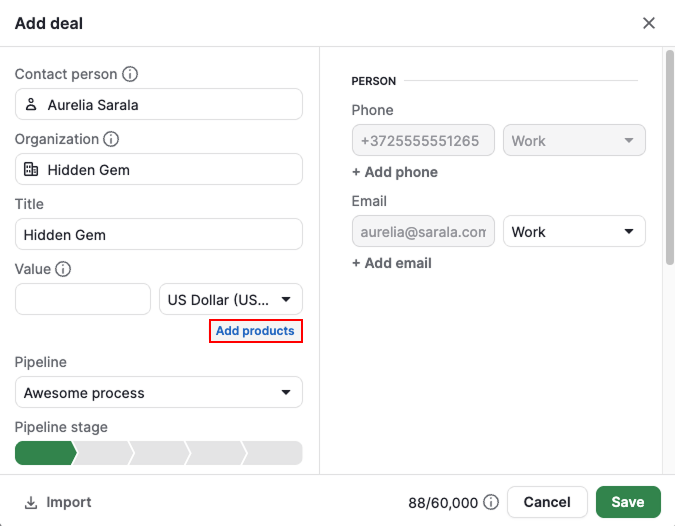
You can also add products in the add deal view when you create a deal.
Import products
If you have many products to add at once, import them from a spreadsheet instead of adding them one by one.
Manage your product’s details
Once you save a product, click its name in the product list view to open its detail view.
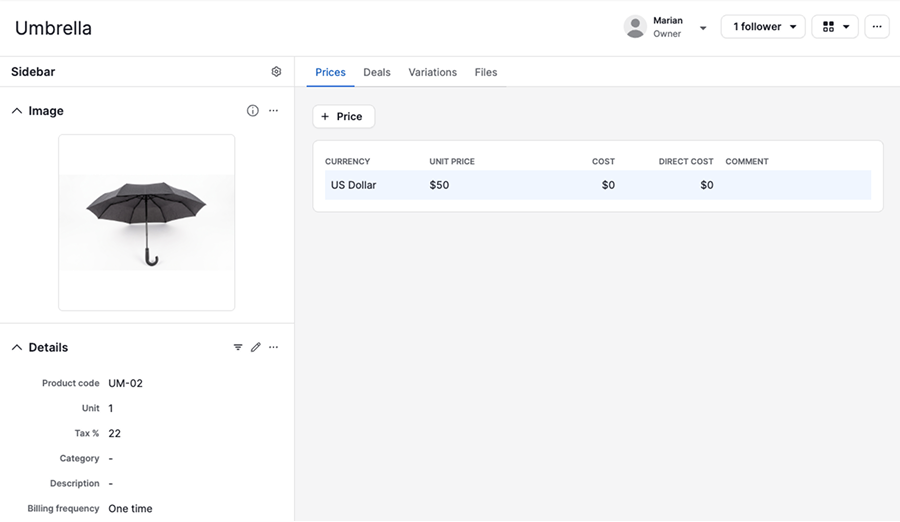
From here, you can update the product’s name, owner and visibility, along with everything covered in the sections below.
Add an image to your product
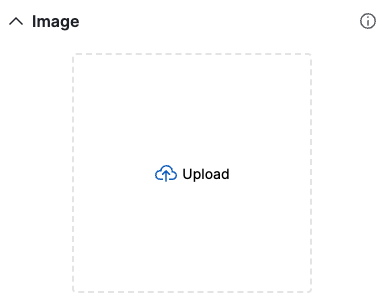
Find the image section in the sidebar and click the upload area, then choose a file from your computer.
Update your product’s details
Click the pencil icon in the details section to bulk edit these fields:
- Product code – optional custom code you assign to a product
- Unit – quantity or measurement a product is sold in
- Tax – percentage added to the total cost of an order
- Category – group similar products. Category options must be added under Data fields page before they can be selected.
- Description – clarify what your product’s characteristics
- Billing frequency – how often and how many times the product is billed
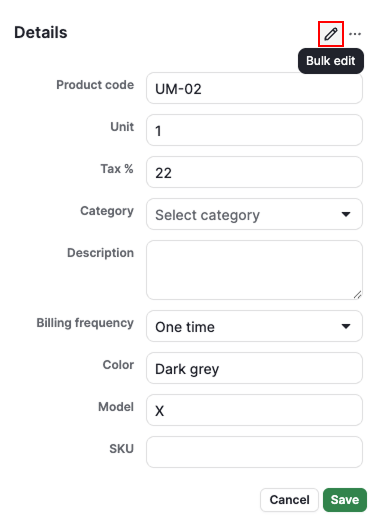
You can also create product custom fields to add more information about your products.
Add participants
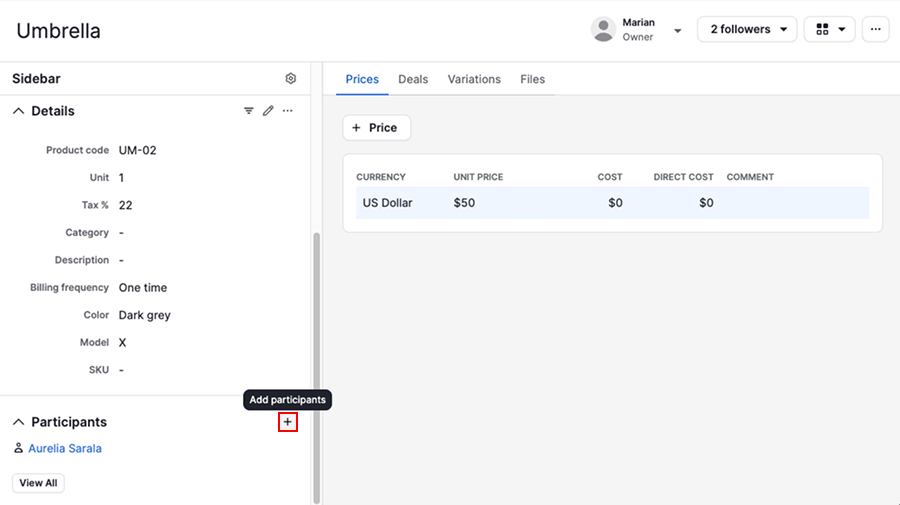
Add participants when an external contact, like a supplier, is connected to this product.
Click the “+“ button in the participants section, then type the first letters of the contact you want to add.
Add followers
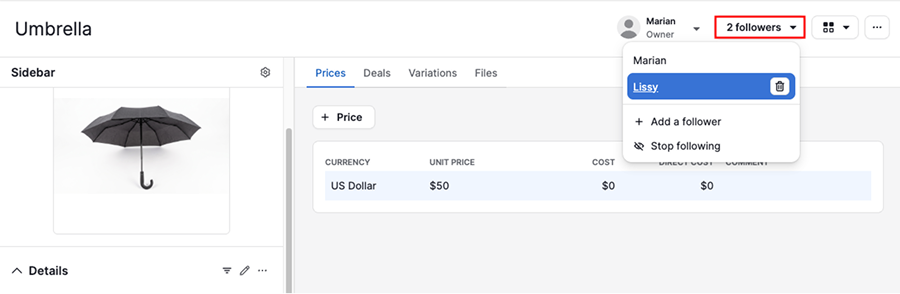
Add followers when you want a colleague to stay updated on this product without owning it.
Click “Followers“ on the right side of the screen to add or remove people who get updates about this product.
Add product prices
The prices tab lets you set a price for the same product in each currency you sell in. For example, a product could have a unit price of €45 in euros and $50 in US dollars. When you link the product to a deal, Pipedrive uses whichever price matches that deal’s currency.
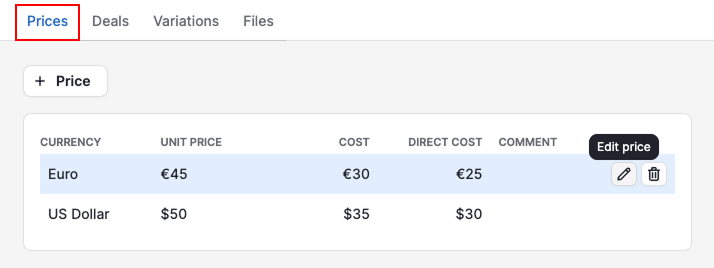
Each price entry includes:
- Unit price – the price of each unit sold
- Cost – the cost related to each sold unit
- Direct cost – the cost of developing or producing the product
- Comments – a note about that specific price
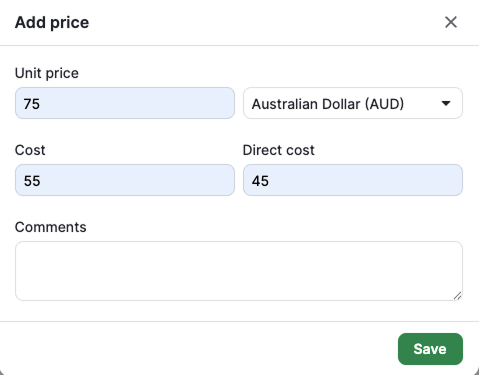
Click “+ Price“ to add a new price and comment.
View deals linked to a product
The deals tab lists every deal that currently has this product linked. Filter the list by deal status in the row above it.
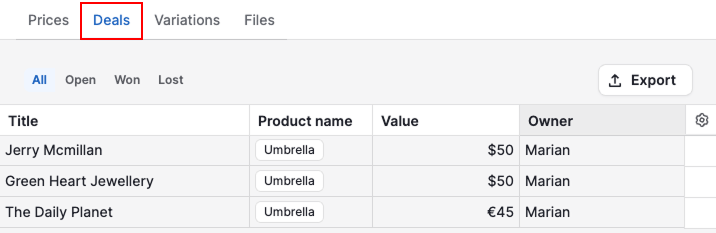
Click the gear icon on the right to adjust the columns shown. Click “Export“ to download the list as a spreadsheet.
Create product variations
Use price variations when you sell different versions of the same product, like different sizes, styles or bundles. Each price variation has its own name and its own set of prices, kept separate from the product’s own prices.
Open the variations tab and click “+ Variation“.
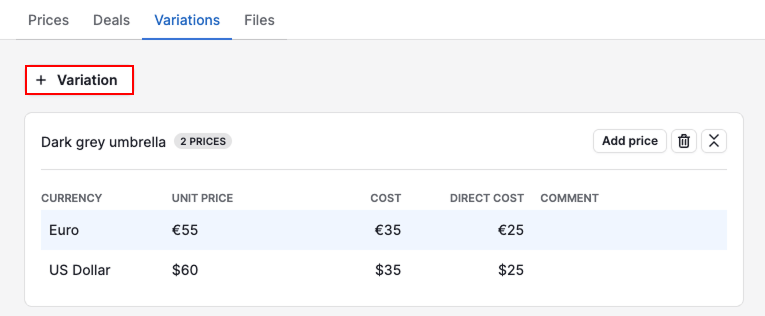
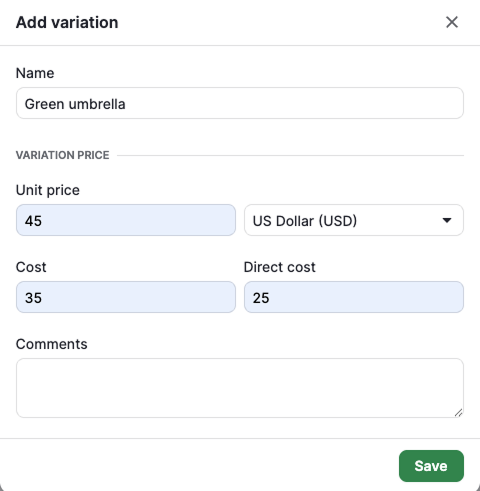
Give it a name, then add a price for it in each currency you sell in, plus an optional cost per unit and direct cost.
To add another currency to that same variation, click “Add price“ on its card.
Once you’ve created a variation, you can select it when you link the product to a deal.
Upload and manage files
Upload a file when you want reference material, like a spec sheet or manual, to live with the product record.
The files tab shows every file uploaded to this product, and you can upload more from your device.
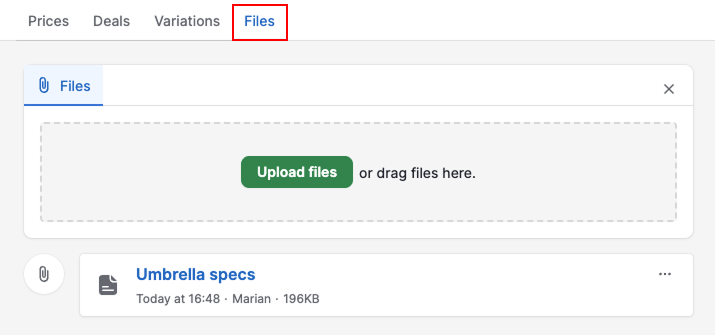
Click “...“ next to a file to add a description, download it or delete it.
Deactivate or delete products
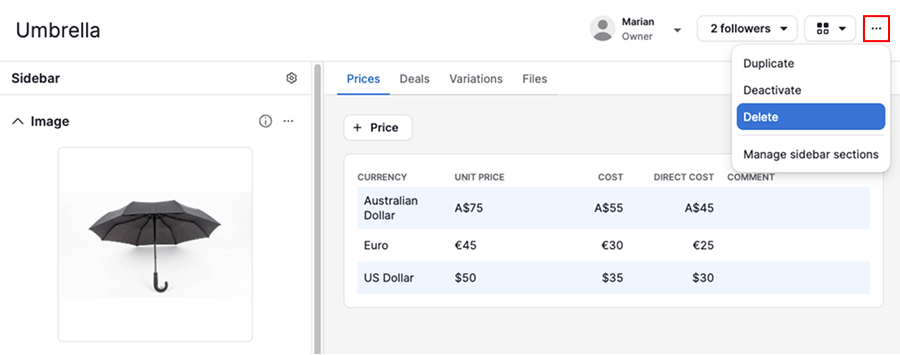
Both actions are available from the same “...“ menu, but they serve different purposes:
- Deactivate a product when you stop selling it but still want to keep its history in your catalog. A deactivated product can no longer be linked to deals. You can re-activate a product from the same actions menu.
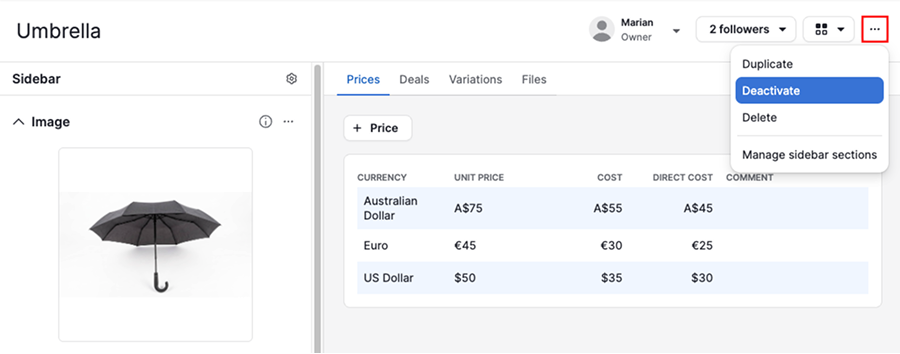
- Delete a product when you added it by mistake or will never need it again. Deleting doesn't change the value of deals it's already linked to.
View and manage your products
In the products list view, you can view and edit your product details directly.
Filter your products
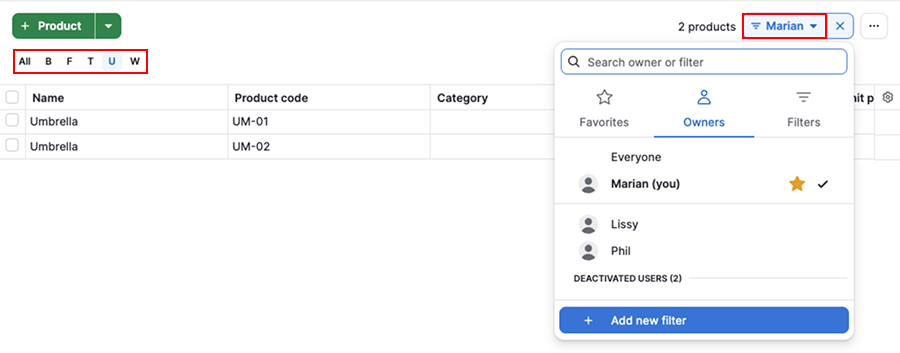
Filter products alphabetically in the top left corner of the screen or create custom filters.
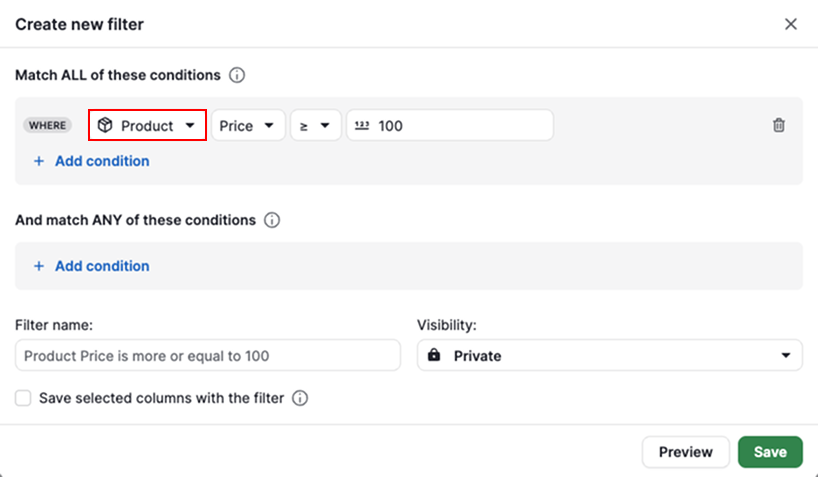
Product fields are also available as filter options, so you can narrow your search or export data by product-specific values.
Take bulk action on selected products
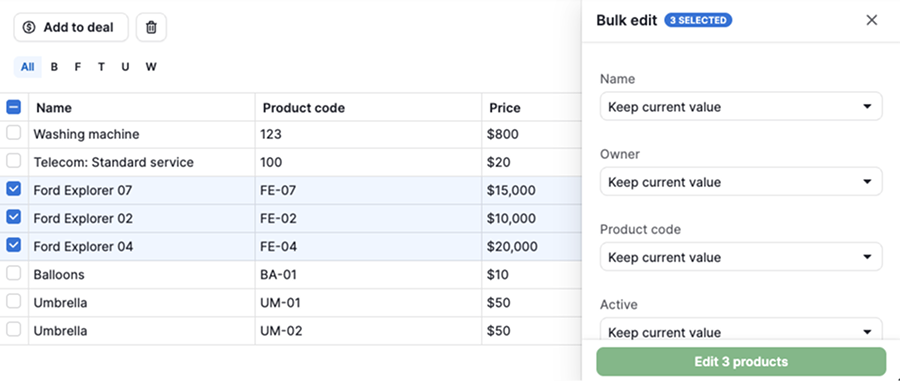
Select one or more products you want to work with, then choose one of these actions:
- Add to deal – choose which deal to link your selected products to
- Bulk delete – click the trash can icon at the top of the list view
- Bulk edit – choose the product field to edit in the panel on the right
Generate quote documents with product data
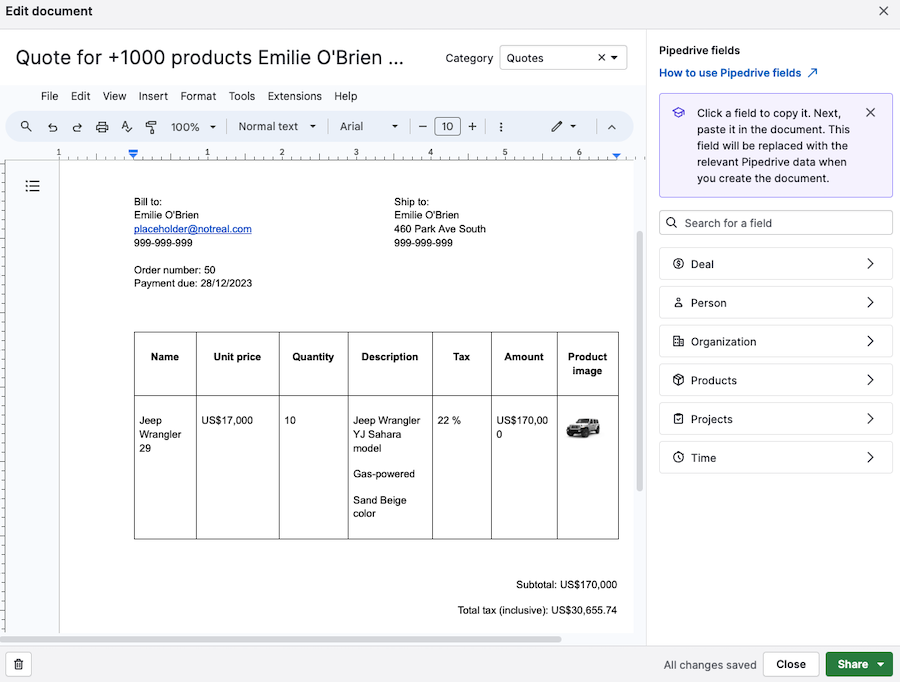
You can generate quote documents for your deals using Smart Docs. If your template includes product placeholders, Pipedrive fills in the linked product data automatically.
Export your product data
Open the account menu and go to Tools and apps > Export data to export your product catalog or the products linked to your deals.
Select “Products“, then choose one of these:
- Entire product catalog
- Only products added to deals
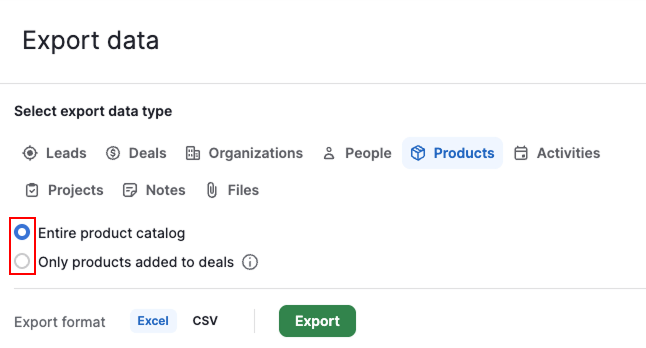
Choose the format as “Excel“ or “CSV”, then click “Export”.
Your file appears in the “Generated exports“ list. To download it, click the cloud icon in the “Available until“ column.
Was this article helpful?
Yes
No