Šis raksts tika izveidots, izmantojot mašīntulkošanu.
Pipedrive lietotne priekš ChatGPT
Savienojot ChatGPT ar Pipedrive, jūs varat piekļūt datiem un ģenerēt ieskatus, balstoties uz jūsu Pipedrive aktivitātēm.
Šī lietotne savieno jūsu OpenAI darba vidi ar Pipedrive, lai ChatGPT varētu piekļūt datiem no jūsu Klienta.
Lietotne atbalsta sinhronizācijas režīmu, kur daļa jūsu Pipedrive datu tiek indeksēta iepriekš. Tas nozīmē, ka ChatGPT var ātrāk atbildēt uz jautājumiem, nevaicājot Pipedrive reāllaikā, jo lietotne sinhronizē ik pēc 30 minūtēm.
ChatGPT var piekļūt datiem, kas saistīti ar:
- Darījumi un potenciālie klienti
- Kontaktpersonas un organizācijas
- Konveijeri un posmi
- Aktivitātes un aktivitāšu veidi
- E-pasta sarakste
- Produkti
- Lietotāji un komandas
- Pielāgotie lauki, filtri un saglabātie skati
- Automātikas
- Pārskati un analītika
- Webhooks un integrācijas
Iestatīt Pipedrive lietotni ChatGPT
Lai savienotu Pipedrive ar jūsu ChatGPT darba vidi:
-
ChatGPT čata logā noklikšķiniet uz sava profila ikonas apakšējā kreisajā stūrī. Pēc tam noklikšķiniet uz “Iestatījumi”.
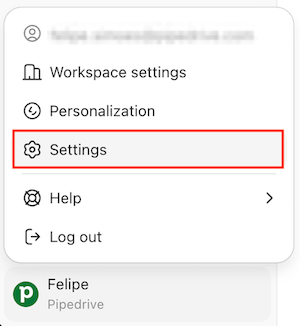
Iestatījumu uznirstošajā logā noklikšķiniet uz cilnes “Aplikācijas un savienotāji” un meklējiet Pipedrive lietotni.

-
Kad izvēlēta Pipedrive lietotne, noklikšķiniet uz pogas “Savienot”.

-
Jūs redzēsiet dialoglodziņu ar papildu informāciju par šo lietotni. Ievadiet sava Pipedrive uzņēmuma konta apakšdomēnu un noklikšķiniet uz “Turpināt uz Pipedrive”.
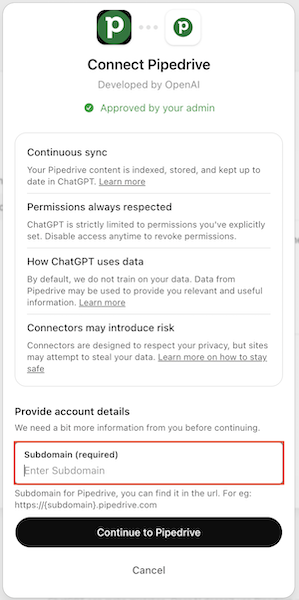
Pārliecinieties, ka esat pieslēdzies vai piesakieties, izmantojot Pipedrive akreditācijas datus; izvēlieties Pipedrive kontu, kuru vēlaties savienot, un noklikšķiniet uz “Atļaut un instalēt”.
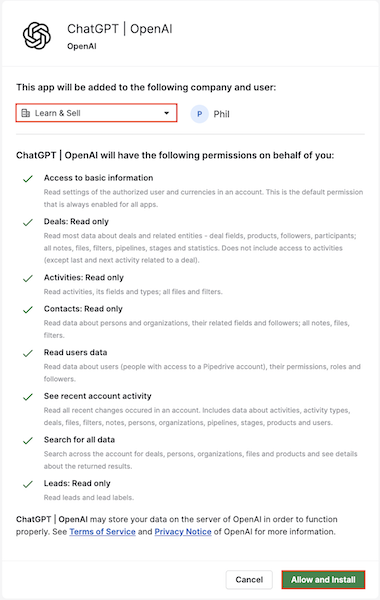
Tiklīdz savienojums ir pabeigts, jūs tiksiet novirzīts uz ChatGPT.
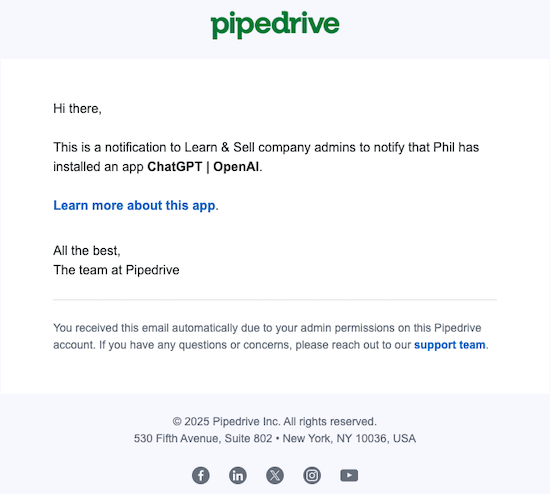
Kad lietotne ir veiksmīgi instalēta, Pipedrive administratori saņems e-pasta apstiprinājumu par šo darbību.
Sinhronizēt Pipedrive ar ChatGPT
Kad jūs tiksiet novirzīts uz instalācijas uznirstošo logu, redzēsiet opciju „Ieslēgt sinhronizāciju”.
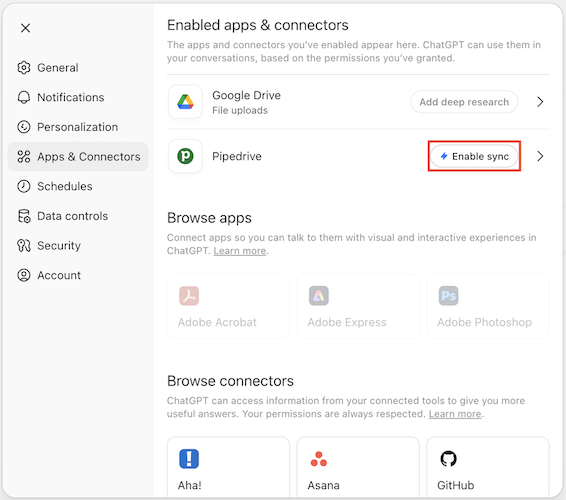
Jūs redzēsiet uznirstošo logu, kurā paskaidrots, ko sagaidīt no šīs sinhronizācijas. Vienkārši noklikšķiniet uz „Ieslēgt”, lai sāktu sinhronizēt savu Pipedrive kontu.
Tiklīdz sinhronizācija būs pabeigta, varēsiet sākt izmantot Pipedrive lietotni.
Lai izmantotu ChatGPT ar sava uzņēmuma informāciju, noklikšķiniet uz ikonas “+” un izvēlieties “Uzņēmuma zināšanas”.
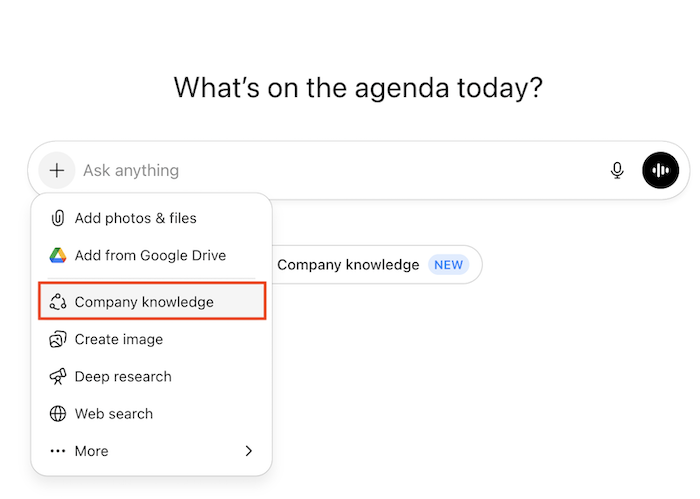
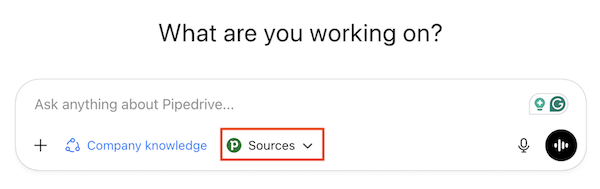
Pēc tam izvēlieties Pipedrive kā avotu un sāciet uzdot jautājumus par saviem datiem.
Atspējot Pipedrive lietotni ChatGPT
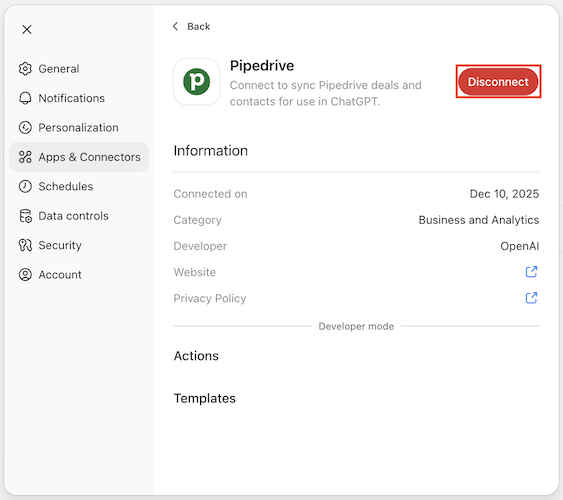
Lai atspējotu Pipedrive lietotni, dodieties uz “Iestatījumi”> “Aplikācijas un savienotāji”. Atrodiet Pipedrive lietotni un noklikšķiniet uz “Atspējot”.
Biežāk uzdotie jautājumi
Vai Pipedrive lietotne ChatGPT ir pieejama visos plānos?
Lietotne ir pieejama tikai OpenAI biznesa klientiem plānos Business, Enterprise, Edu vai Pro, un pēc iespējošanas tā ir pieejama visiem lietotājiem neatkarīgi no viņu Pipedrive plāna.
Vai ChatGPT izmantošana ietekmēs manu Pipedrive API ierobežojumus?
Jā. Jebkuri dati, pie kuriem ChatGPT piekļūst caur lietotni, tiks skaitīti jūsu Pipedrive API lietošanas ierobežojumos.
Pieejamo API žetonu skaits ir atkarīgs no jūsu uzņēmuma Pipedrive plāna. Par lietošanas ierobežojumiem varat uzzināt vairāk šajā rakstā.
Kā Pipedrive lietotne ChatGPT pārvalda lietotāju atļaujas?
Lietotne automātiski ievēro lietotāju atļaujas, kas definētas Pipedrive. ChatGPT varēs piekļūt tikai tiem datiem, kurus pieslēgtais lietotājs drīkst skatīt savā Pipedrive kontā.
Piemēram, pārdošanas pārstāvis redzēs tikai tos konveijera datus par darījumiem, kuriem viņam ir piekļuve. Ja piekļuve ir ierobežota noteiktiem lietotājiem vai komandām, ChatGPT arī nevarēs skatīt šos datus.
Lai iegūtu vairāk informācijas par Pipedrive atļauju kopām, skatiet šo rakstu.
Vai lietotāji var kontrolēt, kuriem Pipedrive datiem ChatGPT var piekļūt?
Piekļuve balstīta uz Pipedrive lietotāja atļaujām pieslēgšanās brīdī. Lietotne nenodrošina papildu detalizētas piekļuves iestatījumus, kas pārsniegtu tos, kuri jau tiek piemēroti Pipedrive.
Tikai ChatGPT lietotājs, kurš pieslēdzas Pipedrive, izmantojot OAuth, varēs piekļūt sinhronizētajiem datiem; šie dati tiek ierobežoti atbilstoši viņa Pipedrive atļaujām.
Atkarībā no lietotāja specifiskajām atļaujām, ChatGPT var redzēt datus, kas saistīti ar:
Darījumi | Atvērti un slēgti darījumi, darījuma vērtības, paredzamie noslēgšanas datumi, pielāgotie darījuma lauki |
Cilvēki (kontakti) | Kontaktu ieraksti, tālrunis un e-pasts, saistītās piezīmes un aktivitātes |
Uzņēmumi | Uzņēmuma ieraksti un saistītie cilvēki un darījumi |
Konveijeri un posmi | Konveijeri un posmi ar attiecīgajiem darījumiem |
Aktivitātes | Uzdevumi, zvani, sapulces, termiņi, aktivitāšu veidi un atbildīgie |
Piezīmes | Piezīmes, kas pievienotas darījumiem, cilvēkiem un organizācijām |
E-pasta sarakste | Sinhronizēti e-pasti, saistītie ziņojumi, e-pasta pavedieni katram kontaktam |
Faili un pielikumi | Faili, kas pievienoti darījumiem, cilvēkiem un organizācijām |
Produkti | Produktu katalogs un produktu līnijas darījumos |
Lietotāji un komandas | Organizācijas lietotāji, lomas un atļaujas |
Pielāgotie lauki un filtri | Pielāgotā shēma un saglabātie saraksta filtri |
Automātikas | Automātikas, aktivatori, darbības (ja pieejams API lietotājam) |
Pārskati un analītika | Iebūvētie pārskati un rādītāji (kas ir pieejami caur jūsu kontu un atļaujām) |
Webhooks un integrācijas | Konfigurētie webhooki un savienotās lietotnes |
Vai es varu atsaukt ChatGPT piekļuvi Pipedrive? Kas notiek ar maniem datiem?
Jā. Jūs varat jebkurā laikā atvienot ChatGPT no Pipedrive, izmantojot lietotnes iestatījumus. Pēc atvienošanas ChatGPT vairs nevarēs piekļūt jūsu Pipedrive datiem.
Sinhronizētie dati kļūst nepieejami drīz pēc atvienošanas un laika gaitā tiek automātiski dzēsti saskaņā ar OpenAI datu saglabāšanas politiku.
Cik ilgi Pipedrive dati tiek glabāti, lietojot ChatGPT?
Datu saglabāšanu regulē OpenAI politikas un jebkādi trešās puses rīki, kas izmantoti lietotnes iespējošanai.
Lai iegūtu vairāk informācijas, skatiet rakstu par OpenAI savienotājiem ChatGPT, datu kontroles BUJ un privātuma politiku.
Kā tiek nodrošināta manu CRM datu drošība, izmantojot šo lietotni?
Pirms izmantot Pipedrive lietotni ChatGPT, mēs iesakām pārskatīt jūsu uzņēmuma iekšējās politikas, lai nodrošinātu, ka tā atbilst jūsu drošības un atbilstības standartiem.
Lai uzzinātu vairāk par OpenAI drošības praksi, skatiet Administrēšanas kontroles, drošība un atbilstība savienotājos.
Kur tiek mitināti mani CRM dati, lietojot lietotni?
Nosacījumi un datu glabāšanas noteikumi, uz kuriem esat vienojies ar OpenAI, noteiks, kur un kā jūsu dati tiek apstrādāti ChatGPT.
Vai OpenAI trenējas uz maniem datiem, kad es tos kopīgoju caur lietotni?
OpenAI ievēro mācību iestatījumus, kas jums ir jūsu ChatGPT kontā. Lai iegūtu sīkāku informāciju par to, kā OpenAI apstrādā datus, kas iesniegti caur tā API, lūdzu, pārskatiet OpenAI API datu Lietošanas politiku.
Kā darbojas sinhronizācija ar lietotni? Vai tā ir tikai vienvirziena vai ChatGPT var veikt izmaiņas manā CRM kontā?
Sinhronizācija ir tikai vienvirziena — no Pipedrive uz ChatGPT. Nekādi dati no ChatGPT netiek pievienoti, rediģēti vai izdzēsti Pipedrive.
Trešo pušu integrāciju izpratne
ChatGPT lietotne ir veidota uz OpenAI tehnoloģijas bāzes un uz to attiecas OpenAI lietošanas noteikumi un privātuma politika. Pirms šīs integrācijas aktivizēšanas iesakām pārskatīt gan Pipedrive lietošanas noteikumus, gan OpenAI politikas, lai izprastu, kā jūsu dati var tikt apstrādāti.
Šis raksts un FAQ sadaļa sniedz papildu informāciju par to, kā darbojas lietotne. Tāpat kā ar jebkuru citu trešās puses rīku, lūdzu, izvērtējiet, vai tas ir piemērots jūsu darba plūsmai un datu apstrādes praksei. OpenAI ir apstiprinājis Pipedrive, ka tas neizmantos nevienus lietotnē kopīgotos datus vispārējai modeļa apmācībai.
Vai šis raksts bija noderīgs?
Jā
Nē