Šis raksts tika izveidots, izmantojot mašīntulkošanu.
Pipedrive Nova: sanāksmes
Nova ir Pipedrive jaunais iebūvētais sapulču inteliģences rīks, kas sagatavo jūsu komandu sapulcēm, ieraksta svarīgākos datus pārdošanas sarunu laikā un pēc tam izstrādā CRM atjauninājumus.
Sapulces laikā AI Notetaker ieraksta un transkribē sarunu. Pēc sapulces Nova pārvērš transkriptu pēcsapulces darbībās un iesaka CRM atjauninājumus.
Šajā rakstā ir izskaidrots, kā:
- Sagatavoties sapulcēm, izmantojot ar AI ģenerētu kopsavilkumu
- Pārvaldīt dalībnieku piekrišanu
- Pārrakstīt sapulces, izmantojot AI Notetaker vai Nova Companion darbvirsmas lietotni
- Pārskatīt pēcsapulces darbības un ieteiktos CRM atjauninājumus
Ja vēl neesat savienojis savus kontus vai neesat ieslēdzis Nova, sāciet ar Nova iestatīšanu.
Sagatavoties tikšanām
Ekrāns Sapulces ir centrālā vieta visam, kas saistīts ar laiku pirms sapulces, tās laikā un pēc tās. Tam ir divas cilnes:
- Nākamās tikšanās, kur sagatavojaties gaidāmajām sarunām
- Darbības pēc tikšanās, kur pārskatāt tikšanās kopsavilkumus un ieteiktos CRM atjauninājumus pēc zvana
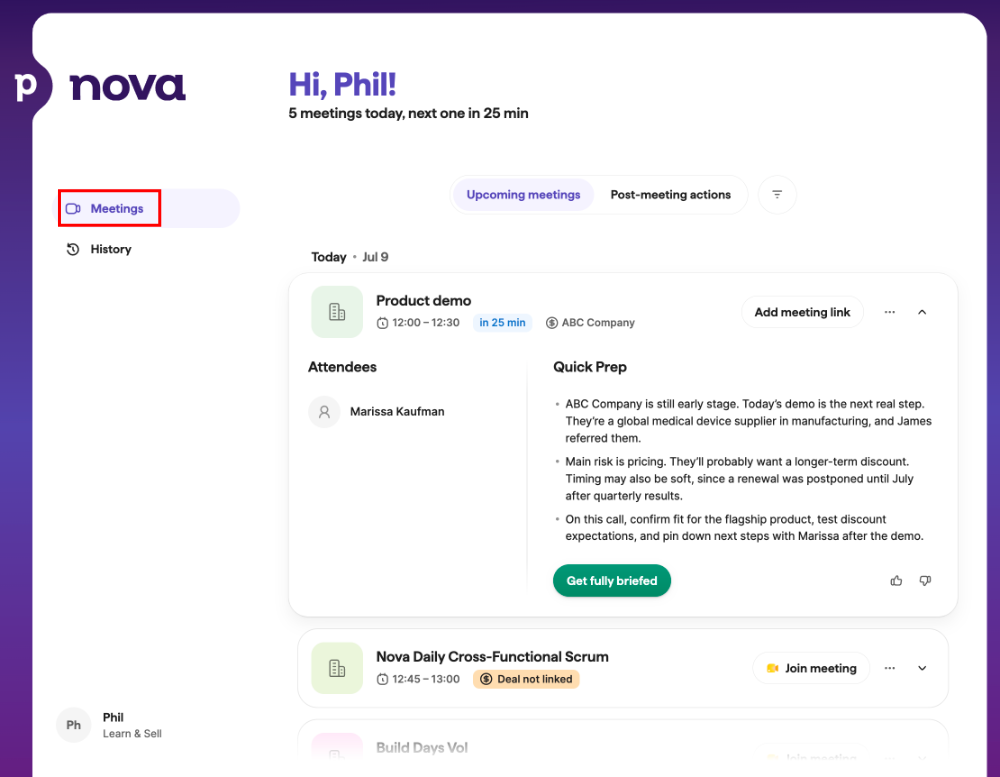
Ja gaidītā sapulce netiek rādīta, pārbaudiet tālāk norādītos sapulču sinhronizācijas iestatījumus. Ja esat izslēdzis Iekļaut sapulces bez saistīta darījuma, personas vai organizācijas, pārliecinieties, ka dalībnieka e-pasta adrese ir saglabāta kā kontakts Pipedrive.
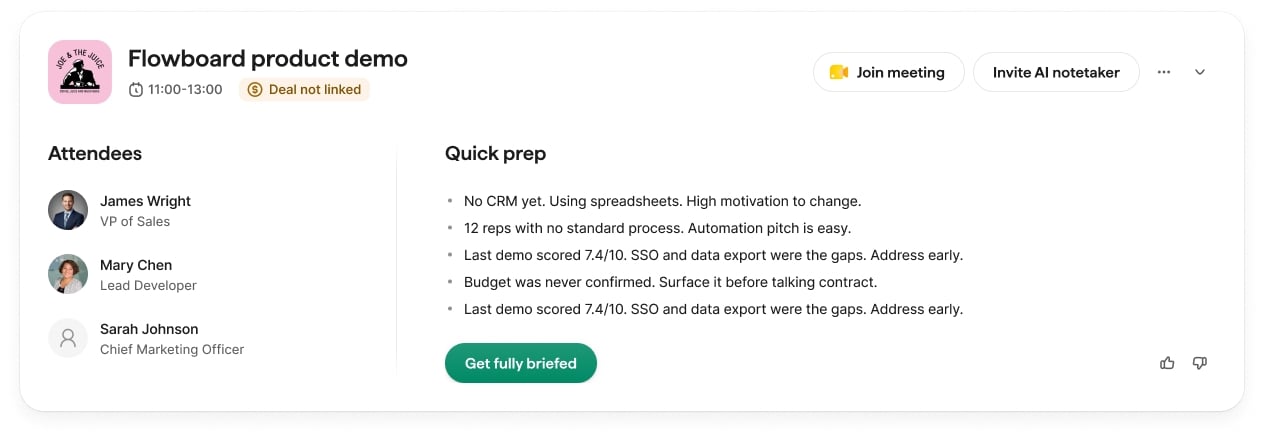
Atveriet gaidāmo sapulci, lai skatītu MI ģenerētu sagatavošanas kopsavilkumu ar zvanam atbilstošu kontekstu. Atkarībā no pieejamajiem datiem sagatavošanas kopsavilkumā var būt:
- Darījuma konteksts, balstīts uz piezīmēm un nesenu darbību
- Informācija par organizāciju (ja ir pieejams organizācijas kopsavilkums)
- Kontaktu kopsavilkumi CRM dalībniekiem
- Sagatavošanās kontrolsaraksts ar uzsvaru uz neseno darbību
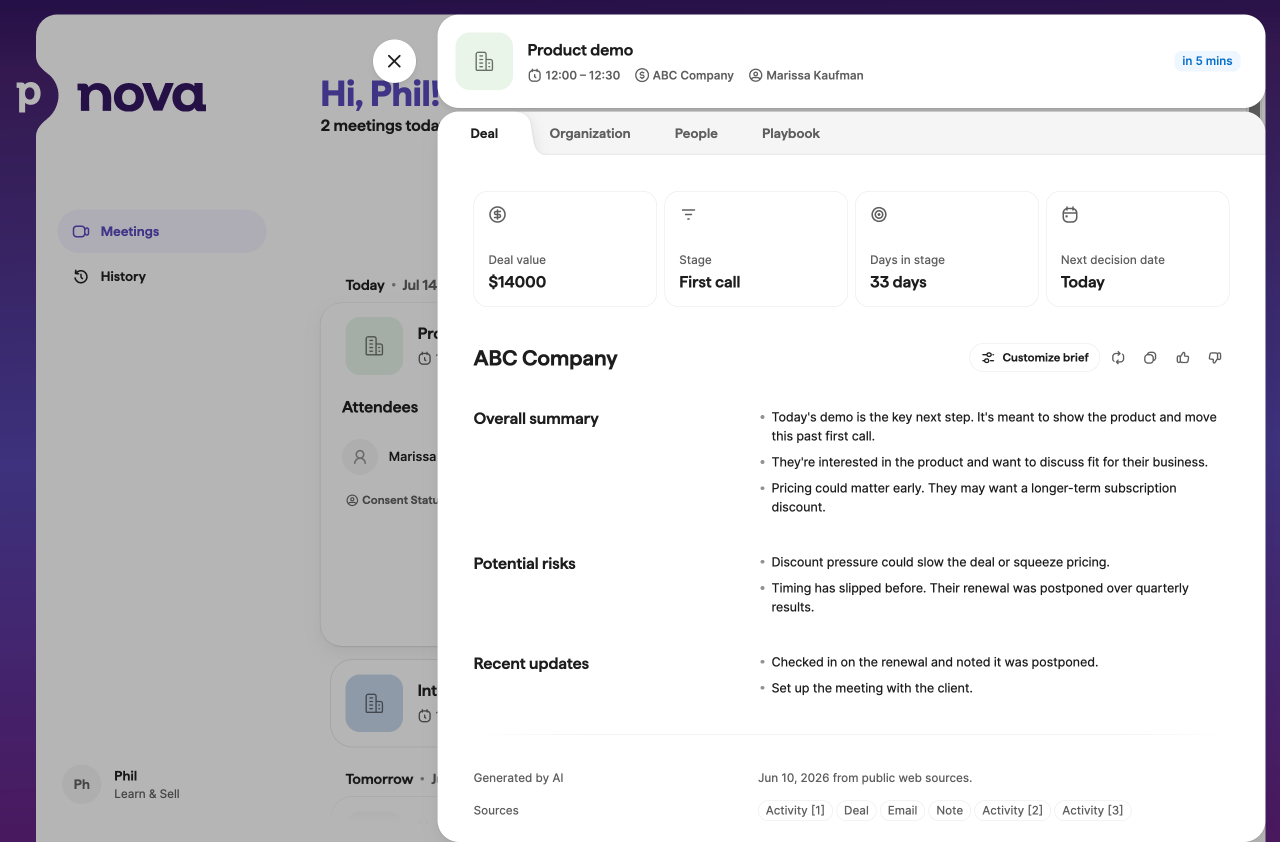
Sapulču sagatavošanas kopsavilkumus varat pielāgot darījuma pārskatā. Panelī Pielāgot kopsavilkumu pievienojiet brīvas formas norādījumus, un Nova ģenerēs pielāgota sagatavošanas kopsavilkuma sadaļu visām gaidāmajām sapulcēm, kas saistītas ar šo darījumu.
Pārvaldīt sapulču sinhronizācijas iestatījumus
Ne visi kalendāra notikumi vai Pipedrive aktivitātes ir paredzētas rādīšanai programmā Nova. To, kuri tiek rādīti, nosaka četri neatkarīgi iestatījumi. Lai sapulce vai aktivitāte tiktu rādīta programmā Nova, tai jāatbilst visiem četriem kritērijiem.
Atveriet šos iestatījumus: Iestatījumi > Sapulču un aktivitāšu sinhronizēšana, sadaļā Sapulču sinhronizācijas noteikumi.
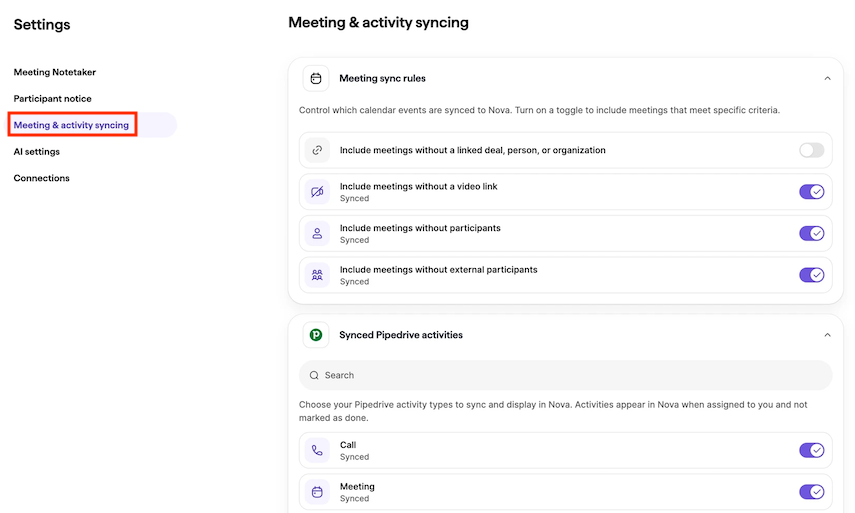
Ja maināt kādu no šiem iestatījumiem, Nova automātiski atkārtoti pārbauda gaidāmās sapulces: tās, kas vairs neatbilst kritērijiem, tiek noņemtas, bet tās, kas tagad atbilst, tiek pievienotas. Iepriekšējās sapulces netiek ietekmētas.
Pārvaldīt piekrišanu
Pirms sanāksmes transkribēšanas pārliecinieties, ka esat saņēmis visus nepieciešamos piekrišanas saskaņā ar piemērojamiem likumiem un jūsu organizācijas politikām.
Automātisku pievienošanos ieslēdziet, uzaiciniet AI Notetaker vai sāciet ierakstīšanu ar Nova Companion darbvirsmas lietotni tikai pēc tam, kad esat izpildījis savas piekrišanas saistības.
Jūsu dalībnieku paziņojumu iestatījumi darbojas vienādi abos gadījumos: ar AI Notetaker dalībnieki redz ziņu sanāksmes tērzē; ar darbvirsmas lietotni jūs redzēsiet to pašu paziņojumu kā iebūvētu uzvedni, pievienojoties zvana laikā.
Sīkāku informāciju par to, kā katrs risinājums darbojas, skatiet sadaļās Transkribēt sanāksmes ar AI Notetaker un Ierakstīt sanāksmes ar Nova Companion darbvirsmas lietotni zemāk.
Uz ierakstīšanu var attiekties arī jūsu uzņēmuma iekšējās politikas. Kā sapulces organizators esat atbildīgs par piemērojamo tiesību aktu un politiku ievērošanu, kā arī dalībnieku izvēļu respektēšanu.
Dalībnieku paziņojumi pēc noklusējuma ir atspējoti. Tos varat pārvaldīt sadaļā Iestatījumi > Dalībnieku paziņojums.
Sadaļā Paziņojuma veids jūs varat izvēlēties, kā sanāksmes dalībnieki tiek informēti par sanāksmes transkripciju.
Bez automātiskiem brīdinājumiem
Izvēlieties šo opciju, ja dalībniekus informēsit un saņemsiet nepieciešamās piekrišanas ārpus Nova.
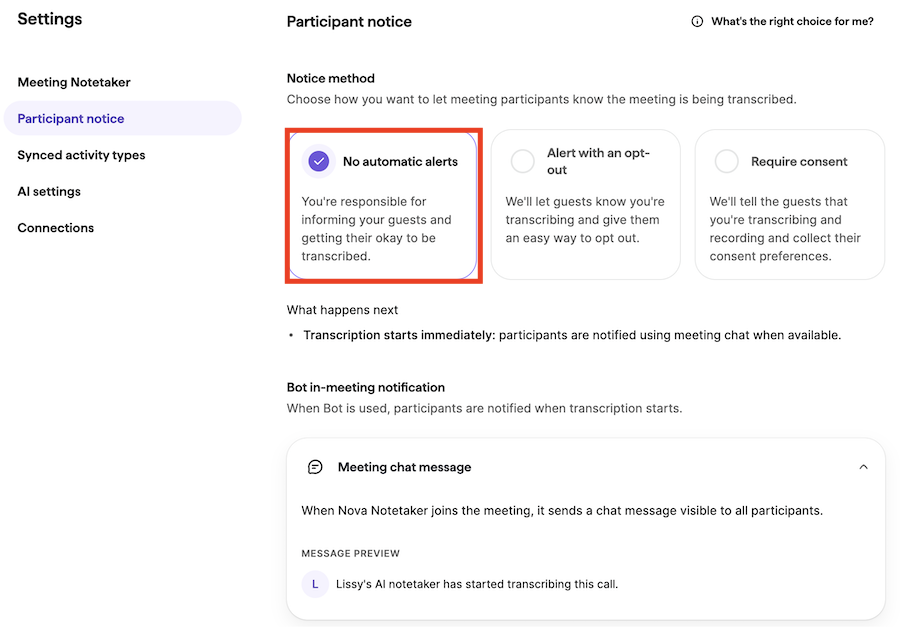
Izvēloties šo opciju, Nova pirms sanāksmes nesūta automātiskus brīdinājumus.
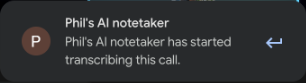
Kad sanāksme sākas, Nova ievieto ziņu sanāksmes tērzē (Google Meet, Zoom vai Microsoft Teams, kur atbalstīts), norādot, ka notiek transkripcija.
Brīdinājums ar atteikšanās iespēju
Izmantojiet šo opciju, ja vēlaties, lai Nova pirms sanāksmes informē dalībniekus un nodrošina vienkāršu iespēju atteikties no transkripcijas.
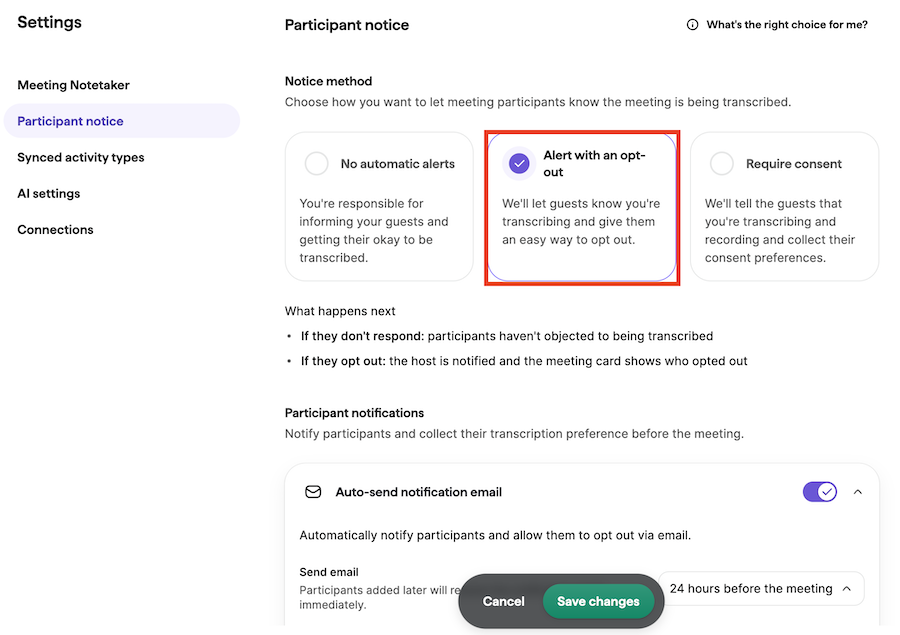
Dalībnieki pirms sapulces saņem e-pasta paziņojumu. Varat izvēlēties, kad e-pasts tiek nosūtīts.
Dalībnieki var atteikties no ierakstīšanas vai transkribēšanas. Sapulces vadītājs ir atbildīgs par dalībnieku izvēļu respektēšanu.
Prasīt piekrišanu
Izmantojiet šo opciju, ja vēlaties, lai Nova pirms sanāksmes informē dalībniekus un vāc viņu piekrišanas preferences transkripcijai.
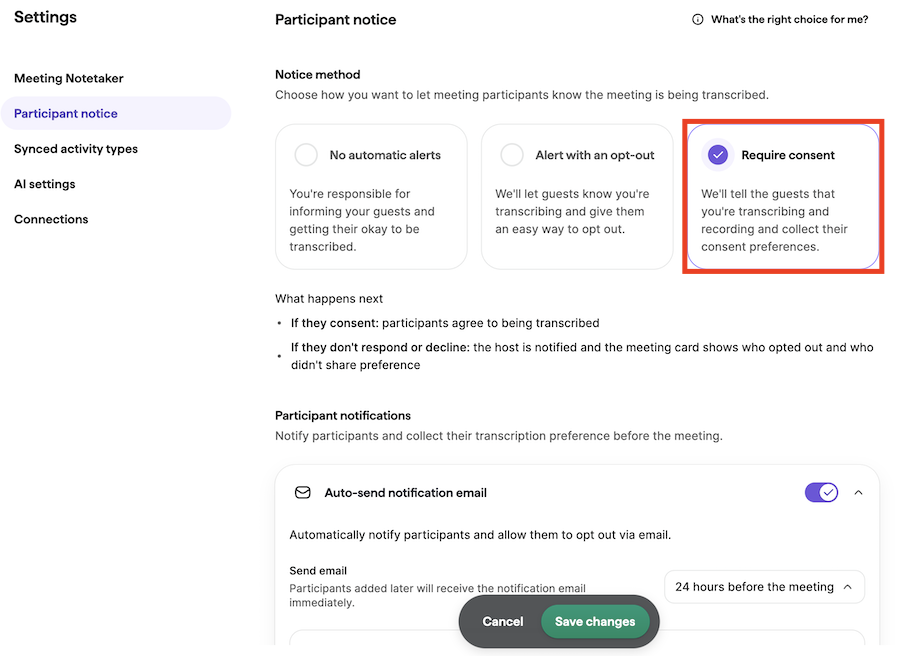
Pirms sanāksmes dalībnieki var piekrist transkripcijai vai atteikties.
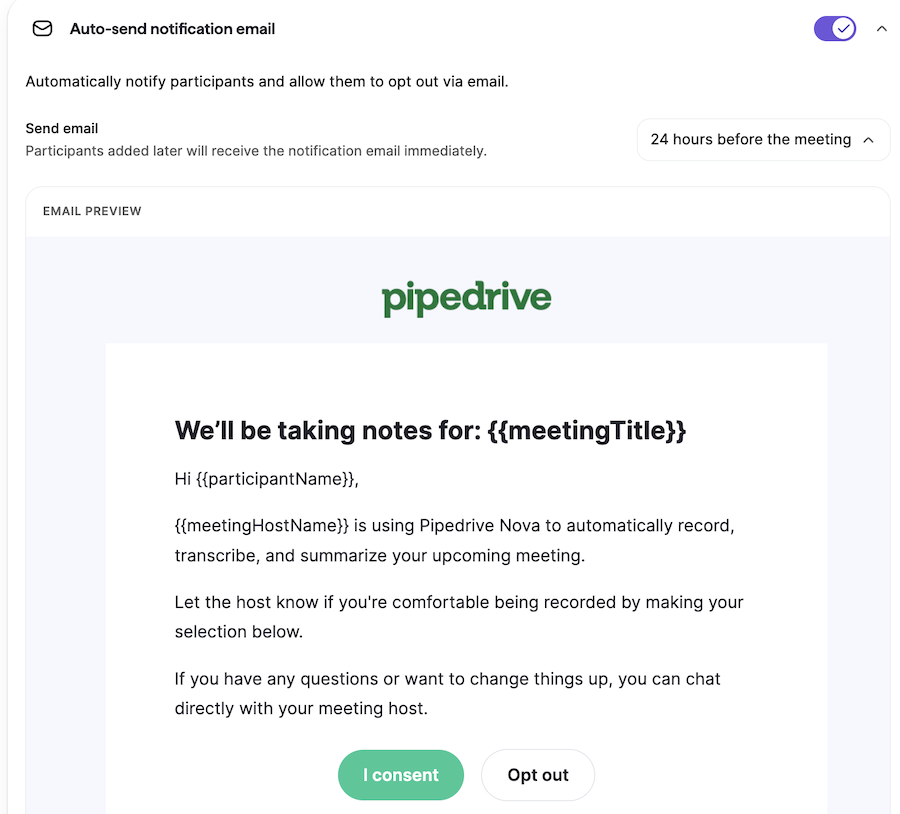
Viņu atbildes tiek apkopotas un parādītas programmā Nova. Sapulces vadītājs ir atbildīgs par dalībnieku izvēļu respektēšanu.
Informēt dalībniekus
Jūs varat informēt dalībniekus divos veidos:
Automātisks e-pasts: Nova var automātiski nosūtīt piekrišanas e-pastus pirms sapulces. Pēc noklusējuma tie tiek nosūtīti 24 stundas pirms sapulces, taču laiku varat mainīt nolaižamajā izvēlnē Automātiski nosūtīt paziņojuma e-pastu.
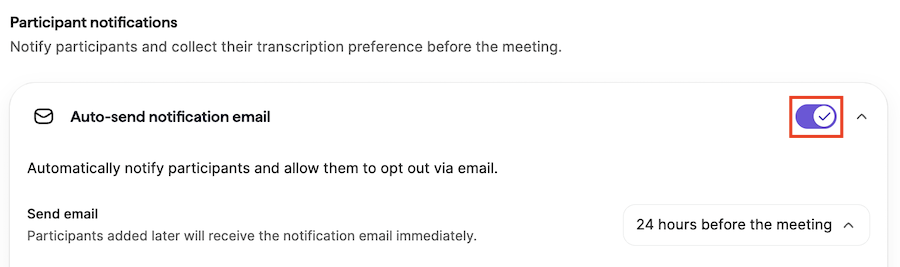
Kopīgojama piekrišanas saite: Jūs varat arī aktivizēt pielāgotu atteikšanās saiti.
Kad šī funkcija ir iespējota, katrai sapulcei ir unikāla piekrišanas saite. Atveriet sapulces piekrišanas statusu un noklikšķiniet uz „Kopēt piekrišanas saiti“, lai kopīgotu to ar dalībniekiem, neizmantojot automātisko e-pastu.
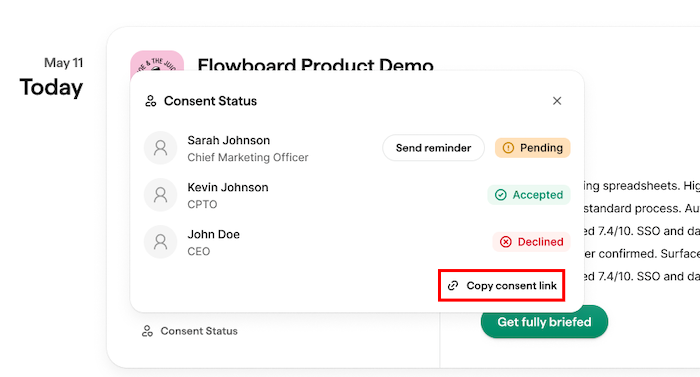
Ar šo saiti var iesniegt savu piekrišanas izvēli tikai uzaicinātie sanāksmes dalībnieki.
Piekrišanas statuss sanāksmes kartītēs
Piekrišanas statuss tiek rādīts kā iekļauta etiķete gaidāmo sapulču kartītēs. Etiķetē ir redzams, kuri dalībnieki ir atteikušies vai vēl nav atbildējuši.
Noklikšķiniet “Sūtīt atgādinājumu”, lai vēlreiz pieprasītu piekrišanu no dalībniekiem ar statusu gaida.
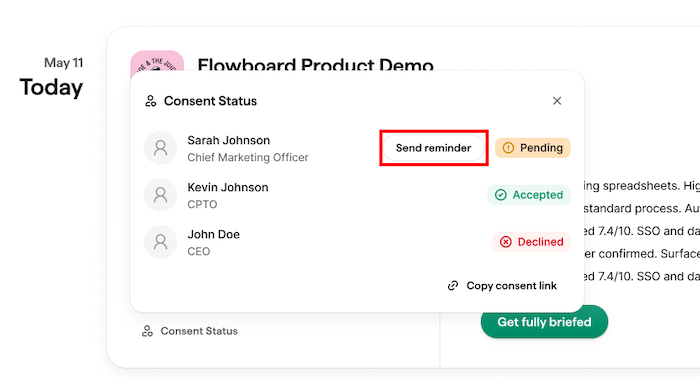
Kad dalībnieki iesniedz atbildes pa e‑pastu vai, izmantojot kopīgojamo saiti, šie statusi tiek automātiski atjaunināti.
Transkribējiet sapulces ar AI piezīmju ņēmēju
Novas AI piezīmju ņēmējs pievienojas jūsu Google Meet, Zoom vai Microsoft Teams sapulcēm kā redzams dalībnieks, lai automātiski tās transkribētu.
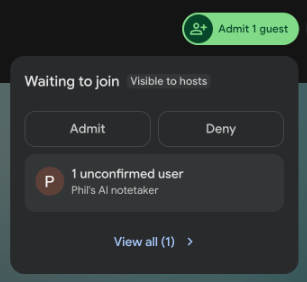
AI Notetaker pievienojas kā redzams dalībnieks un pēc uzņemšanas sapulcē automātiski sāk transkribēšanu. Pēc sapulces beigām varat pārskatīt transkriptu un pēcsapulces darbības Nova tīmekļa lietotnē.
Izvēlieties, kā AI piezīmju ņēmējs pievienojas jūsu zvaniem
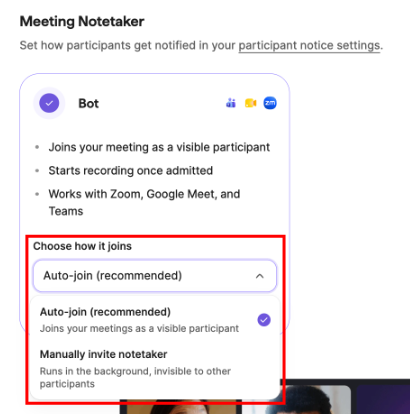
Sadaļā Iestatījumi > Sapulču piezīmju veidotājs izvēlaties, kā AI Notetaker pievienojas zvaniem. Sadaļā Izvēlieties, kā tas pievienojas atlasiet vienu no divām iespējām:
- Automātiska pievienošanās: AI Notetaker automātiski pievienojas sapulcēm kā redzams dalībnieks. Šī ir ieteicamā iespēja, un tā ir atlasīta pēc noklusējuma.
- Manuāli ielūgt piezīmju ņēmēju: AI piezīmju ņēmējs pievienojas tikai tad, kad jūs to ielūdzat.
Pievienoties un transkribēt sapulci
Ja ir ieslēgta Automātiskā pievienošanās, AI piezīmju ņēmējs mēģina pievienoties aptuveni divas minūtes pirms plānotā sapulces sākuma laika, pat ja jūs vēl neesat pievienojies.
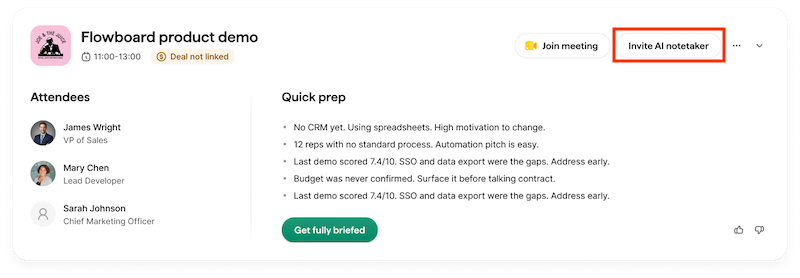
Ja izvēlaties manuāli ielūgt piezīmju ņēmēju, noklikšķiniet uz ”Ielūgt AI piezīmju ņēmēju” sapulces kartītē.
Ja uzaicināt to pirms plānotā sākuma laika, tas pievienojas nekavējoties. Ja tas pamet sapulci vai nevar tai veiksmīgi pievienoties, kamēr sapulce vēl notiek, varat atjaunināt vai pievienot sapulces saiti, lai tas pievienotos atkārtoti.
Ja dalībnieks nevēlas, lai zvans tiktu transkribēts, sapulces vadītājs ir atbildīgs par šī pieprasījuma ievērošanu un jebkurā laikā var noņemt AI Notetaker botu no zvana, lai apturētu transkribēšanu. Skatiet iepriekš sadaļu „Pārvaldīt piekrišanu“, lai iestatītu piekrišanas paziņojumus.
Ierakstīt sapulces ar Nova Companion darbvirsmas lietotni
AI Notetaker bota vietā varat izmantot Nova Companion darbvirsmas lietotni, lai ierakstītu sapulces tieši datorā, botam nepievienojoties zvanam. Varat to lejupielādēt operētājsistēmai Mac vai Windows sadaļā Iestatījumi > Sapulču piezīmju veidotājs.
Par iestatīšanu, atļaujām un to, kā ierakstīt sapulci, skatiet Pipedrive Nova: Companion darbvirsmas lietotne.
Pārskatīt pēcsanāksmes darbības
Pēc sapulces transkribēšanas Nova ģenerē pēcsapulces darbības, pamatojoties uz transkriptu. Tās tiek rādītas sadaļā Sapulces > Pēcsapulces darbības.
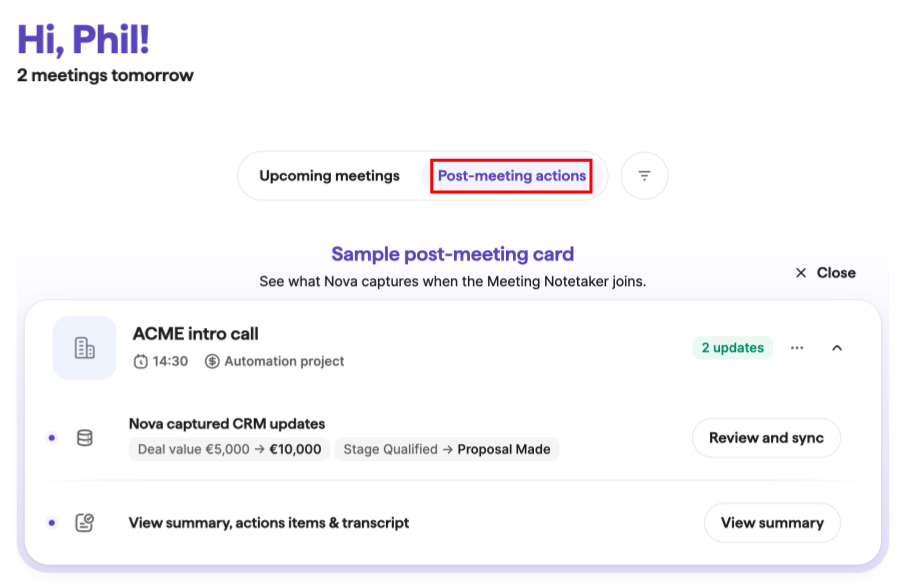
Pēcsanāksmes darbības var ietvert:
- Sanāksmes pārskats ar kopsavilkumu, galvenajiem secinājumiem un ieteicamajiem nākamajiem soļiem
- Ieteiktie CRM atjauninājumi
- Sanāksmes transkripts
Darbību vienumi ir personalizēti jums. Ja ir pieejamas laika atzīmes, noklikšķiniet uz kādas no tām, lai pārietu tieši uz šo vietu transkriptā.
Nova var arī saglabāt sapulces kopsavilkumu kā piezīmi pie saistītā darījuma, personas vai organizācijas. Ja nav saistīta ieraksta, piezīme netiek izveidota.
Ja ierakstījāt zvanu ārpus Nova, varat augšupielādēt transkriptu sadaļā Sapulces > Pēcsapulces darbības. Atbalstītie failu tipi ir .txt, .pdf un .docx.
Pārskatīt un atjaunināt CRM datus
Nova iesaka CRM atjauninājumus, pamatojoties uz sapulces transkriptu. Ieteikumi tiek rādīti cilnē CRM atjauninājums, kur pirms saglabāšanas varat pārskatīt katru izmaiņu.
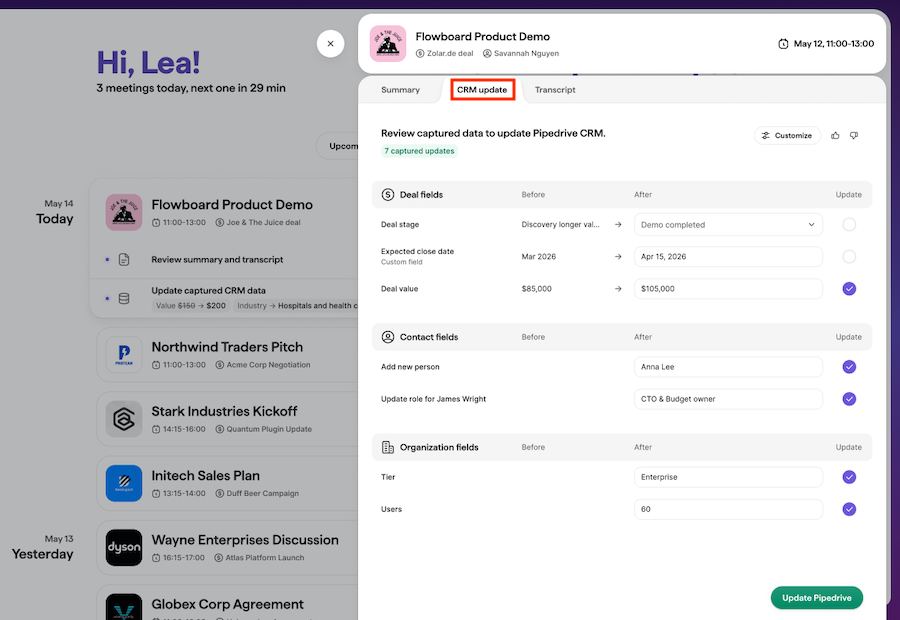
Ieteikumi var iekļaut atjauninājumus šādām jomām:
- Darījuma lauki, tostarp pielāgotie lauki un etiķetes
- Personas lauki, tostarp pielāgotie lauki, tālruņa numuri un e‑pasta adreses
- Organizācijas lauki, tostarp pielāgotie lauki un etiķetes
Nova parāda pašreizējo Pipedrive vērtību blakus ieteiktajai vērtībai. Ja vērtība Pipedrive mainās pēc tam, kad Nova ir izveidojis ieteikumu, Nova atzīmē lauku, lai pirms atjauninājuma piemērošanas varat pārskatīt atšķirību.
Ieteiktās izmaiņas varat sinhronizēt selektīvi. Kad lauks ir saglabāts, tas paliek redzams tikai lasīšanai, un kartītes darbība mainās uz „Pārskatīt“.
Vai šis raksts bija noderīgs?
Jā
Nē