Pipedrive Nova: reuniões
O Nova é a nova ferramenta de inteligência de reuniões integrada ao Pipedrive. Ele prepara sua equipe para reuniões, registra informações importantes durante chamadas de vendas e cria rascunhos de atualizações do CRM depois delas.
Durante as reuniões, o Assistente de notas com IA registra e transcreve o que é discutido. Após a reunião, o Nova transforma a transcrição em ações de acompanhamento e sugere atualizações do CRM.
Este artigo explica como:
- Preparar-se para reuniões com um briefing gerado por IA
- Gerenciar o consentimento dos participantes
- Transcrever reuniões com o Assistente de notas com IA ou com o aplicativo Nova Companion para desktop
- Revisar ações pós-reunião e atualizações sugeridas do CRM
Se ainda não conectou suas contas nem ativou o Nova, comece pela configuração do Nova.
Prepare-se para reuniões
A tela Reuniões reúne tudo o que você precisa antes, durante e depois de uma reunião. Ela tem duas abas:
- Próximas reuniões, onde você se prepara para as próximas chamadas
- Ações pós-reunião, onde você revisa as recapitulações das reuniões e as atualizações sugeridas do CRM após uma chamada
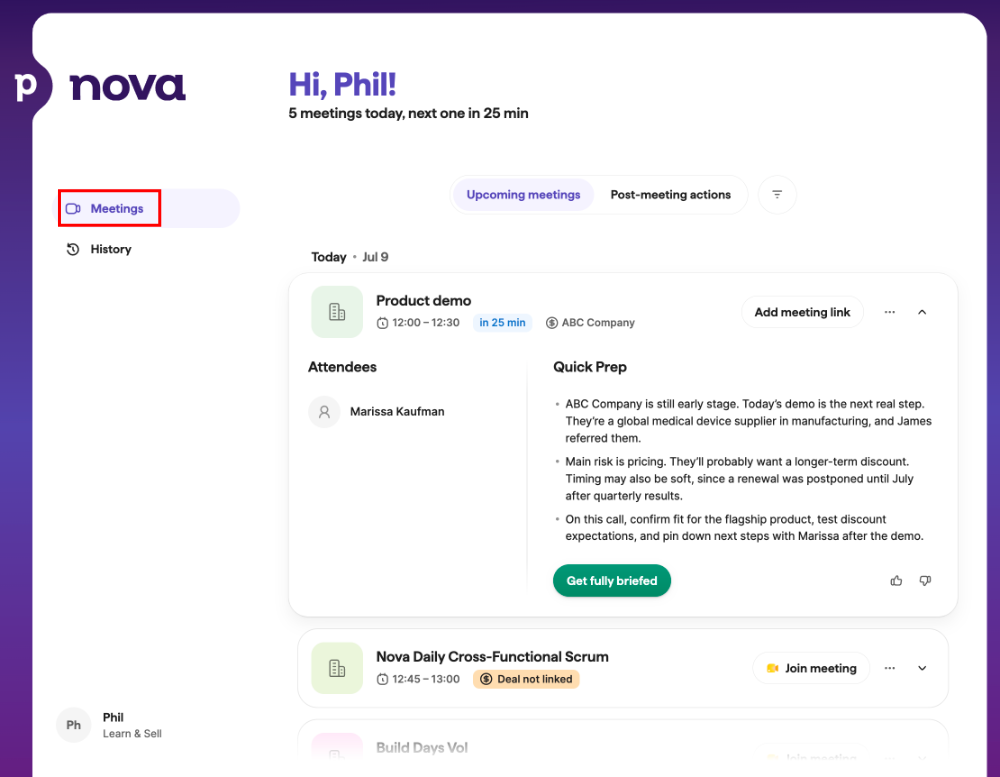
Se uma reunião esperada não aparecer, confira abaixo as configurações de sincronização de reuniões. Se você desativou Incluir reuniões sem negócio, pessoa ou organização vinculados, confirme se o endereço de e-mail do participante está salvo como contato no Pipedrive.
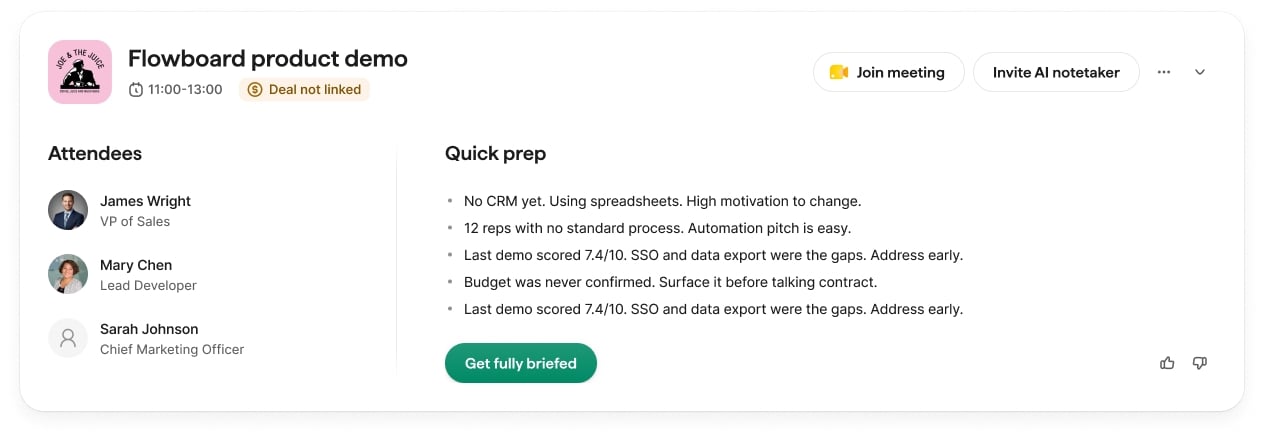
Abra uma próxima reunião para ver um briefing gerado por IA com o contexto relevante para sua chamada. Dependendo dos dados disponíveis, o briefing pode incluir:
- Contexto do negócio com base em anotações e atividades recentes
- Informações sobre a organização (se houver um briefing disponível)
- Briefings de contatos para participantes do CRM
- Uma lista de preparação que destaca atividades recentes
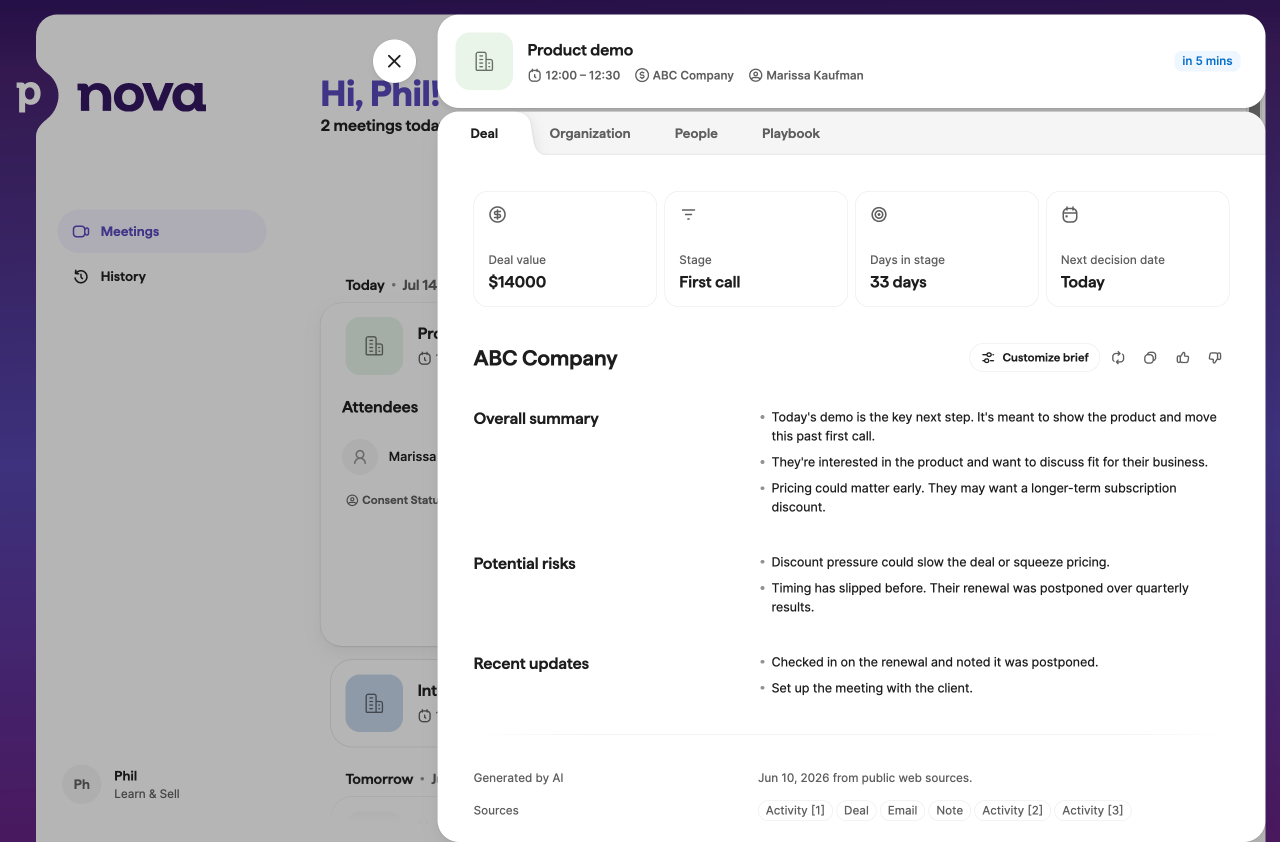
Você pode personalizar os briefings de reuniões na visão geral do negócio. No painel Personalizar briefing, adicione instruções em texto livre. O Nova gerará uma seção de briefing personalizada para todas as próximas reuniões vinculadas ao negócio.
Gerencie as configurações de sincronização de reuniões
Nem todos os eventos do calendário ou atividades do Pipedrive devem aparecer no Nova. Quatro configurações independentes determinam quais deles aparecem. Uma reunião ou atividade precisa atender aos quatro critérios para aparecer no Nova.
Abra essas configurações em Configurações > Sincronização de reuniões e atividades, na seção Regras de sincronização de reuniões.
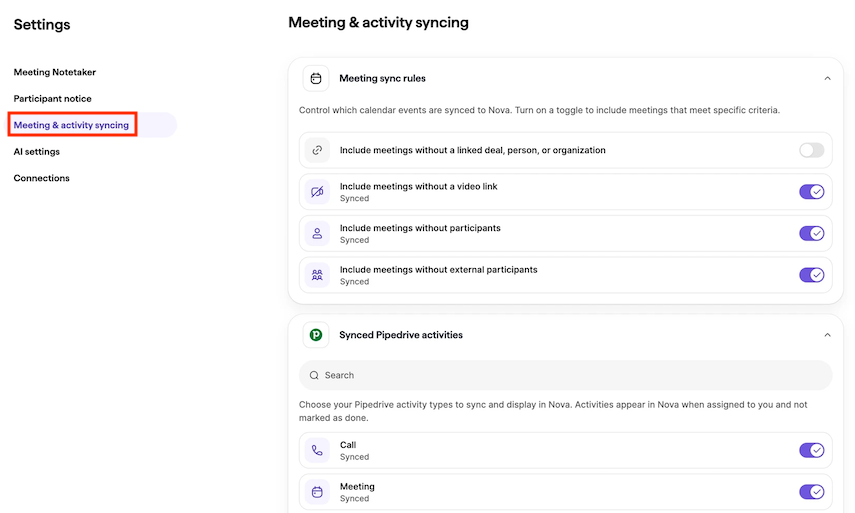
Se você alterar alguma dessas configurações, o Nova verificará novamente as próximas reuniões de forma automática: as que deixarem de atender aos critérios serão removidas, e as que passarem a atendê-los serão adicionadas. As reuniões anteriores não são afetadas.
Gerencie o consentimento
Antes de transcrever uma reunião, confirme que você obteve todos os consentimentos exigidos pelas leis aplicáveis e pelas políticas da sua organização.
Ative a entrada automática, convide o AI Notetaker ou inicie uma gravação com o aplicativo Nova Companion para desktop somente depois de cumprir suas obrigações de consentimento.
As configurações de aviso aos participantes funcionam do mesmo jeito: no Assistente de notas com IA, uma mensagem é enviada para o chat da reunião; no aplicativo para desktop, o aviso aparece na tela quando alguém entra na chamada.
Para saber como cada opção funciona, consulte abaixo Transcreva reuniões com o AI Notetaker e Grave reuniões com o aplicativo Nova Companion para desktop.
A gravação também pode estar sujeita às políticas internas da sua organização. Como organizador da reunião, você é responsável por cumprir as leis e políticas aplicáveis e respeitar as preferências dos participantes.
Os avisos aos participantes ficam desativados por padrão. Você pode gerenciá-los em Configurações > Aviso aos participantes.
Em Método de aviso, você pode escolher como os participantes serão avisados sobre a transcrição da reunião.
Sem alertas automáticos
Escolha esta opção se você for avisar os participantes e obter os consentimentos necessários fora do Nova.
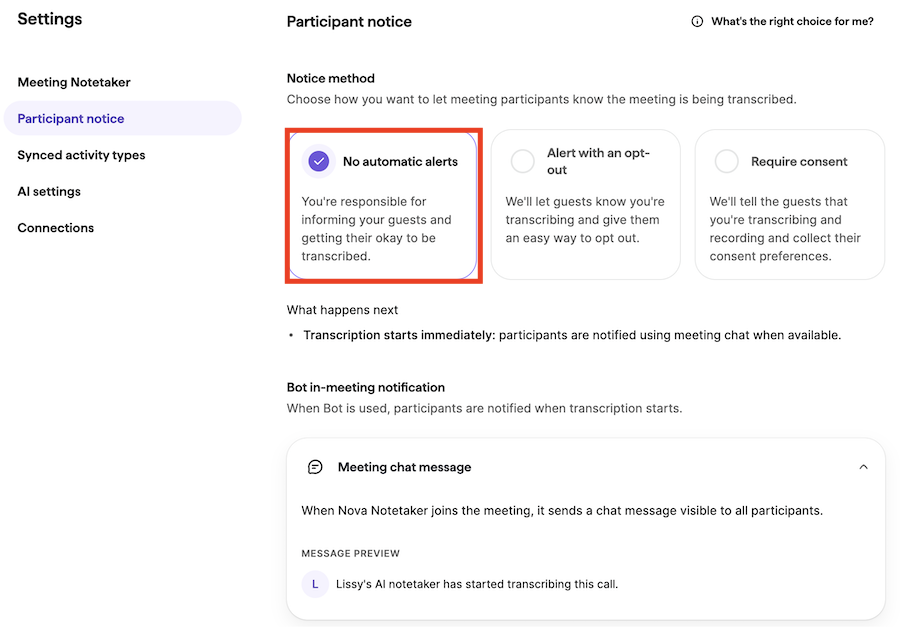
Quando esta opção está selecionada, o Nova não envia alertas automáticos antes da reunião.
Quando a reunião começa, o Nova publica uma mensagem no chat da reunião (Google Meet, Zoom ou Microsoft Teams, quando compatível) informando que a transcrição está em andamento.
Alerta com opção de recusa
Use esta opção se quiser que o Nova avise os participantes antes da reunião e ofereça uma forma simples de recusar a transcrição.
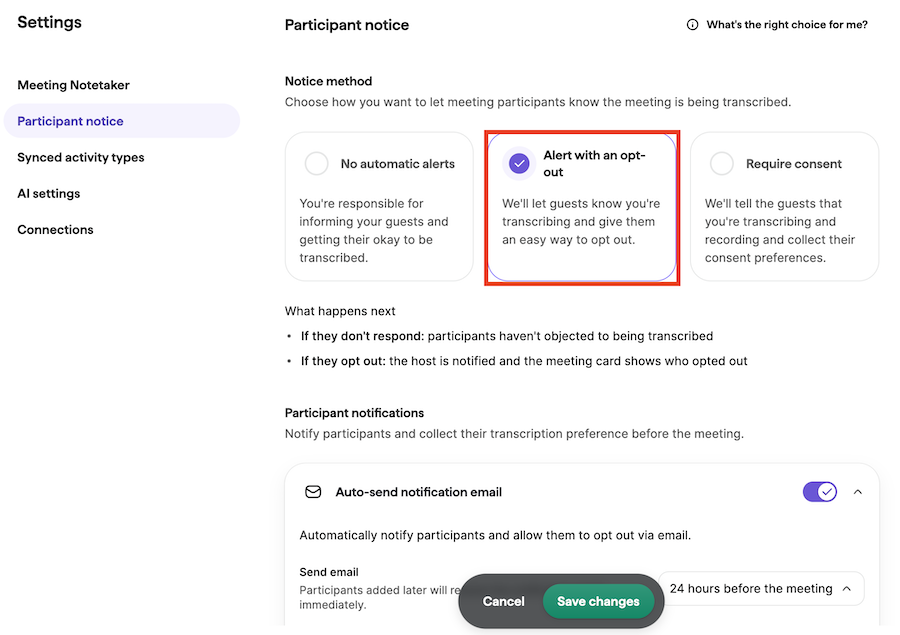
Os participantes recebem uma notificação por e-mail antes da reunião. Você pode escolher quando o e-mail será enviado.
Os participantes podem recusar a gravação ou a transcrição. O anfitrião da reunião é responsável por respeitar as preferências dos participantes.
Exigir consentimento
Use esta opção se quiser que o Nova avise os participantes antes da reunião e colete as preferências de consentimento para a transcrição.
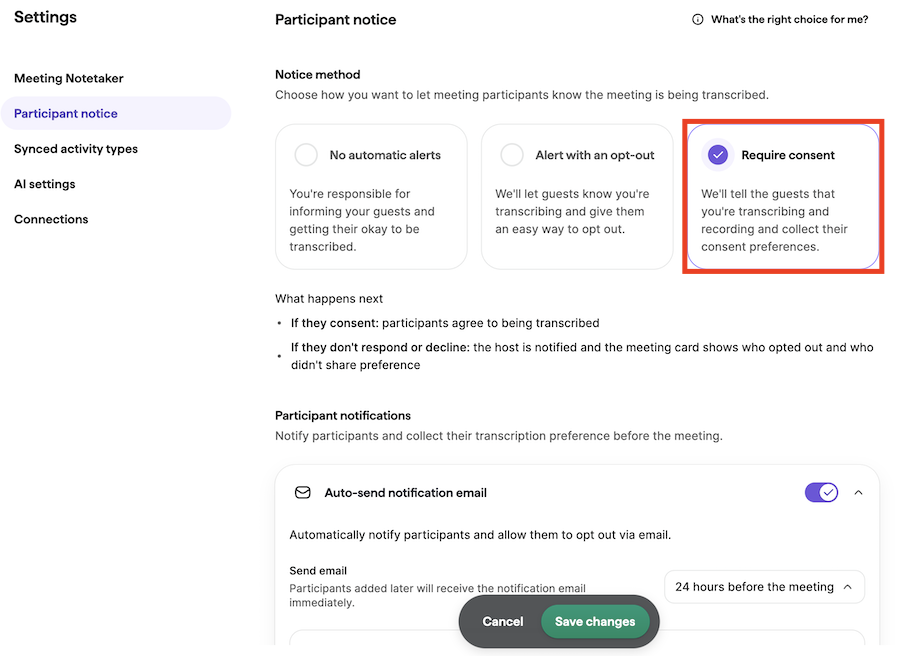
Antes da reunião, os participantes podem consentir com a transcrição ou recusá-la.
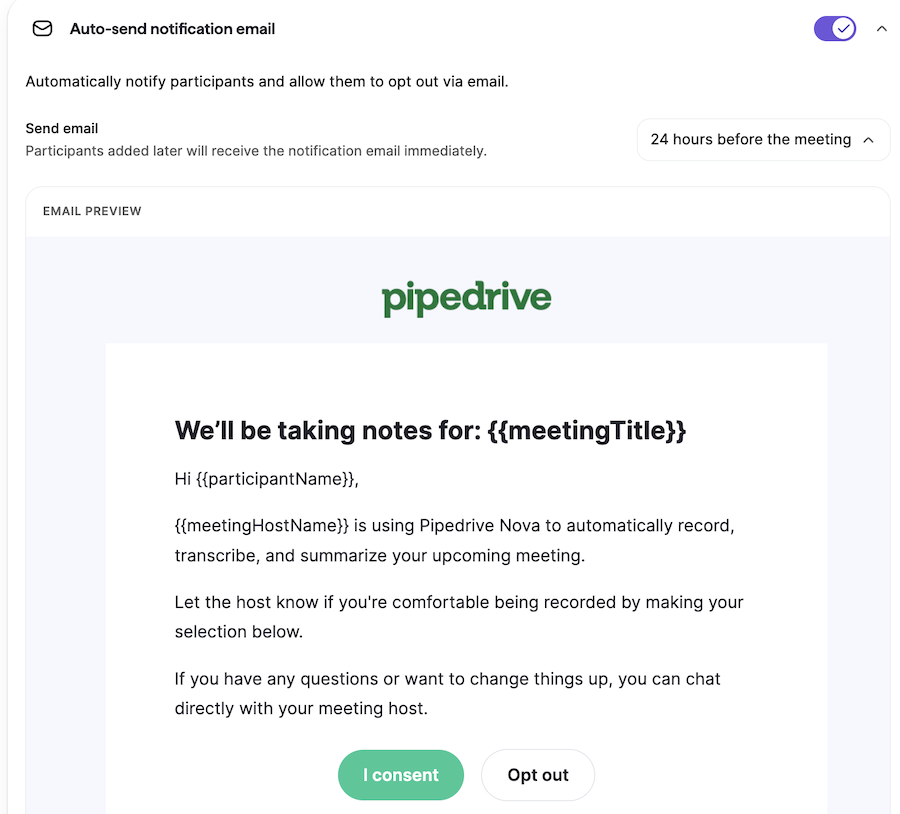
As respostas são coletadas e exibidas no Nova. O anfitrião da reunião é responsável por respeitar as preferências dos participantes.
Avise os participantes
Você pode avisar os participantes de duas formas:
E-mail automático: o Nova pode enviar e-mails de consentimento automaticamente antes da reunião. Por padrão, eles são enviados 24 horas antes da reunião, mas você pode alterar o horário no menu suspenso Enviar e-mail de notificação automaticamente.
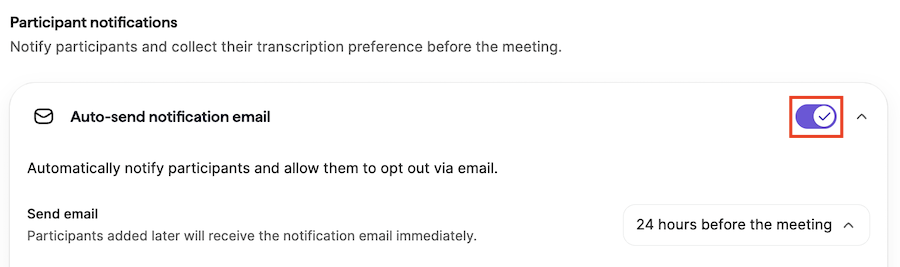
Link de consentimento compartilhável: você também pode ativar um link personalizado de recusa.
Quando essa opção está ativada, cada reunião inclui um link de consentimento exclusivo. Abra o status de consentimento da reunião e clique em “Copiar link de consentimento” para compartilhá-lo com os participantes em vez de usar o e-mail automático.
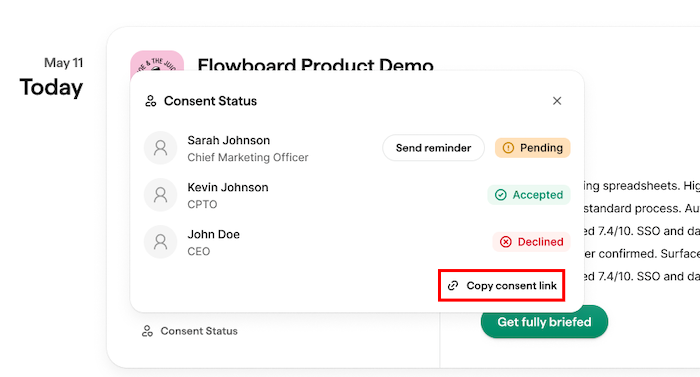
Somente os participantes convidados para a reunião podem usar o link para enviar sua preferência de consentimento.
Status do consentimento nos cartões de reunião
O status do consentimento aparece como uma etiqueta no próprio cartão das próximas reuniões. A etiqueta mostra quais participantes recusaram ou ainda não responderam.
Clique em “Enviar lembrete” para solicitar novamente o consentimento dos participantes com status pendente.
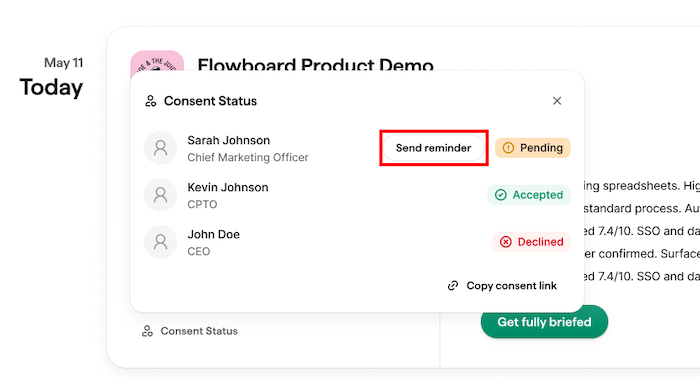
À medida que os participantes enviam suas respostas por e-mail ou pelo link compartilhável, esses status são atualizados automaticamente.
Transcreva reuniões com o AI Notetaker
O AI Notetaker do Nova entra nas suas reuniões do Google Meet, Zoom ou Microsoft Teams como um participante visível para transcrevê-las automaticamente.
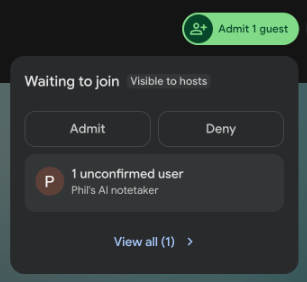
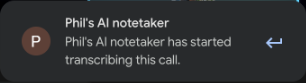
O AI Notetaker entra como um participante visível e começa a transcrever automaticamente assim que é admitido na reunião. Depois que a reunião terminar, você poderá revisar a transcrição e as ações de acompanhamento no aplicativo web do Nova.
Escolha como o AI Notetaker entra nas suas chamadas
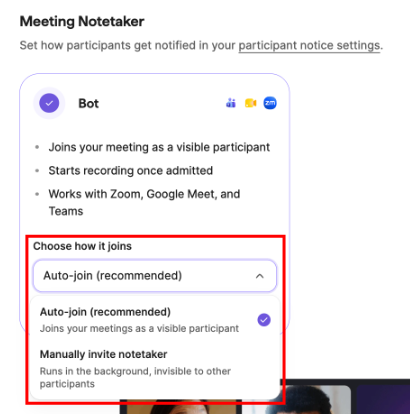
Você escolhe como o AI Notetaker entra nas suas chamadas em Configurações > Anotador de reuniões. Em Escolha como ele entra, selecione uma destas duas opções:
- Entrada automática: o AI Notetaker entra automaticamente nas suas reuniões como um participante visível. Essa é a opção recomendada e vem selecionada por padrão.
- Convidar o AI Notetaker manualmente: ele só entra quando você o convida.
Entre em uma reunião e transcreva-a
Com a Entrada automática ativada, o AI Notetaker tenta entrar cerca de dois minutos antes do horário programado para o início da reunião, mesmo que você ainda não tenha entrado.
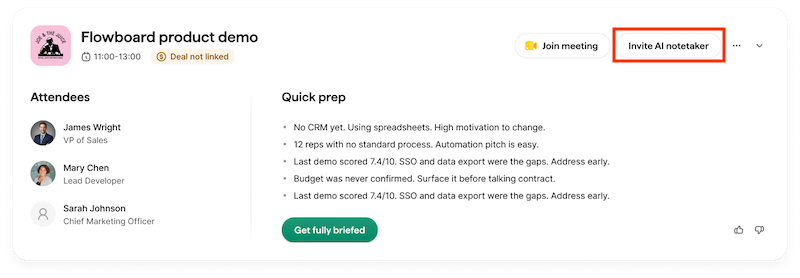
Se você optar por convidar o AI Notetaker manualmente, clique em “Convidar AI Notetaker” no cartão da reunião.
Se você o convidar antes do horário programado para o início, ele entrará imediatamente. Se ele sair da reunião ou não conseguir entrar, você poderá atualizar ou adicionar o link da reunião enquanto ela ainda estiver em andamento para que ele entre novamente.
Se algum participante não quiser que a chamada seja transcrita, cabe ao anfitrião da reunião atender ao pedido e remover o Assistente de notas com IA a qualquer momento para interromper a transcrição. Consulte “Gerencie o consentimento” acima para configurar os avisos de consentimento.
Grave reuniões com o aplicativo Nova Companion para desktop
Em vez do bot AI Notetaker, você pode usar o aplicativo Nova Companion para desktop para gravar reuniões diretamente do computador, sem que um bot entre na chamada. Você pode baixá-lo para Mac ou Windows em Configurações > Anotador de reuniões.
Para saber como configurar, conceder permissões e gravar uma reunião, consulte Pipedrive Nova: aplicativo Companion para desktop.
Revise as ações pós-reunião
Depois que uma reunião é transcrita, o Nova gera ações pós-reunião com base na transcrição. Essas ações aparecem em Reuniões > Ações pós-reunião.
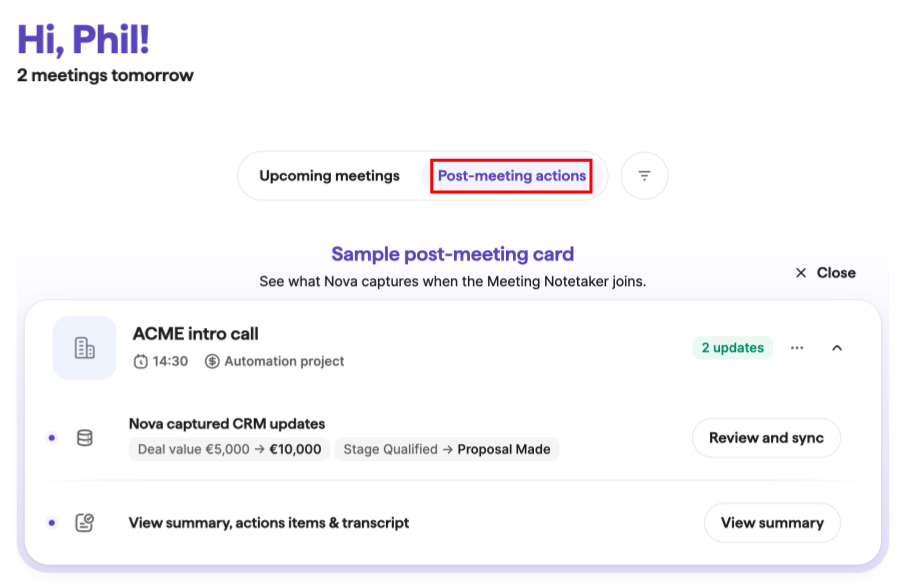
As ações pós-reunião podem incluir:
- Debriefing da reunião com resumo, principais conclusões e próximos passos recomendados
- Atualizações sugeridas do CRM
- Transcrição da reunião
Os itens de ação são personalizados para você. Quando houver marcações de tempo, clique em uma delas para ir diretamente ao ponto correspondente na transcrição.
O Nova também pode salvar o resumo da reunião em formato de anotação no negócio, pessoa ou organização vinculado. Se nenhum registro estiver vinculado, nenhuma anotação será criada.
Se você gravou uma chamada fora do Nova, pode enviar uma transcrição em Reuniões > Ações pós-reunião. Os tipos de arquivo compatíveis são .txt, .pdf e .docx.
Revise e atualize os dados do CRM
O Nova sugere atualizações do CRM com base na transcrição da reunião. As sugestões aparecem na aba Atualização do CRM, onde você pode revisar cada alteração antes de salvá-la.
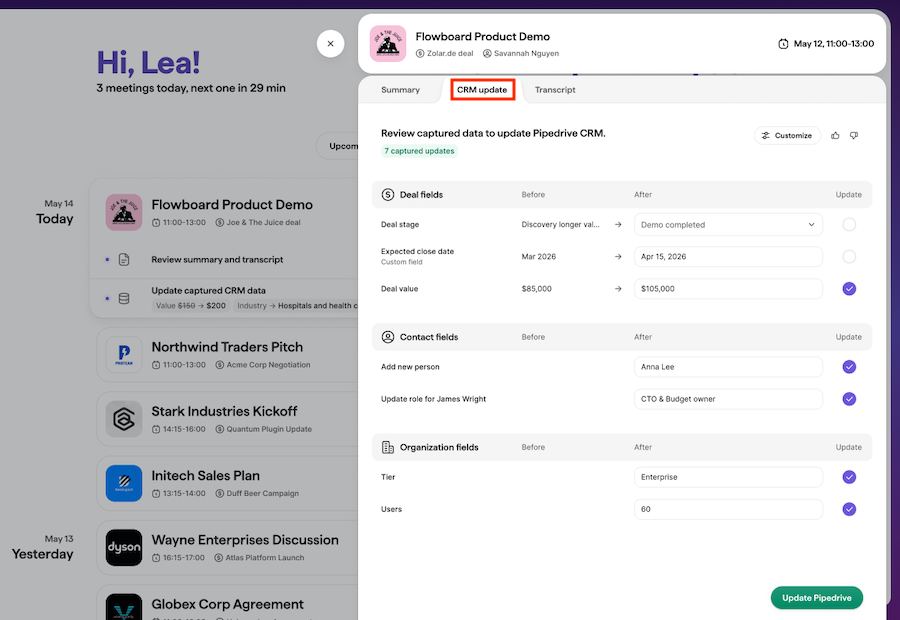
As sugestões podem incluir atualizações para:
- Campos de negócio, incluindo campos personalizados e etiquetas
- Campos de pessoa, incluindo campos personalizados, números de telefone e endereços de e-mail
- Campos de organização, incluindo campos personalizados e etiquetas
O Nova mostra o valor atual no Pipedrive ao lado do valor sugerido. Se o valor no Pipedrive mudar depois que o Nova criar a sugestão, ele sinalizará o campo para que você possa revisar a diferença antes de aplicar a atualização.
Você pode sincronizar apenas as alterações sugeridas que quiser. Depois que um campo é salvo, ele continua visível como somente leitura, e a ação do cartão muda para “Revisar”.
Este artigo foi útil?
Sim
Não