See artikkel on koostatud masintõlke abil.
Pipedrive Nova: kohtumised
Nova on Pipedrive’i uus sisseehitatud kohtumiste intellekti tööriist, mis valmistab teie meeskonna kohtumisteks ette, salvestab olulise teabe müügikõnede ajal ja koostab hiljem CRM-i värskenduste mustandid.
Koosoleku ajal salvestab ja transkribeerib AI Notetaker vestluse. Pärast koosolekut muudab Nova transkriptsiooni järeltegevusteks ja soovitab CRM-i uuendusi.
See artikkel selgitab, kuidas:
- Valmistuda kohtumisteks AI-genereeritud briifingu abil
- Haldada osalejate nõusolekut
- Transkribeerida kohtumisi AI Notetakeriga või Nova Companioni lauaarvuti rakendusega
- Ülevaadata kohtumisejärgsed tegevused ja pakutud CRM-i värskendused
Kui te pole oma kontosid veel ühendanud ega Nova lubanud, alustage Nova seadistamisest.
Valmistu kohtumisteks
Kuva Koosolekud on koht kõigeks, mis toimub enne koosolekut, selle ajal ja pärast seda. Sellel on kaks vahekaarti:
- Tulevased kohtumised, kus valmistute eelseisvate kõnede jaoks
- Pärastkohtumise toimingud, kus vaatate pärast kõnet läbi kohtumise kokkuvõtted ja soovitatud CRM-i uuendused
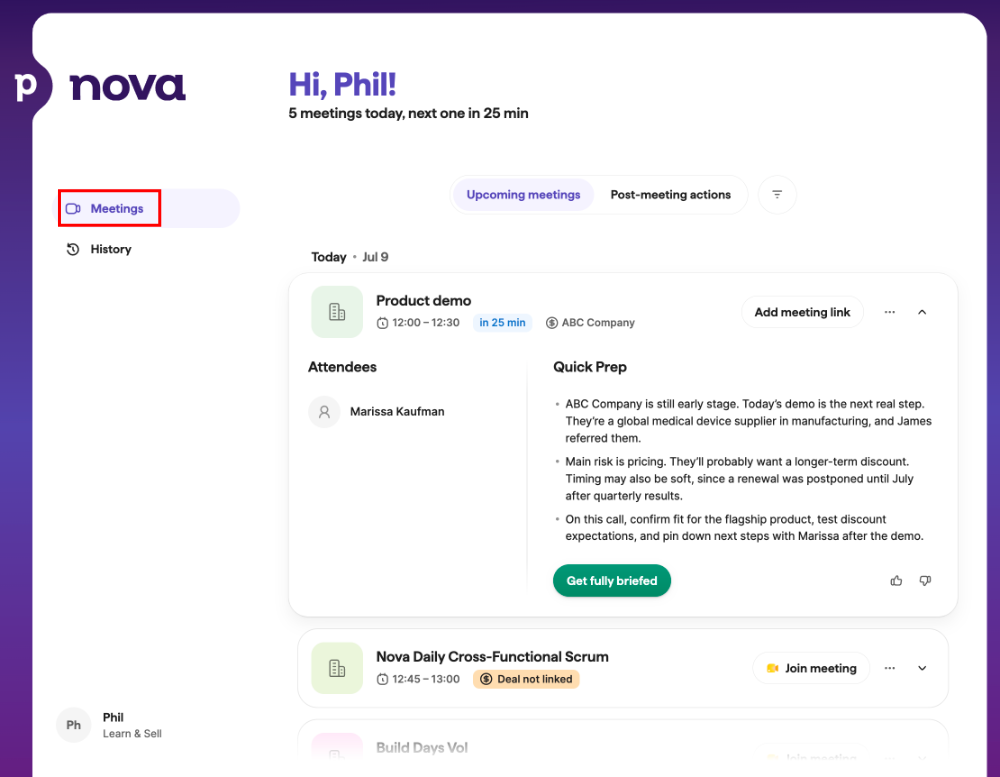
Kui oodatud koosolekut ei kuvata, kontrolli allolevaid koosolekute sünkroonimise seadeid. Kui oled valiku Kaasa koosolekud, millel pole seotud tehingut, kontaktisikut ega organisatsiooni välja lülitanud, veendu, et osaleja meiliaadress on Pipedrive'is kontaktisikuna salvestatud.
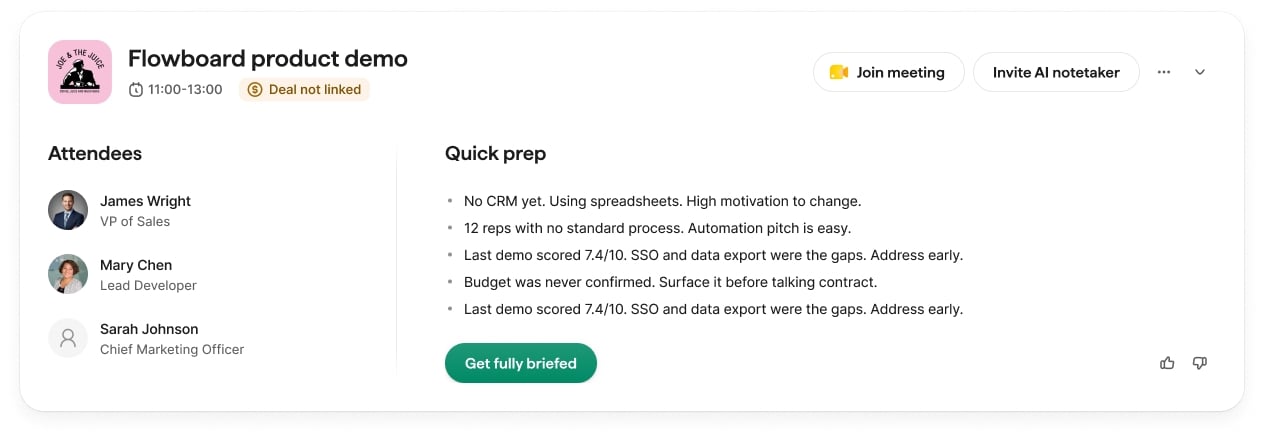
Ava tulevane koosolek, et vaadata kõne jaoks asjakohase kontekstiga tehisintellekti loodud ülevaadet. Olenevalt saadaolevatest andmetest võib ülevaade sisaldada järgmist:
- Tehingu kontekst, mis põhineb märkustel ja viimastel tegevustel
- Organisatsiooni taust (kui organisatsiooni breefing on saadaval)
- Kontaktide kokkuvõtted CRM-i osalejate kohta
- Ettevalmistuse kontrollnimekiri, mis toob esile viimase tegevuse
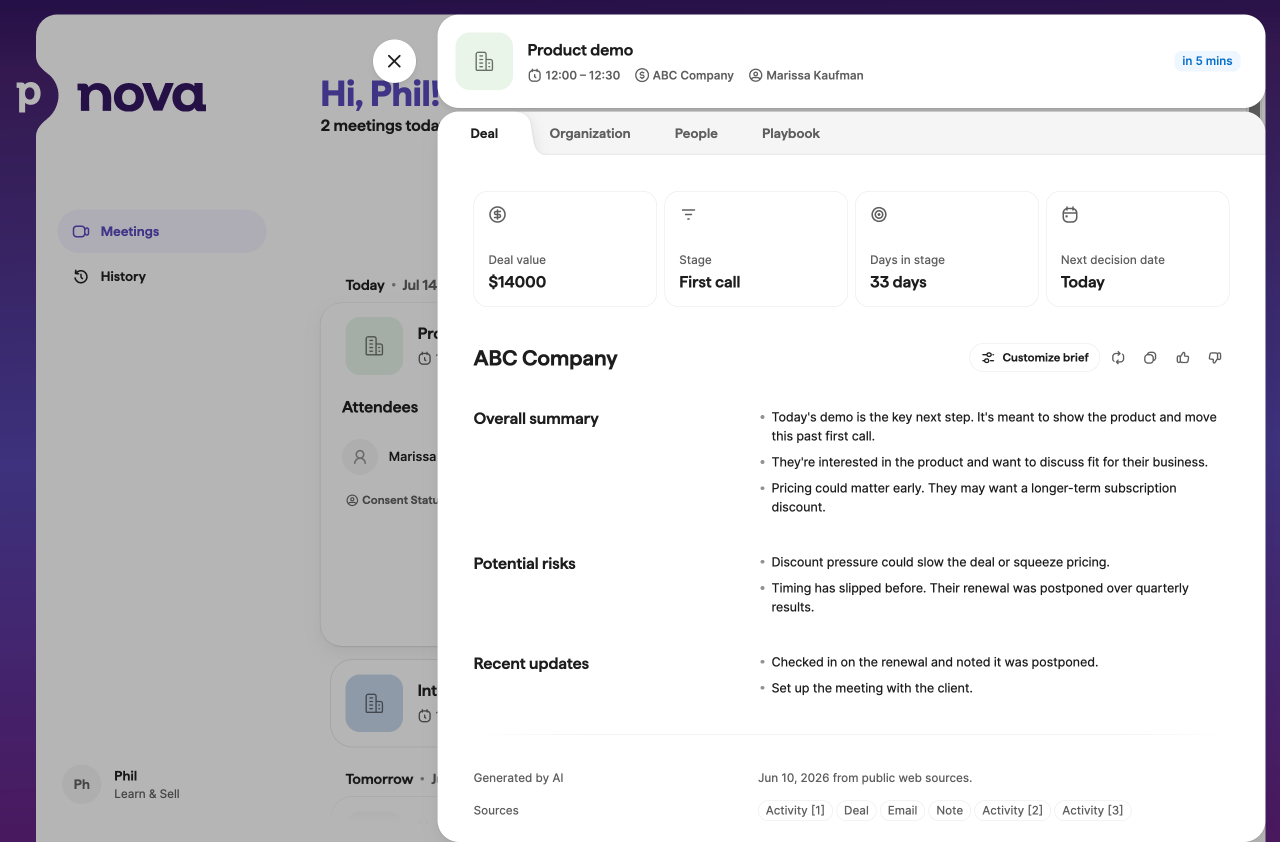
Koosolekute ülevaateid saad kohandada tehingu ülevaates. Lisa paneelil Kohanda ülevaadet vabavormilised juhised ning Nova loob selle tehinguga seotud kõigi tulevaste koosolekute jaoks kohandatud ülevaatejaotise.
Kohtumiste sünkroonimise seadete haldamine
Kõik kalendrisündmused ja Pipedrive'i tegevused ei ole mõeldud Novas kuvamiseks. Milliseid neist kuvatakse, määravad neli sõltumatut seadet. Novas kuvamiseks peab koosolek või tegevus vastama kõigile neljale kriteeriumile.
Ava need seaded menüüst Seaded > Kohtumiste ja tegevuste sünkroonimine, jaotises Kohtumiste sünkroonimise reeglid.
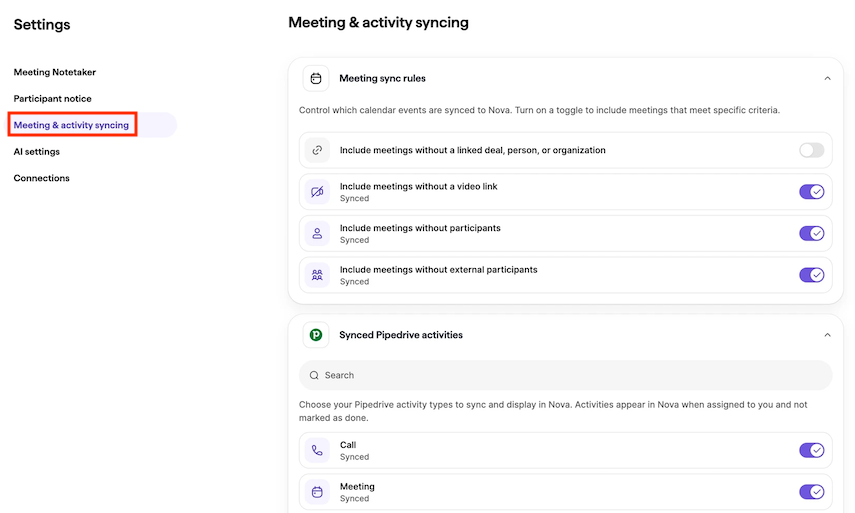
Kui muudad mõnda neist seadetest, kontrollib Nova tulevasi koosolekuid automaatselt uuesti: koosolekud, mis enam ei vasta tingimustele, eemaldatakse, ja koosolekud, mis nüüd vastavad, lisatakse. Varasemaid koosolekuid see ei mõjuta.
Nõusoleku haldamine
Enne kohtumise transkribeerimist veenduge, et olete saanud kõik nõutavad nõusolekud vastavalt kohaldatavatele seadustele ja teie organisatsiooni poliitikatele.
Automaatselt liitumise lubamist, kutsumist AI Notetaker või salvestamise alustamist Nova Companion töölauarakendusega tehke alles pärast seda, kui olete täitnud oma nõusoleku kohustused.
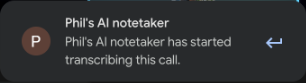
Teie osalejate teavitussätted kehtivad samamoodi mõlemal juhul: AI Notetakeriga näevad osalejad sõnumit kohtumise vestluses; töölauarakenduses näete sama teavitust rakendusesiseses viipas, kui liitute kõnega.
Lisateabe saamiseks selle kohta, kuidas kumbki töötab, vaadake allpool olevaid juhendeid "Transcribe meetings with the AI Notetaker" ja "Record meetings with the Nova Companion desktop app".
Salvestamisele võivad kehtida ka sinu organisatsiooni sisereeglid. Koosoleku korraldajana vastutad kohaldatavate seaduste ja eeskirjade järgimise ning osalejate eelistuste arvestamise eest.
Osalejate teavitused on vaikimisi välja lülitatud. Neid saad hallata jaotises Seaded > Osaleja teavitus.
Jaotises Teavitamismeetod saate valida, kuidas kohtumise osalejaid teavitatakse transkribeerimisest.
Ei automaatseid teateid
Valige see valik, kui teavitáte osalejaid ja saate kõik nõutavad nõusolekud väljaspool Novat.
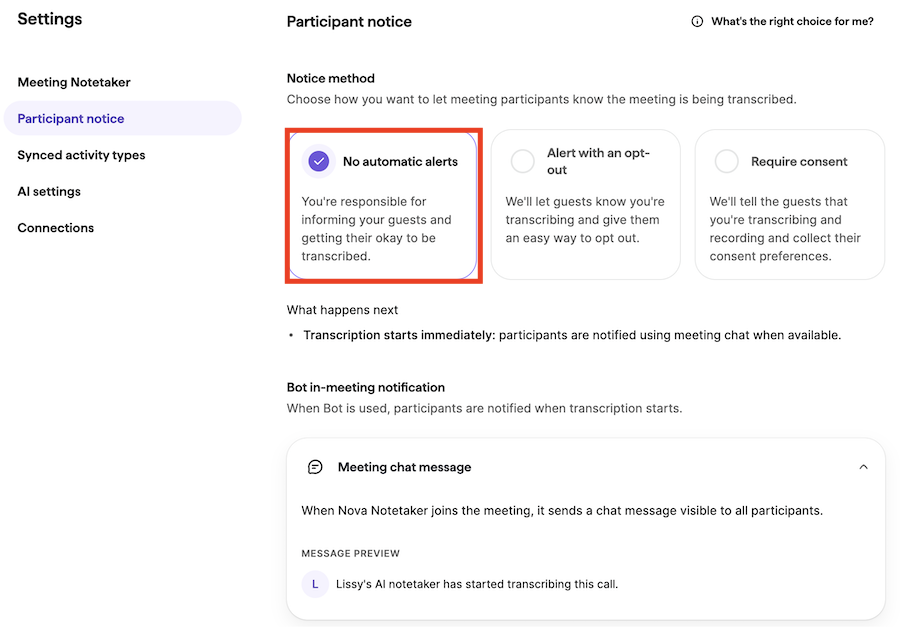
Kui see valik on valitud, ei saada Nova enne kohtumist automaatseid teateid.
Kui kohtumine algab, postitab Nova kohtumise vestlusesse sõnumi (toetatud platvormidel nagu Google Meet, Zoom või Microsoft Teams), milles teavitatakse, et transkribeerimine on pooleli.
Teavitus koos võimalusega loobuda
Kasutage seda valikut, kui soovite, et Nova teavitaks osalejaid enne kohtumist ja annaks neile lihtsa võimaluse transkribeerimisest loobumiseks.
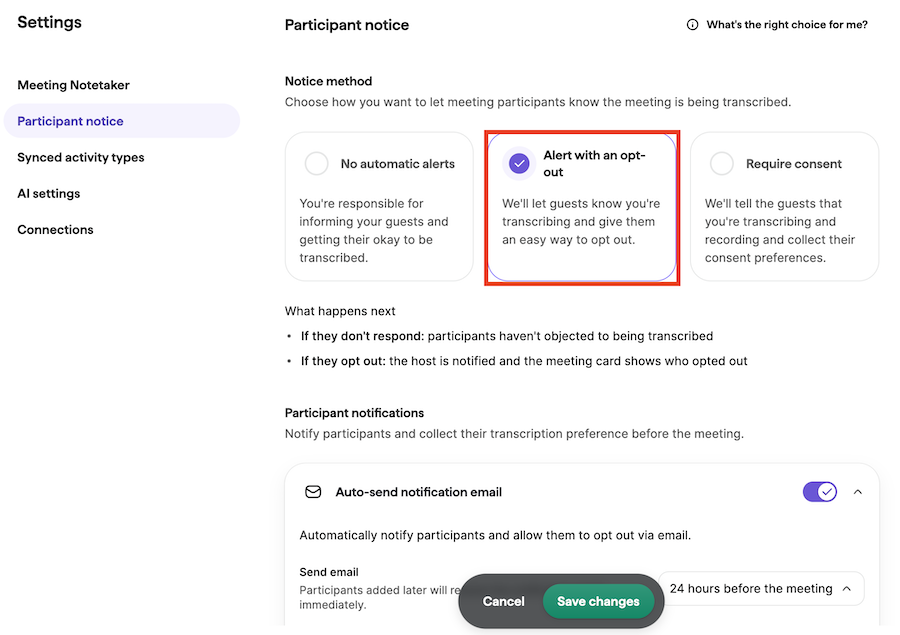
Osalejad saavad enne koosolekut meiliteavituse. Saad valida, millal meil saadetakse.
Osalejad saavad salvestamisest või transkribeerimisest loobuda. Koosoleku korraldaja vastutab osalejate eelistuste arvestamise eest.
Nõuda nõusolekut
Kasutage seda valikut, kui soovite, et Nova teavitaks osalejaid enne kohtumist ja koguks nende transkribeerimise nõusoleku eelistusi.
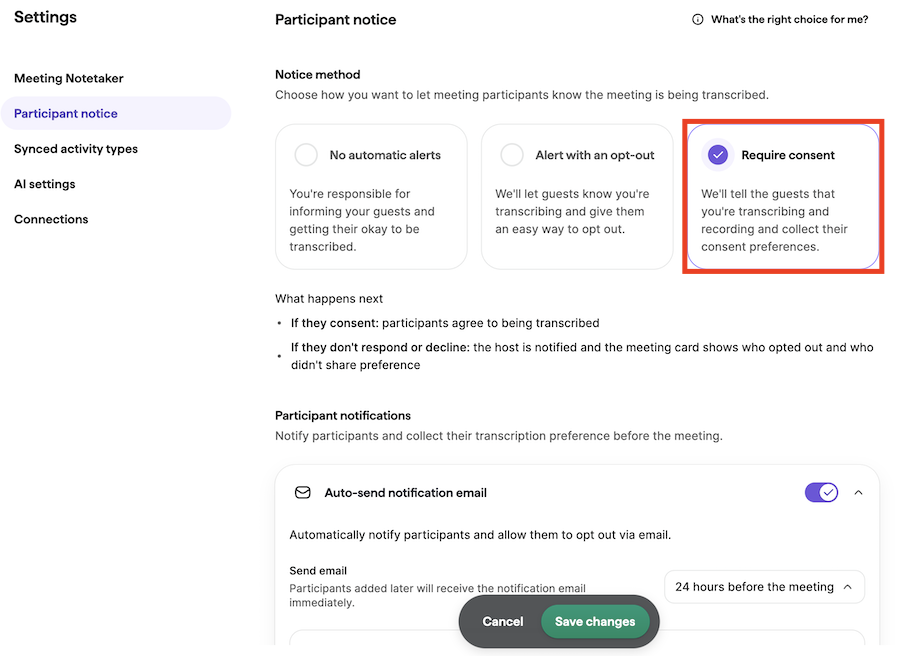
Enne kohtumist saavad osalejad kas anda nõusoleku transkribeerimiseks või sellest loobuda.
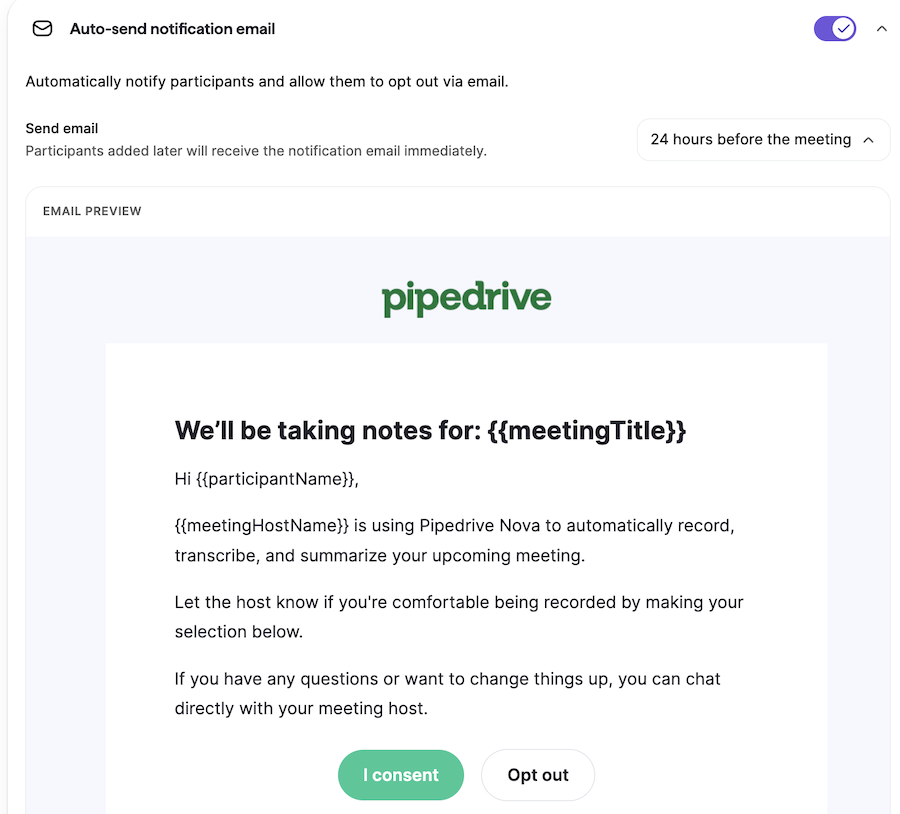
Nende vastused kogutakse ja kuvatakse Novas. Koosoleku korraldaja vastutab osalejate eelistuste arvestamise eest.
Osalejate teavitamine
Saate osalejaid teavitada kahel viisil:
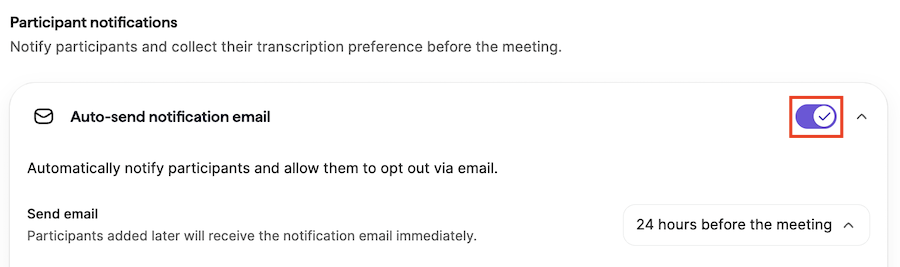
Automaatne meil: Nova saab enne koosolekut nõusolekumeile automaatselt saata. Vaikimisi saadetakse need 24 tundi enne koosolekut, kuid saatmisaega saad muuta rippmenüüs Saada teavitusmeil automaatselt.
Jagatav nõusoleku link: Samuti saate lubada kohandatud loobumislingi.
Kui see on lubatud, sisaldab iga koosolek kordumatut nõusolekulinki. Ava koosoleku nõusolekuolek ja klõpsa „Kopeeri nõusolekulink”, et jagada seda osalejatega automaatse meili kasutamise asemel.
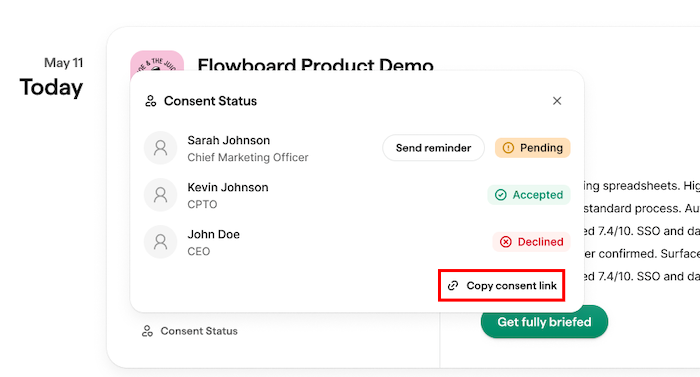
Ainult kutsutud kohtumise osalejad saavad linki kasutada oma nõusoleku eelistuse esitamiseks.
Nõusoleku olek kohtumiskaartidel
Nõusolekuolek kuvatakse tulevaste koosolekute kaartidel tekstisisese sildina. Silt näitab, millised osalejad on keeldunud või pole veel vastanud.
Klõpsake „Saada meeldetuletus”, et uuesti küsida nõusolekut osalejatelt, kelle olek on ootel.
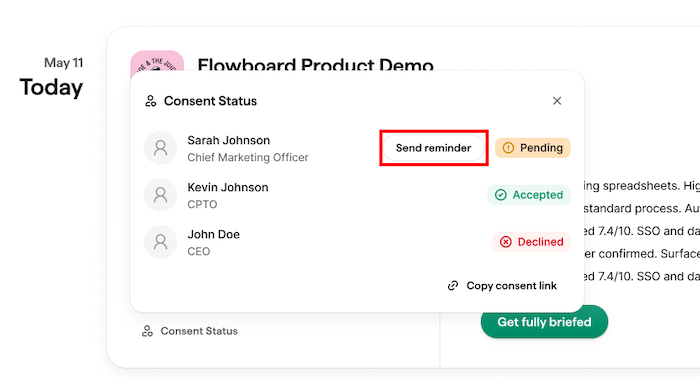
Kui osalejad esitavad oma vastused e-kirja teel või jagatava lingi kaudu, värskenevad need olekud automaatselt.
Koosolekute transkribeerimine AI Notetakeriga
Nova AI Notetaker liitub teie Google Meet, Zoom või Microsoft Teams koosolekutega nähtava osalejana, et neid automaatselt transkribeerida.
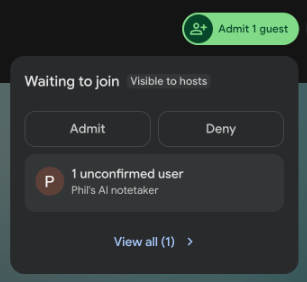
AI Notetaker liitub nähtava osalejana ja hakkab pärast koosolekule lubamist automaatselt transkribeerima. Pärast koosoleku lõppu saad Nova veebirakenduses transkriptsiooni ja järeltegevused üle vaadata.
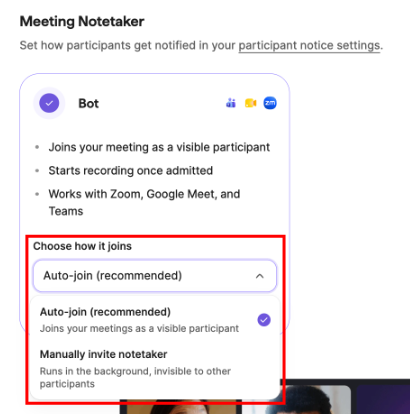
Valige, kuidas AI Notetaker teie kõnedega liitub
Vali jaotises Seaded > Koosoleku märkmetegija, kuidas AI Notetaker sinu kõnedega liitub. Vali jaotises Vali, kuidas see liitub üks kahest võimalusest:
- Automaatne liitumine: AI Notetaker liitub sinu koosolekutega automaatselt nähtava osalejana. See on soovitatud valik ja see on vaikimisi valitud.
- Kutsu AI Notetaker käsitsi: AI Notetaker liitub ainult siis, kui kutsute selle.
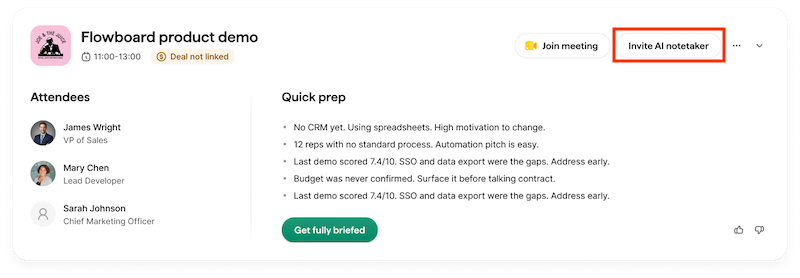
Liitu ja transkribeeri koosolek
Kui on lubatud Auto-join, proovib AI Notetaker liituda umbes kaks minutit enne kavandatud koosoleku algust, isegi kui te pole veel liitunud.
Kui otsustate kutsuda märkmete pidaja käsitsi, klõpsake koosoleku kaardil ”Kutsu AI Notetaker”.
Kui kutsud selle enne kavandatud algusaega, liitub see kohe. Kui see lahkub koosolekult või ei liitu edukalt, saad koosoleku jätkumise ajal koosolekulinki uuendada või lisada, et see saaks uuesti liituda.
Kui osaleja ei soovi kõne transkribeerimist, vastutab koosoleku korraldaja selle soovi arvestamise eest ning saab transkribeerimise peatamiseks AI Notetakeri bot'i igal ajal kõnest eemaldada. Nõusolekuteavituste seadistamiseks vaata eespool jaotist „Nõusoleku haldamine”.
Salvesta koosolekuid Nova Companion töölauarakendusega
AI Notetakeri bot'i asemel saad kasutada Nova Companioni töölauarakendust, et salvestada koosolekuid otse arvutist, ilma et bot kõnega liituks. Saad selle Maci või Windowsi jaoks alla laadida jaotisest Seaded > Koosoleku märkmetegija.
Seadistuse, õiguste ja koosoleku salvestamise juhiste jaoks vaata Pipedrive Nova: Companion töölauarakendus.
Koosoleku järel tehtavate toimingute ülevaatus
Pärast koosoleku transkribeerimist loob Nova transkriptsiooni põhjal koosolekujärgsed tegevused. Need kuvatakse jaotises Koosolekud > Koosolekujärgsed tegevused.
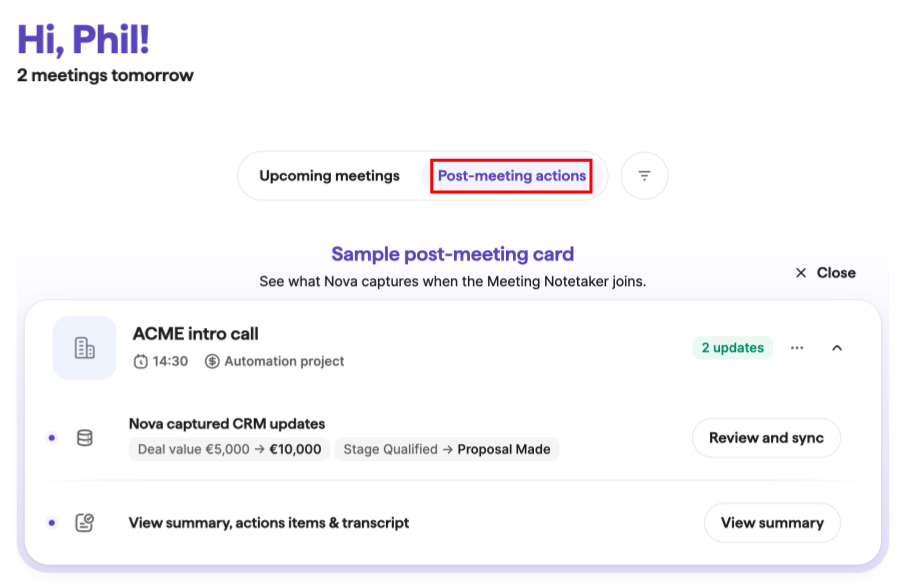
Koosoleku järel tehtavad toimingud võivad sisaldada:
- Koosoleku kokkuvõte, mis sisaldab lühikokkuvõtet, peamisi järeldusi ja soovitatud järgmisi samme
- Soovitatud muudatused CRM-is
- Koosoleku transkript
Tegevusülesanded on sinu jaoks isikupärastatud. Kui ajatemplid on saadaval, klõpsa ühel neist, et liikuda otse transkriptsiooni vastavasse kohta.
Nova saab koosolekukokkuvõtte salvestada märkusena seotud tehingule, kontaktisikule või organisatsioonile. Kui seotud kirjet pole, märkust ei looda.
Kui salvestasid kõne väljaspool Novat, saad transkriptsiooni üles laadida jaotisest Koosolekud > Koosolekujärgsed tegevused. Toetatud failitüübid on .txt, .pdf ja .docx.
Vaata üle ja uuenda CRM-andmeid
Nova soovitab sinu koosoleku transkriptsiooni põhjal CRM-i uuendusi. Soovitused kuvatakse vahekaardil CRM-i uuendus, kus saad iga muudatuse enne salvestamist üle vaadata.
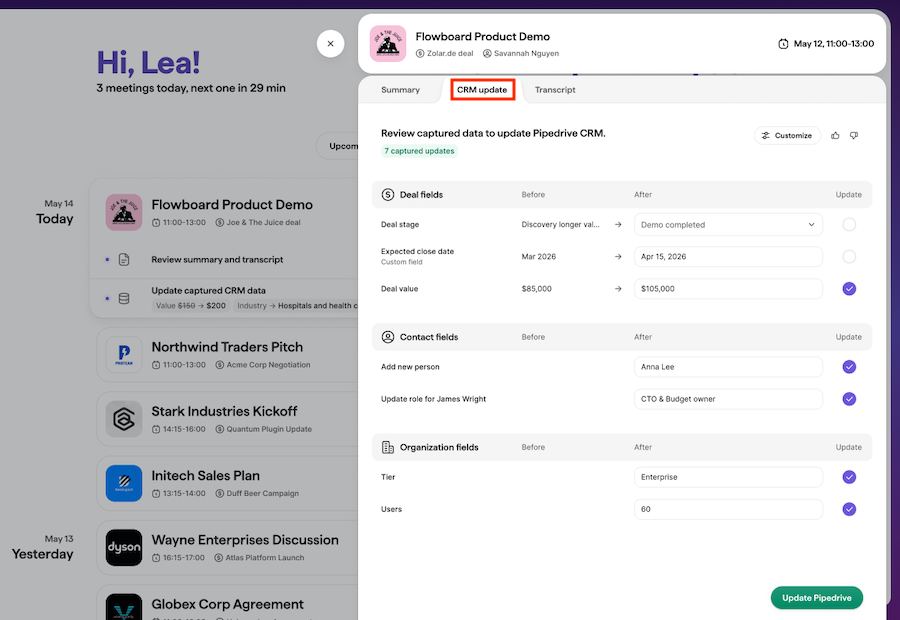
Soovitused võivad sisaldada uuendusi:
- Tehingu väljad, sealhulgas kohandatud väljad ja sildid
- Isiku väljad, sealhulgas kohandatud väljad, telefoninumbrid ja e-posti aadressid
- Organisatsiooni väljad, sealhulgas kohandatud väljad ja sildid
Nova kuvab Pipedrive'i praeguse väärtuse soovitatud väärtuse kõrval. Kui Pipedrive'i väärtus muutub pärast Nova soovituse loomist, märgistab Nova välja, et saaksid enne uuenduse rakendamist erinevuse üle vaadata.
Soovitatud muudatusi saad sünkroonida valikuliselt. Kui väli on salvestatud, jääb see nähtavaks kirjutuskaitstud kujul ja kaardi toiminguks saab „Vaata üle”.
Kas see artikkel oli abiks?
Jah
Ei