知識庫

知識庫/Pipedrive Nova/Pipedrive Nova/Pipedrive Nova: meetings

Pipedrive Nova: meetings

FS
Felipe Simões
最後更新:July 23, 2026
Note: Pipedrive Nova is currently available in English for selected users. If you don’t have access yet, ask your company admin to activate Nova and assign you a seat.

Pipedrive Nova helps you before, during and after your meetings. Before a meeting, it generates an AI-powered briefing to help you prepare. During the meeting, the AI Notetaker records and transcribes the conversation. After the meeting, Nova turns the transcript into follow-up actions and suggests CRM updates.

This article explains how to:

  • Prepare for meetings with an AI-generated briefing
  • Manage participant consent
  • Transcribe meetings with the AI Notetaker
  • Review post-meeting actions and suggested CRM updates

If you haven’t connected your accounts or enabled Nova yet, start with Nova setup.


Prepare for meetings

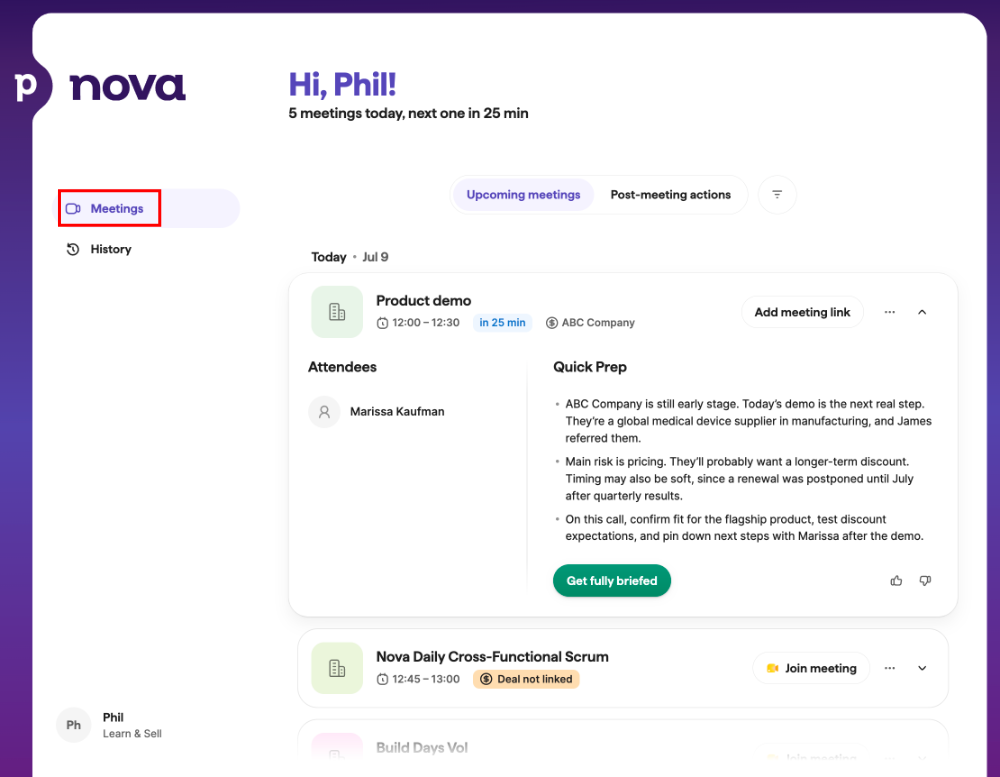
The Meetings screen is your hub for everything before, during, and after a meeting. It has two tabs:

  • Upcoming meetings, where you prepare for upcoming calls
  • Post-meeting actions, where you review meeting recaps and suggested CRM updates after a call
Note: If you don’t see the Meetings screen, ask your admin to enable Nova and assign you a seat.

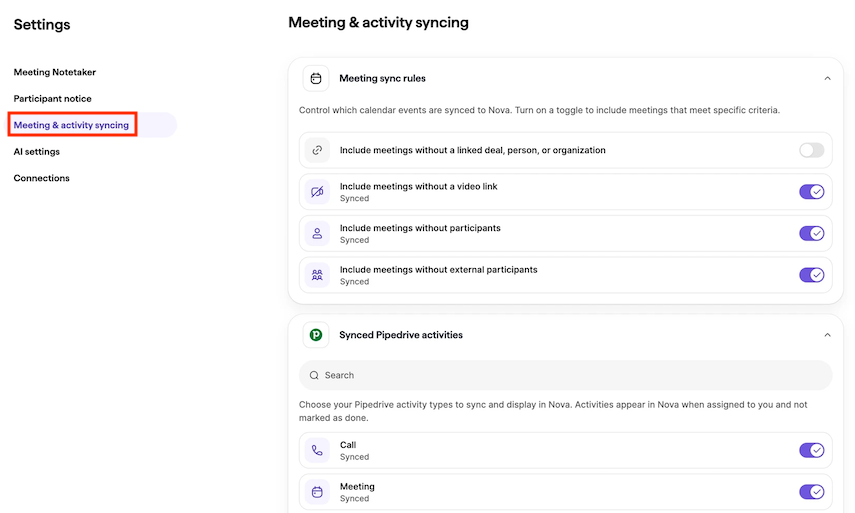
Calendar events appear in Nova when at least one attendee’s email address matches a contact in your Pipedrive account. If a meeting is missing, make sure the attendee’s email address is saved as a contact.

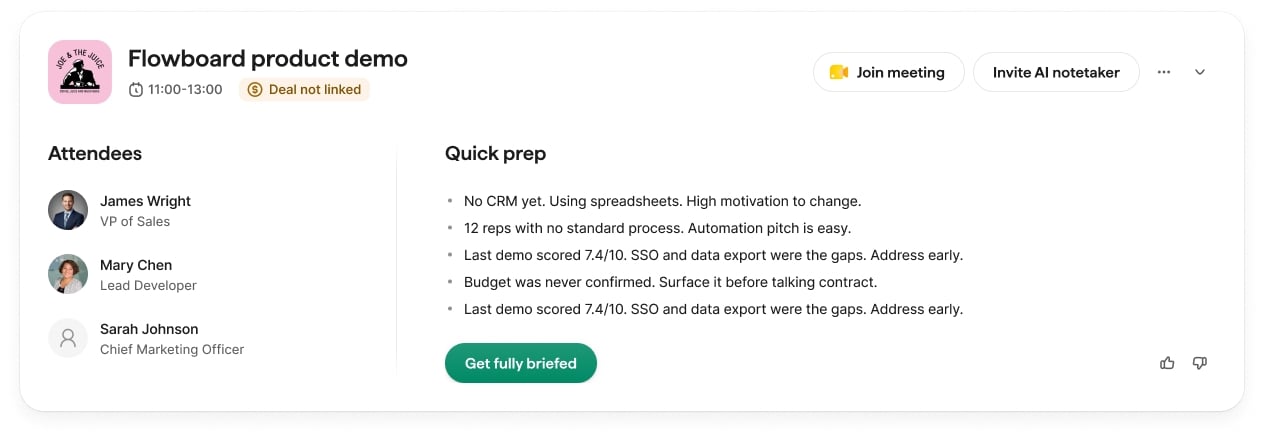
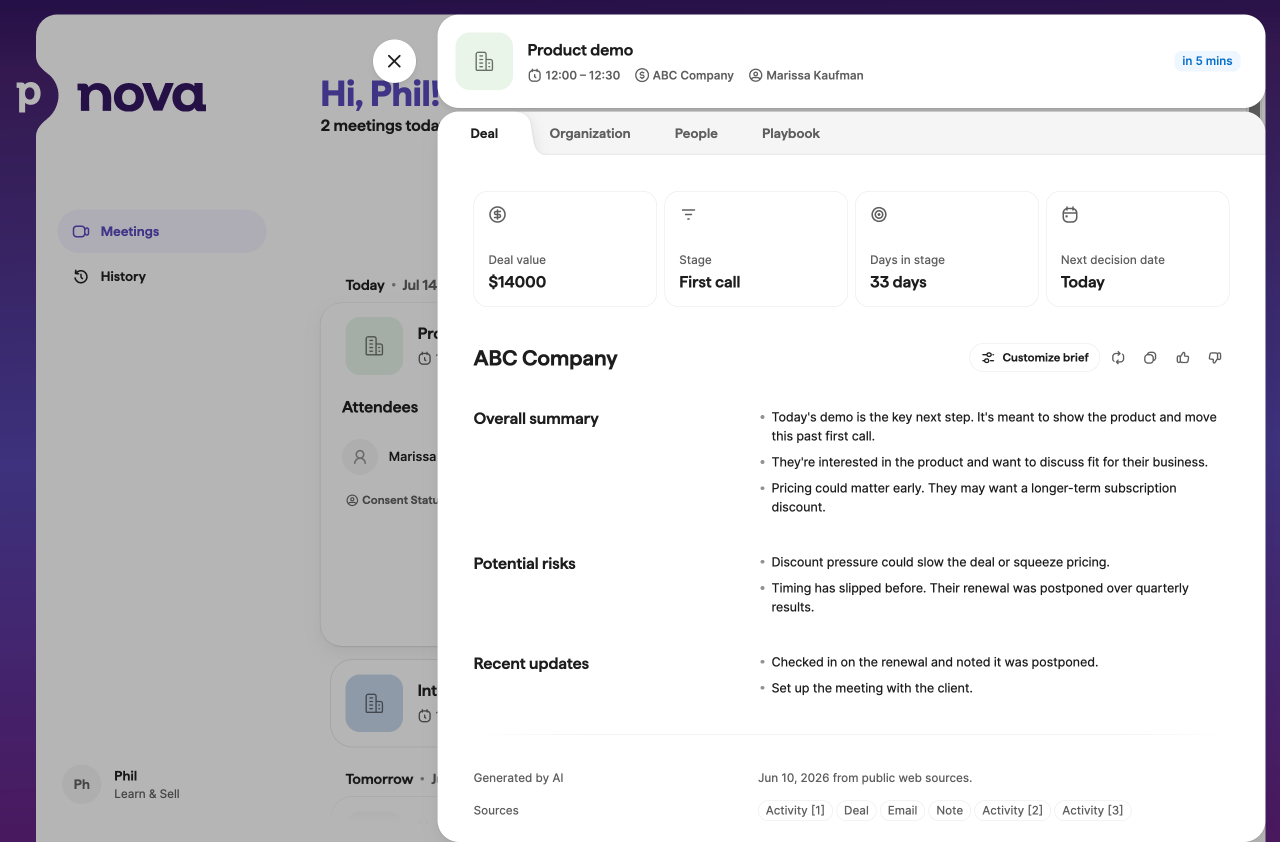
Open an upcoming meeting to view an AI-generated briefing with relevant context for your call. Depending on the available data, the briefing can include:

  • Deal context based on notes and recent activity
  • Organization background (if an organization brief is available)
  • Contact briefs for CRM attendees
  • A preparation checklist highlighting recent activity

You can customize meeting briefings from the deal overview. In the Customize brief panel, add free-form instructions, and Nova will generate a custom briefing section for all upcoming meetings linked to that deal.

Note: Custom instructions apply to all future meetings linked to the deal, not just a single meeting.

Manage consent

Before transcribing a meeting, make sure you’ve obtained any required consent under applicable laws and your organization's policies.

Only enable auto-join or invite the AI Notetaker after you’ve met your consent obligations. See Transcribe meetings with the AI Notetaker below for details on how it joins meetings.

Note: Recording laws vary by jurisdiction. In some regions (including certain US states such as California, Illinois and Pennsylvania, as well as several EU member states), everyone participating in a conversation must consent to recording. In others, only one party’s consent is required.
Recording may also be subject to your organization’s internal policies. As the meeting organizer, you’re responsible for complying with the laws and policies that apply to you and for respecting participants’ preferences.

Participant notices are disabled by default. You can manage them from Settings > Participant notice.

Under the Notice method, you can choose how meeting participants are notified about meeting transcription.

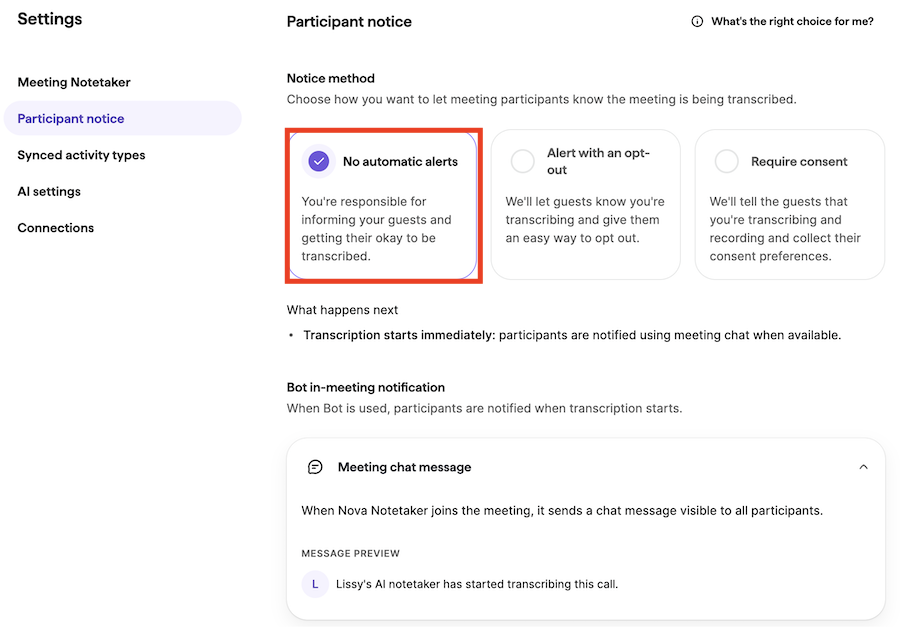
No automatic alerts

Choose this option if you’ll notify participants and obtain any required consent outside of Nova.

When this option is selected, Nova doesn’t send automatic alerts before the meeting.

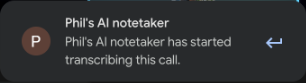
When the meeting starts, Nova posts a message in the meeting chat (Google Meet, Zoom or Microsoft Teams, where supported) indicating that transcription is in progress.

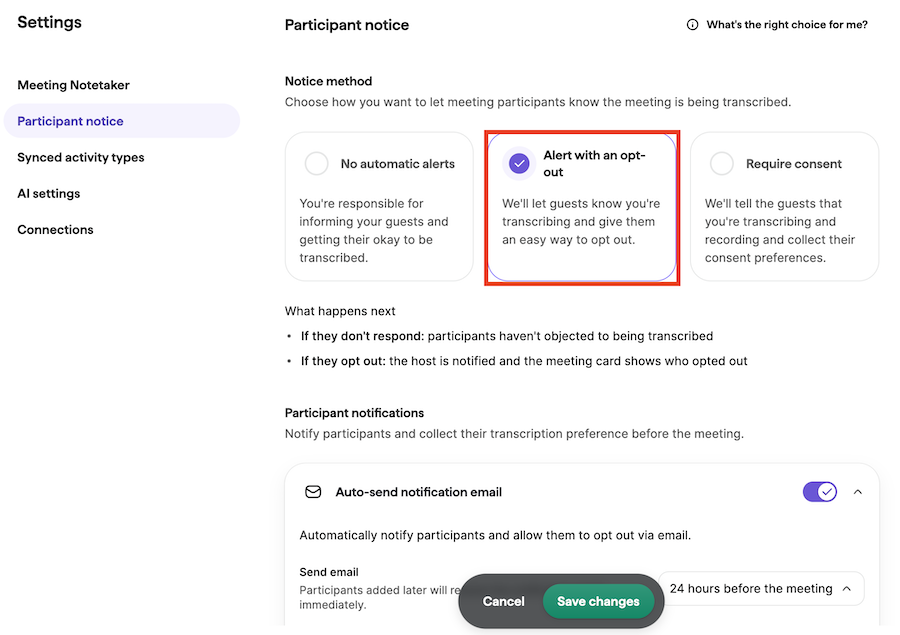
Alert with an opt-out

Use this option if you want Nova to notify participants before the meeting and provide an easy way for them to opt out of transcription.

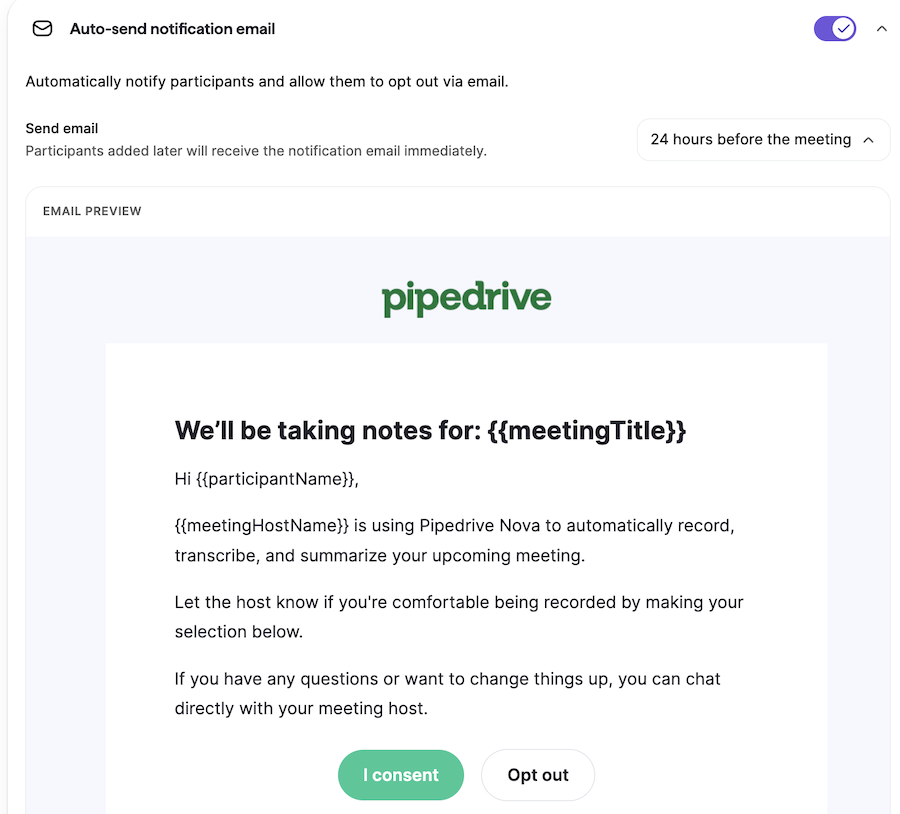
Participants receive an email notification before the meeting. You can choose when the email is sent.

Participants can opt out of recording or transcription. The meeting host is responsible for honoring participants’ preferences.

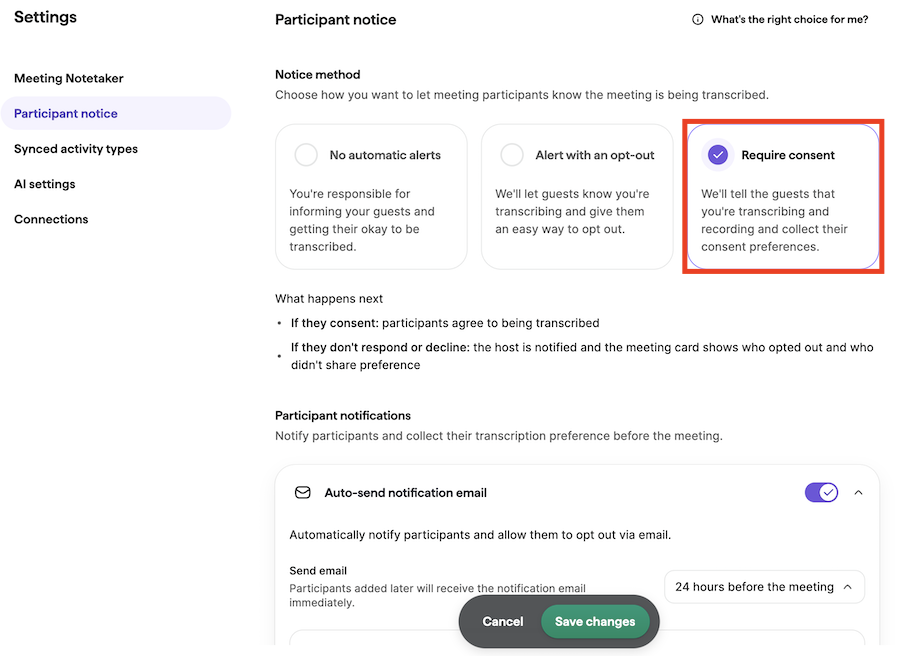
Require consent

Use this option if you want Nova to notify participants before the meeting and collect their transcription consent preferences.


Before the meeting, participants can either consent to transcription or opt out.

Their responses are collected and displayed in Nova. The meeting host is responsible for honoring participants’ preferences.

Notify participants

You can notify participants in two ways:

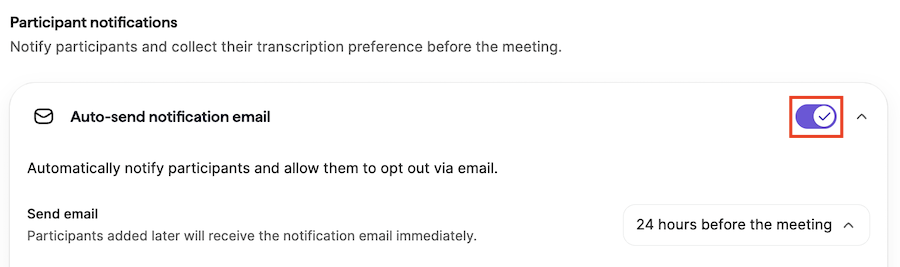
Automatic email: Nova can send consent emails automatically before the meeting. By default, they’re sent 24 hours before the meeting, but you can change the timing in the Auto-send notification email dropdown.

Note: Notification emails require an email address listed in the contact’s details.

Shareable consent link: You can also enable a custom opt-out link.

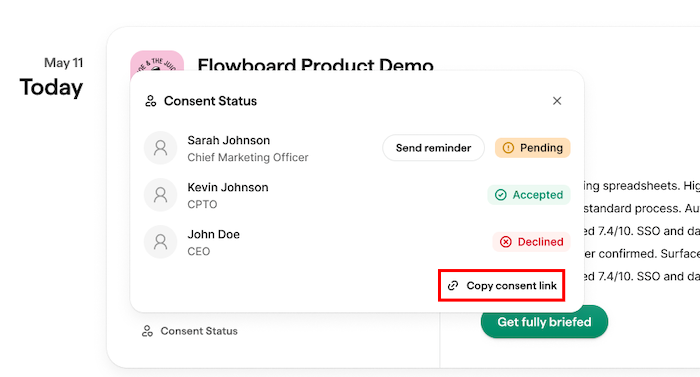
When enabled, each meeting includes a unique consent link. Open the meeting’s consent status and click Copy consent link to share it with participants instead of using the automatic email.

Only invited meeting participants can use the link to submit their consent preference.

Consent status on meeting cards

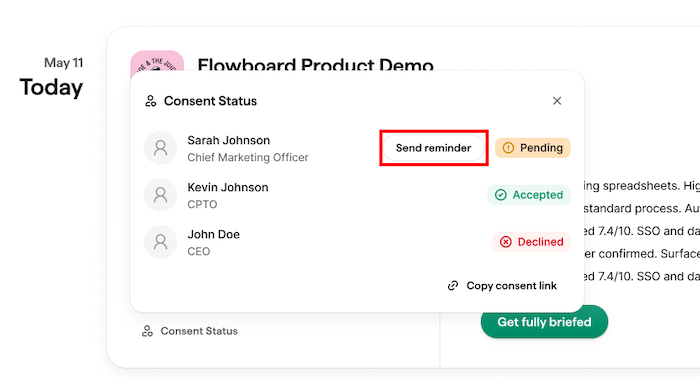
The consent status is displayed as an inline label on upcoming meeting cards. The label shows which participants have declined or haven’t responded yet.

Click “Send reminder” to rerequest consent from participants with pending status.

As attendees submit their responses by email or through the shareable link, these statuses update automatically.


Transcribe meetings with the AI Notetaker

Note: Before enabling auto-join or inviting the AI Notetaker, make sure you’ve set up consent notices. See ”Manage consent” section above.

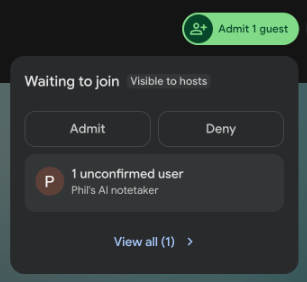
Nova’s AI Notetaker joins your Google Meet, Zoom or Microsoft Teams meetings as a visible participant to automatically transcribe them.

The AI Notetaker joins as a visible participant and, once admitted to the meeting, it begins transcribing automatically. After the meeting ends, you can review the transcript and follow-up actions in the Nova web app.

Choose how the AI Notetaker joins your calls

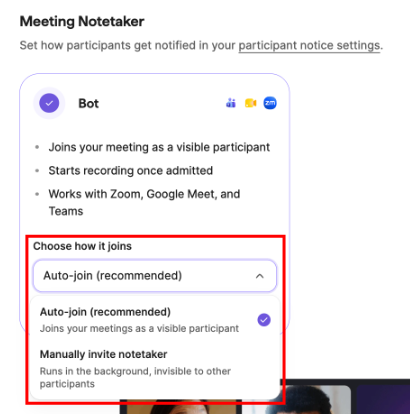
You choose how the AI Notetaker joins your calls in Settings > Meeting Notetaker. Under Choose how it joins, pick one of two options:

  • Auto-join: The AI Notetaker joins your meetings automatically as a visible participant. This is the recommended option and is selected by default.
  • Manually invite notetaker: The AI Notetaker joins only when you invite it.

Join and transcribe a meeting

With Auto-join enabled, the AI Notetaker attempts to join approximately two minutes before the scheduled meeting start time, even if you haven’t joined yet.

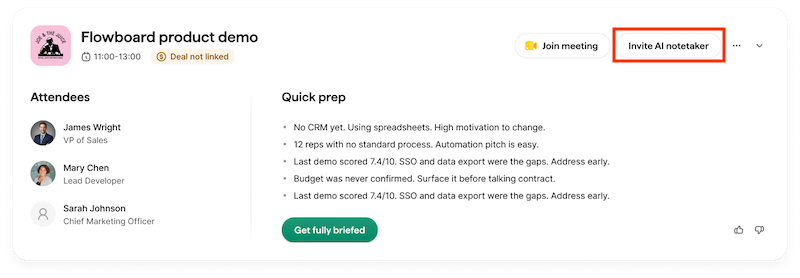
If you choose to manually invite the notetaker, click Invite AI Notetaker on the meeting card.

If you invite it before the scheduled start time, it joins immediately. If it leaves the meeting or doesn’t join successfully, you can update or add the meeting link while the meeting is still in progress to have it rejoin.

Note: When you add a meeting URL manually, Nova only accepts full working URLs (starting with http://) from supported providers such as Google Meet, Zoom and Microsoft Teams.

If a participant doesn’t want the call transcribed, the meeting host is responsible for honoring that request and can remove the AI Notetaker bot from the call at any time to stop the transcription. See ”Manage consent” above to set up consent notices.


Review post-meeting actions

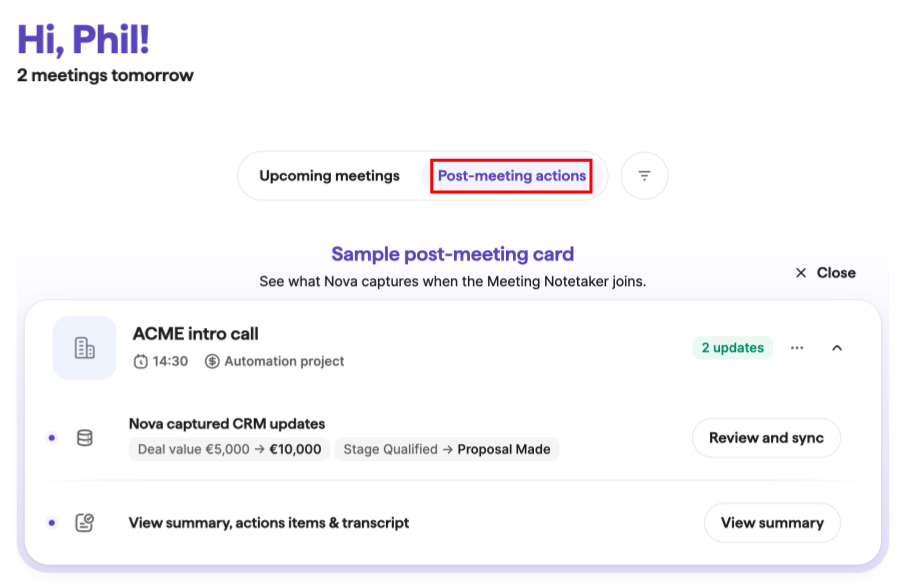
After a meeting is transcribed, Nova generates post-meeting actions based on the transcript. These appear in Meetings > Post-meeting actions.

Post-meeting actions might include:

  • Meeting debrief with a summary, key takeaways, and recommended next steps
  • Suggested CRM updates
  • Meeting transcript

Action items are personalized for you. When timestamps are available, click one to jump directly to that point in the transcript.

Nova can also save the meeting debrief as a note on the linked deal, person, or organization. If no record is linked, no note is created.

If you recorded a call outside Nova, you can upload a transcript from Meetings > Post-meeting actions. Supported file types are .txt, .pdf and .docx.


Review and update CRM data

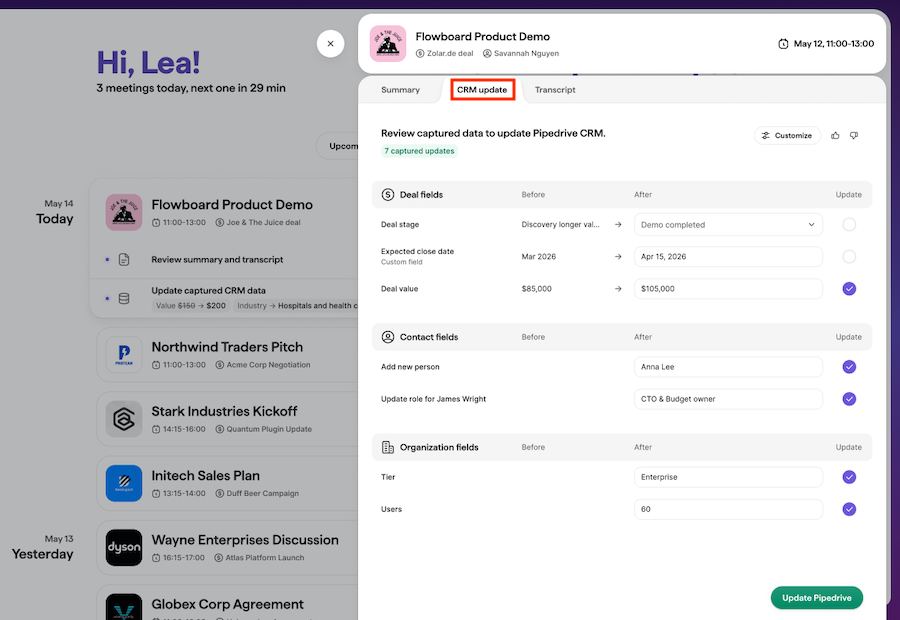
Nova suggests CRM updates based on your meeting transcript. Suggestions appear in the CRM update tab, where you can review each change before saving it.

Suggestions can include updates for:

  • Deal fields, including custom fields and labels
  • Person fields, including custom fields, phone numbers and email addresses
  • Organization fields, including custom fields and labels

Nova shows the current Pipedrive value next to the suggested value. If the value in Pipedrive changes after Nova creates the suggestion, Nova flags the field so you can review the difference before applying the update.

You can sync suggested changes selectively. Once a field is saved, it stays visible as read-only and the card action changes to “Review”.

Note: Nova only generates CRM update suggestions from meeting transcripts. Synced emails are not used as a source for suggested CRM updates.
這篇文章有幫助嗎?

相關文章

有任何疑問嗎?

聯繫我們