Pipedrive Nova
By minimizing administrative tasks, Pipedrive Nova lets you focus on securing deals. Nova pulls your past emails, previous conversations and deal history into one brief before every call, so you start the conversation with the full context.

Nova records and transcribes key decisions and next steps during a call, turning them into a structured summary inside Pipedrive.
As soon as the call ends, Nova suggests CRM field updates for you to review and apply, keeping your records accurate without any manual effort.
Set up Nova
The first time you open Nova, a setup wizard walks you through connecting your accounts. You need to complete setup before you can use its features.

During the onboarding, you can:
Accept Nova’s terms of use
Confirm that the AI Notetaker is enabled
Connect Gmail, or skip and connect it later
Connect your Google Calendar, or skip and connect it later
The AI Notetaker is enabled by default for new users. You can change how it joins your meetings at any time in Settings > Meeting Notetaker.

Connecting Gmail and Google Calendar
To manage how Gmail and Google Calendar are connected after setup, go to Settings > Connections.

If your Google Calendar is already synced through Pipedrive, you don’t need to connect the same calendar to Nova. Your calendar events will already appear from Pipedrive, but you can connect Nova to a different calendar if you wish to.
Enabling Nova permissions
Access to Pipedrive Nova depends on two things at the same time:
Pipedrive Nova is active for your company
You have a Pipedrive Nova seat assigned to you
Admins manage both and can activate Nova for the company and assign seats to users from Settings > Manage users > Users and access.

Then click “Confirm” on the confirmation pop-up.

To remove access, toggle off the checkbox for that same permission.
Regular users can’t activate Nova themselves. If you don’t have a seat yet, open Nova and click “Request access” to notify your admins by email.

There’s a single Pipedrive Nova permission set that grants full access to Nova features, so individual Nova permissions can’t be toggled on or off.
Prepare for meetings
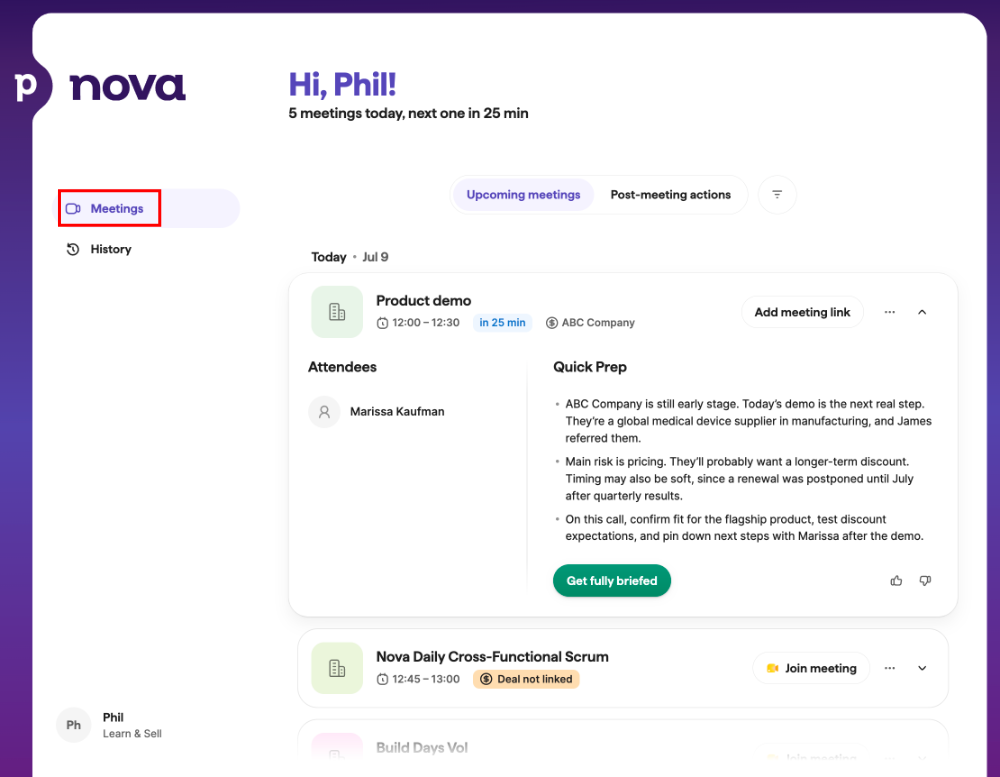
The Meetings screen is your hub for calls before, during and after a meeting.

Calendar events appear in Nova when at least one attendee matches a contact (based on their email address) in your Pipedrive CRM. If an event is missing, add the attendee‘s email address to your CRM contacts to sync it.
When you open an upcoming meeting, Nova prepares a briefing with context for the call. This can include:
Deal context and recent activity
Organization background, when an organization brief is available
Contact briefs for CRM attendees
A quick prep list with recent activity highlights

Transcribe calls with the AI Notetaker
Nova’s AI Notetaker bot joins your video calls on Google Meet, Zoom or Microsoft Teams to record and transcribe them automatically.

The AI Notetaker joins as a visible participant and starts recording once it's admitted to the call. After the meeting ends, you can review the transcript and follow-up actions in the Nova web app.

You choose how the AI Notetaker joins your calls in Settings > Meeting Notetaker. Under Choose how it joins, pick one of two options:
Auto-join: The AI Notetaker joins your meetings automatically as a visible participant. This is the recommended option and is selected by default.
Manually invite notetaker: The AI Notetaker joins only when you invite it.

Joining and transcribing a meeting
With Auto-join enabled, the AI Notetaker waits about 2 minutes before the meeting starts to join, even if you haven’t joined yet.
If you choose to manually invite the notetaker, click “Invite AI Notetaker” on an upcoming meeting card. If you invite it before the scheduled start time, it joins right away. If you add or update a meeting link while the meeting is already in progress, it joins immediately.

Review post-meeting actions
After a recorded or transcribed call, Nova creates post-meeting actions from the meeting transcript in the Nova web app. You can find them in Meetings > Post-meeting actions.

Post-meeting actions might include:
A meeting debrief with a summary, key takeaways and follow-up action items
Suggested CRM data updates
The meeting transcript
Action items are scoped to you as the sales rep. If timestamps are available in the recap, you can click them to jump to that point in the transcript.
Nova can also write the debrief back to Pipedrive as a note on the linked deal, person or organization. If the meeting has no linked deal, person or organization, no note is created.
If you recorded a call outside Nova, you can upload a transcript from Meetings > Post-meeting actions. Supported file types are .txt, .pdf and .docx.
Review and update CRM data
Nova can suggest CRM updates from the meeting transcript. These suggestions appear in the CRM update tab, where you can review each change before saving it to Pipedrive.

Suggestions can include updates for:
Deal fields, including custom fields and labels
Person fields, including custom fields, phone numbers and email addresses
Organization fields, including custom fields and labels
Nova shows the current Pipedrive value next to the suggested value. If the value in Pipedrive changes after Nova creates the suggestion, Nova flags the field so you can review it before syncing.
You can sync suggested changes selectively. Once a field is saved, it stays visible as read-only and the card action changes to “Review”.
Manage consent
Consent notices are off by default for new users. You can manage them from Settings > Participant notice.
Under the Notice method, you can choose how meeting participants are notified about meeting transcription.
No automatic alerts
Use this option if you‘ll be responsible for informing participants about transcription and collecting their consent outside of Nova.

When this option is selected, Nova doesn’t send automatic alerts before the meeting; it only sends a meeting chat message when available.
Alert with an opt-out
Use this option if you want Nova to notify participants via email before the meeting and provide an easy way for them to opt out of transcription.

Participants receive an email notification before the meeting. You can define when the email is sent.
If they don’t want to be recorded or have the call transcribed, they can use the opt-out option to inform the meeting host. The meeting host is responsible for honoring participants’ preferences.

Require consent
Use this option if you want Nova to notify participants before the meeting and collect their transcription consent preferences.

Participants can choose whether they consent or opt out before the meeting.

Their responses are collected and displayed in Nova. The meeting host is responsible for honoring participants‘ preferences.
How to notify participants
You can notify participants in two ways:
Automatic email: Nova sends a consent email automatically before the meeting. You can customize when the email is sent in the Auto-send notification email dropdown, with 24 hours before the meeting selected by default.

Shareable consent link: You can also enable a custom opt-out link.

When enabled, each meeting has a unique shareable link you can get by opening the consent status and clicking “Copy consent link”, which you can send to participants as an alternative to the automatic email.

Meeting owners and people who aren’t meeting participants can’t submit a preference through this link.
Consent status on meeting cards
The consent status is displayed as an inline label on upcoming meeting cards. This shows which participants have declined or are still pending. Click “Send reminder” to rerequest consent from participants with pending status.

As attendees submit their responses by email or through the shareable link, these statuses update automatically.
Choose which activities sync to Nova
You can choose which Pipedrive activity types Nova treats as actionable meetings from Settings > Synced activities.

When you save your selection, newly selected activity types sync into Meetings and deselected types don’t show up anymore. Your selections are preserved unless you change them.
Give feedback
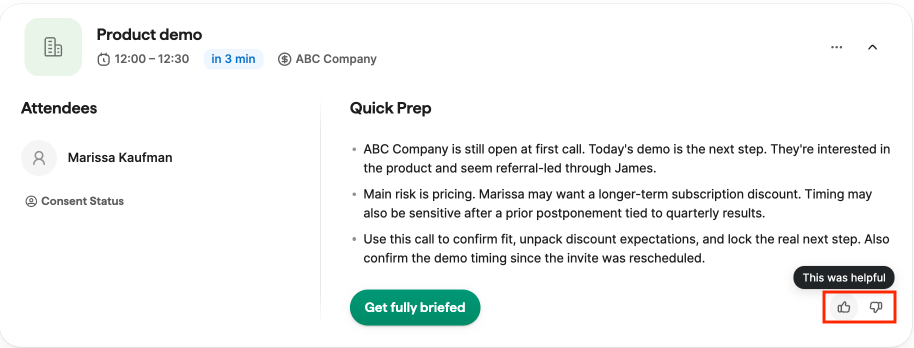
Nova learns from your feedback. You can rate AI-generated content with thumbs up or thumbs down controls throughout Nova, including pre-call briefings, recap summaries and CRM data suggestions.
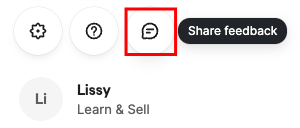
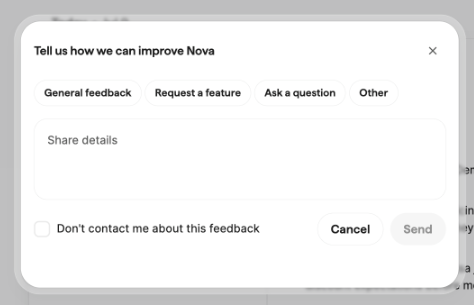
You can also submit your feedback by clicking your username in Nova and then “Share feedback”.

When you submit feedback, you can add a short explanation. This helps improve future suggestions for you and your team.

Nova privacy and security FAQ
Does Pipedrive use my data to train AI models?
No. Pipedrive doesn’t use your data to train any AI model.
The third-party AI providers that help power Nova are also contractually prohibited from using your data to train their models. You can see the full list of subprocessors, including AI providers, on our subprocessors page.
What data does Nova access?
Nova analyzes your Pipedrive data and meeting transcripts to prepare you for meetings, create recaps and update your CRM.
Depending on which features you turn on, this can include your CRM data, synced emails, calendar events, call recordings, and meeting transcripts. Only the data needed for a specific feature is sent to subprocessors.
How is my data kept secure, and can other customers see it?
Nova uses the same technical and organizational security measures as the rest of Pipedrive. Your data stays isolated from other customers‘ data through strict tenant isolation.
For details, see Section 8 and Annex 2 of our Data Processing Addendum and our Trust Center.
How does Nova handle permissions?
Nova runs as a single-user experience. You only see AI outputs based on data you already have access to in Pipedrive.
If you save AI-extracted data into a shared CRM field, that‘s a deliberate action. Other users with access to that field will then be able to see it.
How do I turn Nova on or off?
Nova works on two levels:
Account level: An administrator has to accept and enable Nova before anyone can use it. If your company disables or deactivates Nova, all Nova data is removed within 60 days.
User level: You control your own Nova features. You can connect or disconnect email and calendar sync at any time, and disconnecting immediately deletes the synced emails and calendar events.
Do I need consent to record meetings?
As the meeting organizer, you’re responsible and accountable for complying with the laws that apply to you. That includes informing participants that Nova is active, obtaining their consent where required by law, and respecting anyone who asks not to be recorded.
Recording laws vary by location. Several US states (such as California, Florida, Pennsylvania, Maryland, Massachusetts, and Washington) and some EU countries require consent before recording or transcription starts. You‘re accountable for honoring participants’ preferences.
Participants or meeting hosts (depending on the meeting platform’s settings) can remove the Nova AI Notetaker bot from the call at any time, which will stop the recording.
Where is my data stored?
Pipedrive hosts customer data in AWS regions across the EU (Frankfurt and Dublin), the UK (London), the US (East and West), Canada (Montreal), and Asia-Pacific (Sydney). Your account is usually hosted in the region closest to where you signed up.
Some Nova features rely on subprocessors in other countries. When data crosses borders, we use approved transfer mechanisms, including Standard Contractual Clauses. Our support team also works across time zones, so a representative in another country may access your data to help you.
See the subprocessors page and Trust Center for details.
How long is my data kept?
Nova follows Pipedrive‘s standard retention policies. Your account data is kept for as long as your subscription is active.
After you close your account, it‘s deleted within 180 days (60 days for free trials), and backups are kept for 90 days after that. If you need it deleted sooner, support can handle that within a month of your request.
Two Nova specifics: meeting transcripts are deleted by the recording provider after processing, and disconnecting an email or calendar sync deletes that synced data immediately. See Section 5.1 of our DPA.
What terms govern Nova‘s AI features?
Nova is covered by Pipedrive‘s existing legal framework: the Terms of Service, Privacy Notice, Data Processing Addendum, and Nova Supplemental Terms.
You can find more in the Trust Center and Legal Hub.
Was this article helpful?
Yes
No