How to resolve the Microsoft admin approval issue
If you see a “Need admin approval” or “Approval required” message when connecting your Microsoft 365 or Outlook account to Pipedrive, it means your Microsoft organization requires administrator consent for third-party apps to access user mailboxes.
This is a Microsoft permission setting and not a Pipedrive error.
Why does the approval issue happen
By default, Microsoft requires admin approval for many third-party applications, such as Pipedrive, that request access to organization data.
When the admin approval is enabled:
Regular users can’t grant Pipedrive permission themselves
A Microsoft 365 administrator must approve the Pipedrive app before it can be used
You can see and manage approved apps in the Microsoft Entra admin center (formerly Azure Active Directory) under Enterprise apps
What you may see
When trying to set up email sync:
You’re redirected to the Microsoft login.
After signing in, you see a message saying the app needs admin approval.
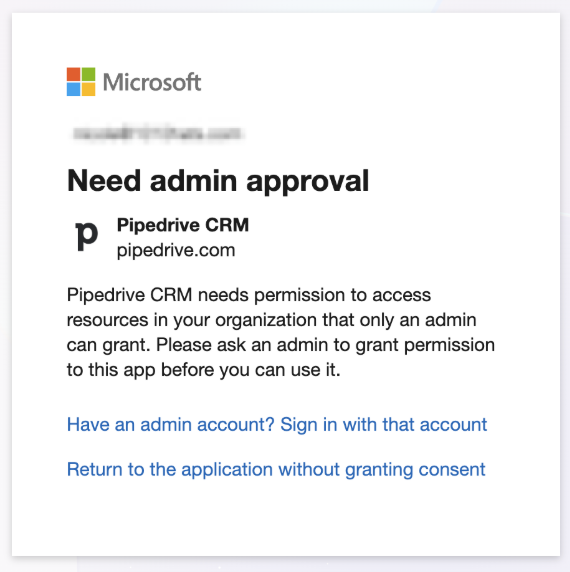
If you continue without granting consent, you’re redirected back to Pipedrive, and the connection fails.
You might also see an error message telling you that Pipedrive couldn’t connect your email account.
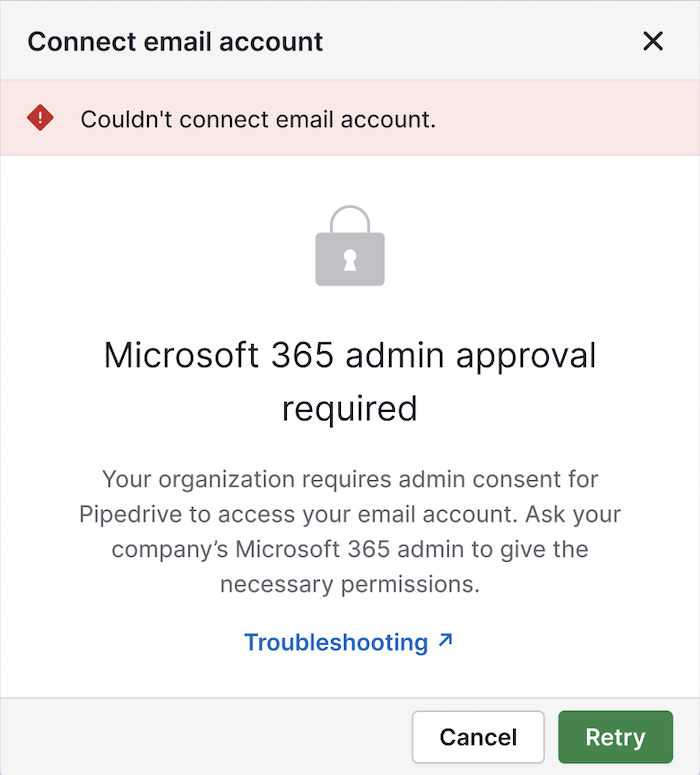
When this happens, you need to request approval from your Microsoft 365 administrator before proceeding with adding your email account.
Who needs to take action?
A Microsoft 365 global administrator or application administrator in your organization must approve the Pipedrive app connection.
If you’re unsure who that is, contact:
Your IT department
The person managing Microsoft licenses and user accounts
How to approve Pipedrive in Microsoft 365 (for admins)
Approve during the connection process
In Pipedrive, go to Personal preferences > Email sync. Click “+ Email account”, type in your email address and you‘ll go to Microsoft‘s sign-in page.
Make sure you log in with a Microsoft admin account.
On the permissions screen, check the “Consent on behalf of your organization” option, then click “Accept”.
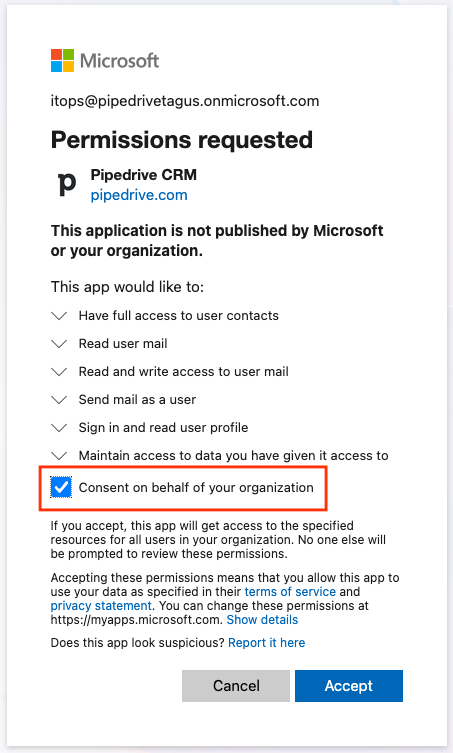
This grants permission for all users in the organization.
The following step will ask you to choose the email account type for the admin email account. You can safely cancel adding the account here.
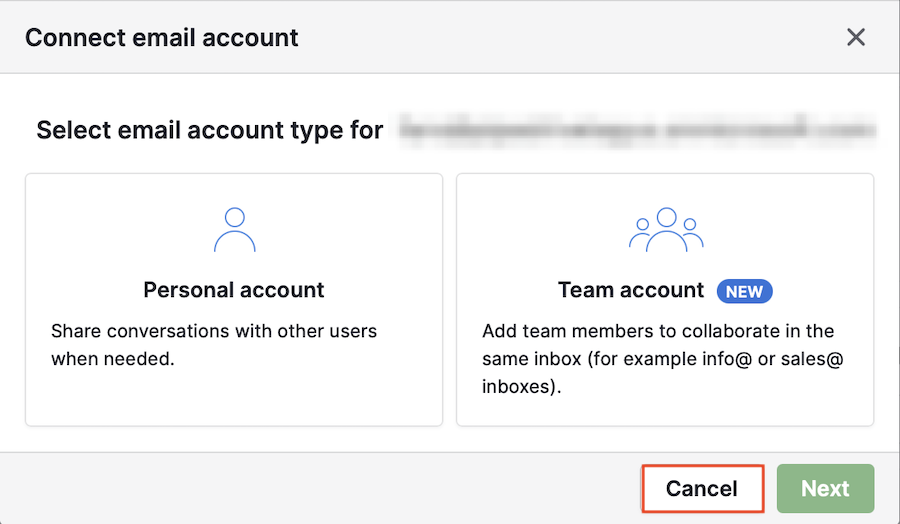
You can also remove the admin account in the next step.
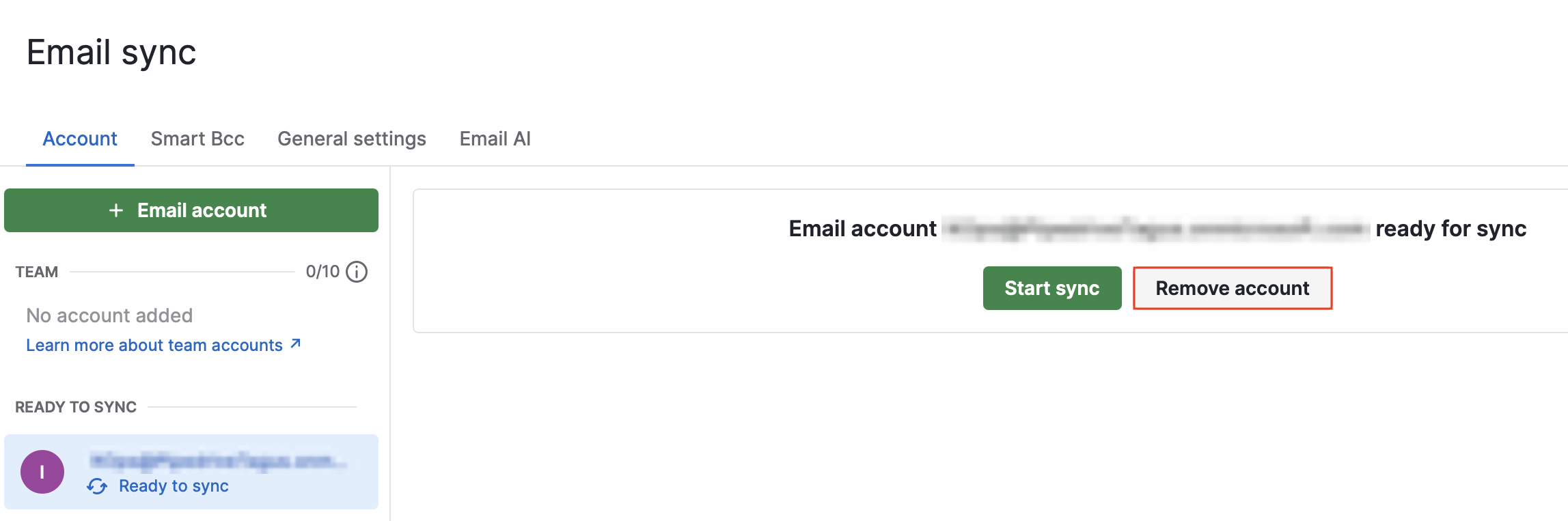
This process is just necessary for non-admin users‘ authorization.
After approval, all users will be able to connect their email accounts normally.
Frequently asked questions
I’m a Pipedrive admin. Why can’t I approve this?
Microsoft authentication is controlled by Microsoft 365. Only a Microsoft admin can grant app consent. Being a Pipedrive admin works only within Pipedrive and has no impact on Microsoft products.
I logged in as admin, but it still failed.
Make sure that:
You selected “Consent on behalf of your organization”
You completed the approval process (did not click “Return to application without granting consent”)
You used a Microsoft organizational account (not a personal Outlook account)
You waited a few minutes after granting consent
If the issue persists, try signing out of all Microsoft accounts in your browser and reconnecting afterward.
I can’t find “Enterprise apps” in Microsoft.
You likely don’t have sufficient administrator permissions. Contact a Global Admin in your organization.
If it still doesn‘t work
If you continue to experience issues after admin consent has been granted, contact Pipedrive support and please include:
A screenshot of the Microsoft error message
Confirmation that admin consent was granted
The time and date of your last connection attempt
Was this article helpful?
Yes
No