Troubleshooting: calendar sync
If calendar sync isn’t working as expected in Pipedrive, this article covers how to troubleshoot common issues and help you get back on track.
To adjust your settings, open the account menu in the top-right corner and go to Personal preferences > Calendar sync.
Account connection issues
Insufficient permissions
To successfully sync your Pipedrive activities to your calendar provider, you need to grant Pipedrive the necessary permissions during the sync setup.

If sync fails after setup, check with your IT admin to ensure third-party calendar permissions are allowed.
Issues fetching your calendars (Microsoft Exchange)
If you’re using Microsoft Exchange and have two-factor authentication (2FA) enabled, you need to create an app password.
After creating the password, copy and paste it into Pipedrive.
Activities or events not syncing between Pipedrive and your external calendar
If your activities or events are not syncing as expected, double-check your calendar sync settings.
Confirm calendar and sync type
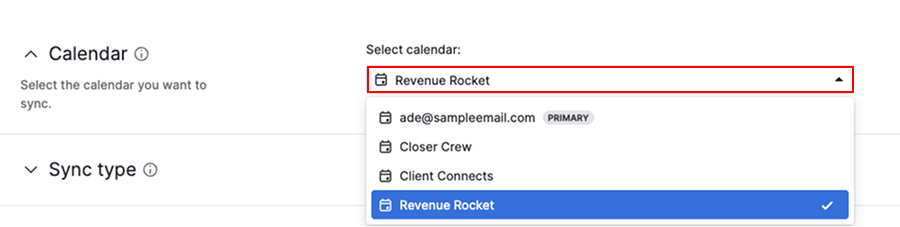
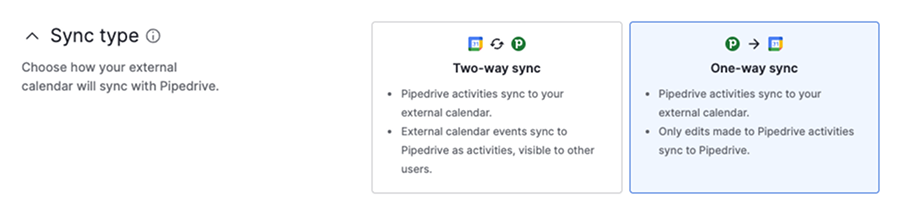
Make sure the correct calendar and sync direction are selected:
Calendar
Sync type
Sync type | What gets synced |
|---|---|
Two-way sync | Pipedrive activities appear as events in your external calendar. External calendar events sync into Pipedrive as activities. |
One-way sync | Only Pipedrive activities appear as events in your external calendar |
Set up activity type mapping
Depending on your sync type, define how activities and events are handled in the converting external calendar events section:
Sync type | Activity type mapping |
|---|---|
Two-way sync | Select a default activity type for incoming events (e.g., all calendar events sync to Pipedrive as “meeting”). Select activity types that sync to your external calendar (e.g., meeting, call). |
One-way sync | Choose which activity types sync to your external calendar |
Test the connection
If Pipedrive activities aren’t appearing in your calendar
- Update the due date, time, location, guests or description of a missing activity
- Create a new activity for a future date and check if it syncs
If calendar events aren’t appearing in Pipedrive
- Update the date, time, location, guests or description of the event in your external calendar
- Create a new future-dated event and check if it syncs into Pipedrive
If the sync still fails, clear your browser’s cache and cookies, then reconnect your calendar.
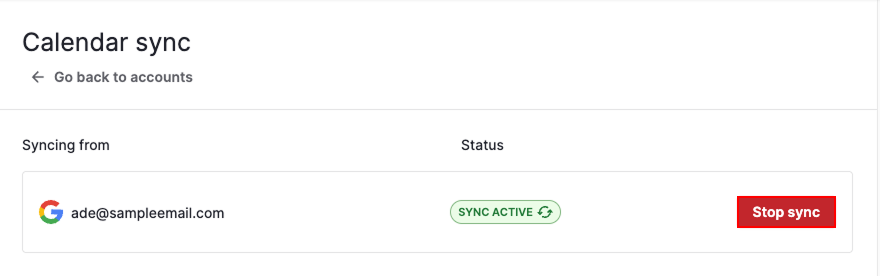
To reconnect your calendar sync:
- Go to Personal preferences > Calendar sync
- Click “Edit”, then “Stop sync”
- Click “Add account” and complete the authentication process
- Review and save your sync preferences
Visibility and privacy issues
If you don’t see the expected activities in your activities list view, check the following filters:
- Click the “Filter” and select Owners > Everyone
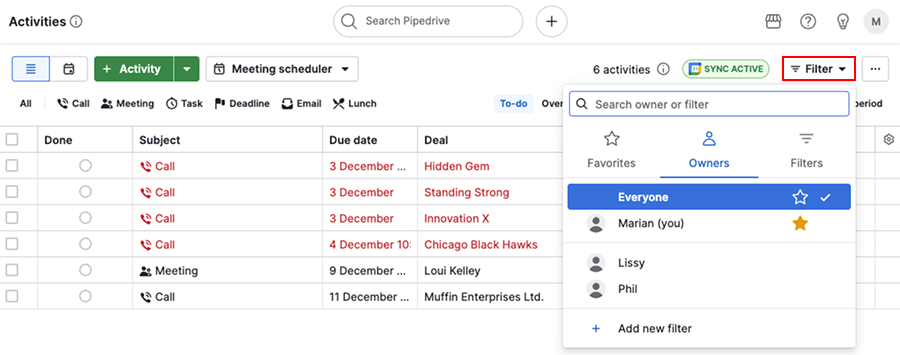
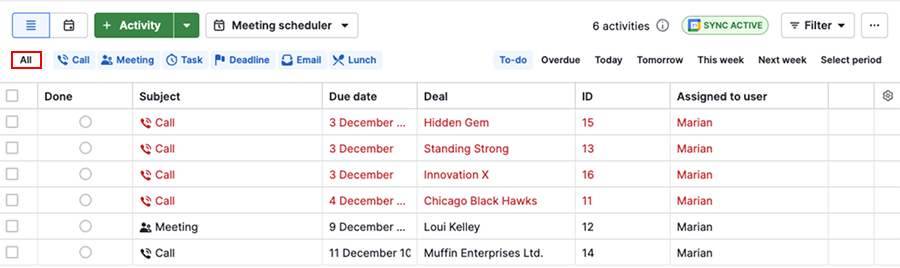
- Click “All” to enable all activity types
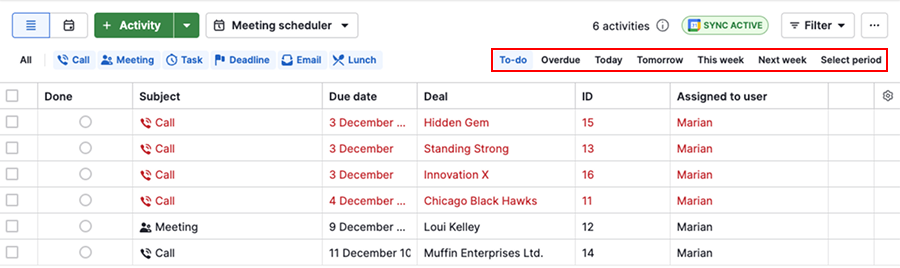
- Adjust the status or time filter to fit with your missing activity
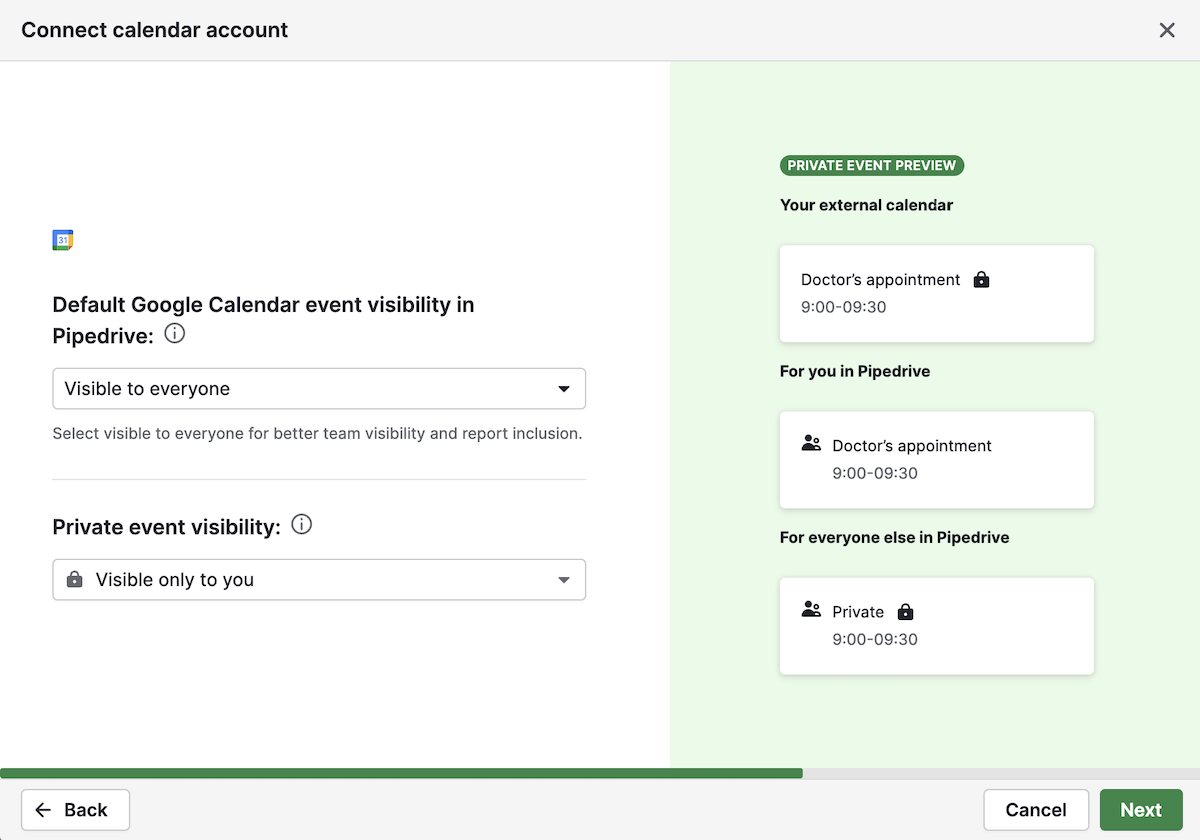
Activities appear as “Private” in Pipedrive
A private activity means you’re viewing an activity that belongs to someone else’s calendar events. Private events are only visible to the account owner.
Contact support
If you require additional assistance, please contact our support team. You can also check for any incidents on the Pipedrive status page.
Was this article helpful?
Yes
No