Эта статья создана с использованием машинного перевода.
Pipedrive Nova: настройка
Прежде чем вы сможете использовать Pipedrive Nova, вам нужно завершить короткую настройку. Затем вы подключите свои аккаунты Google и настроите несколько параметров.
В этой статье объясняется, как:
- Пройти мастер настройки Nova
- Подключите Gmail, календарь и Slack
- Предоставить необходимые разрешения для Nova
- Выберите, какие события календаря и задачи Pipedrive синхронизировать с Nova
Управление доступом к Nova
Nova входит во все тарифы, без дополнительной платы, и по умолчанию включена для всех пользователей. Вам не нужно включать Nova или назначать места.
Если администратор вашей компании отключил вам доступ к Nova, при открытии вы увидите сообщение. Чтобы восстановить доступ, попросите администратора включить его в разделе Settings > Manage users > Users and access.
Пользователи с правами администратора
Администраторы могут включать или отключать доступ к Nova для любого пользователя в любое время через Settings > Manage users > Users and access.
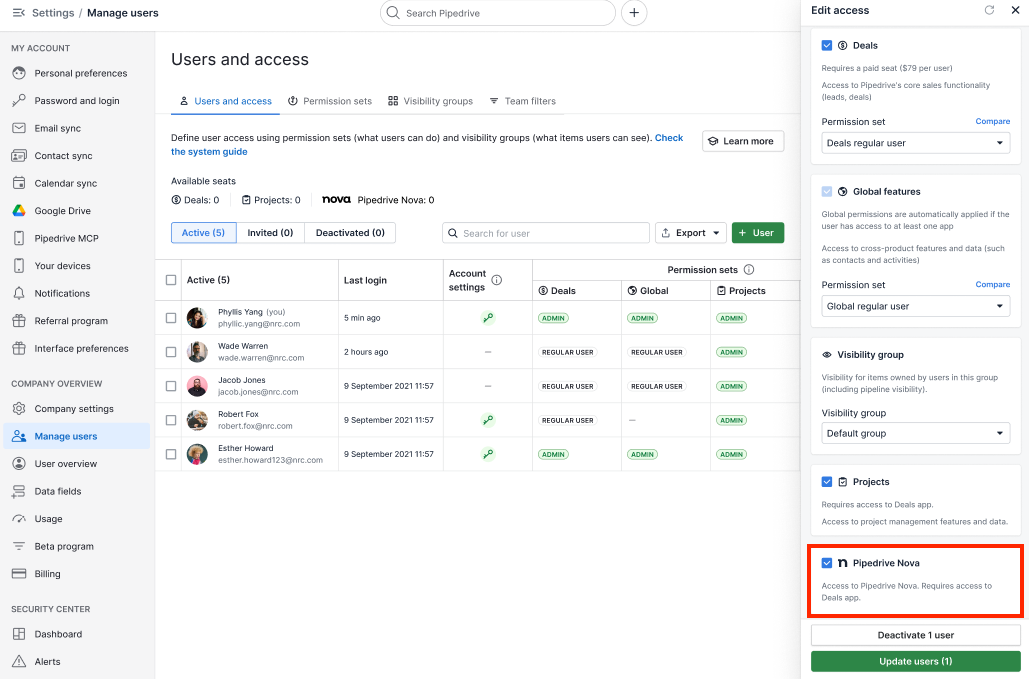
После включения Nova нажмите «Подтвердить» в диалоговом окне подтверждения.
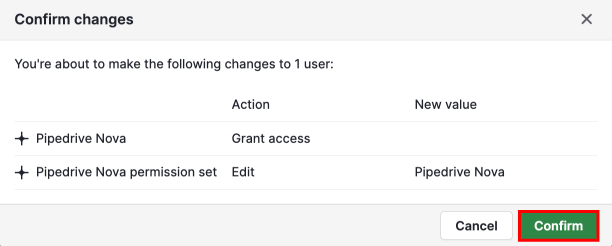
Чтобы удалить доступ пользователя, снимите флажок для этого разрешения.
Пользователи без прав администратора
Пользователи без прав администратора не могут включить Nova для себя. Если у вас ещё нет доступа, откройте Nova и нажмите «Запросить доступ», чтобы отправить запрос по электронной почте вашим администраторам.
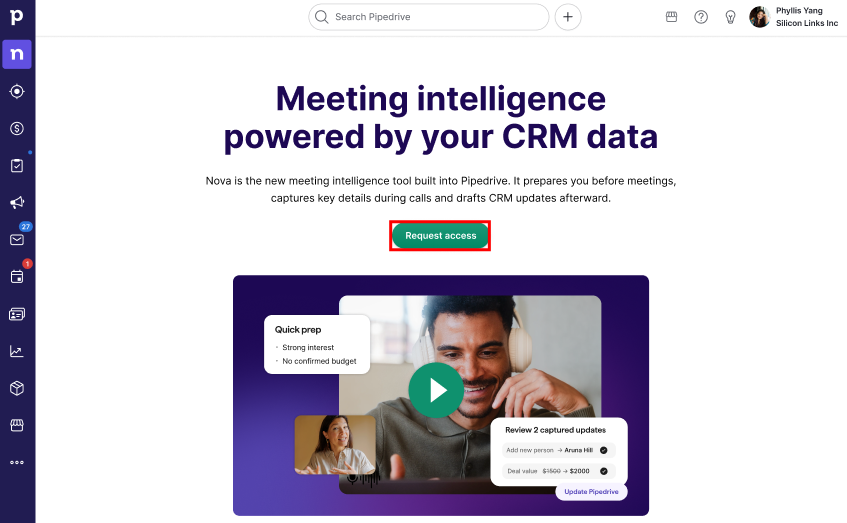
Nova использует один набор разрешений, который даёт доступ ко всем функциям Nova. Отдельные разрешения Nova нельзя включать или отключать по отдельности.
Как только администратор включит для вас Nova, она станет доступна в вашей учётной записи Pipedrive.
Настройка Nova
При первом запуске Nova мастер настройки проведёт вас через подключение учётных записей и конфигурацию параметров. Вы должны пройти обязательную настройку, прежде чем сможете использовать Nova.
Нажмите «Начать», чтобы начать.
Во время работы мастера настройки вы:
- Прочитайте и примите Условия использования Nova (обязательно)
- Просмотрите настройки ИИ-инструмента для заметок. Для новых пользователей автоматическое подключение включено по умолчанию. В разделе Настройки > Заметки о встречах можно изменить способ подключения ИИ-инструмента для заметок к встречам и уведомления участников о записи встреч, а также выбрать использование настольного приложения Companion
- Подключите учетную запись Gmail (необязательно, но рекомендуется).
- Подключите другую службу календаря.
- Подключите рабочее пространство Slack (необязательно).
Подключите учетные записи
После завершения мастера настройки вы можете управлять подключёнными аккаунтами в Настройки > Подключения.
Gmail
Даже если Gmail уже синхронизирован с Pipedrive, Nova по‑прежнему требует собственного подключения к вашему аккаунту Gmail.
Nova читает ваши письма в режиме реального времени, чтобы генерировать краткие сводки для встреч. Для этого требуются другие разрешения, чем при стандартной синхронизации почты в Pipedrive, поэтому подключение Gmail к Nova — отдельный шаг.
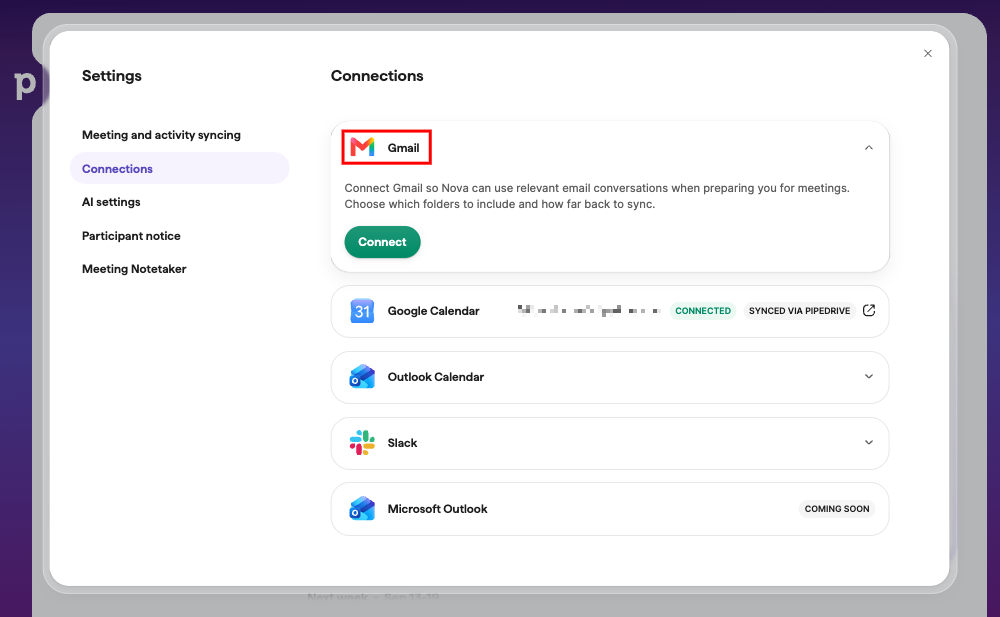
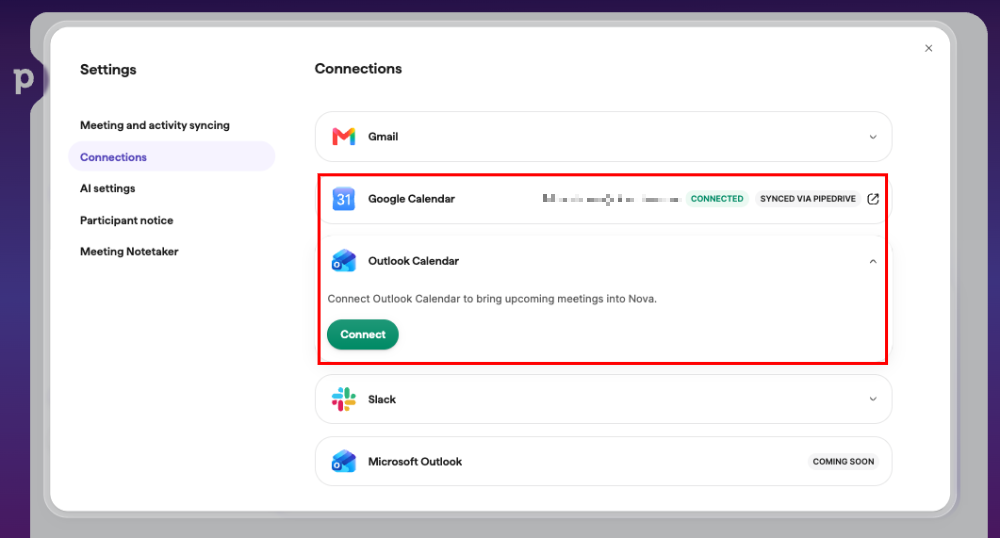
Календарь Google или Outlook
Если календарь уже синхронизирован с Pipedrive, повторно подключать его к Nova не нужно. События календаря уже доступны в Nova через Pipedrive, и рядом с ними отображается метка синхронизировано через Pipedrive.

При желании можно подключить Nova к другому календарю Google или Outlook.
Nova только читает ваш календарь, чтобы помочь подготовиться к встречам. Она не создаёт, не редактирует и не удаляет события календаря.
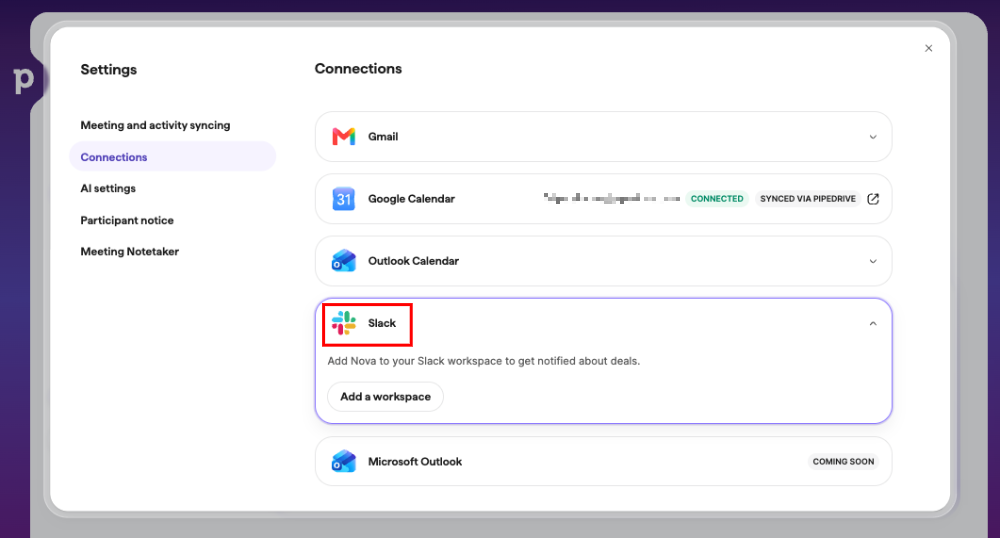
Slack
Можно также добавить Nova в рабочее пространство Slack, чтобы получать уведомления с краткой информацией перед встречей и ее итогами после встречи. Дополнительную информацию см. в статье «Pipedrive Nova: уведомления Slack».
Выберите, что синхронизировать
Перейдите в Настройки > Синхронизация встреч и задач, чтобы выбрать, какие события включить в Nova, а какие задачи Pipedrive синхронизировать и отображать в Nova.
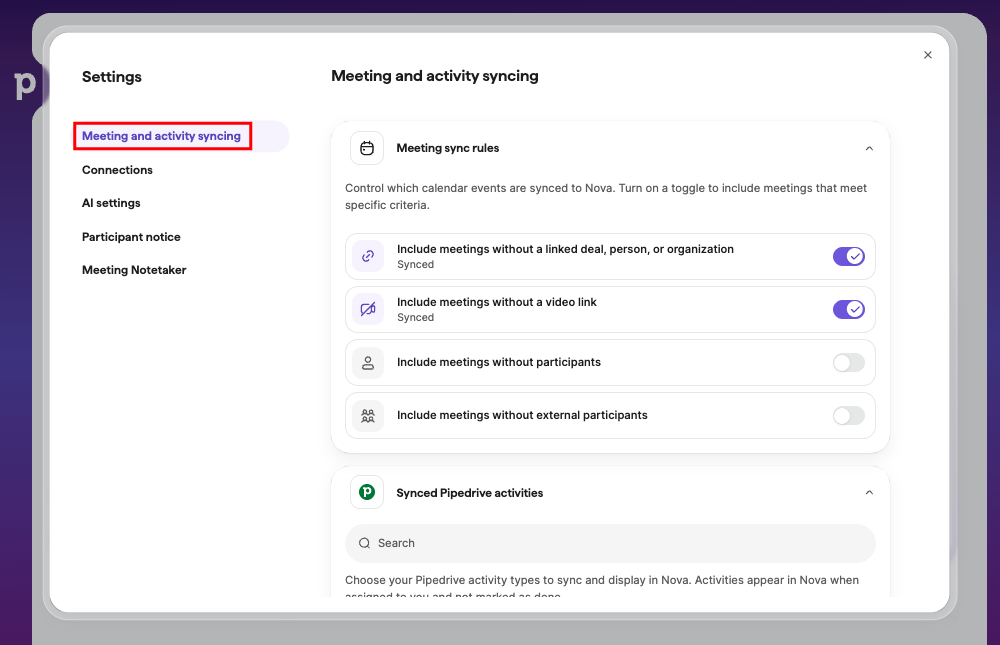
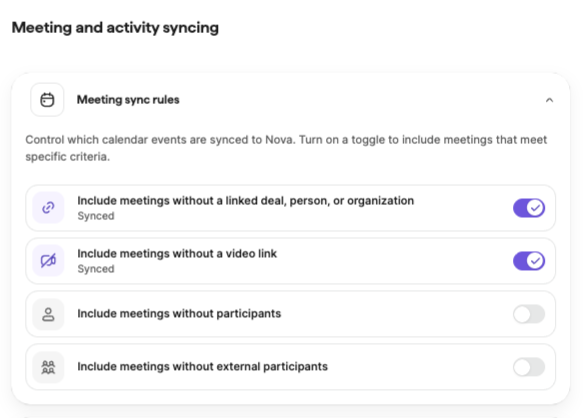
События календаря
Можно указать, какие типы событий будут отображаться в Nova, включив соответствующие переключатели.
Задачи
Также можно указать, какие типы задач Pipedrive Nova будет считать встречами.
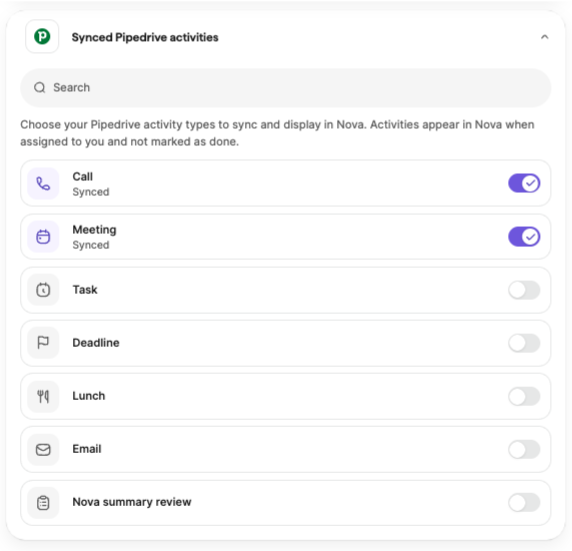
После сохранения изменений новые выбранные типы задач появятся в разделе Встречи, а исключенные типы будут удалены. Ваши предпочтения сохраняются до тех пор, пока вы их не измените.
После того как вы подключите аккаунты и завершите необходимую настройку, вы готовы начать подготовку к встречам и использовать AI Notetaker. Узнайте больше в Встречи с Nova.
Настройте параметры ИИ Nova
Вы можете настроить, как Nova работает с данными CRM и как она генерирует сводки встреч в Настройки > Параметры ИИ.
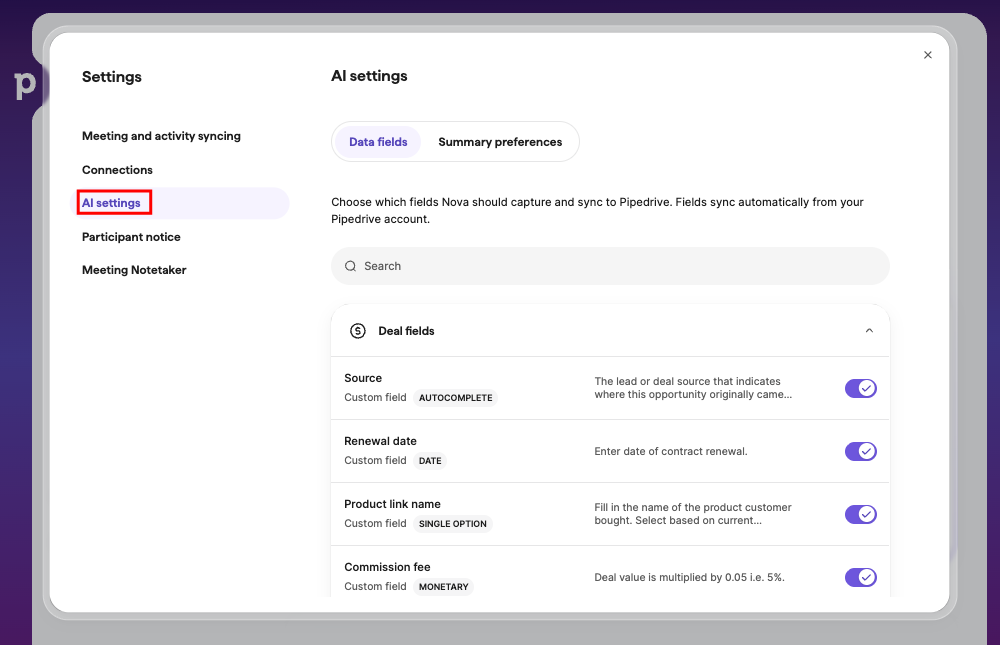
Выберите и настройте поля данных
На вкладке Поля данных выберите, для каких полей сделок, контактов и организаций Nova может предлагать обновления, и настройте, как она интерпретирует каждое поле.
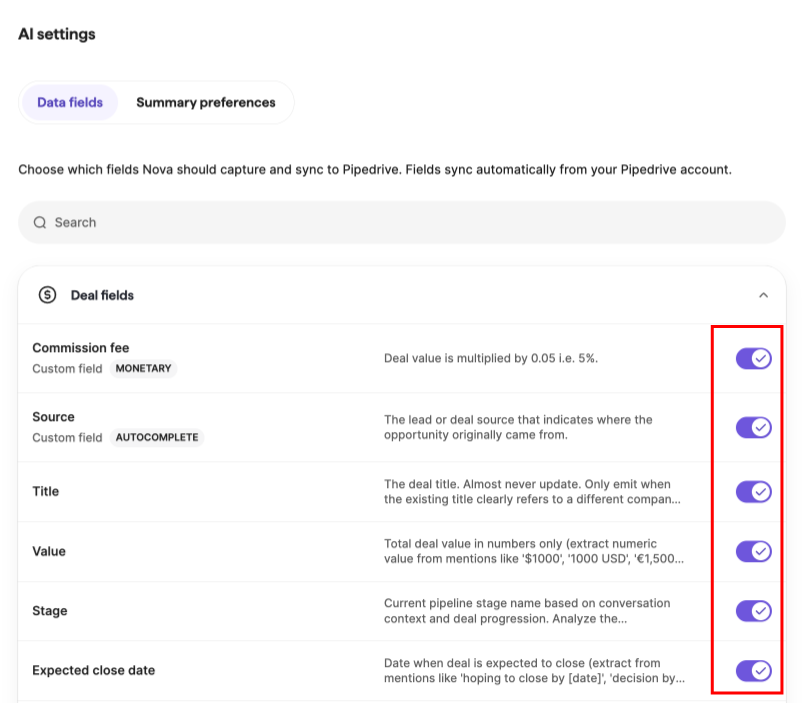
Используйте переключатель рядом с каждым полем, чтобы включать или отключать предложения по обновлению CRM.
Нажмите на поле, чтобы открыть его инструкции. Там вы можете указать Nova, как извлекать или форматировать значение поля. Например, как интерпретировать суммы в валюте или где искать ожидаемую дату закрытия сделки.
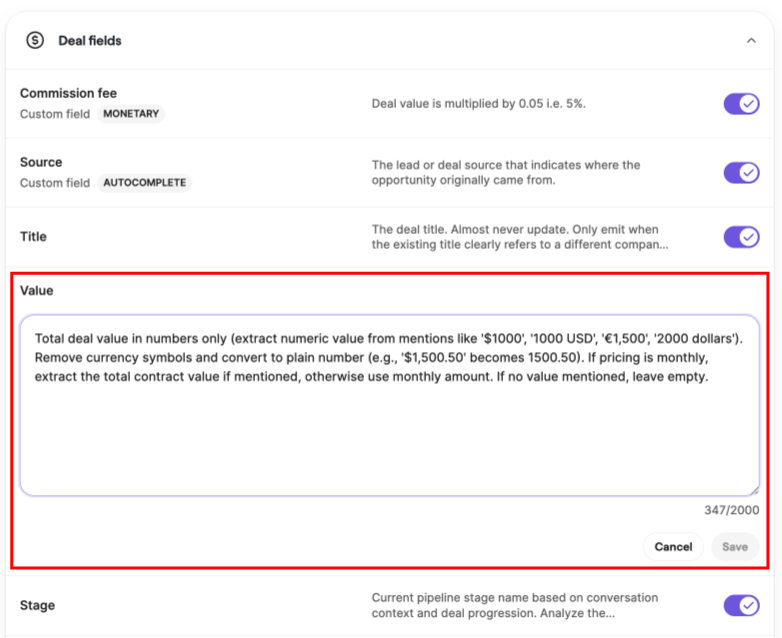
После редактирования инструкции поля нажмите «Сохранить», чтобы применить изменения, или «Отменить», чтобы их отклонить.
Настройте параметры сводок
На вкладке Параметры сводки настройте, как Nova формирует сводки встреч. Эти настройки применяются ко всем будущим встречам.
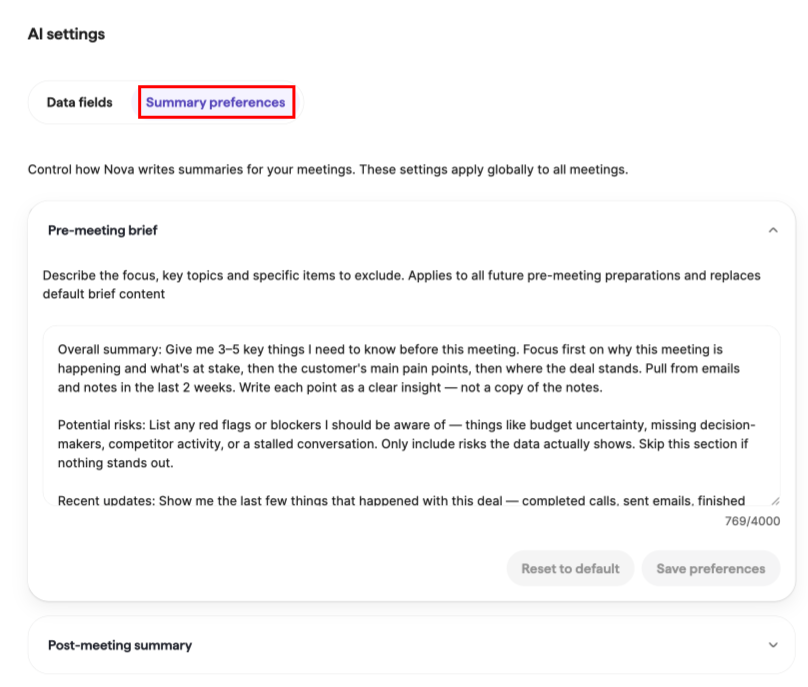
Nova генерирует два типа сводок:
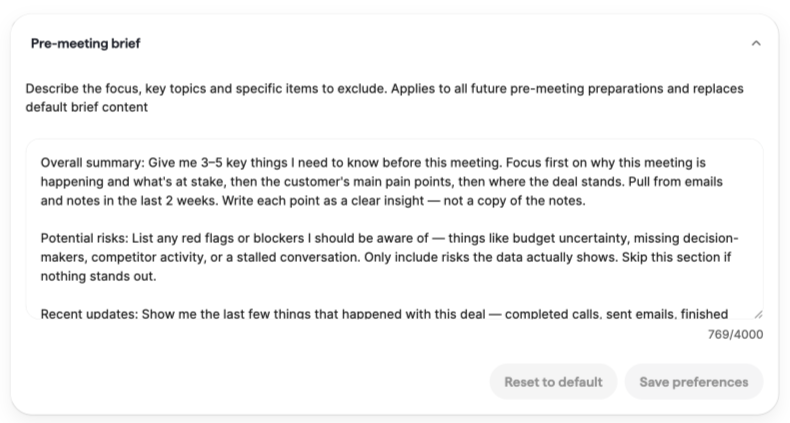
- Предвстречный бриф — бриф, который Nova генерирует перед встречей
- Послевстречная сводка — итог, который Nova формирует после встречи
Для каждого типа сводки вы можете добавить собственные инструкции, описывающие фокус, ключевые темы или информацию, которую нужно исключить. Эти инструкции применяются ко всем будущим брифам и сводкам и заменяют инструкции Nova по умолчанию.
Для послевстречных сводок вы также можете выбрать:
- Тон: профессиональный, дружелюбный или формальный
- Длина: краткий, обычный или подробный
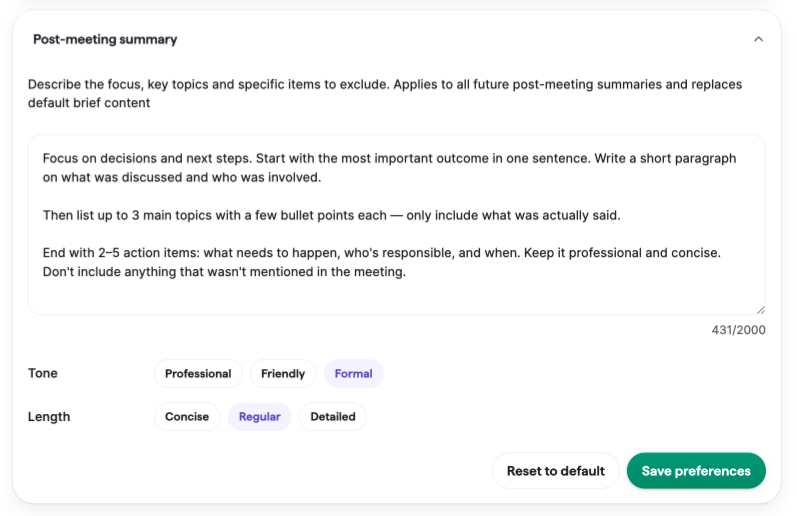
Нажмите «Сохранить настройки», чтобы применить изменения, или «Сбросить до значений по умолчанию», чтобы восстановить стиль сводок Nova по умолчанию.
Была ли эта статья полезной?
Да
Нет