Email senders in automations
Automated emails in Pipedrive can be sent from different accounts: the automation owner, the item owner, whoever triggers the automation or a connected Team Inbox.
This article explains how to manage which email accounts are available for automations, who can configure senders and how to set up sender options in the automation builder.
Manage your email account for automations
To send automated emails, you need an email account connected in Pipedrive via email sync.
For personal accounts, the first one you connect is automatically set as your default email account. Some sender options in automations use your default to send emails, so it’s important to keep it up to date.
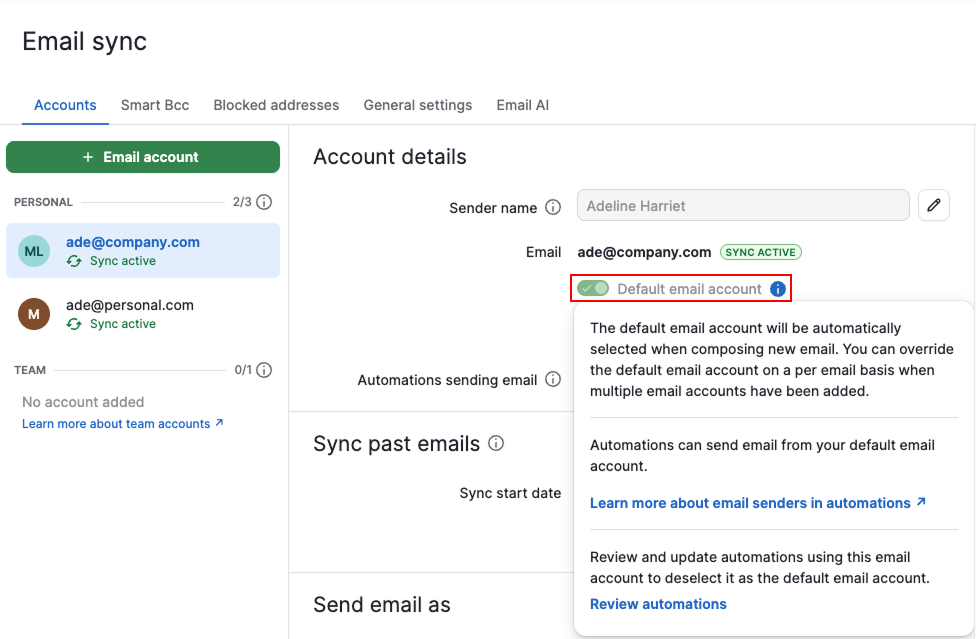
If you want a different account used, switch your default. If you disable your default email account without setting a new one, some automations will fail when trying to send.
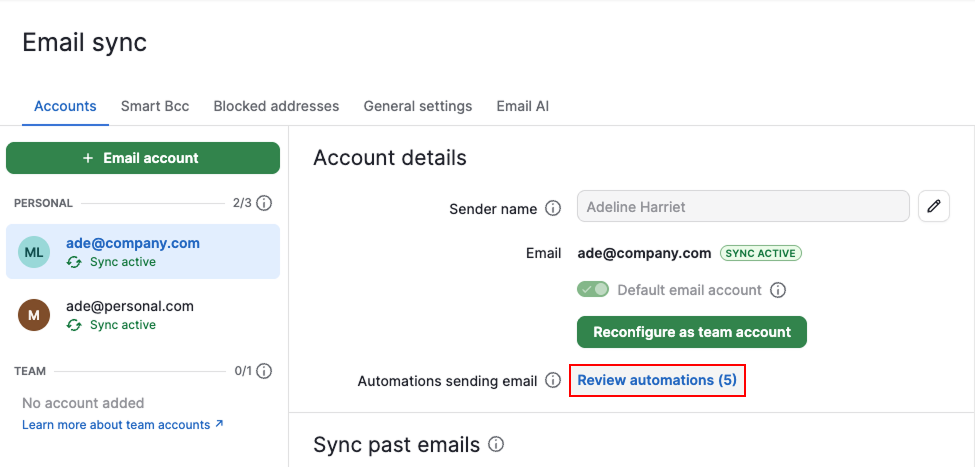
To see which automations could send emails from your account, select “Review automations”. Whether they actually do depends on how each automation is set up.
Control who can configure automations and senders
By default, only global admins can create automations and configure sender options. This includes setting up automations that send emails from another user’s account, such as the deal owner or the triggering user.
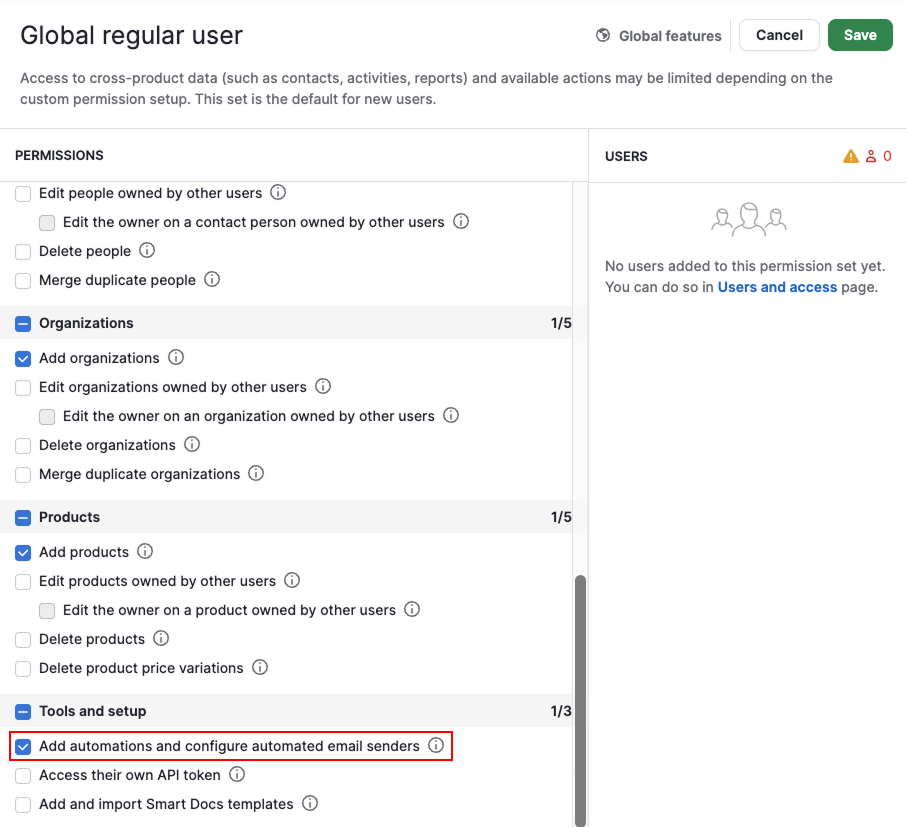
To grant global regular users the ability to add automations and configure senders:
Open the account menu and go to Manage users > Permission sets
Expand global features permission sets
Select ”Global regular user”
Click “Edit permission set”
Enable ”Add automations and configure automated email senders” and save
Set up senders in the automation builder
When setting up an automated email, either from scratch or using a template, you can choose who sends it.
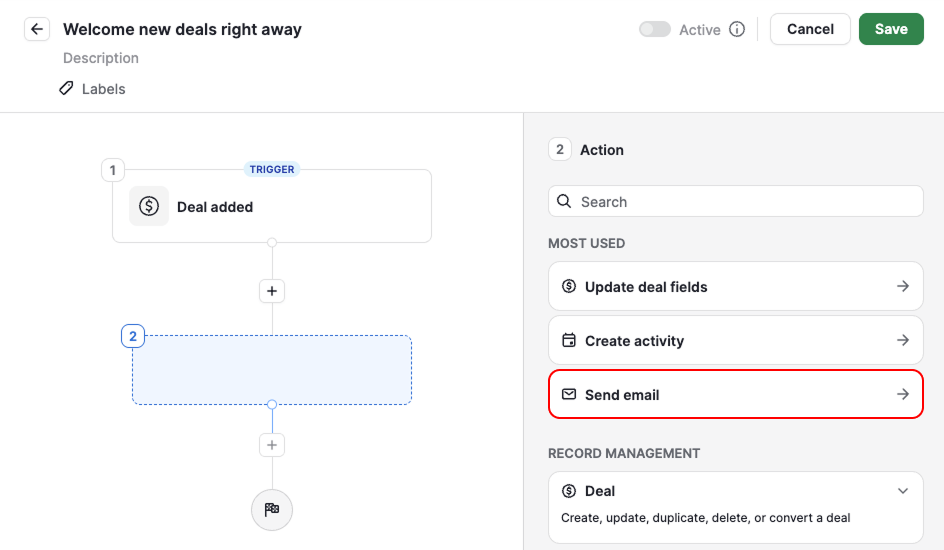
In the send email action, use the “Sender account” field to select who the email is sent from.
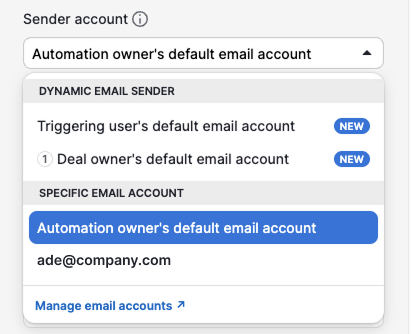
Sender options are split into two types:
- Dynamic email senders – automatically send from the right person's account based on their role in the automation
- Specific email accounts – always send from a fixed address
Dynamic email senders
| Sender option | How it works |
| Item owner | Sends from the default email account of the item owner when the automation runs. Applies to deal, lead, project, person and organization owner, as well as activity and task assignee. |
| Triggering user | Sends from the default email account of whoever triggered the automation. |
Specific email accounts
| Sender option | How it works |
| Automation owner | Sends from the automation owner’s default personal email account. |
| A specific connected account | Sends from a specific personal account that the automation owner has connected in email sync. All connected accounts are listed individually by address. |
| Team Inbox | Sends from the selected Team Inbox account. Appears in the account sender dropdown when it’s set up. |
Set a reply-to address
By default, replies go back to the sender.
To direct replies somewhere else, click “Add fields” and select “Reply-to email address”.
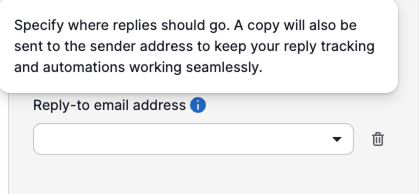
You can add one or more email addresses. For example, an automation can send an email from a Team Inbox while directing replies to the deal owner or another team member responsible for the conversation.
Common examples
Send emails from the salesperson responsible for the deal
Select ”Triggering user’s default email account” so each salesperson communicates from their own email account, even when the same automation is used across the team.
Send emails from a shared company inbox
Select ”Team Inbox” when customer communication should come from a shared account, such as [email protected] or [email protected].
Send emails from the person who created the automation
Select ”Automation owner’s default email account” or any other connected account listed under the automation when one person manages the process. All automated emails are sent from their inbox.
Was this article helpful?
Yes
No