Pipedrive Nova: Companion desktop app
The Nova Companion desktop app is a lightweight desktop app you install to capture your meetings. Instead of sending a bot into the call, it transcribes your computer’s audio directly, so it works with any conferencing tool, including audio-only and VoIP calls.
It works alongside the Pipedrive Nova web app: once a meeting is captured, the transcript, brief and suggested CRM updates appear in the web app, the same place your AI Notetaker recordings and post-meeting actions live.
You can install and set up Nova Companion on macOS or Windows, connect your account, grant the right permissions, and start capturing meetings, CRM updates and next actions automatically.
This article covers:
- Which platforms, meeting tools and operating systems does Nova Companion support
- How to download, install and sign in to Nova Companion
- How to grant the permissions Nova needs to capture meetings
- How to set your participant notice preferences
- How to join a meeting and review post-meeting actions
Before you begin
Supported operating systems
- macOS 13.0+: Apple Silicon only. Intel Macs are not supporte
- Windows 10+: 64-bit only
Platform availability
The Nova Companion runs on macOS and Windows, and works alongside any conferencing tool you already use, including:
- Zoom
- Google Meet
- Teams
- Demodesk
- Any other VoIP tool on your computer (with less accurate speaker attribution)
- In-person meetings, provided your computer’s microphone can pick up audio from the meeting room. Muting your microphone will prevent anything from being recorded.
It captures system audio directly, so you won‘t have a bot join your call. If the meeting is visible in Nova, it can be transcribed with Nova Companion.
What kind of meetings can I transcribe?
To transcribe a meeting, it needs to already be visible in Nova. See the Manage meeting sync settings section in the Pipedrive Nova: Meetings article for the full conditions. Beyond that, Nova Companion only needs audio playing on your computer; you don’t need to use a specific conferencing tool.
In summary, Companion needs two things to transcribe a meeting:
- The meeting is scheduled in your synced calendar or as a Pipedrive activity
- Audio playing on your computer (even if you‘re using headphones)
The resulting transcription will be slightly different depending on which meeting provider you use:
- Detectable meeting providers (Zoom, Google Meet, Teams): Nova Companion can pull participant names from the meeting info, so the transcript will accurately attribute who’s speaking.
- Other calls (VoIP tools, or providers Nova can‘t detect): these can still be transcribed, but speakers will only be labeled as host and participant rather than by name, so speaker attribution may be less accurate.
Download and install Nova Companion
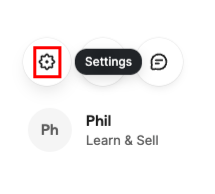
On both macOS and Windows, you can download the file by opening Nova Settings above your username.
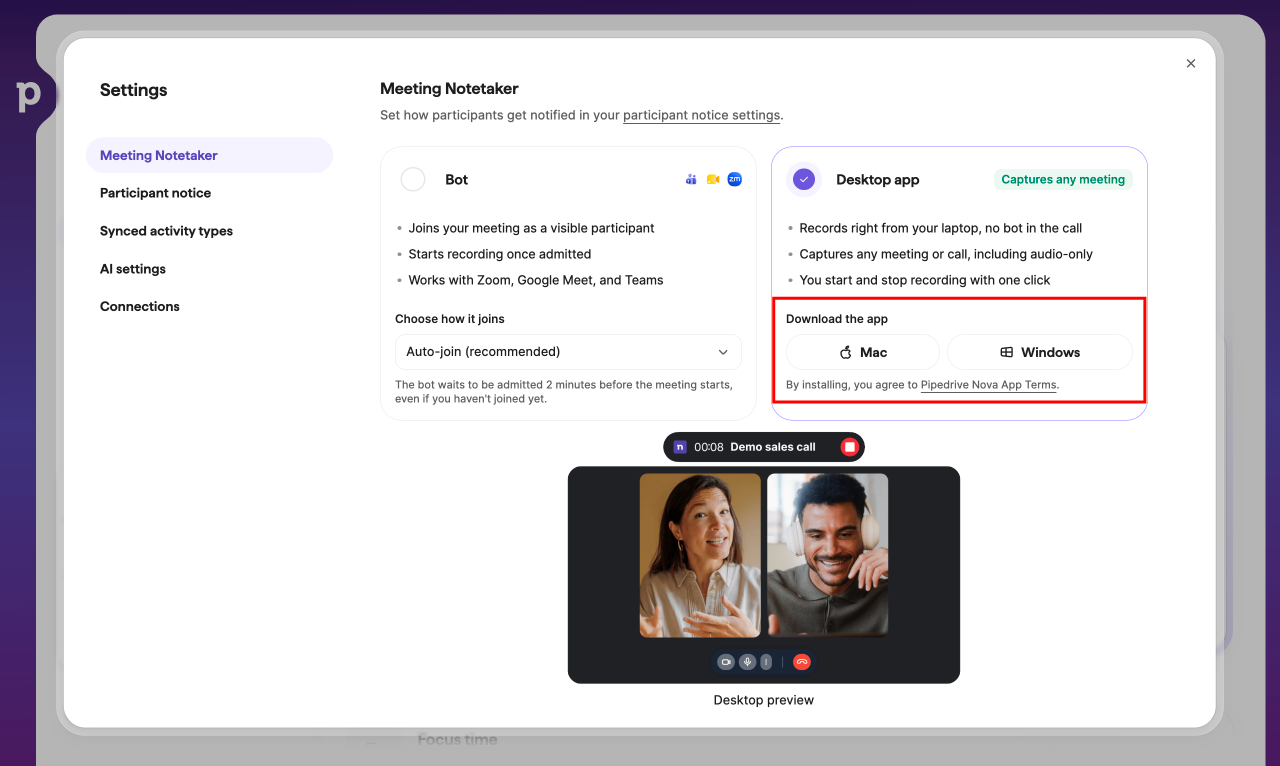
Then select Meeting Notetaker to see your options.
Installing it on macOS
- Go to the Nova Settings > Meeting Notetaker page and click the Mac button to download.
- Open the downloaded disk image (usually in your Downloads folder).
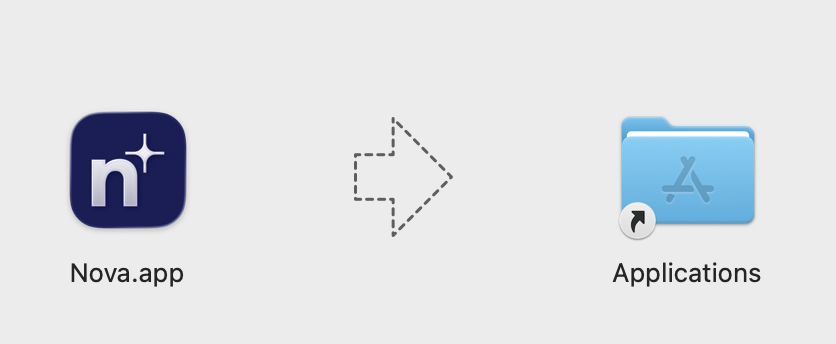
- Drag the Nova Companion app icon into your Applications folder.
Admin rights required: you’ll need administrator rights on your computer to complete the installation. If you don’t have them, contact your IT team before proceeding.
Security warning: macOS may show a warning such as “Nova Companion.app is an app downloaded from the internet. Are you sure you want to open it?” or it might also say it comes from an “unknown developer”. This is expected; just click “Open” to continue.
Installing it on Windows
Go to the Nova Settings > Meeting Notetaker page and click the Windows button to download.
Open the installer file (.exe) (usually in your Downloads folder).
The Nova installer should run automatically.
Admin rights required: you’ll need administrator rights on your computer to complete the installation. If you don’t have them, contact your IT team before proceeding.
Security warning: Windows may show a “Windows protected your PC” SmartScreen warning. This is expected; click “More info”, then “Run anyway” to continue.
Launching Nova Companion
You can launch the Nova Companion from your Applications folder (macOS) or Start menu (Windows).
Signing in
Click “Sign in with Pipedrive” to start the flow.
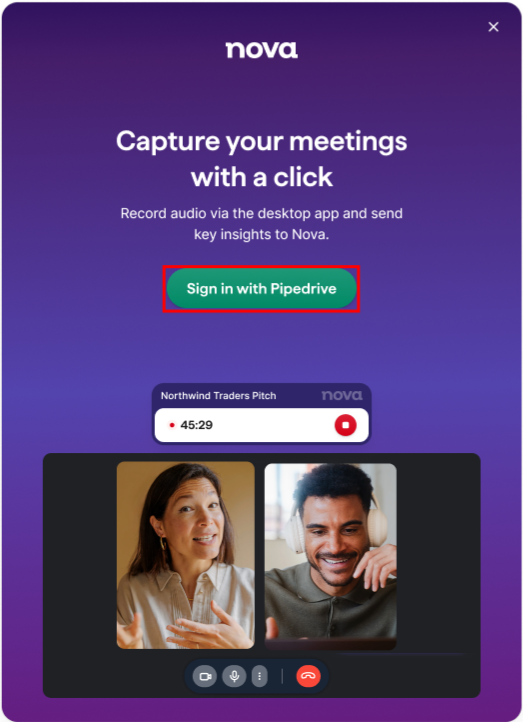
You‘ll be asked to enter your credentials in a browser window to authorize the connection.
Granting permissions
On macOS
The first time you launch Nova Companion on macOS, you’ll be prompted to grant the following permissions so it can capture and interact with your meetings:
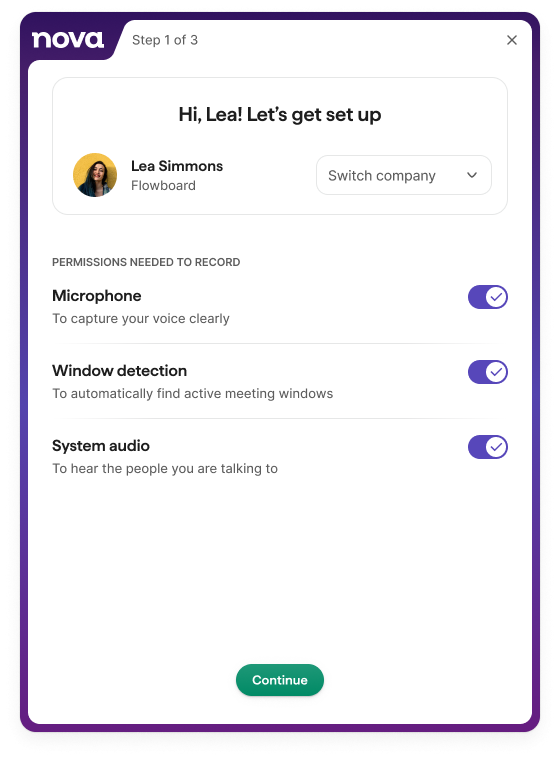
- Microphone: allows Nova to transcribe audio from your calls. Click “Allow” on the pop-up. To review or re-enable these permissions on your Mac, go to: System Settings > Privacy & Security > Microphone
- System Audio: allows Nova to capture the audio from your meeting (the other participants‘ voices) directly on your computer. Click “Allow” on the pop-up. To review or re-enable these permissions on your Mac, go to: System Settings > Privacy & Security > Screen & System Audio Recording
- Accessibility: allows Nova to detect and interact with your meeting window. Click “Allow” on the pop-up, or enable it manually if prompted. To review or re-enable these permissions on your Mac, go to: System Settings > Privacy & Security > Accessibility
On Windows
No manual permissions are currently required on Windows; Nova Companion should be ready to use right after installation.
Define how participants are notified of transcription
After granting permissions, you’ll be taken to the Participant notice screen in the Nova web app.
Nova gives you tools to keep meeting participants informed and in control of whether they’re being recorded, which helps you stay compliant with consent requirements in your region.
By default, Allow opt-out is selected, which sends participants an email notification 24 hours before the meeting.
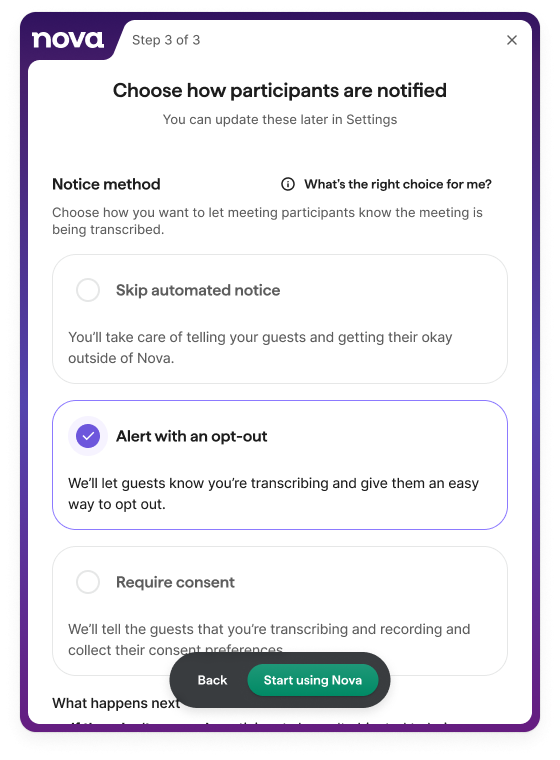
You can continue with the default selection or choose another option. The options are:
- No automatic alerts: You inform participants and collect consent outside of Nova.
- Alert with an opt-out: Nova emails participants before the meeting and gives them an easy way to opt out.
- Require consent: Nova notifies participants before the meeting and collects their consent or opt-out.
Regardless of the option you choose, you’re solely responsible for honoring meeting participants’ consent choices. If anyone opts out of transcription, you must stop Nova Companion from transcribing the call.
You can always change your participant notice settings later in the Nova web app, under Settings> Participant notice.
Learn more about participant notice options in the article Pipedrive Nova: Meetings.
Join and transcribe your first meeting
On the Nova Companion’s main screen, find your next meeting card.
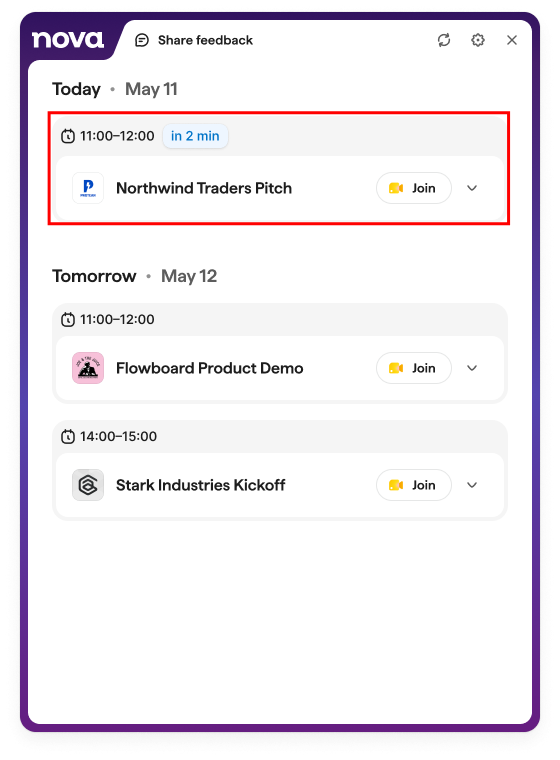
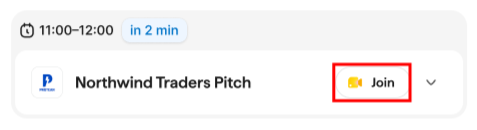
Click “Join” to start capturing the meeting.
A meeting companion bar appears, showing the meeting being captured and the elapsed time.
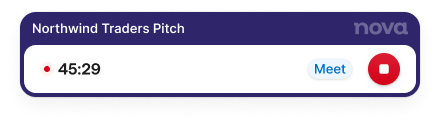
Click the stop button when the meeting ends to stop transcription. We recommend doing this manually once your meeting ends.
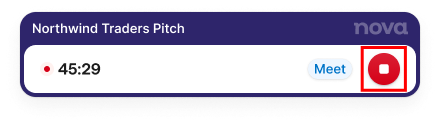
Nova will notify you if a meeting appears to be running long or if it stops detecting activity, but you should always end the recording manually to make sure it stops when you expect it to.
After the meeting, Nova delivers a full transcript, CRM updates and next actions in its respective meeting card in the Nova web app.
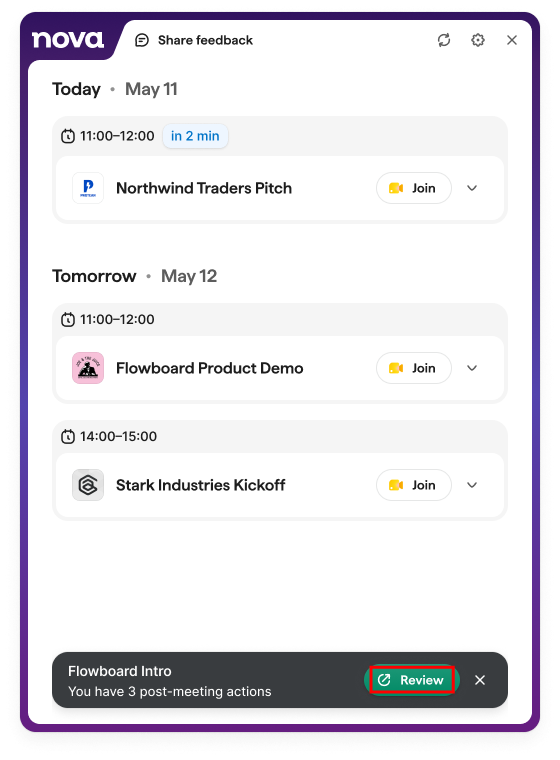
Click “Review” in the notification at the bottom of the Nova Companion to see the post-meeting actions.
Review post-meeting actions
After a recorded call, Nova creates a set of post-meeting actions from the transcript. These appear in Meetings > Post-meeting actions in the Nova web app.
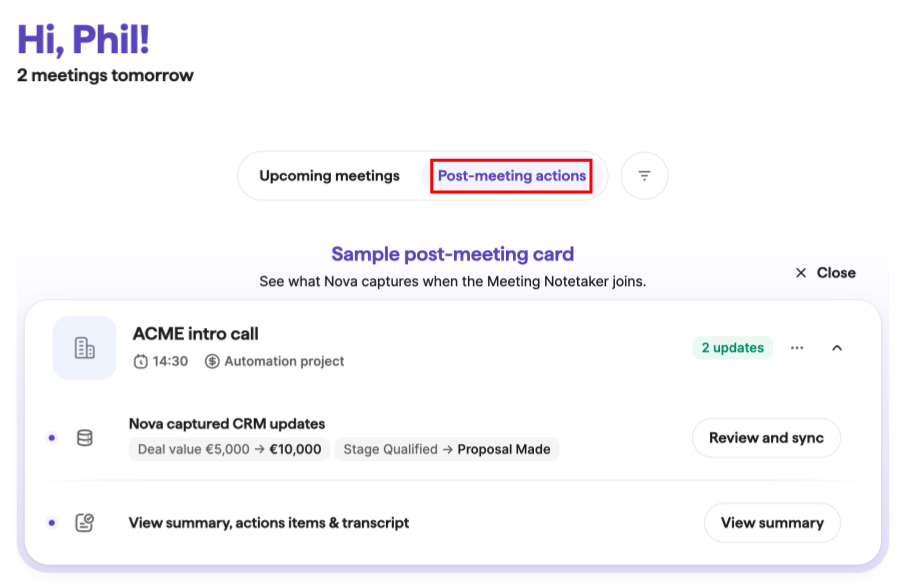
Post-meeting actions might include:
A meeting debrief with a summary, key takeaways and recommended next steps.
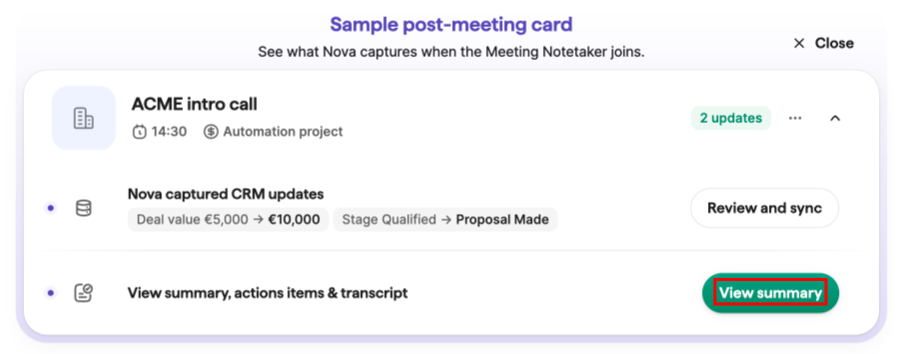
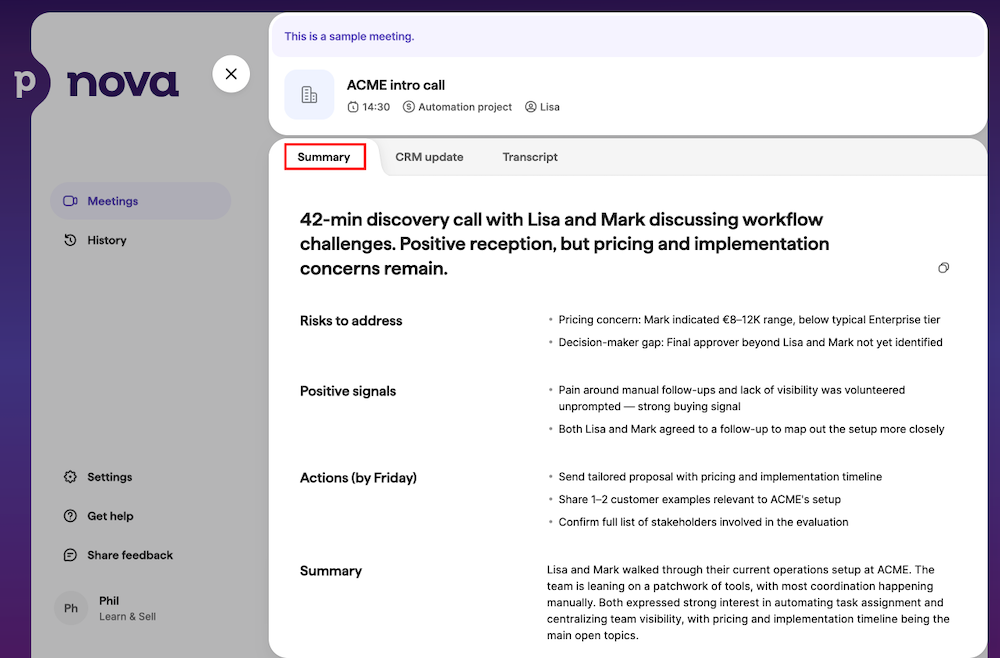
Expand them by clicking “View summary” and you‘ll see a recap with risks to address, positive signals, actions (by date) and an overview of what was discussed. Learn how to edit how the summary looks in the Pipedrive Nova: set up article
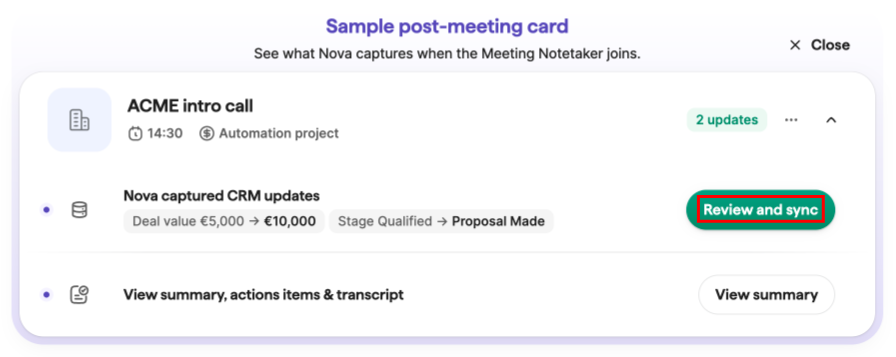
Suggested CRM data update suggestions you can see by clicking “Review and sync”.
Nova will identify what needs updating and add it to this list for you to review and implement the changes.
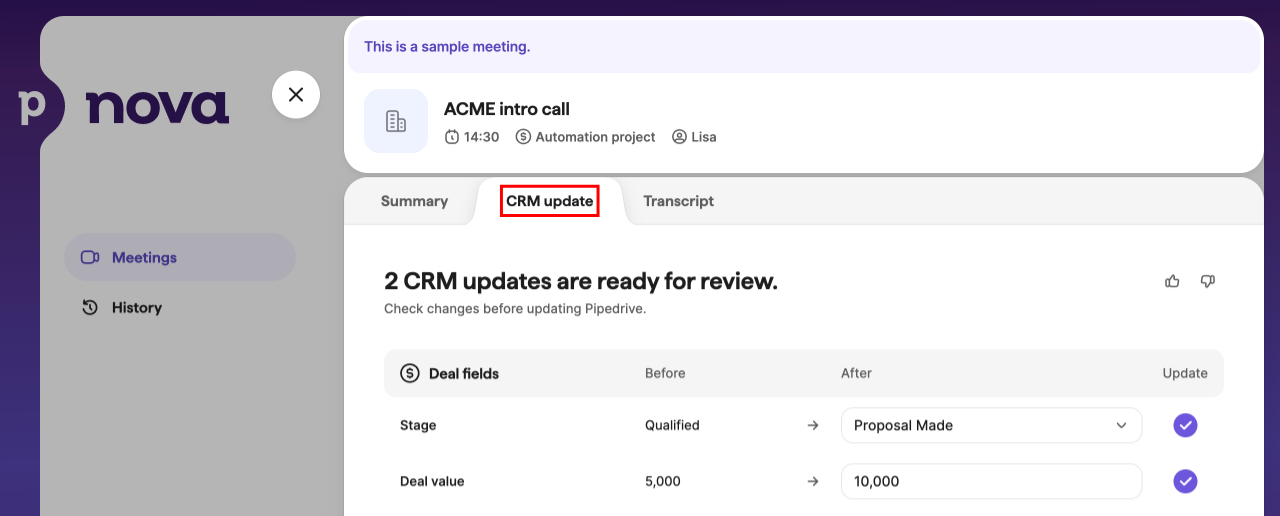
If you disagree, you can edit the fields directly in the After column. You can also choose which of the suggestions will update your CRM data in the Update column.
You can also see the meeting transcript under the Transcript tab, with time codes and speaker identification, though these may vary depending on your meeting environment.
You can learn more about Nova‘s post-meeting actions in the article Pipedrive Nova: Meetings.
Customize your Nova Companion settings
Click the gear icon in the top right of the app to open Nova Companion settings.
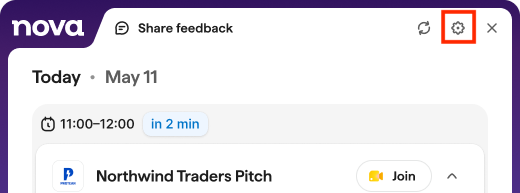
You can customize the following settings in the Nova Companion:
General
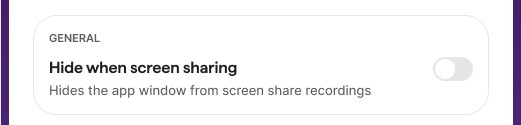
- Hide when screen sharing: hides the app window during screen shares (off by default)
Reminders
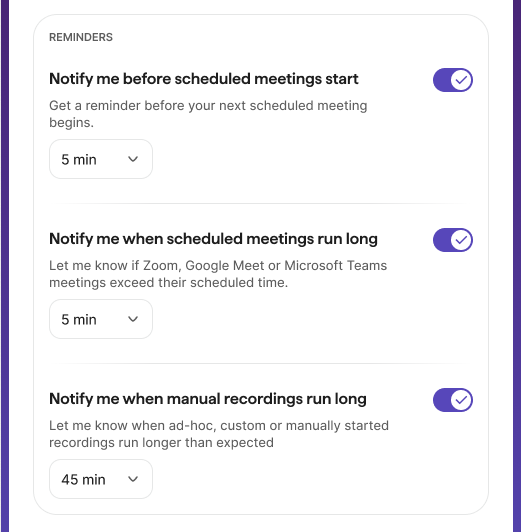
- Notify me before scheduled meetings start: reminder before your next meeting (default: 5 min)
- Notify me when scheduled meetings run long: alert when a Zoom, Google Meet or Teams meeting runs over (default: 5 min)
- Notify me when manual recordings run long: alert when an ad-hoc recording runs longer than expected (default: 45 min)
Meeting capture
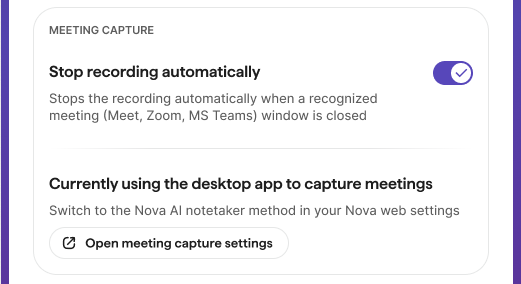
- Stop recording automatically: stops recording when a recognized meeting window closes. We also recommend clicking the stop button yourself once your meeting ends, so your recording stops exactly when you expect it to
- Shows your active capture method: click “Open meeting capture settings” to go to the Nova web app‘s settings, where you can switch to the AI Notetaker as your transcription method. Learn more about using the AI Notetaker in the Pipedrive Nova: meetings article
Updates
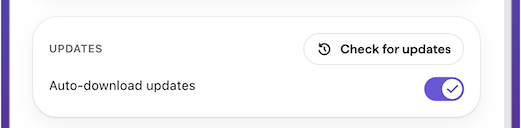
- Click “Check for updates” to check manually for updates to the Companion desktop app
- Leave Auto-download updates active if you want your app to be automatically updated
Account
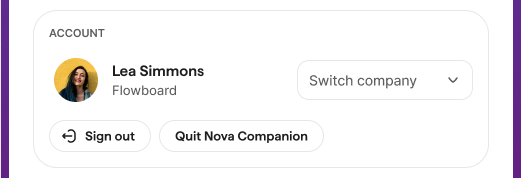
- Switch company: change to which Pipedrive account Nova Companion is connected
- “Sign out”: sign out without closing the app
- “Quit Nova Companion”: close the app completely
You’re all set
Nova Companion should now be installed, signed in, and ready to capture your meetings. Once you join your first meeting, Nova will automatically start building your post-meeting actions, no extra setup required.
Was this article helpful?
Yes
No